Introduction to This Section
In this section, we bring you a control in Android used to display web pages:WebView(Web View).
Currently, there are two directions in Android application-level development: client-side development and HTML5 mobile development!
The so-called HTML5 side is to use HTML5 + CSS + JS to build a web-based application, and the medium in between is this WebView. The Web and the web page side can interact through JS, for example, the web page can read the phone's contacts, call phone-related APIs, etc!
Moreover, compared with ordinary client-side development, HTML5 mobile has an advantage: it can use percentages for layout. Also, if there are major changes on the HTML5 side, we don't need to download a new APP and reinstall it as we would with the client side; we just need to modify the web page! As for the client side... it's unbearable. Of course, HTML5 also has disadvantages, such as performance issues, data accumulation, battery consumption, and screen flashing, etc...
In addition, for this kind of cross-platform development, we can use other third-party rapid development frameworks, such as PhoneGap. Also, there are many websites on the Internet now that generate apps with one click. Users can generate an app through simple operations like dragging, dropping, and setting images. Most of them are done with HTML5! There are templates, just use them directly, you know~ Alright, without further ado, let's start the content of this section!
1. What is WebView?
Answer: Android has a high-performance browser built on the WebKit kernel, and WebView is a control encapsulated on this basis. WebView literally translates to web view. We can simply regard it as a browser control that can be nested into an interface!
2. Related Methods
First, here is the official documentation:WebViewI don't intend to explain the attributes one by one; just mention the ones we use, and refer to the documentation for the others! Besides using WebView directly, we can also add our own behavior and customize the following classes:
WebChromeClient: Assists WebView in handling Javascript dialogs, website icons, website title, loading progress, etc! For example, the following:
| Method | Description |
|---|---|
| onJsAlert(WebView view,String url,String message,JsResult result) | Handles the Alert dialog in JS |
| onJsConfirm(WebView view,String url,String message,JsResult result) | Handles the Confirm dialog in JS |
| onJsPrompt(WebView view,String url,String message,String defaultValue,JsPromptResult result) | Handles the Prompt dialog in JS |
| onProgressChanged(WebView view,int newProgress) | Called when the loading progress bar changes |
| onReceivedIcon(WebView view, Bitmap icon) | Gets the web page's icon |
| onReceivedTitle(WebView view, String title) | Gets the web page's title |
WebViewClient: Assists WebView in handling various notification and request events! For example, the following methods:
| Method | Description |
|---|---|
| onPageStared(WebView view,String url) | Notifies the main program that the web page is starting to load |
| onPageFinished(WebView view,String url,Bitmap favicon) | Notifies the main program that the web page has finished loading |
| doUpdateVisitedHistory(WebView view,String url,boolean isReload) | Updates the history record |
| onLoadResource(WebView view,String url) | Notifies the main program that WebView is about to load the resource of the specified URL |
| onScaleChanged(WebView view,float oldScale,float newScale) | Called when the zoom of WebView changes |
| shouldOverrideKeyEvent(WebView view,KeyEvent event) | Controls whether the WebView handles key events. If it returns true, WebView does not handle them; if it returns false, it handles them. |
| shouldOverrideUrlLoading(WebView view,String url) | Controls the handling of newly loaded URLs. If it returns true, it means the main program handles it and WebView does not; if it returns false, WebView will handle it. |
| onReceivedError(WebView view,int errorCode,String description,String failingUrl) | Called when an unrecoverable error is encountered |
WebSettings: Settings for WebView-related configuration, such as setJavaScriptEnabled() to set whether JS scripts are allowed to execute. Some methods are as follows:
| Method | Description |
|---|---|
| getSettings() | Returns a WebSettings object to control the WebView's property settings. |
| loadUrl(String url) | Loads the specified URL |
| loadData(String data,String mimeType,String encoding) | Loads the specified Data into WebView. Uses "data:" as the marker header. This method cannot load network data. Here, mimeType is the data type, such as text/html, image/jpeg. encoding is the character encoding method. |
| loadDataWithBaseURL(String baseUrl, String data, String mimeType, String encoding, String historyUrl) | More powerful than the loadData above |
| setWebViewClient(WebViewClient client) | Specifies a WebViewClient object for WebView. WebViewClient can assist WebView in handling various notifications, requests, and other events. |
| setWebChromeClient(WebChromeClient client) | Specifies a WebChromeClient object for WebView. WebChromeClient is specially used to assist WebView in handling JS dialogs, website title, website icon, loading progress bar, etc. |
Here we must distinguish the differences among the three load methods:
loadUrlloadUrl(): Directly displays web page content (such as displaying a network image alone), and generally no garbled text occurs.loadDataloadData(data, "text/html", "UTF-8"): Used to load data in URI format. It cannot load content from the network, cannot load images, and often has garbled text problems. We know that String-type data is mainly Unicode-encoded, while WebView generally uses UTF-8 encoding to save resources. Even if we write the above, we still need to set for WebView: webview.getSettings().setDefaultTextEncodingName("UTF-8");loadDataWithBaseURLloadDataWithBaseURL(baseUrl, string, "text/html", "utf-8", null): An enhanced version of loadData. It can load images. baseUrl is the path where you store images, and just setting utf-8 here can solve the garbled text problem!
Here only some attributes are listed. For the others, you need to consult the official documentation:
3. Explanation of Some Common Requirements
Requirement 1: Load a web page based on URL
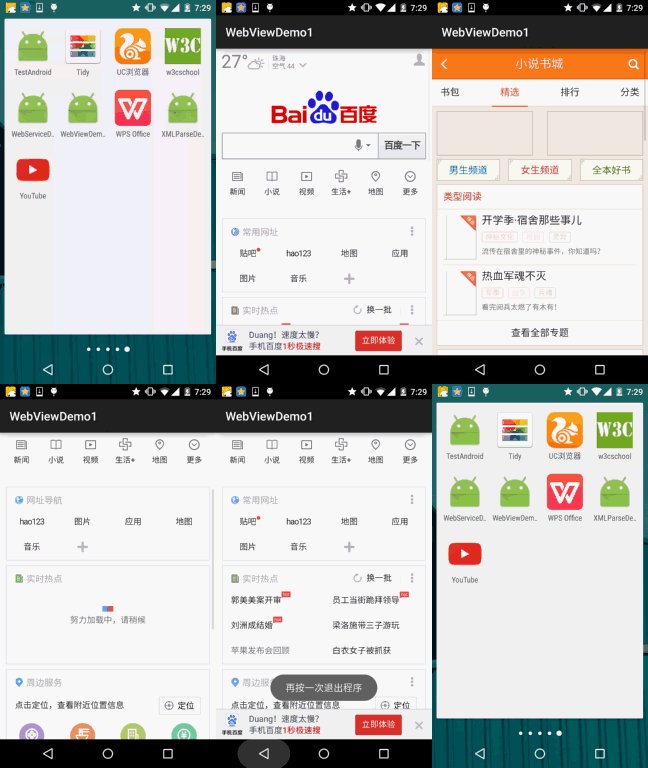
1) Load a WebView directly on an Activity
Running effect screenshot:
Implementation code:
public class MainActivity extends AppCompatActivity {

    private WebView webView;
    private long exitTime = 0;

    @Override
    protected void onCreate(Bundle savedInstanceState) {
        super.onCreate(savedInstanceState);
        setContentView(R.layout.activity_main);
        webView = new WebView(this);
        webView.setWebViewClient(new WebViewClient() {
            //设置在webView点击打开的新网页在当前界面显示,而不跳转到新的浏览器中
            @Override
            public boolean shouldOverrideUrlLoading(WebView view, String url) {
                view.loadUrl(url);
                return true;
            }
        });
        webView.getSettings().setJavaScriptEnabled(true);  //设置WebView属性,运行执行js脚本
        webView.loadUrl("http://www.baidu.com/");          //调用loadUrl方法为WebView加入链接
        setContentView(webView);                           //调用Activity提供的setContentView将webView显示出来
    }


    //我们需要重写回退按钮的时间,当用户点击回退按钮:
    //1.webView.canGoBack()判断网页是否能后退,可以则goback()
    //2.如果不可以连续点击两次退出App,否则弹出提示Toast
    @Override
    public void onBackPressed() {
        if (webView.canGoBack()) {
            webView.goBack();
        } else {
            if ((System.currentTimeMillis() - exitTime) > 2000) {
                Toast.makeText(getApplicationContext(), "再按一次退出程序",
                        Toast.LENGTH_SHORT).show();
                exitTime = System.currentTimeMillis();
            } else {
                super.onBackPressed();
            }

        }
    }
}
2) Set WebView in layout code
I believe everyone has seen many news apps or portal information apps. Their structure might be like this:
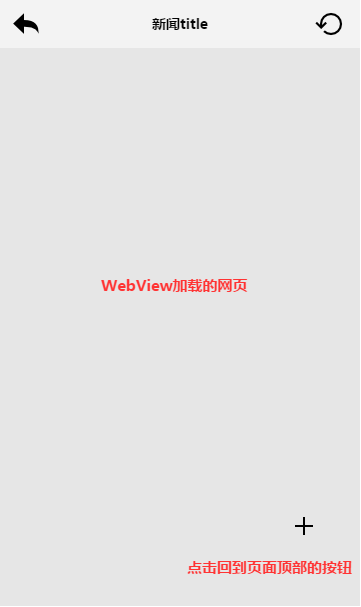
In the upper left corner there is a button to close the current Activity when clicked, in the middle is the news title, on the right is a refresh button, and in the lower right corner there may be a floating button like this. When we scroll beyond the screen width, it will appear. When the user clicks it, it will scroll back to the top of the web page! Let's implement it briefly below!
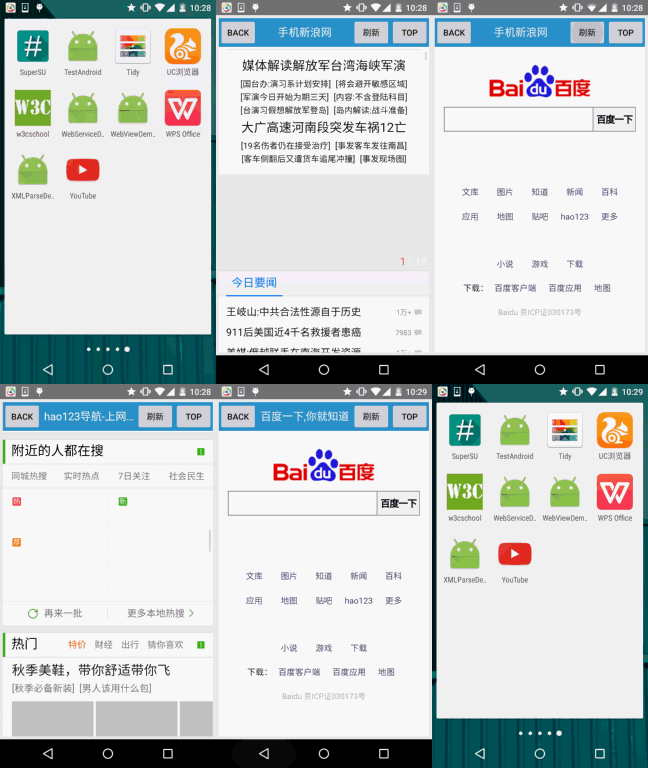
Running effect screenshot:
Implementation code:
MainActivity.java:
public class MainActivity extends AppCompatActivity implements View.OnClickListener {


    private Button btn_back;
    private TextView txt_title;
    private Button btn_top;
    private Button btn_refresh;
    private WebView wView;
    private long exitTime = 0;

    @Override
    protected void onCreate(Bundle savedInstanceState) {
        super.onCreate(savedInstanceState);
        setContentView(R.layout.activity_main);
        bindViews();
    }


    private void bindViews() {
        btn_back = (Button) findViewById(R.id.btn_back);
        txt_title = (TextView) findViewById(R.id.txt_title);
        btn_top = (Button) findViewById(R.id.btn_top);
        btn_refresh = (Button) findViewById(R.id.btn_refresh);
        wView = (WebView) findViewById(R.id.wView);

        btn_back.setOnClickListener(this);
        btn_refresh.setOnClickListener(this);
        btn_top.setOnClickListener(this);

        wView.loadUrl("http://www.baidu.com");
        wView.setWebChromeClient(new WebChromeClient() {
            //这里设置获取到的网站title
            @Override
            public void onReceivedTitle(WebView view, String title) {
                super.onReceivedTitle(view, title);
                txt_title.setText(title);
            }
        });


        wView.setWebViewClient(new WebViewClient() {
            //在webview里打开新链接
            @Override
            public boolean shouldOverrideUrlLoading(WebView view, String url) {
                view.loadUrl(url);
                return true;
            }
        });
    }

    @Override
    public void onClick(View v) {
        switch (v.getId()) {
            case R.id.btn_back:
                finish();          //关闭当前Activity
                break;
            case R.id.btn_refresh:
                wView.reload();    //刷新当前页面
                break;
            case R.id.btn_top:
                wView.setScrollY(0);   //滚动到顶部
                break;
        }
    }

    @Override
    public void onBackPressed() {
        if (wView.canGoBack()) {
            wView.goBack();
        } else {
            if ((System.currentTimeMillis() - exitTime) > 2000) {
                Toast.makeText(getApplicationContext(), "再按一次退出程序",
                        Toast.LENGTH_SHORT).show();
                exitTime = System.currentTimeMillis();
            } else {
                finish();
            }

        }
    }
}
Q&A:
I believe careful friends have noticed that after we return to the initially loaded page, pressing the back key multiple times still doesn't exit the current APP. In the end, we had to manually click the back key and call the finish method to close the current Activity? Why is that? Clearly Baidu is already the first page?
Answer: Actually, the reason for this is URL redirection. In fact, when we visit Baidu:
Even though we load www.baidu.com, Baidu performs a redirect to the mobile version of the Baidu search web page: that is, your actual flow is: www.baidu.com -> Mobile Baidu Search -> open other links!
We see that the shouldOverrideUrlLoading() method we wrote above is like this:
view.loadUrl(url);return true;We know that when the user presses the back key once, WebView will call the goBack() method once. Let's designate the three sites above as A, B, and C. Pressing back at C, C -> B is no problem. Then pressing B -> A again, at this point the problem comes: although B went to A, because of the redirection it jumps back to B, and so on repeatedly... This is why pressing the back key does not exit WebView. The solution: hand speed. Quickly double-press the back key before the WebView finishes loading the page. Your hand speed must be fast enough, haha! Just kidding. To solve this problem, we just need to delete the stuff inside shouldOverrideUrlLoading and writereturn false; that's it!
Requirement 2: Listening to WebView scroll events
We all know that listening for scroll events usually involves setting setOnScrollChangedListener. Unfortunately, WebView does not provide us with such a method. However, we can override WebView and override one of its methods: protected void onScrollChanged(final int l, final int t, final int oldl,final int oldt){} Then provide an external interface. Example code is as follows:
MyWebViewDemo.java:
/**
 * Created by Jay on 2015/9/11 0011.
 */
public class MyWebView extends WebView {

    private OnScrollChangedCallback mOnScrollChangedCallback;

    public MyWebView(Context context) {
        super(context);
    }

    public MyWebView(Context context, AttributeSet attrs) {
        super(context, attrs);
    }

    public MyWebView(Context context, AttributeSet attrs, int defStyleAttr) {
        super(context, attrs, defStyleAttr);
    }

    @Override
    protected void onScrollChanged(int l, int t, int oldl, int oldt) {
        super.onScrollChanged(l, t, oldl, oldt);
        if (mOnScrollChangedCallback != null) {
            mOnScrollChangedCallback.onScroll(l - oldl, t - oldt);
        }
    }

    public OnScrollChangedCallback getOnScrollChangedCallback() {
        return mOnScrollChangedCallback;
    }

    public void setOnScrollChangedCallback(
            final OnScrollChangedCallback onScrollChangedCallback) {
        mOnScrollChangedCallback = onScrollChangedCallback;
    }

    public static interface OnScrollChangedCallback {
        //这里的dx和dy代表的是x轴和y轴上的偏移量,你也可以自己把l, t, oldl, oldt四个参数暴露出来
        public void onScroll(int dx, int dy);
    }

}
MainActivity.java:
public class MainActivity extends AppCompatActivity {

    private MyWebView wView;
    private Button btn_icon;
    private long exitTime = 0;

    @Override
    protected void onCreate(Bundle savedInstanceState) {
        super.onCreate(savedInstanceState);
        setContentView(R.layout.activity_main);
        btn_icon = (Button) findViewById(R.id.btn_icon);
        wView = (MyWebView) findViewById(R.id.wView);
        wView.loadUrl("http://www.hao123.com");
        wView.setWebViewClient(new WebViewClient() {
            //在webview里打开新链接
            @Override
            public boolean shouldOverrideUrlLoading(WebView view, String url) {
                view.loadUrl(url);
                return true;
            }
        });

        //比如这里做一个简单的判断,当页面发生滚动,显示那个Button
        wView.setOnScrollChangedCallback(new MyWebView.OnScrollChangedCallback() {
            @Override
            public void onScroll(int dx, int dy) {
                if (dy > 0) {
                    btn_icon.setVisibility(View.VISIBLE);
                } else {
                    btn_icon.setVisibility(View.GONE);
                }
            }
        });

        btn_icon.setOnClickListener(new View.OnClickListener() {
            @Override
            public void onClick(View v) {
                wView.setScrollY(0);
                btn_icon.setVisibility(View.GONE);
            }
        });

    }

    @Override
    public void onBackPressed() {
        if (wView.canGoBack()) {
            wView.goBack();
        } else {
            if ((System.currentTimeMillis() - exitTime) > 2000) {
                Toast.makeText(getApplicationContext(), "再按一次退出程序",
                        Toast.LENGTH_SHORT).show();
                exitTime = System.currentTimeMillis();
            } else {
                finish();
            }

        }
    }
}
Effect screenshot:
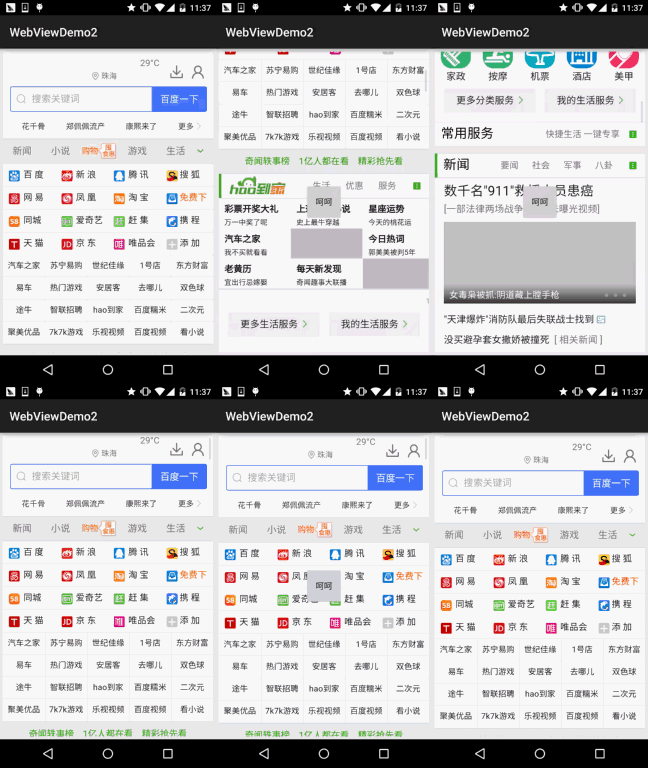
When the webpage starts scrolling, a "hehe" button appears. Clicking the "hehe" button returns to the top! Then the "hehe" button hides~
Requirement 3: Scroll bar problems
The attributes you might use are as follows:
- setHorizontalScrollBarEnabled(false); // Hide the horizontal scroll bar
- setVerticalScrollBarEnabled(false); // Hide the vertical scroll bar
- setScrollBarStyle(View.SCROLLBARS_OUTSIDE_OVERLAY);// Scroll bar is displayed on the inside of the WebView
- setScrollBarStyle(View.SCROLLBARS_INSIDE_OVERLAY)// Scroll bar is displayed on the outside of the WebView
Requirement 4: Set zoom and adapt to the screen
According to our usual habit, when opening a webpage, for places that are not clear, we like to zoom the webpage with two fingers. But WebView requires us to manually set whether zooming is supported!
Just add the following code:
WebSettings settings = wView.getSettings();
settings.setUseWideViewPort(true);//设定支持viewport
settings.setLoadWithOverviewMode(true);   //自适应屏幕
settings.setBuiltInZoomControls(true);
settings.setDisplayZoomControls(false);
settings.setSupportZoom(true);//设定支持缩放
After using the above code, entering the page will have this effect:
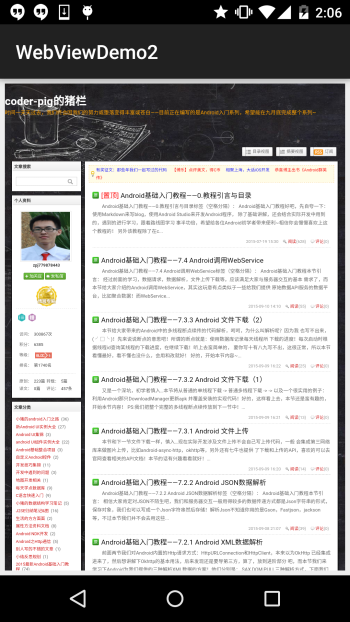
When we zoom, an annoying problem appears: the very common zoom controls. We definitely don't want them, so add the following code to hide the zoom controls!
settings.setDisplayZoomControls(false);
We can also set the initial zoom scale ourselves, just set for the webView:
wView.setInitialScale(25);//为25%,最小缩放等级
Well, the above zooms the entire webpage. However, sometimes we only need to zoom the font. Then we can do it like this:
settings.setTextZoom(int);
You can also directly use:
settings.setTextSize(TextSize.LARGER);
to set the size.
Android has five built-in selectable font size values: SMALLEST(50%), SMALLER(75%), NORMAL(100%), LARGER(150%), LARGEST(200%).
Requirement 5: Get WebView's Cookie data
We all know that a Cookie is actually just a string representing the user's unique identifier. The typical scenario is: after entering the account and password, the user clicks login, and the user needs to carry this Cookie to access the related services provided by the server! We can write the cookie retrieval in the onPageFinsihed method. A simple way is to write it like this:
@Override
public void onPageFinished(WebView view, String url) {
    CookieManager cookieManager = CookieManager.getInstance();
    String CookieStr = cookieManager.getCookie(url);
    Log.e("HEHE", "Cookies = " + CookieStr);
    super.onPageFinished(view, url);
}
Requirement 6: Set WebView's Cookie data
Well, we retrieved the Cookie above or obtained a Cookie through other means. How do we set the Cookie for WebView? We can add the following code where we need to set the Cookie:
CookieSyncManager.createInstance(MainActivity.this);
CookieManager cookieManager = CookieManager.getInstance();
cookieManager.setAcceptCookie(true);
cookieManager.setCookie(url, cookies);  //cookies是要设置的cookie字符串
CookieSyncManager.getInstance().sync();
By the way, the above code needs to be written before loadUrl(). Also, if you have set the Cookie, try not to make other settings, otherwise it may become invalid. It is recommended to write the Cookie setting at the very end of the WebView-related settings, before loadUrl()!
4. Example code download:
WebViewDemo1:Download WebViewDemo1.zip
WebViewDemo2:Download WebViewDemo2.zip
Summary of this section:
Alright, in this section we introduced the basic usage of WebView: loading webpages, setting zoom, font scaling, adaptive screen, as well as retrieving and setting Cookies. I believe there are all kinds of bizarre requirements in daily development, but due to space limitations, that's all for now. If you have ideas, feel free to leave a comment. In the next section, we will learn how the HTML5 side interacts with WebView through JavaScript and obtains related data from the phone! Stay tuned~ Thanks~