Introduction to this section:
As the title suggests, this section brings youTouchListenerandOnTouchEventa comparison, as well as the knowledge points of multi-touch! TouchListener is based on listening, while OnTouchEvent is based on callbacks! Below, we'll use two simple examples to deepen everyone's understanding!
1. Listener-based TouchListener
Code example:
Implementation effect diagram:
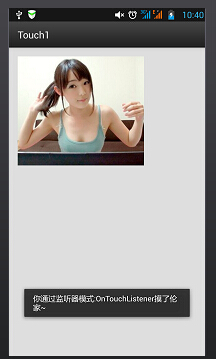
Implementation code: main.xml
<RelativeLayout xmlns:android="http://schemas.android.com/apk/res/android"
    xmlns:tools="http://schemas.android.com/tools"
    android:layout_width="match_parent"
    android:layout_height="match_parent"
    android:paddingLeft="@dimen/activity_horizontal_margin"
    android:paddingRight="@dimen/activity_horizontal_margin"
    android:paddingTop="@dimen/activity_vertical_margin"
    android:paddingBottom="@dimen/activity_vertical_margin"
    tools:context=".MyActivity">

    <ImageView
        android:layout_width="wrap_content"
        android:layout_height="wrap_content"
        android:id="@+id/imgtouch"
        android:background="@drawable/touch"/>
</RelativeLayout>
MainAcitivity.java
public class MyActivity extends ActionBarActivity {

    private ImageView imgtouch;

    @Override
    protected void onCreate(Bundle savedInstanceState) {
        super.onCreate(savedInstanceState);
        setContentView(R.layout.activity_my);

        imgtouch = (ImageView)findViewById(R.id.imgtouch);
        imgtouch.setOnTouchListener(new View.OnTouchListener() {
            @Override
            public boolean onTouch(View v, MotionEvent event) {
                Toast.makeText(getApplicationContext(),"你通过监听器模式:OnTouchListener摸了伦家~",Toast.LENGTH_LONG).show();
                return true;
            }
        });
    }
}
Code analysis:
Simply set up an ImageView, then call setOnTouchListener and override the onTouch method! It's very simple. In fact, there was already an example of this in the FrameLayout section. Remember the cute girl that moves with your finger?
OnTouchListener related methods and properties:
onTouch(View v, MotionEvent event): The parameters here are respectively the component that triggered the touch event, and the touch event `event` which encapsulates the detailed information of the triggering event, including the event type, trigger time, and other information. For example, event.getX(), event.getY().
We can also determine the type of touch action by using event.getAction() to judge; for example:
event.getAction == MotionEvent.ACTION_DOWN: Press event (ACTION_DOWN)
event.getAction == MotionEvent.ACTION_MOVE: Move event (ACTION_MOVE)
event.getAction == MotionEvent.ACTION_UP: Up event (ACTION_UP)
2. Callback-based onTouchEvent() method
It's also a touch event, but onTouchEvent is more often used in custom views. All view classes override this method, and this touch event is callback-based. That is, if we return false, the event will continue to propagate outward and be handled by the outer container or Activity! Of course, it also involves gestures (Gesture), which we will explain in detail later! onTouchEvent is actually similar to onTouchListener, except the handling mechanism is different: the former is callback-based, while the latter is listener-based!
Code example:Define a simple view that draws a small blue circle that can follow the finger to move
Implementation code: MyView.java
public class MyView extends View{
    public float X = 50;
    public float Y = 50;

    //创建画笔
    Paint paint = new Paint();

    public MyView(Context context,AttributeSet set)
    {
        super(context,set);
    }

    @Override
    public void onDraw(Canvas canvas) {
        super.onDraw(canvas);
        paint.setColor(Color.BLUE);
        canvas.drawCircle(X,Y,30,paint);
    }

    @Override
    public boolean onTouchEvent(MotionEvent event) {
        this.X = event.getX();
        this.Y = event.getY();
        //通知组件进行重绘
        this.invalidate();
        return true;
    }
}
main.xml:
<RelativeLayout xmlns:android="http://schemas.android.com/apk/res/android"
    xmlns:tools="http://schemas.android.com/tools"
    android:layout_width="match_parent"
    android:layout_height="match_parent"
    tools:context=".MyActivity">
    <example.jay.com.touch2.MyView
        android:layout_width="wrap_content"
        android:layout_height="wrap_content" />
</RelativeLayout>
Implementation effect diagram:
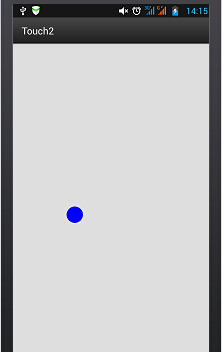 Touch with your finger to move~
3. Multi-touch
The principle behind it:
The so-called multi-touch means operating the screen with multiple fingers. The most common use is probably the zoom in/out function. For example, many image viewers support zooming! In theory, the Android system itself can handle touch from up to 256 fingers, of course this depends on the phone hardware support; however, phones that support multi-touch generally support 2-4 points, though some support more! We noticed that both previous points used MotionEvent. MotionEvent represents a touch event; we can useevent.getAction() & MotionEvent.ACTION_MASKto determine which operation it is. In addition to the three single-point operations mentioned above, there are two multi-point specific operations:
- MotionEvent.ACTION_POINTER_DOWN: Triggered when a point is already pressed on the screen and another point is pressed at this time. (ACTION_POINTER_DOWN)
- MotionEvent.ACTION_POINTER_UP: Triggered when multiple points are pressed on the screen and one of them is released (i.e., when a point other than the last one is released). (ACTION_POINTER_UP)
The simple flow is roughly like this:
- When one finger touches the screen ——> triggers the ACTION_DOWN event
- Then another finger also touches the screen ——> triggers the ACTION_POINTER_DOWN event. If there are other fingers touching, it continues to trigger
- A finger leaves the screen ——> triggers the ACTION_POINTER_UP event. If more fingers continue to leave, it triggers again
- When the last finger leaves the screen ——> triggers the ACTION_UP event
- Moreover, during the whole process, the ACTION_MOVE event will be triggered continuously
We can use event.getX(int) or event.getY(int) to obtain the positions of different touch points: For example, event.getX(0) gets the X coordinate of the first touch point, event.getX(1) gets the X coordinate of the second touch point, and so on... In addition, we can also call the MotionEvent object'sgetPointerCount()method to determine how many fingers are currently touching~
Code example:
Alright, let's write the most common example: single-finger dragging an image, and two-finger zooming an image:
Implementation effect diagram:

Implementation code:
<?xml version="1.0" encoding="utf-8"?>
<RelativeLayout xmlns:android="http://schemas.android.com/apk/res/android"
    android:layout_width="match_parent"
    android:layout_height="match_parent" >

    <ImageView
        android:id="@+id/img_test"
        android:layout_width="match_parent"
        android:layout_height="match_parent"
        android:scaleType="matrix"
        android:src="@drawable/pic1.html" />

</RelativeLayout>
MainActivity.java
package com.jay.example.edittextdemo;

import android.app.Activity;
import android.graphics.Matrix;
import android.graphics.PointF;
import android.os.Bundle;
import android.util.FloatMath;
import android.view.MotionEvent;
import android.view.View;
import android.view.View.OnTouchListener;
import android.widget.ImageView;

public class MainActivity extends Activity implements OnTouchListener {

    private ImageView img_test;

    // 縮放控制
    private Matrix matrix = new Matrix();
    private Matrix savedMatrix = new Matrix();

    // 不同状态的表示:
    private static final int NONE = 0;
    private static final int DRAG = 1;
    private static final int ZOOM = 2;
    private int mode = NONE;

    // 定义第一个按下的点,两只接触点的重点,以及出事的两指按下的距离:
    private PointF startPoint = new PointF();
    private PointF midPoint = new PointF();
    private float oriDis = 1f;

    /*
     * (non-Javadoc)
     *
     * @see android.app.Activity#onCreate(android.os.Bundle)
     */
    @Override
    protected void onCreate(Bundle savedInstanceState) {
        super.onCreate(savedInstanceState);
        setContentView(R.layout.activity_main);
        img_test = (ImageView) this.findViewById(R.id.img_test);
        img_test.setOnTouchListener(this);
    }

    @Override
    public boolean onTouch(View v, MotionEvent event) {
        ImageView view = (ImageView) v;
        switch (event.getAction() & MotionEvent.ACTION_MASK) {
        // 单指
        case MotionEvent.ACTION_DOWN:
            matrix.set(view.getImageMatrix());
            savedMatrix.set(matrix);
            startPoint.set(event.getX(), event.getY());
            mode = DRAG;
            break;
        // 双指
        case MotionEvent.ACTION_POINTER_DOWN:
            oriDis = distance(event);
            if (oriDis > 10f) {
                savedMatrix.set(matrix);
                midPoint = middle(event);
                mode = ZOOM;
            }
            break;
        // 手指放开
        case MotionEvent.ACTION_UP:
        case MotionEvent.ACTION_POINTER_UP:
            mode = NONE;
            break;
        // 单指滑动事件
        case MotionEvent.ACTION_MOVE:
            if (mode == DRAG) {
                // 是一个手指拖动
                matrix.set(savedMatrix);
                matrix.postTranslate(event.getX() - startPoint.x, event.getY() - startPoint.y);
            } else if (mode == ZOOM) {
                // 两个手指滑动
                float newDist = distance(event);
                if (newDist > 10f) {
                    matrix.set(savedMatrix);
                    float scale = newDist / oriDis;
                    matrix.postScale(scale, scale, midPoint.x, midPoint.y);
                }
            }
            break;
        }
        // 设置ImageView的Matrix
        view.setImageMatrix(matrix);
        return true;
    }

    // 计算两个触摸点之间的距离
    private float distance(MotionEvent event) {
        float x = event.getX(0) - event.getX(1);
        float y = event.getY(0) - event.getY(1);
        return FloatMath.sqrt(x * x + y * y);
    }

    // 计算两个触摸点的中点
    private PointF middle(MotionEvent event) {
        float x = event.getX(0) + event.getX(1);
        float y = event.getY(0) + event.getY(1);
        return new PointF(x / 2, y / 2);
    }

}
Summary of this section:
Alright,Regarding TouchListenerand OnTouchEventas well as multi-touch, that's all for now~