Introduction to this section:
When it comes to the term GPS, I believe everyone is familiar with it. GPS is global positioning technology. Well, there are generally four ways of positioning in Android: GPS positioning, Wi-Fi positioning, cell tower positioning, and AGPS positioning (cell tower + GPS).
This series of tutorials only covers the basic use of GPS positioning! GPS interacts with satellites to obtain the current latitude and longitude of the device. It is relatively accurate, but it also has some disadvantages. The biggest one is:It is almost unusable indoors...you need to receive signals from 4 or more satellites to ensure accurate GPS positioning! However, if you are outdoors and have no network, GPS can still be used!
In this section, we will discuss the basic usage of GPS in Android~
1. Some APIs related to positioning
1)LocationManager
Official API documentation:LocationManager
This thing is a system service, so you cannot directly create it with "new". You need to:
LocationManager lm = (LocationManager)getSystemService(Context.LOCATION_SERVICE);
In addition, don't forget to add the permission for using GPS positioning:
<uses-permission android:name="android.permission.ACCESS_FINE_LOCATION"/>
Alright, after obtaining the LocationManager object, we can call the following commonly used methods:
- addGpsStatusListener(GpsStatus.Listener listener): Add a GPS status listener
- addProximityAlert(double latitude, double longitude, float radius, long expiration, PendingIntent intent): Add a proximity alert
- getAllProviders(): Get a list of all LocationProviders
- getBestProvider(Criteria criteria, boolean enabledOnly): Return the best LocationProvider based on the specified criteria
- getGpsStatus(GpsStatus status): Get the GPS status
- getLastKnownLocation(String provider): Get the last known Location based on the LocationProvider
- getProvider(String name): Get a LocationProvider by name
- getProviders(boolean enabledOnly): Get all enabled LocationProviders
- getProviders(Criteria criteria, boolean enabledOnly): Get all LocationProviders that meet the specified criteria
- isProviderEnabled(String provider): Determine whether the LocationProvider with the specified name is available
- removeGpsStatusListener(GpsStatus.Listener listener): Remove a GPS status listener
- removeProximityAlert(PendingIntent intent): Remove a proximity alert
- requestLocationUpdates(long minTime, float minDistance, Criteria criteria, PendingIntent intent): Periodically obtain positioning information through the specified LocationProvider, and start the corresponding component via Intent
- requestLocationUpdates(String provider, long minTime, float minDistance, LocationListener listener): Periodically obtain positioning information through the specified LocationProvider, and trigger the callbacks corresponding to the listener
2) LocationProvider (Positioning Provider)
Official API documentation:LocationProvider
This is an abstract representation of the GPS positioning component. You can call the following methods to obtain related information about this positioning component!
Commonly used methods are as follows:
- getAccuracy(): Return the accuracy of the LocationProvider
- getName(): Return the name of the LocationProvider
- getPowerRequirement(): Get the power requirements of the LocationProvider
- hasMonetaryCost(): Return whether the LocationProvider is paid or free
- meetsCriteria(Criteria criteria): Determine whether the LocationProvider meets the Criteria
- requiresCell(): Determine whether the LocationProvider requires access to network cell towers
- requiresNetwork(): Determine whether the LocationProvider requires access to network data
- requiresSatellite(): Determine whether the LocationProvider requires access to satellite-based positioning systems
- supportsAltitude(): Determine whether the LocationProvider supports altitude information
- supportsBearing(): Determine whether the LocationProvider supports bearing information
- supportsSpeed(): Determine whether the LocationProvider supports speed information
3) Location (Location Information)
Official API documentation:Location
It is an abstract class for location information. We can call the following methods to obtain relevant positioning information!
Commonly used methods are as follows:
- float getAccuracy(): Get the accuracy of the location information
- double getAltitude(): Get the altitude of the location information
- float getBearing(): Get the bearing of the location information
- double getLatitude(): Get the latitude of the location information
- double getLongitude(): Get the longitude of the location information
- String getProvider(): Get the LocationProvider that provided the location information
- float getSpeed(): Get the speed of the location information
- boolean hasAccuracy(): Determine whether the location information contains accuracy information
4) Criteria (Filter Conditions)
Official API documentation:Criteria
When obtaining a LocationProvider, you can set filter conditions; this class is used to set the relevant conditions~
Commonly used methods are as follows:
- setAccuracy(int accuracy): Set the accuracy requirement
- setAltitudeRequired(boolean altitudeRequired): Set whether the LocationProvider is required to provide altitude information
- setBearingRequired(boolean bearingRequired): Set whether the LocationProvider is required to provide bearing information
- setCostAllowed(boolean costAllowed): Set whether the LocationProvider is allowed to incur charges
- setPowerRequirement(int level): Set the power consumption requirement for the LocationProvider
- setSpeedRequired(boolean speedRequired): Set whether the LocationProvider is required to provide speed information
2. Example of getting a LocationProvider
Screenshot of the running result:
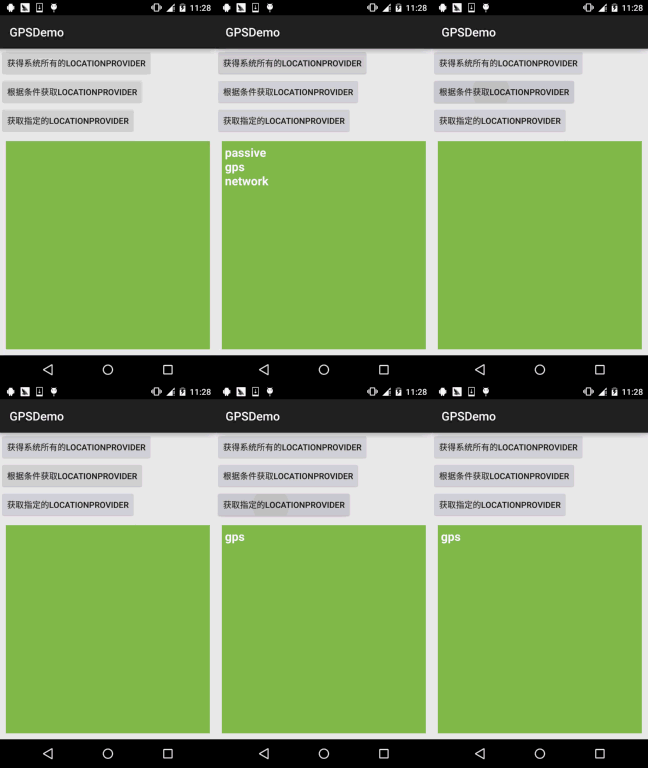
As can be seen from the figure, there are three currently available LocationProviders, namely:
- passive: Passive provider, provided by other programs
- gps: Obtains positioning information via GPS
- network: Obtains positioning information via network
Implementation code:
Layout file:activity_main.xml:
<LinearLayout xmlns:android="http://schemas.android.com/apk/res/android"
    android:layout_width="match_parent"
    android:layout_height="match_parent"
    android:orientation="vertical">

    <Button
        android:id="@+id/btn_one"
        android:layout_width="wrap_content"
        android:layout_height="wrap_content"
        android:text="获得系统所有的LocationProvider" />

    <Button
        android:id="@+id/btn_two"
        android:layout_width="wrap_content"
        android:layout_height="wrap_content"
        android:text="根据条件获取LocationProvider" />

    <Button
        android:id="@+id/btn_three"
        android:layout_width="wrap_content"
        android:layout_height="wrap_content"
        android:text="获取指定的LocationProvider" />

    <TextView
        android:id="@+id/tv_result"
        android:layout_width="match_parent"
        android:layout_height="match_parent"
        android:layout_margin="10dp"
        android:background="#4D84BB"
        android:padding="5dp"
        android:textColor="#FFFFFF"
        android:textSize="20sp"
        android:textStyle="bold" />

</LinearLayout>
MainActivity.java:
public class MainActivity extends AppCompatActivity implements View.OnClickListener {

    private Button btn_one;
    private Button btn_two;
    private Button btn_three;
    private TextView tv_result;
    private LocationManager lm;
    private List<String> pNames = new ArrayList<String>(); // 存放LocationProvider名称的集合

    @Override
    protected void onCreate(Bundle savedInstanceState) {
        super.onCreate(savedInstanceState);
        setContentView(R.layout.activity_main);
        lm = (LocationManager) getSystemService(Context.LOCATION_SERVICE);
        bindViews();
    }

    private void bindViews() {
        btn_one = (Button) findViewById(R.id.btn_one);
        btn_two = (Button) findViewById(R.id.btn_two);
        btn_three = (Button) findViewById(R.id.btn_three);
        tv_result = (TextView) findViewById(R.id.tv_result);

        btn_one.setOnClickListener(this);
        btn_two.setOnClickListener(this);
        btn_three.setOnClickListener(this);
    }


    @Override
    public void onClick(View v) {
        switch (v.getId()) {
            case R.id.btn_one:
                pNames.clear();
                pNames = lm.getAllProviders();
                tv_result.setText(getProvider());
                break;
            case R.id.btn_two:
                pNames.clear();
                Criteria criteria = new Criteria();
                criteria.setCostAllowed(false);   //免费
                criteria.setAltitudeRequired(true);  //能够提供高度信息
                criteria.setBearingRequired(true);   //能够提供方向信息
                pNames = lm.getProviders(criteria, true);
                tv_result.setText(getProvider());
                break;
            case R.id.btn_three:
                pNames.clear();
                pNames.add(lm.getProvider(LocationManager.GPS_PROVIDER).getName()); //指定名称
                tv_result.setText(getProvider());
                break;
        }
    }

    //遍历数组返回字符串的方法
    private String getProvider(){
        StringBuilder sb = new StringBuilder();
        for (String s : pNames) {
            sb.append(s + "\n");
        }
        return sb.toString();
    }
}
3. Checking whether GPS is turned on and two ways to turn on GPS
The first thing before using GPS positioning should be to check whether GPS is already turned on or available. If it is not turned on, we need to turn on GPS to complete positioning! The AGPS case is not considered here~
1) Check whether GPS is available
private boolean isGpsAble(LocationManager lm){
    return lm.isProviderEnabled(android.location.LocationManager.GPS_PROVIDER)?true:false;
}
2) If it is detected that GPS is not turned on, turn on GPS
Method 1: Forcefully turn on GPS; ineffective after Android 5.0....
//强制帮用户打开GPS 5.0以前可用
private void openGPS(Context context){
    Intent gpsIntent = new Intent();
    gpsIntent.setClassName("com.android.settings", "com.android.settings.widget.SettingsAppWidgetProvider");
    gpsIntent.addCategory("android.intent.category.ALTERNATIVE");
    gpsIntent.setData(Uri.parse("custom:3"));
    try {
        PendingIntent.getBroadcast(LocationActivity.this, 0, gpsIntent, 0).send();
    } catch (PendingIntent.CanceledException e) {
        e.printStackTrace();
    }
}
Method 2: Open the GPS location settings page and let the user turn it on themselves
//打开位置信息设置页面让用户自己设置
private void openGPS2(){
    Intent intent = new Intent(Settings.ACTION_LOCATION_SOURCE_SETTINGS);
    startActivityForResult(intent,0);
}
4. Dynamically obtaining location information
This is very simple. Just call the requestLocationUpdates method to set up a LocationListener to periodically detect the location!
The sample code is as follows:
Layout:activity_location.xml:
<?xml version="1.0" encoding="utf-8"?>
<LinearLayout xmlns:android="http://schemas.android.com/apk/res/android"
    android:layout_width="match_parent"
    android:layout_height="match_parent"
    android:orientation="vertical">

    <TextView
        android:id="@+id/tv_show"
        android:layout_width="match_parent"
        android:layout_height="match_parent"
        android:padding="5dp"
        android:textSize="20sp"
        android:textStyle="bold" />

</LinearLayout>
LocationActivity.java:
/**
 * Created by Jay on 2015/11/20 0020.
 */
public class LocationActivity extends AppCompatActivity {

    private LocationManager lm;
    private TextView tv_show;

    @Override
    public void onCreate(Bundle savedInstanceState) {
        super.onCreate(savedInstanceState);
        setContentView(R.layout.activity_location);
        tv_show = (TextView) findViewById(R.id.tv_show);
        lm = (LocationManager) getSystemService(Context.LOCATION_SERVICE);
        if (!isGpsAble(lm)) {
            Toast.makeText(LocationActivity.this, "请打开GPS~", Toast.LENGTH_SHORT).show();
            openGPS2();
        }
        //从GPS获取最近的定位信息
        Location lc = lm.getLastKnownLocation(LocationManager.GPS_PROVIDER);
        updateShow(lc);
        //设置间隔两秒获得一次GPS定位信息
        lm.requestLocationUpdates(LocationManager.GPS_PROVIDER, 2000, 8, new LocationListener() {
            @Override
            public void onLocationChanged(Location location) {
                // 当GPS定位信息发生改变时,更新定位
                updateShow(location);
            }

            @Override
            public void onStatusChanged(String provider, int status, Bundle extras) {

            }

            @Override
            public void onProviderEnabled(String provider) {
                // 当GPS LocationProvider可用时,更新定位
                updateShow(lm.getLastKnownLocation(provider));
            }

            @Override
            public void onProviderDisabled(String provider) {
                updateShow(null);
            }
        });
    }


    //定义一个更新显示的方法
    private void updateShow(Location location) {
        if (location != null) {
            StringBuilder sb = new StringBuilder();
            sb.append("当前的位置信息:\n");
            sb.append("精度:" + location.getLongitude() + "\n");
            sb.append("纬度:" + location.getLatitude() + "\n");
            sb.append("高度:" + location.getAltitude() + "\n");
            sb.append("速度:" + location.getSpeed() + "\n");
            sb.append("方向:" + location.getBearing() + "\n");
            sb.append("定位精度:" + location.getAccuracy() + "\n");
            tv_show.setText(sb.toString());
        } else tv_show.setText("");
    }


    private boolean isGpsAble(LocationManager lm) {
        return lm.isProviderEnabled(android.location.LocationManager.GPS_PROVIDER) ? true : false;
    }


    //打开设置页面让用户自己设置
    private void openGPS2() {
        Intent intent = new Intent(Settings.ACTION_LOCATION_SOURCE_SETTINGS);
        startActivityForResult(intent, 0);
    }

}
Okay, it is very simple. Because GPS can only be used outdoors, I took this opportunity to jog out to the convenience store, bought a cup of milk tea, and took a screenshot along the way~
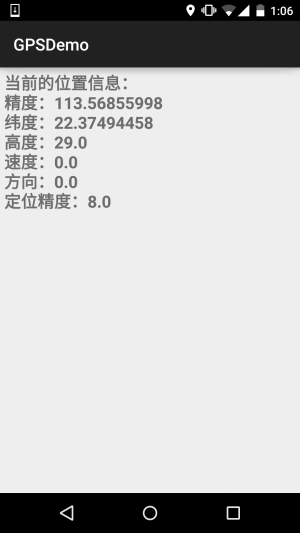
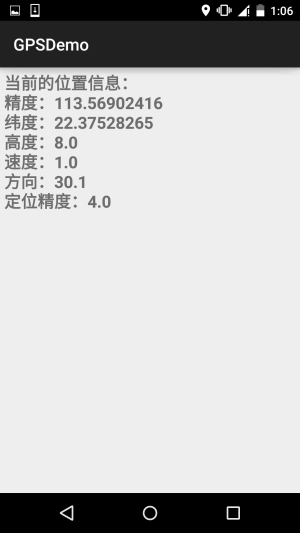
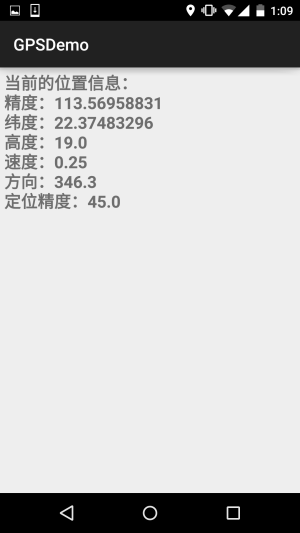
requestLocationUpdates (String provider, long minTime, float minDistance, LocationListener listener)
When the time exceeds minTime (in milliseconds), or the position moves more than minDistance (in meters), the methods in the listener will be called to update the GPS information. It is recommended that minTime be no less than 60000, i.e., 1 minute, which is more efficient and power-saving. If you need to update GPS as close to real-time as possible, you can set minTime and minDistance to 0
By the way, don't forget that you also need a permission:
<uses-permission android:name="android.permission.ACCESS_FINE_LOCATION" />
5. Proximity alerts (geofence)
Well, it is to fix a point. When the distance between the phone and that point is less than a specified range, the corresponding processing can be triggered! It is somewhat like geofencing... We can call the addProximityAlert method of LocationManager to add a proximity alert! The complete method is as follows:
addProximityAlert(double latitude,double longitude,float radius,long expiration,PendingIntent intent)
Attribute description:
- latitude: Specify the longitude of the fixed point
- longitude: Specify the latitude of the fixed point
- radius: Specify the radius length
- expiration: Specify after how many milliseconds the proximity alert will expire and become invalid; -1 means never expire
- intent: This parameter specifies the component corresponding to the intent to be triggered when approaching the fixed point
The sample code is as follows:
ProximityActivity.java:
/**
 * Created by Jay on 2015/11/21 0021.
 */
public class ProximityActivity extends AppCompatActivity {
    private LocationManager lm;
    @Override
    public void onCreate(Bundle savedInstanceState) {
        super.onCreate(savedInstanceState);
        setContentView(R.layout.activity_proximity);
        lm = (LocationManager) getSystemService(Context.LOCATION_SERVICE);
        //定义固定点的经纬度
        double longitude = 113.56843;
        double latitude = 22.374937;
        float radius = 10;     //定义半径,米
        Intent intent = new Intent(this, ProximityReceiver.class);
        PendingIntent pi = PendingIntent.getBroadcast(this, -1, intent, 0);
        lm.addProximityAlert(latitude, longitude, radius, -1, pi);
    }
}
You also need to register a broadcast receiver:ProximityReceiver.java:
/**
 * Created by Jay on 2015/11/21 0021.
 */
public class ProximityReceiver extends BroadcastReceiver{
    @Override
    public void onReceive(Context context, Intent intent) {
        boolean isEnter = intent.getBooleanExtra( LocationManager.KEY_PROXIMITY_ENTERING, false);
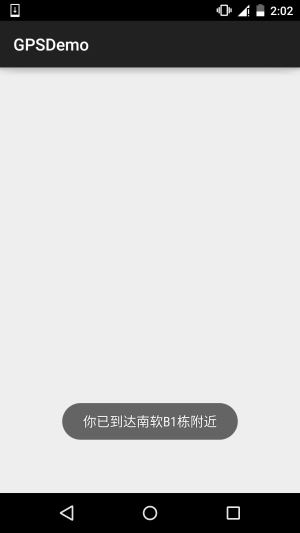
        if(isEnter) Toast.makeText(context, "你已到达南软B1栋附近", Toast.LENGTH_LONG).show();
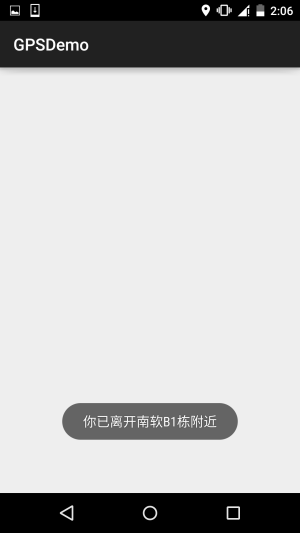
        else Toast.makeText(context, "你已离开南软B1栋附近", Toast.LENGTH_LONG).show();
    }
}
Don't forget to register:
<receiver android:name=".ProximityReceiver"/>
Running effect diagram:
PS: Well, I set 10m, but I walked from B1 to D1, which is more than 10m, right... And it happened to rain
6. Download the sample code for this section
GPSDemo.zip
Summary of this section:
Okay, this section introduced some basic usages of GPS positioning in Android. It is very simple. The content partially references Mr. Li Gang's "Android Crazy Lectures". I just made some modifications to the examples and conducted usability tests! That's all for this section, thanks~
