Introduction to this section:
This section brings us the last UI control used to display information - PopupWindow (floating box). If you want to know what it looks like, you can open QQ on your phone and long-press an item in the list. A small black dialog box will pop up at this time; this is PopupWindow. Unlike the AlertDialog dialog, its position can be arbitrary;
In addition, AlertDialog is non-blocking to the thread, while PopupWindow is blocking to the thread! And the official documentation has this sentence to introduce PopupWindow:
A popup window that can be used to display an arbitrary view. The popup window is
a floating container that appears on top of the current activity.
The general meaning is: a popup window control that can be used to display any View, and it will float on top of the current activity.
Now let's learn about this control~
Official documentation:PopupWindow
1. Related Methods Explained
1) Several common constructor methods
In the documentation, we can see that there are as many as nine constructor methods provided for PopupWindow. Here we only list a few constructor methods that are commonly used in actual development:
- public PopupWindow (Context context)
- public PopupWindow(View contentView, int width, int height)
- public PopupWindow(View contentView)
- public PopupWindow(View contentView, int width, int height, boolean focusable)
The parameters don't need much explanation, right? contentView is the View displayed by PopupWindow, and focusable indicates whether it can obtain focus.
2) Some commonly used methods
Below are some methods that are used more often; you can consult the documentation for others:
- setContentView(View contentView): Sets the View displayed by PopupWindow
- getContentView(): Gets the View displayed by PopupWindow
- showAsDropDown(View anchor): Position relative to a control (directly lower left), no offset
- showAsDropDown(View anchor, int xoff, int yoff): Position relative to a control, with offset
- showAtLocation(View parent, int gravity, int x, int y): Position relative to the parent control (e.g., center Gravity.CENTER, bottom Gravity.BOTTOM, etc.), offset can be set or not. PS: The parent parameter just needs to be a view in the activity!
- setWidth/setHeight: Set width and height; you can also specify width and height in the constructor. In addition to specific values, you can also use WRAP_CONTENT or MATCH_PARENT. The width and height attributes of PopupWindow directly correspond to the first-level View.
- setFocusable(true): Set focus. After PopupWindow pops up, all touchscreen and physical key events are handled by PopupWindow. Responses to any other events must occur after the PopupWindow disappears (except for system-level events such as Home). For example, when such a PopupWindow appears, pressing the Back key first causes the PopupWindow to disappear, and pressing it a second time exits the activity. To be precise, if you want to exit the activity, you must first make the PopupWindow disappear, because it is not in every case that pressing Back will make the PopupWindow disappear; the PopupWindow must have a background set.
- setAnimationStyle(int):Set animation effect
2. Code examples
Run effect screenshot:
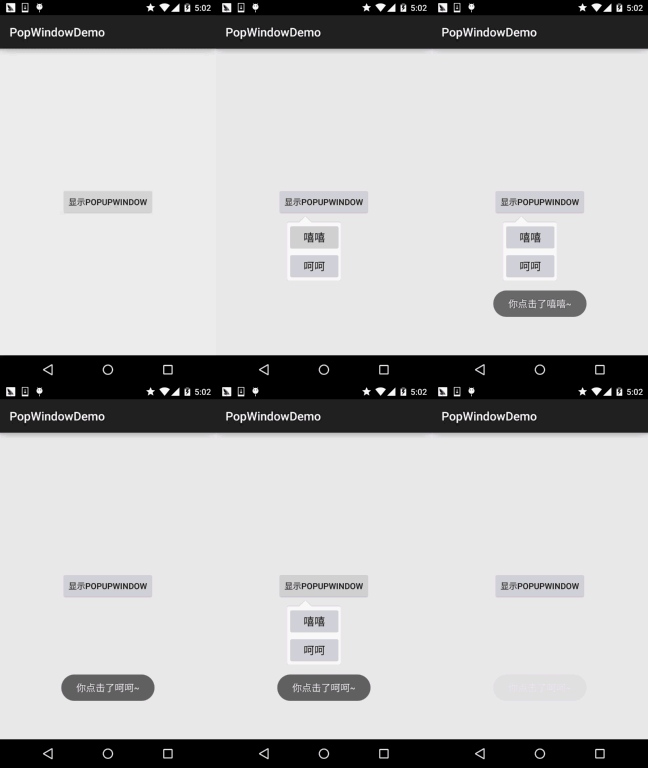
Key code for implementation:
First, here is the animation file:anim_pop.xml:
<?xml version="1.0" encoding="utf-8"?>
<set xmlns:android="http://schemas.android.com/apk/res/android">
    <alpha android:fromAlpha="0"
        android:toAlpha="1"
        android:duration="2000">
    </alpha>
</set>
Next is the PopupWindow layout:item_popip.xml:
<?xml version="1.0" encoding="utf-8"?>
<LinearLayout xmlns:android="http://schemas.android.com/apk/res/android"
    android:layout_width="match_parent"
    android:layout_height="match_parent"
    android:background="@drawable/ic_pop_bg"
    android:orientation="vertical">

    <Button
        android:id="@+id/btn_xixi"
        android:layout_width="wrap_content"
        android:layout_height="wrap_content"
        android:padding="5dp"
        android:text="嘻嘻"
        android:textSize="18sp" />

    <Button
        android:id="@+id/btn_hehe"
        android:layout_width="wrap_content"
        android:layout_height="wrap_content"
        android:padding="5dp"
        android:text="呵呵"
        android:textSize="18sp" />

</LinearLayout>
MainActivity.java:
public class MainActivity extends AppCompatActivity {

    private Button btn_show;
    private Context mContext;

    @Override
    protected void onCreate(Bundle savedInstanceState) {
        super.onCreate(savedInstanceState);
        setContentView(R.layout.activity_main);
        mContext = MainActivity.this;
        btn_show = (Button) findViewById(R.id.btn_show);
        btn_show.setOnClickListener(new View.OnClickListener() {
            @Override
            public void onClick(View v) {
                initPopWindow(v);
            }
        });
    }


    private void initPopWindow(View v) {
        View view = LayoutInflater.from(mContext).inflate(R.layout.item_popup, null, false);
        Button btn_xixi = (Button) view.findViewById(R.id.btn_xixi);
        Button btn_hehe = (Button) view.findViewById(R.id.btn_hehe);
        //1.构造一个PopupWindow,参数依次是加载的View,宽高
        final PopupWindow popWindow = new PopupWindow(view,
                ViewGroup.LayoutParams.WRAP_CONTENT, ViewGroup.LayoutParams.WRAP_CONTENT, true);

        popWindow.setAnimationStyle(R.anim.anim_pop);  //设置加载动画

        //这些为了点击非PopupWindow区域,PopupWindow会消失的,如果没有下面的
        //代码的话,你会发现,当你把PopupWindow显示出来了,无论你按多少次后退键
        //PopupWindow并不会关闭,而且退不出程序,加上下述代码可以解决这个问题
        popWindow.setTouchable(true);
        popWindow.setTouchInterceptor(new View.OnTouchListener() {
            @Override
            public boolean onTouch(View v, MotionEvent event) {
                return false;
                // 这里如果返回true的话,touch事件将被拦截
                // 拦截后 PopupWindow的onTouchEvent不被调用,这样点击外部区域无法dismiss
            }
        });
        popWindow.setBackgroundDrawable(new ColorDrawable(0x00000000));    //要为popWindow设置一个背景才有效


        //设置popupWindow显示的位置,参数依次是参照View,x轴的偏移量,y轴的偏移量
        popWindow.showAsDropDown(v, 50, 0);

        //设置popupWindow里的按钮的事件
        btn_xixi.setOnClickListener(new View.OnClickListener() {
            @Override
            public void onClick(View v) {
                Toast.makeText(MainActivity.this, "你点击了嘻嘻~", Toast.LENGTH_SHORT).show();
            }
        });
        btn_hehe.setOnClickListener(new View.OnClickListener() {
            @Override
            public void onClick(View v) {
                Toast.makeText(MainActivity.this, "你点击了呵呵~", Toast.LENGTH_SHORT).show();
                popWindow.dismiss();
            }
        });
    }
}
3. Example code download
PopWindowDemo.zip
Section summary:
Due to time constraints, I couldn't think of a better example, so I wrote a simple demo that should meet simple needs. In addition, if you want to study PopupWindow in depth, you can refer to the following references:
Usage and Analysis of Android PopupWindow
Detailed Explanation of Android PopupWindow
Well, that's all for now, thanks~