Introduction to this section:
We have already learned some basic usage of ListView earlier, but careful readers may have noticed that our data was defined from the start and is static. However, in real development, our data is often dynamically changing. For example, if I add, delete, or modify a certain item, the data displayed in the list should also be updated synchronously. So in this section, we will discuss the issue of ListView data updates, including full updates and updating one of the items. Let's start this section!~

1. First write a normal demo
Okay, let's write a normal Demo first, and then we'll adjust it slowly:
Entity class:Data.java:
/**
 * Created by Jay on 2015/9/21 0021.
 */
public class Data {
    private int imgId;
    private String content;

    public Data() {}

    public Data(int imgId, String content) {
        this.imgId = imgId;
        this.content = content;
    }

    public int getImgId() {
        return imgId;
    }

    public String getContent() {
        return content;
    }

    public void setImgId(int imgId) {
        this.imgId = imgId;
    }

    public void setContent(String content) {
        this.content = content;
    }
}
Activity layout and list item layout:
activity_main.xml:
<LinearLayout xmlns:android="http://schemas.android.com/apk/res/android"
    xmlns:tools="http://schemas.android.com/tools"
    android:layout_width="match_parent"
    android:layout_height="match_parent"
    android:orientation="vertical"
    tools:context=".MainActivity">

    <ListView
        android:id="@+id/list_one"
        android:layout_width="match_parent"
        android:layout_height="match_parent" />

</LinearLayout>
item_list.xml:
<?xml version="1.0" encoding="utf-8"?>
<LinearLayout xmlns:android="http://schemas.android.com/apk/res/android"
    android:layout_width="match_parent"
    android:layout_height="match_parent"
    android:orientation="horizontal">

    <ImageView
        android:id="@+id/img_icon"
        android:layout_width="56dp"
        android:layout_height="56dp"/>

    <TextView
        android:id="@+id/txt_content"
        android:layout_width="wrap_content"
        android:layout_height="wrap_content"
        android:layout_marginTop="20dp"
        android:layout_marginLeft="10dp"
        android:textSize="18sp" />

</LinearLayout>
Implementation of custom BaseAdapter:MyAdapter.java:
/**
 * Created by Jay on 2015/9/21 0021.
 */
public class MyAdapter extends BaseAdapter {

    private Context mContext;
    private LinkedList<Data> mData;

    public MyAdapter() {}

    public MyAdapter(LinkedList<Data> mData, Context mContext) {
        this.mData = mData;
        this.mContext = mContext;
    }

    @Override
    public int getCount() {
        return mData.size();
    }

    @Override
    public Object getItem(int position) {
        return null;
    }

    @Override
    public long getItemId(int position) {
        return position;
    }

    @Override
    public View getView(int position, View convertView, ViewGroup parent) {
        ViewHolder holder = null;
        if(convertView == null){
            convertView = LayoutInflater.from(mContext).inflate(R.layout.item_list,parent,false);
            holder = new ViewHolder();
            holder.img_icon = (ImageView) convertView.findViewById(R.id.img_icon);
            holder.txt_content = (TextView) convertView.findViewById(R.id.txt_content);
            convertView.setTag(holder);
        }else{
            holder = (ViewHolder) convertView.getTag();
        }
        holder.img_icon.setImageResource(mData.get(position).getImgId());
        holder.txt_content.setText(mData.get(position).getContent());
        return convertView;
    }

    private class ViewHolder{
        ImageView img_icon;
        TextView txt_content;
    }

}
MainActivity.javaWriting:
public class MainActivity extends AppCompatActivity {

    private ListView list_one;
    private MyAdapter mAdapter = null;
    private List<Data> mData = null;
    private Context mContext = null;

    @Override
    protected void onCreate(Bundle savedInstanceState) {
        super.onCreate(savedInstanceState);
        setContentView(R.layout.activity_main);
        mContext = MainActivity.this;
        bindViews();
        mData = new LinkedList<Data>();
        mAdapter = new MyAdapter((LinkedList<Data>) mData,mContext);
        list_one.setAdapter(mAdapter);
    }

    private void bindViews(){
        list_one = (ListView) findViewById(R.id.list_one);
    }

}
It can run. After running, we find that our page has no data at all, a blank white screen. This user experience is not good. We can solve this by calling one of ListView'ssetEmptyView(View)methods, which displays a corresponding View when the ListView data is empty. Also, I found this method to be strange: dynamically adding a View doesn't work at all. You can only add the View you want to display when the ListView has no data in the layout file where the ListView is located. Moreover, the View set with this setEmptyView does not show up when loading. So weird.... For example, here is a TextView that shows "No data" when there is no data. Part of the code is as follows:
<TextView
        android:id="@+id/txt_empty"
        android:layout_width="wrap_content"
        android:layout_height="wrap_content"
        android:layout_gravity="center"
        android:textSize="15pt"
        android:textColor="#000000"/>

txt_empty = (TextView) findViewById(R.id.txt_empty);
txt_empty.setText("暂无数据~");
list_one.setEmptyView(txt_empty);
Of course, besides this method, we can also define a layout with the same size and position as the ListView, then set android:visibility="gone", and in Java code, check the size of the mData collection. If it == 0, it means there is no data, so show this layout; when there is data, hide this layout~
2. Add a record
Okay, let's create an add button; each time you press it, a record is added~
Running effect screenshot:

Code implementation
Define a method in our custom BaseAdapter, the method content is as follows:
public void add(Data data) {
    if (mData == null) {
        mData = new LinkedList<>();
    }
    mData.add(data);
    notifyDataSetChanged();
}
Then add a button to the layout, and set up the event, the code is as follows:
private Button btn_add;
btn_add = (Button) findViewById(R.id.btn_add);
btn_add.setOnClickListener(this);

@Override
public void onClick(View v) {
    switch (v.getId()){
        case R.id.btn_add:
            mAdapter.add(new Data(R.mipmap.ic_icon_qitao,"给猪哥跪了~~~ x " + flag));
            flag++;
            break;
    }
}
Hehe, it works. Adding data is that simple~. If you want to insert at a specific position, that's also possible. In our Adapter class, let's write another method:
//往特定位置,添加一个元素
public void add(int position,Data data){
    if (mData == null) {
        mData = new LinkedList<>();
    }
    mData.add(position,data);
    notifyDataSetChanged();
}
Then add a button and write an event:
private Button btn_add2;
btn_add2 = (Button) findViewById(R.id.btn_add2);
btn_add2.setOnClickListener(this);

case R.id.btn_add2:
//position从0开始算的
mAdapter.add(4,new Data(R.mipmap.ic_icon_qitao,"给猪哥跪了~~~ x " + flag));
break;
Running effect screenshot:

You can see that our ninth item was inserted into the fifth position~
3. Delete an item
Similarly, we write two methods: one deletes the object directly, the other deletes based on the cursor:
public void remove(Data data) {
    if(mData != null) {
        mData.remove(data);
    }
    notifyDataSetChanged();
}

public void remove(int position) {
    if(mData != null) {
        mData.remove(position);
    }
    notifyDataSetChanged();
}
Then add two buttons and call these two methods:
case R.id.btn_remove:
    mAdapter.remove(mData_5);
    break;
case R.id.btn_remove2:
    mAdapter.remove(2);
    break;
Running effect screenshot:
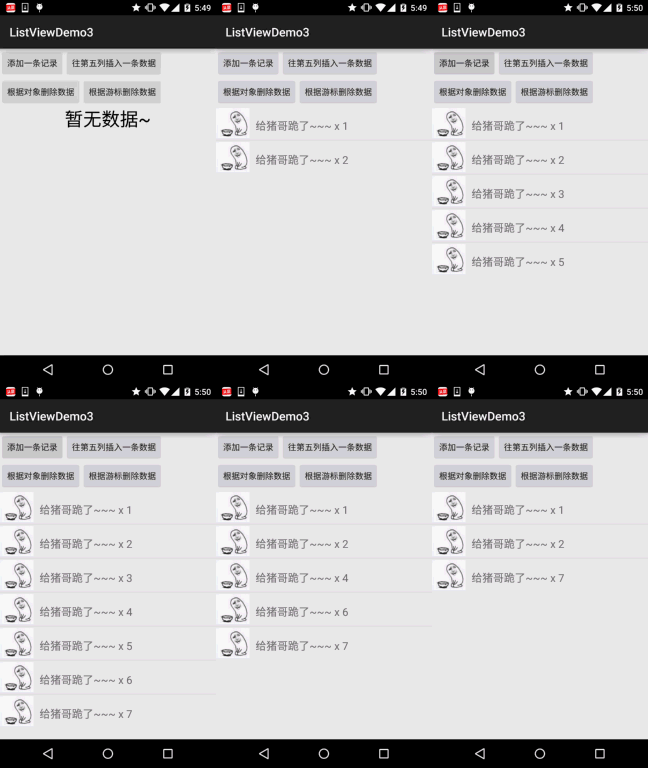
From the figure, we can see that the fifth item was removed, and then clicking "delete by cursor" always deletes the third item!
4. Remove all records:
This is even simpler, just call the clear method directly! The method code is as follows:
public void clear() {
    if(mData != null) {
        mData.clear();
    }
    notifyDataSetChanged();
}
5. Update a record
Careful readers may have noticed that after performing data modification operations, a notifyDataSetChanged() is called;At first I thought:
notifyDataSetChanged() would redraw all the items displayed on the interface once, which would affect UI performance. If the data volume is large, but I change one item and it redraws all items, that's certainly unreasonable, right! So, I used a silly method to modify the value of a control in a certain Item. I wrote such a piece of code in Java:
private void updateListItem(int postion,Data mData){
    int visiblePosition = list_one.getFirstVisiblePosition();
    View v = list_one.getChildAt(postion - visiblePosition);
    ImageView img = (ImageView) v.findViewById(R.id.img_icon);
    TextView tv = (TextView) v.findViewById(R.id.txt_content);
    img.setImageResource(mData.getImgId());
    tv.setText(mData.getContent());
}
Later, after discussing with friends in the group, I found that I was wrong:
The notifyDataSetChanged() method will determine whether re-rendering is needed. If the current item does not need to be re-rendered, it will not be re-rendered. If the state of a certain Item changes, it will cause a redraw of the View, and the redraw is not all Items, but the Item whose View state has changed! So we can just use the notifyDataSetChange() method directly. Of course, knowing the extra method above doesn't hurt either~
Code download:
ListViewDemo3.zip
Summary of this section:
Okay, in this section we have discussed the implementation of data updates in ListView. Of course, not only ListView, other Adapter-based controls can also call these methods to complete data updates~ That's all for now~ Thanks