This section brings the last API of the Paint API series,Typeface (Font)From its literal meaning, we can probably guess that this API is used to set fonts and font styles, and it is also very simple to use! Let's learn some related usages of Typeface below!
Official API documentation:Typeface~

1. Optional font styles
Four integer constants:
- BOLD: Bold
- ITALIC: Italic
- BOLD_ITALIC: Bold italic
- NORMAL: Normal
2. Optional font objects (Typeface)
The Android system supports three fonts by default, which are:sans,serif,monospaceThere are five optional static object values provided:
- DEFAULT: Default normal font object
- DEFAULT_BOLD: Default font object. Note: This actually cannot be bold; it depends on font settings. Determined by getStyle()
- MONOSPACE: monospace font style
- SANS_SERIF: sans serif font style
- SERIF: serif font style
3. Custom font creation
Maybe the three default fonts don't satisfy you. Maybe you like MAC's font -Monaco font, and you want the text in your APP to use this font. First prepare our TTF file, then drop it into theassets/font/directory, then create the corresponding object. The key code is as follows:
Typeface typeFace =Typeface.createFromAsset(getAssets(),"font/MONACO.ttf");
4. Code example:
Run result screenshot:
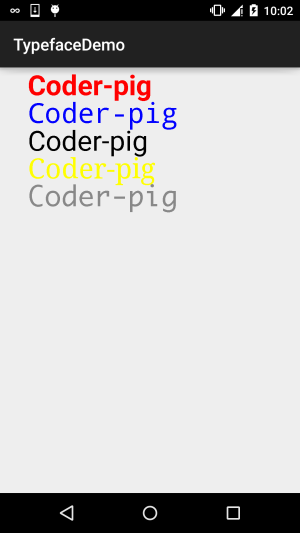
Custom View class:MyView.java:
/**
 * Created by Jay on 2015/11/5 0005.
 */
public class MyView extends View{

    private Paint mPaint1,mPaint2,mPaint3,mPaint4,mPaint5;
    private Context mContext;

    public MyView(Context context) {
        this(context,null);
    }

    public MyView(Context context, AttributeSet attrs) {
        super(context, attrs);
        mContext = context;
        init();
    }

    public MyView(Context context, AttributeSet attrs, int defStyleAttr) {
        super(context, attrs, defStyleAttr);
    }

    private void init(){
        mPaint1 = new Paint();
        mPaint2 = new Paint();
        mPaint3 = new Paint();
        mPaint4 = new Paint();
        mPaint5 = new Paint();

        mPaint1.setColor(Color.RED);
        mPaint2.setColor(Color.BLUE);
        mPaint3.setColor(Color.BLACK);
        mPaint4.setColor(Color.YELLOW);
        mPaint5.setColor(Color.GRAY);


        mPaint1.setTextSize(100);
        mPaint2.setTextSize(100);
        mPaint3.setTextSize(100);
        mPaint4.setTextSize(100);
        mPaint5.setTextSize(100);


        mPaint1.setTypeface(Typeface.DEFAULT_BOLD);
        mPaint2.setTypeface(Typeface.MONOSPACE);
        mPaint3.setTypeface(Typeface.SANS_SERIF);
        mPaint4.setTypeface(Typeface.SERIF);
        mPaint5.setTypeface(Typeface.createFromAsset(mContext.getAssets(), "font/MONACO.ttf"));

    }

    @Override
    protected void onDraw(Canvas canvas) {
        canvas.drawText("Coder-pig", 100, 100, mPaint1);
        canvas.drawText("Coder-pig", 100, 200, mPaint2);
        canvas.drawText("Coder-pig", 100, 300, mPaint3);
        canvas.drawText("Coder-pig", 100, 400, mPaint4);
        canvas.drawText("Coder-pig", 100, 500, mPaint5);
    }
}
Yeah, it's very simple~ no explanation needed. If you want the font, you can search Baidu yourself or download the sample code~
Download the sample code for this section:
TypefaceDemo.zip
Section summary:
Alright, the detailed Paint API explanation spanning over a dozen sections ends here. It should already cover most of the APIs you might use. I wonder if you've got them all. These all lay the groundwork for the custom controls in our advanced section~ Well, that's all, thanks~