Section introduction:
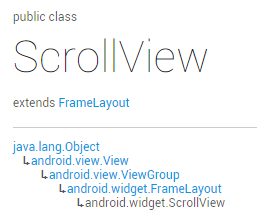
This section introduces the tenth of the basic Android UI controls:ScrollView(Scroll Bar), or we should call it the vertical scroll bar; the corresponding one in the horizontal direction is:HorizontalScrollView, first, here is the official documentation link:ScrollView, we can see the class structure is as follows:
Hehe, it turns out to be a FrameLayout container, but scrolling is added on top of it, allowing more content to be displayed than actually fits!
In addition, you can only placeone child element, which can be a single component, or a complex hierarchy wrapped in a layout!
Generally, for cases where the content may not be fully displayed, we can simply wrap the outer layer of the layout with a ScrollView or HorizontalScrollView! That's it~!
Some requirements you may encounter
Alright, we won't go through the documentation one by one; let's directly talk about some requirements you may encounter in actual development:
Another very typical problem is: the nesting issue of ScrollView and ListView. We will explain this in the ListView chapter later~
1. Scroll to the bottom:
We can directly use the method provided by ScrollView:fullScroll() method:
scrollView.fullScroll(ScrollView.FOCUS_DOWN); scroll to the bottom
scrollView.fullScroll(ScrollView.FOCUS_UP); scroll to the top
In addition, when using this, be careful about asynchronous stuff. That is, after addView, the view may not have finished displaying yet. If you call this method directly at this time, it may be invalid. In that case, you need to write your own handler to update~
Code example:
Effect screenshot:
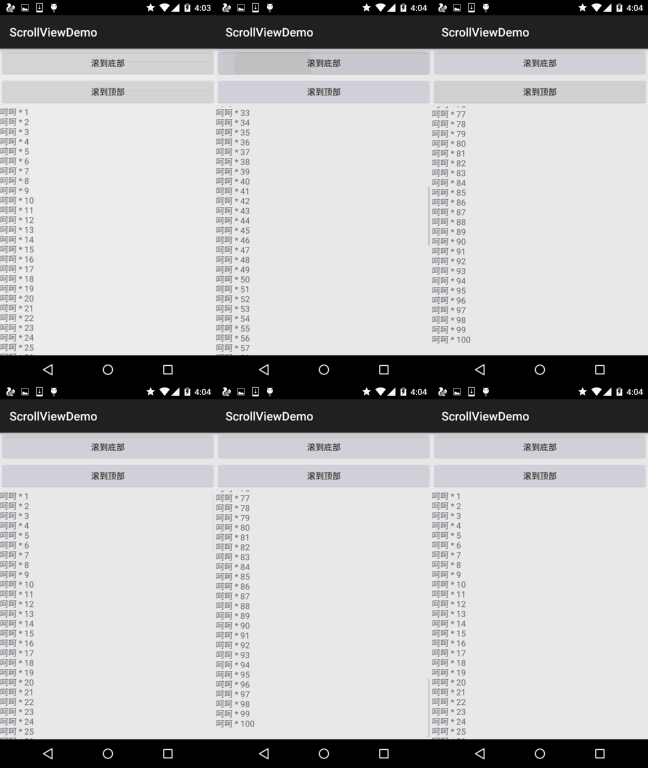
Implementation code:
The layout is relatively simple, so I won't post it; I'll directly post MainActivityMainActivity.java
public class MainActivity extends AppCompatActivity implements View.OnClickListener {

    private Button btn_down;
    private Button btn_up;
    private ScrollView scrollView;
    private TextView txt_show;

    @Override
    public void onCreate(Bundle savedInstanceState) {
        super.onCreate(savedInstanceState);
        setContentView(R.layout.activity_main);
        bindViews();
    }


    private void bindViews() {
        btn_down = (Button) findViewById(R.id.btn_down);
        btn_up = (Button) findViewById(R.id.btn_up);
        scrollView = (ScrollView) findViewById(R.id.scrollView);
        txt_show = (TextView) findViewById(R.id.txt_show);
        btn_down.setOnClickListener(this);
        btn_up.setOnClickListener(this);

        StringBuilder sb = new StringBuilder();
        for (int i = 1; i <= 100; i++) {
            sb.append("呵呵 * " + i + "\n");
        }
        txt_show.setText(sb.toString());

    }

    @Override
    public void onClick(View v) {
        switch (v.getId()) {
            case R.id.btn_down:
                scrollView.fullScroll(ScrollView.FOCUS_DOWN);
                break;
            case R.id.btn_up:
                scrollView.fullScroll(ScrollView.FOCUS_UP);
                break;
        }
    }
}
Of course, besides this method, you can also use another slightly more complicated approach:
public static void scrollToBottom(final View scroll, final View inner) {
    Handler mHandler = new Handler();
    mHandler.post(new Runnable() {
        public void run() {
            if (scroll == null || inner == null) {
                return;
            }
            int offset = inner.getMeasuredHeight() - scroll.getHeight();
            if (offset < 0) {
                offset = 0;
            }
            scroll.scrollTo(0, offset);
        }
    });
}
scrollToThe parameters of () are x, y in order, scroll to the corresponding x, y position!
2. Set the scroll bar thumb image
This is even simpler:Verticalscroll bar thumb: android:scrollbarThumbVertical
Horizontalscroll bar thumb: android:scrollbarThumbHorizontal
3. Hide the scroll bar thumb
Well, this seems pretty useless:
There are two methods: 1. android:scrollbars="none"
2. Set in Java code: scrollview.setVerticalScrollBarEnabled(false);
4. Set the scroll speed:
This does not provide us with a method that can be set directly. We need to inherit ScrollView ourselves, and then override a method: public void fling (int velocityY):
@Override
public void fling(int velocityY) {
    super.fling(velocityY / 2);    //速度变为原来的一半
}
Section summary:
Alright, that's all the ScrollView stuff I can think of. Because it isn't used very often in daily work, generally we just wrap it around the outside. Also, the most common problem is usually the nesting issue of ScrollView and ListView~ If you have any additions, feel free to raise them, thank you~