Section Introduction:
Nowadays, many portal information websites, such as HUXIU, ifanr, TMTpost, and many similar apps — simply put, information-reading apps — often directly embed a WebView to display related content. This may involve WebView caching!
The so-called page cache refers to: saving page-related data such as HTML, JS, CSS and other resources required when loading a web page, and loading the locally saved data when there is no network or the network is poor. There are two ways to implement this cache. One is to write a background download Service that downloads article-related data to a database or saves it to corresponding folders according to your needs. Then, before loading the corresponding URL next time, first check whether the local cache exists. If it exists, load the local cache first; if not, make a network request while caching related resources. A typical example is the old version of 36Kr, which would first download articles offline after entering, and then display them.
Of course, what this section explains is not this way of writing your own logic, but using WebView's built-in cache function to cache pages. This method is very simple to use. We only need to enable the relevant functions for WebView and set the database cache path to complete caching! We'll go through the specific implementation one by one below~
1. Classification of cache:
The first thing to mention is the classification of cache. Our cached data is divided into:Page cache and data cache
Page cache: Page or resource data such as HTML, JS, CSS when loading a web page. These cache resources are generated due to browser behavior. Developers can only indirectly affect these cached data by configuring HTTP response headers to influence browser behavior. AndCache indexis placed in: /data/data/<package name>/databasesThe corresponding filesare placed under: /data/data/package_name/cache/webviewCacheChromunm
Data cache: There are two types: AppCache and DOM Storage. These are the cache resources that we developers can control ourselves,
AppCache: We can selectively buffer everything in the web browser, from pages, images to scripts, CSS, etc. It is especially useful when involving CSS and JavaScript files applied to multiple pages of a website. Its size is usually 5M. On Android, you need to manually enable it (setAppCacheEnabled), and set the path (setAppCachePath) and size (setAppCacheMaxSize). In Android, useApplicationCache.dbto save AppCache data!
DOM Storage: Stores some simple data that can be solved with key/value pairs. Depending on the scope, there are two types: Session Storage and Local Storage, respectively used for session-level storage (disappears when the page is closed) and localized storage (data never expires unless actively deleted). On Android, you can manually enable DOM Storage (setDomStorageEnabled) and set the storage path (setDatabasePath). In Android, Webkit will generate two files for DOMStorage: (my_path/localstorage/http_blog.csdn.net_0.localstorage and my_path/Databases.db)
Well, after reading the above, do you want to say, damn, what the heck, it looks so complicated Of course, don't memorize it. Just know these things exist. When you use them in actual development, you can study them slowly. Moreover, we generally only care about how to set cache for WebView and how to delete cache! We can take a look at the file structure after running the demo we wrote below. Open DDMS's File Explorer:
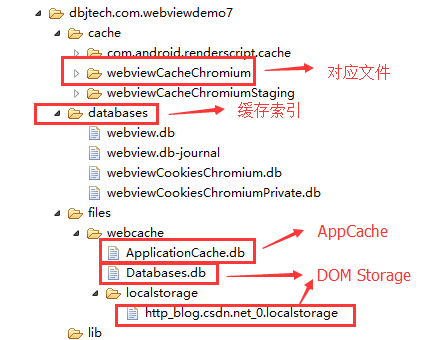
Hehe, it's clear at a glance, right~ By the way, I also need to mention several cache modes:
- LOAD_CACHE_ONLY: Do not use the network, only read local cache data
- LOAD_DEFAULT: Decide whether to fetch data from the network according to cache-control.
- LOAD_CACHE_NORMAL: Deprecated in API level 17. Starting from API level 11, it behaves the same as LOAD_DEFAULT mode.
- LOAD_NO_CACHE: Do not use cache, only fetch data from the network.
- LOAD_CACHE_ELSE_NETWORK, as long as the local cache exists, regardless of whether it is expired or no-cache, use the data in the cache.
Summary: Based on the above two modes, the recommended cache strategy is to determine whether there is a network. If there is, use LOAD_DEFAULT; when there is no network, use LOAD_CACHE_ELSE_NETWORK.
Next, code time!
2. Enable cache function for WebView
Now let's enable the cache function for WebView. First, let's look at the effect diagram:
Running effect screenshot:
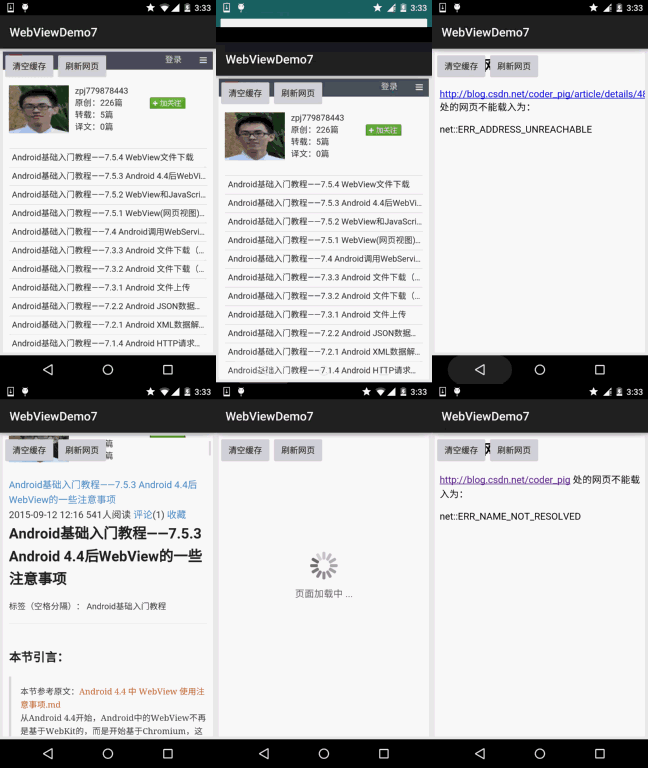
Process analysis:: 1. After entering the page, the URL is loaded by default, then click any link to jump to the second page, and exit the APP. 2. Turn off Wi-Fi and mobile network, then re-enter. You will find that the page is still loaded without a network. Opening the first link can also load, but opening other links shows that the webpage cannot be found! 3. Click clear cache, close the app, and re-enter. You will find that the page can no longer be opened!
Next is the code implementation:MainActivity.java:
public class MainActivity extends AppCompatActivity {

    private WebView wView;
    private Button btn_clear_cache;
    private Button btn_refresh;
    private static final String APP_CACHE_DIRNAME = "/webcache"; // web缓存目录
    private static final String URL = "http://blog.csdn.net/coder_pig";

    @Override
    protected void onCreate(Bundle savedInstanceState) {
        super.onCreate(savedInstanceState);
        setContentView(R.layout.activity_main);
        wView = (WebView) findViewById(R.id.wView);
        btn_clear_cache = (Button) findViewById(R.id.btn_clear_cache);
        btn_refresh = (Button) findViewById(R.id.btn_refresh);
        wView.loadUrl(URL);
        wView.setWebViewClient(new WebViewClient() {
            //设置在webView点击打开的新网页在当前界面显示,而不跳转到新的浏览器中
            @Override
            public boolean shouldOverrideUrlLoading(WebView view, String url) {
                view.loadUrl(url);
                return true;
            }
        });
        WebSettings settings = wView.getSettings();
        settings.setJavaScriptEnabled(true);
        //设置缓存模式
        settings.setCacheMode(WebSettings.LOAD_CACHE_ELSE_NETWORK);
        // 开启DOM storage API 功能
        settings.setDomStorageEnabled(true);
        // 开启database storage API功能
        settings.setDatabaseEnabled(true);
        String cacheDirPath = getFilesDir().getAbsolutePath() + APP_CACHE_DIRNAME;
        Log.i("cachePath", cacheDirPath);
        // 设置数据库缓存路径
        settings.setAppCachePath(cacheDirPath);
        settings.setAppCacheEnabled(true);
        Log.i("databasepath", settings.getDatabasePath());

        btn_clear_cache.setOnClickListener(new View.OnClickListener() {
            @Override
            public void onClick(View v) {
                wView.clearCache(true);
            }
        });

        btn_refresh.setOnClickListener(new View.OnClickListener() {
            @Override
            public void onClick(View v) {
                wView.reload();
            }
        });
    }

    //重写回退按钮的点击事件
    @Override
    public void onBackPressed() {
        if(wView.canGoBack()){
            wView.goBack();
        }else{
            super.onBackPressed();
        }
    }
}
The code is very simple. All we do is enable the cache function, set the cache mode, and set the path of the cached data!
3. Delete WebView cache data
In the above example, we have implemented cache deletion by calling WebView's clearCache(true) method! In addition to this method, there are the following methods:
- setting.setCacheMode(WebSettings.LOAD_NO_CACHE);
- deleteDatabase("WebView.db"); and deleteDatabase("WebViewCache.db");
- webView.clearHistory();
- webView.clearFormData();
- getCacheDir().delete();
- Manually write a delete method to iteratively delete the cache folder!
Of course, as mentioned earlier, the only part we can directly operate on is the data part. Page cache is generated due to browser behavior. We can only indirectly affect these cached data by configuring HTTP response headers to influence browser behavior. Therefore, the above methods only delete the cache of the data part!
4. Example code download:
WebViewDemo7.zip:Download WebViewDemo7.zip
5. Summary of this section:
Well, that's all for this section on WebView cache issues. Here we only wrote how to enable cache for WebView and delete cache. We can study it slowly when we encounter it in the future. This gives us an impression first~ Okay, that's all. Thanks.
By the way, I almost forgot to post the reference links for this section:
Android webView cache Cache + HTML5 offline feature solution
Android Record 25 - WebView implements offline cache reading