Introduction to this section:
The Configuration class introduced in this section is used to describe the configuration information of mobile devices, such as screen orientation, touch screen touch mode, etc. I believe friends who have customized ROMs should know that we can find this class in: frameworks/base/core/java/android/content/res/Configuration.java and then modify related settings, such as adjusting the default font size! If interested, you can learn more on your own! This section explains the use of the Configuration class in Android development~ API documentation:Configuration
1. List of methods provided by Configuration
- densityDpi: Screen density
- fontScale: The font scaling factor set by the current user
- hardKeyboardHidden: Determines whether the hardware keyboard is visible, with two optional values: HARDKEYBOARDHIDDEN_NO, HARDKEYBOARDHIDDEN_YES, which are hexadecimal 0 and 1 respectively
- keyboard: Get the currently associated keyboard type: The return values of this property: KEYBOARD_12KEY (a small keyboard with only 12 keys), KEYBOARD_NOKEYS, KEYBOARD_QWERTY (normal keyboard)
- keyboardHidden: This property returns a boolean value to indicate whether the current keyboard is available. This property not only checks the system's hardware keyboard, but also checks the system's soft keyboard (located on the screen).
- locale: Get the user's current locale
- mcc: Get the country code of the mobile signal
- mnc: Get the network code of the mobile signal
ps: The country code and network code together determine the current mobile network operator- navigation: Determine the type of directional navigation device on the system. The return values of this property: NAVIGATION_NONAV (no navigation), NAVIGATION_DPAD (DPAD navigation), NAVIGATION_TRACKBALL (trackball navigation), NAVIGATION_WHEEL (wheel navigation)
- orientation: Get the orientation of the system screen. The return values of this property: ORIENTATION_LANDSCAPE (landscape screen), ORIENTATION_PORTRAIT (portrait screen)
- screenHeightDp,screenWidthDp: The available height and width of the screen, expressed in dp
- touchscreen: Get the touch mode of the system touch screen. The return values of this property: TOUCHSCREEN_NOTOUCH (no touch screen), TOUCHSCREEN_STYLUS (stylus touch screen), TOUCHSCREEN_FINGER (touch screen that accepts fingers)
2. Write a simple example to test:
Running screenshot:
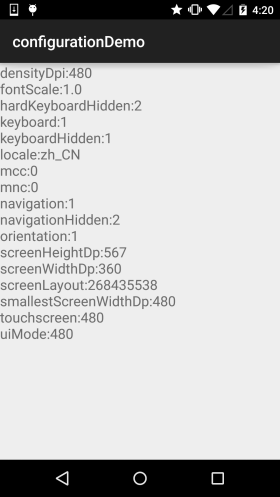
Code implementation:
public class MainActivity extends AppCompatActivity {

    @Override
    protected void onCreate(Bundle savedInstanceState) {
        super.onCreate(savedInstanceState);
        setContentView(R.layout.activity_main);
        TextView txtResult = (TextView) findViewById(R.id.txtResult);
        StringBuffer status = new StringBuffer();
        //①获取系统的Configuration对象
        Configuration cfg = getResources().getConfiguration();
        //②想查什么查什么
        status.append("densityDpi:" + cfg.densityDpi + "\n");
        status.append("fontScale:" + cfg.fontScale + "\n");
        status.append("hardKeyboardHidden:" + cfg.hardKeyboardHidden + "\n");
        status.append("keyboard:" + cfg.keyboard + "\n");
        status.append("keyboardHidden:" + cfg.keyboardHidden + "\n");
        status.append("locale:" + cfg.locale + "\n");
        status.append("mcc:" + cfg.mcc + "\n");
        status.append("mnc:" + cfg.mnc + "\n");
        status.append("navigation:" + cfg.navigation + "\n");
        status.append("navigationHidden:" + cfg.navigationHidden + "\n");
        status.append("orientation:" + cfg.orientation + "\n");
        status.append("screenHeightDp:" + cfg.screenHeightDp + "\n");
        status.append("screenWidthDp:" + cfg.screenWidthDp + "\n");
        status.append("screenLayout:" + cfg.screenLayout + "\n");
        status.append("smallestScreenWidthDp:" + cfg.densityDpi + "\n");
        status.append("touchscreen:" + cfg.densityDpi + "\n");
        status.append("uiMode:" + cfg.densityDpi + "\n");
        txtResult.setText(status.toString());
    }
}
3. Override onConfigurationChanged to respond to system setting changes
This method is used to listen for changes in system settings. It is a callback-based event handling method. When system settings change, it is automatically triggered. But note one thing: if you use the following method for monitoring, the targetSdkVersion attribute can only be set to 12 at most. If it is higher than 12, this method will not be triggered! Here is an example of switching between landscape and portrait for your reference. For others, you can Google it yourself~
Code example: A simple button. When clicked, it switches between landscape and portrait, then shows a Toast prompt
Running effect screenshot:
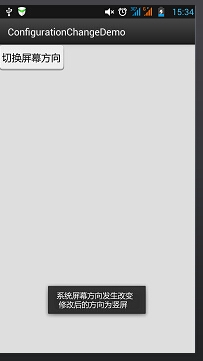
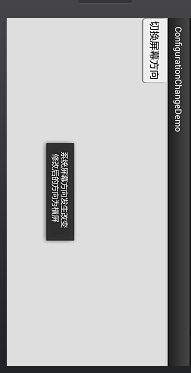
Implementation code:
public class MainActivity extends Activity {

    @Override
    protected void onCreate(Bundle savedInstanceState) {
        super.onCreate(savedInstanceState);
        setContentView(R.layout.activity_main);

        Button btn = (Button) findViewById(R.id.btncahange);
        btn.setOnClickListener(new OnClickListener() {

            @Override
            public void onClick(View v) {
                Configuration config = getResources().getConfiguration();
                //如果是横屏的话切换成竖屏
                if(config.orientation == Configuration.ORIENTATION_LANDSCAPE)
                {
                    MainActivity.this.setRequestedOrientation(ActivityInfo.SCREEN_ORIENTATION_PORTRAIT);
                }
                //如果竖屏的话切换成横屏
                if(config.orientation == Configuration.ORIENTATION_PORTRAIT)
                {
                    MainActivity.this.setRequestedOrientation(ActivityInfo.SCREEN_ORIENTATION_LANDSCAPE);
                }
            }
        });
    }

    @Override
    public void onConfigurationChanged(Configuration newConfig) {
        super.onConfigurationChanged(newConfig);
        String screen = newConfig.orientation == Configuration.ORIENTATION_LANDSCAPE?"横屏":"竖屏";
        Toast.makeText(MainActivity.this, "系统屏幕方向发生改变 \n 修改后的方向为" + screen, Toast.LENGTH_SHORT).show();
    }
}
In addition, you also need to add the following content to AndroidManifest.xml:
Permission:< uses-permission android:name="android.permission.CHANGE_CONFIGURATION" />Add in the <activity> tag:android:configChanges="orientation"Change targetSdkVersion to above 12; 12 is also acceptable
Summary of this section:
This section explains: the Configuration class and onConfigurationChanged responding to system setting changes. A general understanding is enough. We will go deeper when we use it later~