jQuery EasyUI Layout -Creating XP Style Left Panel
Usually, in Windows XP Explorer folders, the left panel contains some common tasks. This tutorial shows you how to create an XP left panel through the EasyUI panel plugin.
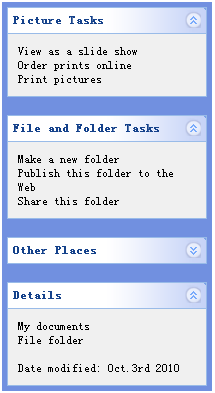
Define some panels
We define some panels to display some tasks. Each panel should have at least collapse/expand tool buttons.
The code is as follows:
    <div style="width:200px;height:auto;background:#7190E0;padding:5px;">
        <div class="easyui-panel" title="Picture Tasks" collapsible="true" style="width:200px;height:auto;padding:10px;">
            View as a slide show<br/>
            Order prints online<br/>
            Print pictures
        </div>
        <br/>
        <div class="easyui-panel" title="File and Folder Tasks" collapsible="true" style="width:200px;height:auto;padding:10px;">
            Make a new folder<br/>
            Publish this folder to the Web<br/>
            Share this folder
        </div>
        <br/>
        <div class="easyui-panel" title="Other Places" collapsible="true" collapsed="true" style="width:200px;height:auto;padding:10px;">
            New York<br/>
            My Pictures<br/>
            My Computer<br/>
            My Network Places
        </div>
        <br/>
        <div class="easyui-panel" title="Details" collapsible="true" style="width:200px;height:auto;padding:10px;">
            My documents<br/>
            File folder<br/><br/>
            Date modified: Oct.3rd 2010
        </div>
    </div>
Customize the appearance of panels
Please note that this view is not what we want; we must change the header background images of the panel and the icons of the collapse/expand buttons.
It is not difficult to do this; all we need to do is redefine some CSS.
    .panel-body{
        background:#F0F0F0;
    }
    .panel-header{
        background:#fff url('images/panel_header_bg.gif') no-repeat top right;
    }
    .panel-tool-collapse{
        background:url('images/arrow_up.gif') no-repeat 0px -3px;
    }
    .panel-tool-expand{
        background:url('images/arrow_down.gif') no-repeat 0px -3px;
    }
It can be seen that defining user interfaces with EasyUI is very simple.
Download jQuery EasyUI Examples
jeasyui-layout-xp.zip
Other Extensions