jQuery EasyUI Data Grid -Custom Pagination
The DataGrid has a built-in paging feature that is very useful, and customizing it is quite simple. In this tutorial, we will create a DataGrid and add some custom buttons to the paging toolbar.
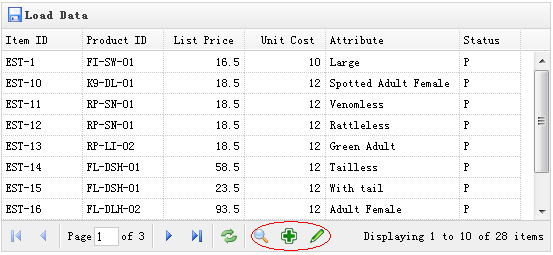
Creating a DataGrid
    <table id="tt" title="Load Data" class="easyui-datagrid" style="width:550px;height:250px"
            url="data/datagrid_data.json"
            iconCls="icon-save" pagination="true">
        <thead>
            <tr>
                <th field="itemid" width="80">Item ID</th>
                <th field="productid" width="80">Product ID</th>
                <th field="listprice" width="80" align="right">List Price</th>
                <th field="unitcost" width="80" align="right">Unit Cost</th>
                <th field="attr1" width="100">Attribute</th>
                <th field="status" width="60" align="center">Stauts</th>
            </tr>
        </thead>
    </table>
Remember to set the 'pagination' property to true so that the paging toolbar is generated.
Customizing the Paging Toolbar
    var pager = $('#tt').datagrid('getPager');    // get the pager of datagrid
    pager.pagination({
        showPageList:false,
        buttons:[{
            iconCls:'icon-search',
            handler:function(){
                alert('search');
            }
        },{
            iconCls:'icon-add',
            handler:function(){
                alert('add');
            }
        },{
            iconCls:'icon-edit',
            handler:function(){
                alert('edit');
            }
        }],
        onBeforeRefresh:function(){
            alert('before refresh');
            return true;
        }
    });
As you can see, we first get the pager object of the DataGrid, and then recreate the pagination. We hide the page list and add three new buttons.
Download jQuery EasyUI Examples
jeasyui-datagrid-datagrid11.zip
Other Extensions