Vue3 Forms
In this section, we introduce the application of Vue forms.
We can use the v-model directive on form<input>、<textarea>and<select>elements to create two-way data binding.
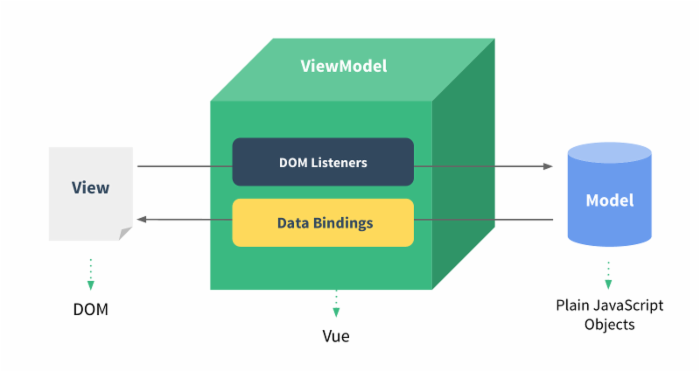
v-model automatically selects the correct method to update elements based on the control type.
v-model ignores the initial values of the value, checked, and selected attributes of all form elements, and instead uses the initial values declared in the data option.
Internally, v-model uses different properties and emits different events for different input elements:
- text and textarea elements use
valueproperty andinputevent; - checkbox and radio use
checkedproperty andchangeevent; - select fields will
valueuse as a property andchangeas an event.
Input
The example demonstrates using v-model to implement two-way data binding on input and textarea elements:
Try it Yourself »
<!-- 错误 -->
<textarea>{{ text }}</textarea>

<!-- 正确 -->
<textarea v-model="text"></textarea>
Checkbox
If a checkbox is single, it is a boolean value; if multiple, they bind to the same array:
Checkbox
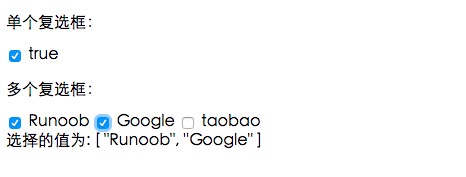
The following example demonstrates two-way data binding of checkboxes:
Try it Yourself »
The effect of checking the checkboxes in the example is shown below:
Radio buttons
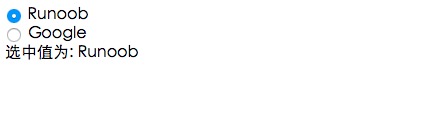
The following example demonstrates two-way data binding of radio buttons:
Radio buttons
Try it Yourself »
After selection, the effect is shown below:
Select list
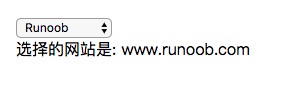
The following example demonstrates two-way data binding of a dropdown list:
select
Try it Yourself »
Select Example, the output effect is shown below:
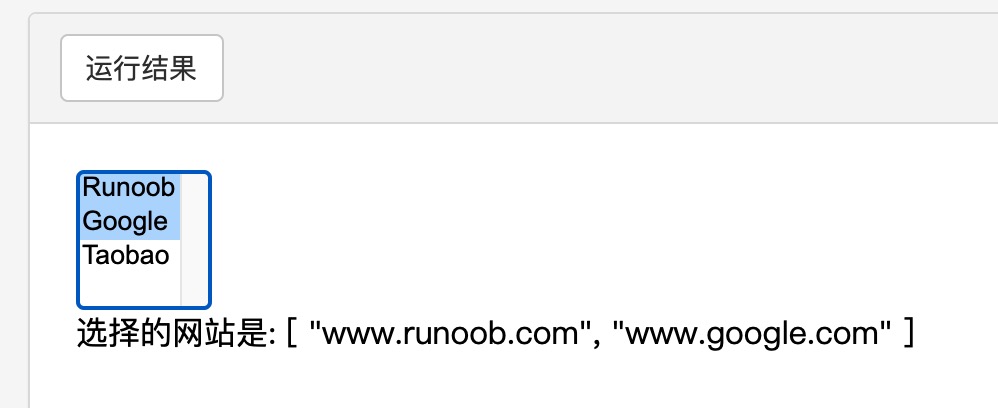
When multiple selection is enabled, it binds to an array:
select
Try it Yourself »
Select Example and Google:
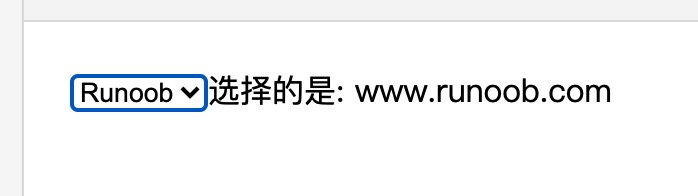
Usev-forloop to output options:
select
Try it Yourself »
Select Example:
Value binding
For radio buttons, checkboxes, and select options, the v-model bound value is usually a static string (for checkboxes, it can also be a boolean):
<input type="radio" v-model="picked" value="a" />
<!-- `toggle` is true or false -->
<input type="checkbox" v-model="toggle" />
<!-- When the first option is selected, `selected` is the string "abc" -->
<select v-model="selected">
<option value="abc">ABC</option>
</select>
But sometimes we may want to bind the value to a dynamic property of the current active instance. In this case, v-bind can be used. In addition, v-bind can bind input values to non-string values.
Checkbox:
<input type="checkbox" v-model="toggle" true-value="yes" false-value="no" />
...
// 选中时
vm.toggle === 'yes'
// 取消选中
vm.toggle === 'no'
Radio:
<input type="radio" v-model="pick" v-bind:value="a" />
// 当选中时
vm.pick === vm.a
Select option:
<select v-model="selected">
  <!-- 内联对象字面量 -->
  <option :value="{ number: 123 }">123</option>
</select>
// 当被选中时
typeof vm.selected // => 'object'
vm.selected.number // => 123
Modifiers
.lazy
By default, v-model synchronizes the input value with the data on the input event, but you can add a lazy modifier to instead synchronize on the change event:
<!-- 在 "change" 而不是 "input" 事件中更新 -->
<input v-model.lazy="msg" >
.number
If you want to automatically convert the user's input value to Number type (if the conversion result of the original value is NaN, the original value is returned), you can add a number modifier to v-model to process the input value:
<input v-model.number="age" type="number">
This is often useful because when type="number", the value entered in HTML is always returned as a string type.
.trim
If you want to automatically filter leading and trailing spaces from user input, you can add a trim modifier to v-model to filter the input:
<input v-model.trim="msg">Other extensions