Vue3 Style Binding
Vue.js class
class and style are attributes of HTML elements, used to set the styles of elements. We can use v-bind to set style attributes.
When v-bind handles class and style, in addition to strings, the expression can also be an object or an array.
v-bind:classCan be abbreviated as:class。
class Attribute Binding
We can, forv-bind:classset an object to dynamically toggleclass:
Example 1
In the example, setting isActive to true displays a green div block; if set to false, it is not displayed:
Try it yourself »
The div class rendering result of the above example is:
<div class="active"></div>
We can also pass more properties in the object to dynamically toggle multiple classes.
Furthermore,:classthe directive can also coexist with ordinary class attributes.
Example 2
The text-danger class background color overrides the background color of the active class:
Try it yourself »
The div class rendering result of the above example is:
<div class="static text-danger"></div>
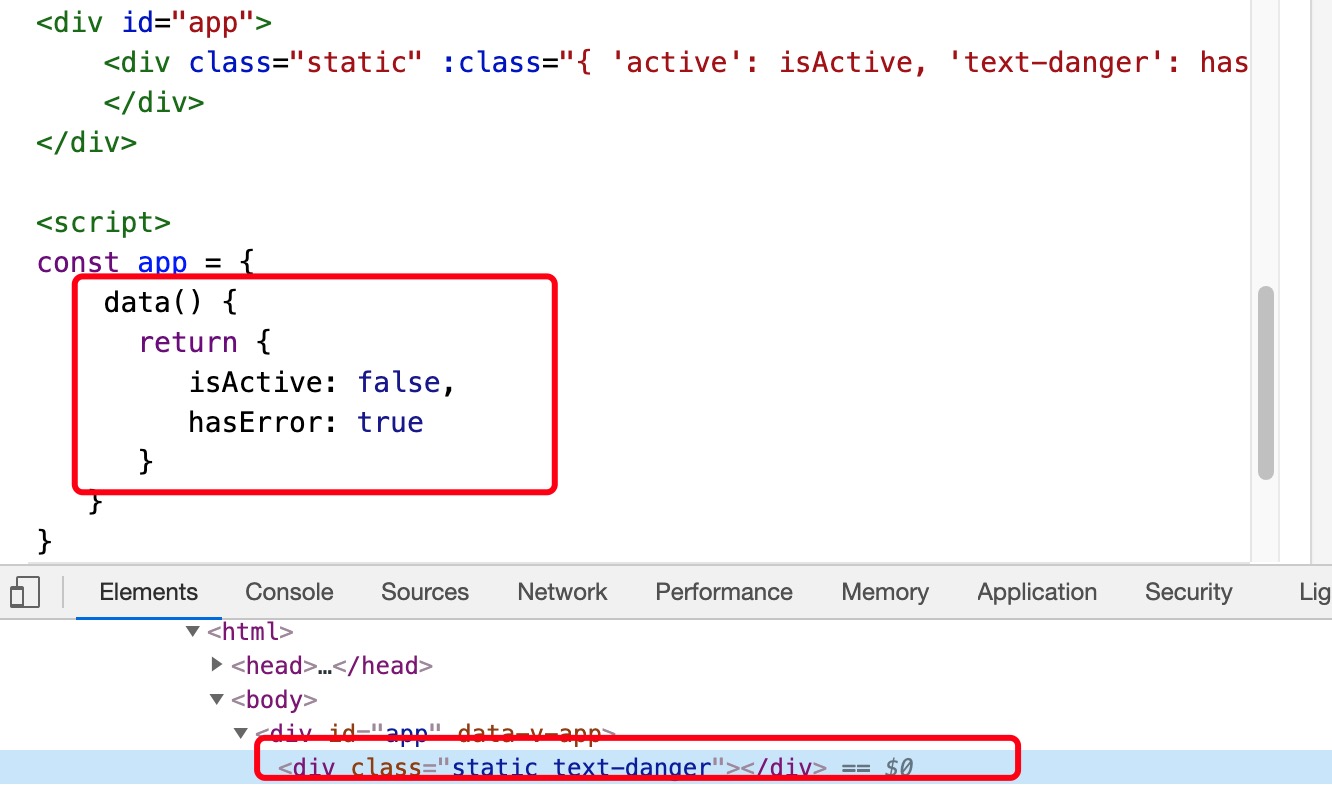
When isActive or hasError changes, the class attribute value will also be updated accordingly. For example, if the value of active is true, the class list will become "static active text-danger".
We can also directly bind to an object in the data:
Example 3
The text-danger class background color overrides the background color of the active class:
Try it yourself »
The rendering results of Example 3 and Example 2 are the same.
In addition, we can also bind a computed property that returns an object here. This is a common and powerful pattern:
Example 4
Try it yourself »
Array Syntax
We can pass an array tov-bind:class, as shown in the example below:
The div class rendering result of the above example is:
<div class="static active text-danger"></div>
We can also use a ternary expression to toggle classes in the list:
Example 6
errorClass is always present; when isActive is true, the activeClass class is added:
Try it yourself »
The div class rendering result of the above example is:
<div class="static text-danger"></div>
Vue.js style (Inline Styles)
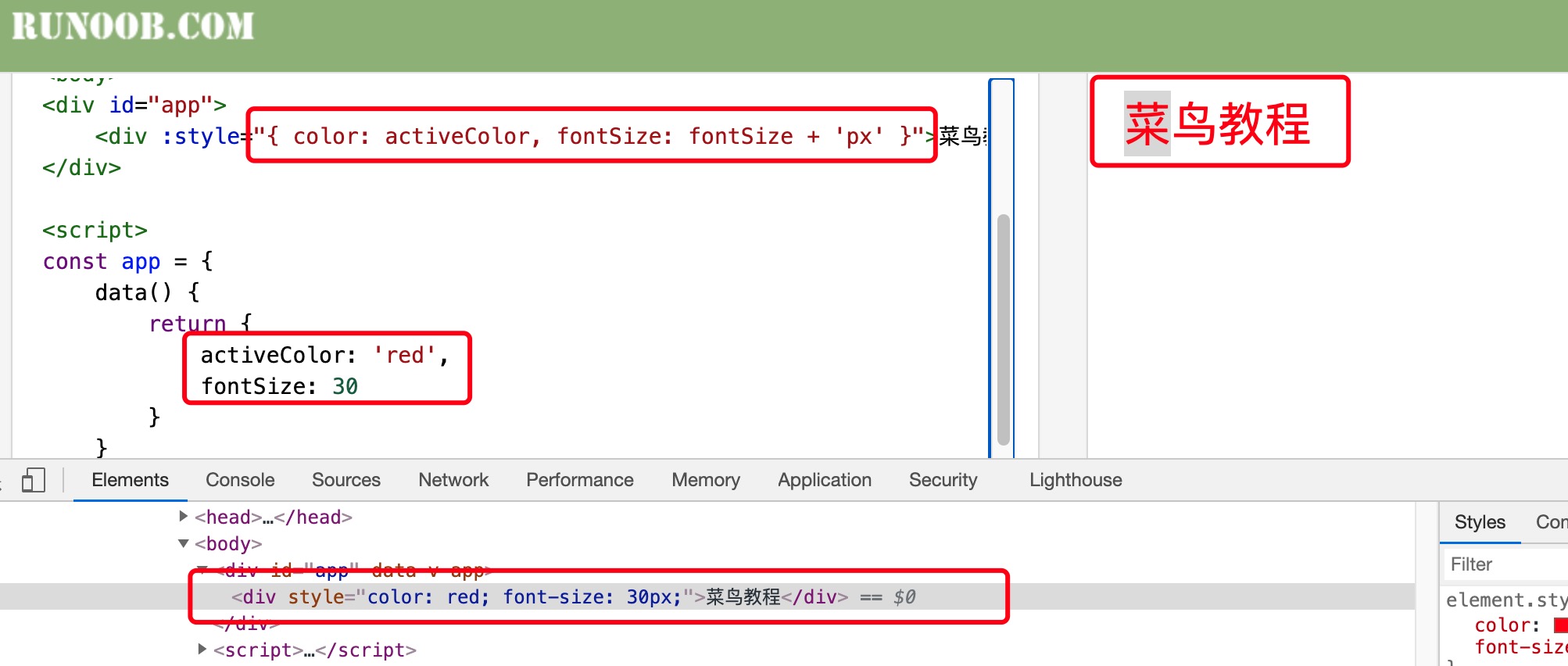
We can, inv-bind:styledirectly set styles, which can be abbreviated as:style:
Example 7
Try it yourself »
The div style rendering result of the above example is:
<div style="color: red; font-size: 30px;">Example</div>
You can also directly bind to a styleobject, to make the template clearer:
v-bind:styleYou can use an array to apply multiple style objects to one element:
Example 9
Try it yourself »
Note: Whenv-bind:styleusing CSS properties that require specific prefixes, such as transform, Vue.js will automatically detect and add the corresponding prefix.
Multiple Values
You can provide an array containing multiple values for the property in the style binding, often used to provide multiple prefixed values, for example:
<div :style="{ display: ['-webkit-box', '-ms-flexbox', 'flex'] }"></div>This will only render the last value in the array that is supported by the browser. In this example, if the browser supports flexbox without a browser prefix, then only display: flex will be rendered.
Using class Attribute on Components
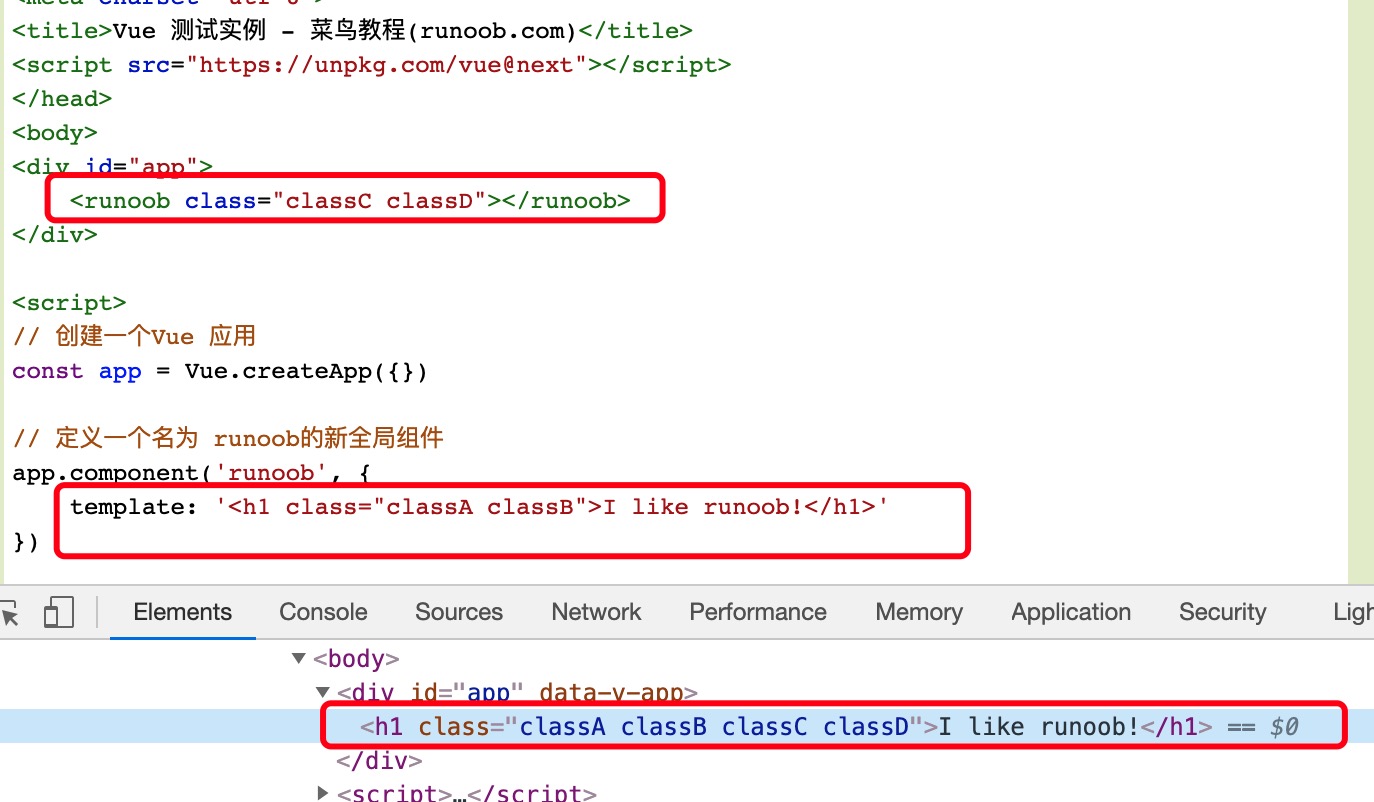
When you use the class attribute on a custom component with a single root element, these classes will be added to that element. The existing classes on this element will not be overwritten.
Example 10
Try it yourself »
The div class rendering result of the above example is:
<h1 class="classA classB classC classD">I like example!</h1>
This also applies to classes with data binding:
<my-component :class="{ active: isActive }"></my-component>
When isActive is true, the HTML will be rendered as:
<p class="active">Hi</p>
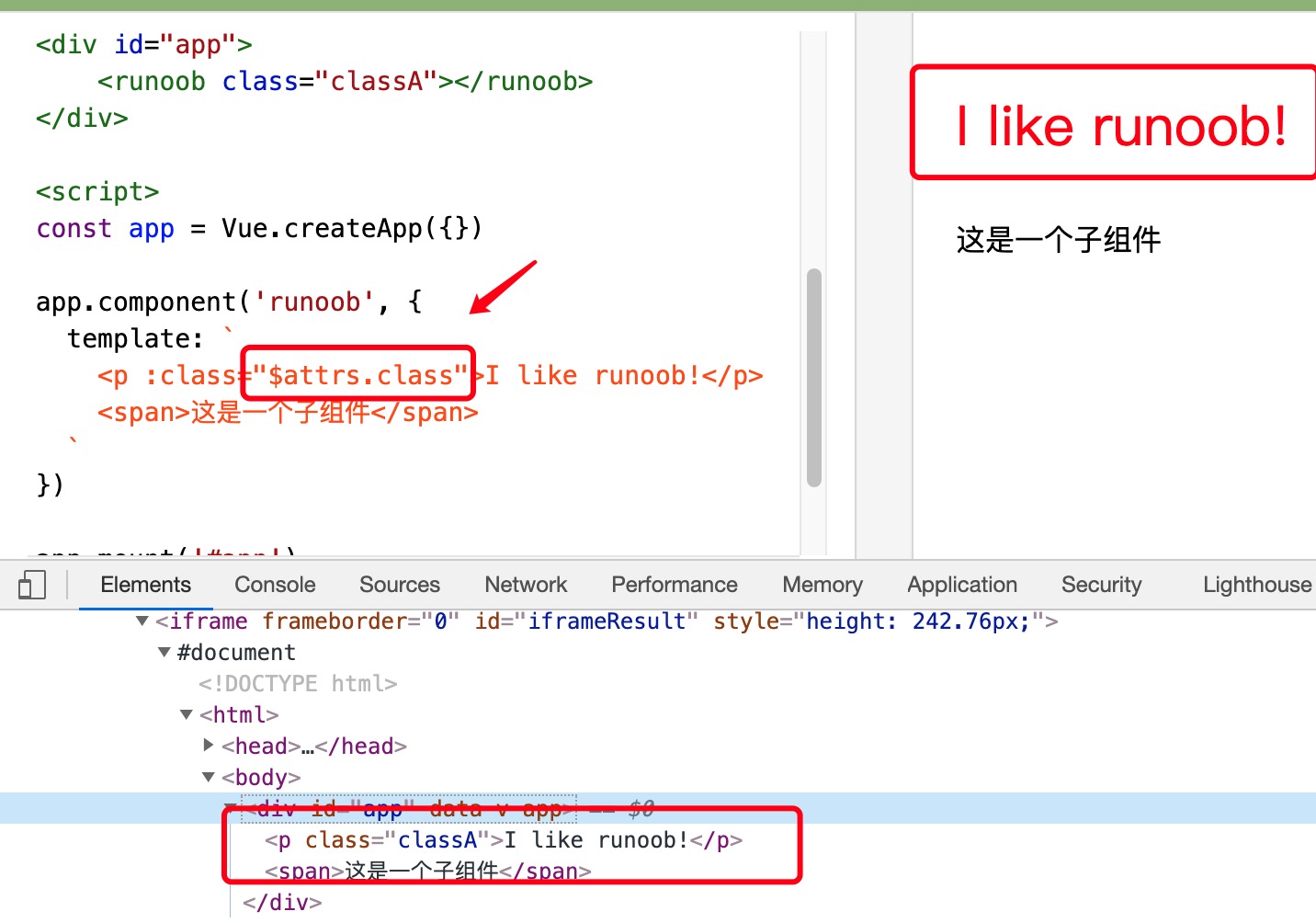
If your component has multiple root elements, you need to define which parts will receive this class. You can use$attrsthe component attribute to do this:
Example 11
Try it yourself »
Note: In the template,`is a backtick, not a single quote'。
The div class rendering result of the above example is:
<div id="app" data-v-app=""><p class="classA">I like example!</p><span>这是一个子组件</span></div>