Why use different input types?
The type of keyboard input helps us obtain the required input from the user.
It removes unnecessary keys and includes the required parts. Users can set the input type by using the keyboard property of UITextField.
- For example: text field (textField). keyboardType = UIKeyboardTypeDefault
Keyboard input types
| Input type | Description |
|---|---|
| UIKeyboardTypeASCIICapable | The keyboard includes all standard ASCII characters. |
| UIKeyboardTypeNumbersAndPunctuation | The keyboard displays numbers and punctuation. |
| UIKeyboardTypeURL | The keyboard is optimized for URL entry. |
| UIKeyboardTypeNumberPad | The keyboard is used for PIN input and displays a numeric keypad. |
| UIKeyboardTypePhonePad | The keyboard is optimized for entering phone numbers. |
| UIKeyboardTypeNamePhonePad | The keyboard is used for entering names or phone numbers. |
| UIKeyboardTypeEmailAddress | The keyboard is optimized for entering email addresses. |
| UIKeyboardTypeDecimalPad | The keyboard is used to enter decimal numbers. |
| UIKeyboardTypeTwitter | The keyboard is optimized for Twitter @ and # symbols. |
Add custom method addTextFieldWithDifferentKeyboard
-(void) addTextFieldWithDifferentKeyboard{

   UITextField *textField1= [[UITextField alloc]initWithFrame:
   CGRectMake(20, 50, 280, 30)];
   textField1.delegate = self;
   textField1.borderStyle = UITextBorderStyleRoundedRect;
   textField1.placeholder = @"Default Keyboard";
   [self.view addSubview:textField1];

   UITextField *textField2 = [[UITextField alloc]initWithFrame:
   CGRectMake(20, 100, 280, 30)];
   textField2.delegate = self;
   textField2.borderStyle = UITextBorderStyleRoundedRect;
   textField2.keyboardType = UIKeyboardTypeASCIICapable;
   textField2.placeholder = @"ASCII keyboard";
   [self.view addSubview:textField2];

   UITextField *textField3 = [[UITextField alloc]initWithFrame:
   CGRectMake(20, 150, 280, 30)];
   textField3.delegate = self;
   textField3.borderStyle = UITextBorderStyleRoundedRect;
   textField3.keyboardType = UIKeyboardTypePhonePad;
   textField3.placeholder = @"Phone pad keyboard";
   [self.view addSubview:textField3];

   UITextField *textField4 = [[UITextField alloc]initWithFrame:
   CGRectMake(20, 200, 280, 30)];
   textField4.delegate = self;
   textField4.borderStyle = UITextBorderStyleRoundedRect;
   textField4.keyboardType = UIKeyboardTypeDecimalPad;
   textField4.placeholder = @"Decimal pad keyboard";
   [self.view addSubview:textField4];

   UITextField *textField5= [[UITextField alloc]initWithFrame:
   CGRectMake(20, 250, 280, 30)];
   textField5.delegate = self;
   textField5.borderStyle = UITextBorderStyleRoundedRect;
   textField5.keyboardType = UIKeyboardTypeEmailAddress;
   textField5.placeholder = @"Email keyboard";
   [self.view addSubview:textField5];

   UITextField *textField6= [[UITextField alloc]initWithFrame:
   CGRectMake(20, 300, 280, 30)];
   textField6.delegate = self;
   textField6.borderStyle = UITextBorderStyleRoundedRect;
   textField6.keyboardType = UIKeyboardTypeURL;
   textField6.placeholder = @"URL keyboard";
   [self.view addSubview:textField6];
}
Update viewDidLoad in ViewController.m as shown below
(void)viewDidLoad
{
   [super viewDidLoad];
   //The custom method to create textfield with different keyboard input
   [self addTextFieldWithDifferentKeyboard];
   //Do any additional setup after loading the view, typically from a nib
}
Output
Now when we run the application, we get the following output:
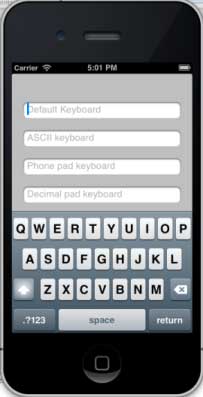
Selecting different text fields will show different keyboards.
Other extensions