iOS Audio & Video
Introduction
Audio and video are quite common in the latest devices.
Adding iosAVFoundation.framework and MediaPlayer.framework to the Xcode project allows iOS to support Audio & Video.
Example Steps
1. Create a simple View-based application
2. Select the project file, select the target, then add AVFoundation.framework and MediaPlayer.framework
3. Add two buttons in ViewController.xib, and create an action to play audio and video respectively
4. Update ViewController.h, as shown below
#import <UIKit/UIKit.h>
#import <AVFoundation/AVFoundation.h>
#import <MediaPlayer/MediaPlayer.h>

@interface ViewController : UIViewController
{
    AVAudioPlayer *audioPlayer;
    MPMoviePlayerViewController *moviePlayer;

}
-(IBAction)playAudio:(id)sender;
-(IBAction)playVideo:(id)sender;
@end
5. Update ViewController.m, as shown below
#import "ViewController.h"

@interface ViewController ()

@end

@implementation ViewController

- (void)viewDidLoad
{
    [super viewDidLoad];
}

- (void)didReceiveMemoryWarning
{
   [super didReceiveMemoryWarning];
   // Dispose of any resources that can be recreated.
}
-(IBAction)playAudio:(id)sender{
   NSString *path = [[NSBundle mainBundle]
   pathForResource:@"audioTest" ofType:@"mp3"];
   audioPlayer = [[AVAudioPlayer alloc]initWithContentsOfURL:
   [NSURL fileURLWithPath:path] error:NULL];
   [audioPlayer play];
}
-(IBAction)playVideo:(id)sender{
   NSString *path = [[NSBundle mainBundle]pathForResource:
   @"videoTest" ofType:@"mov"];
   moviePlayer = [[MPMoviePlayerViewController
   alloc]initWithContentURL:[NSURL fileURLWithPath:path]];
   [self presentModalViewController:moviePlayer animated:NO];
}
@end
Notes
Audio and video files need to be added to ensure the expected output
Output
Run the program, the output result is as follows
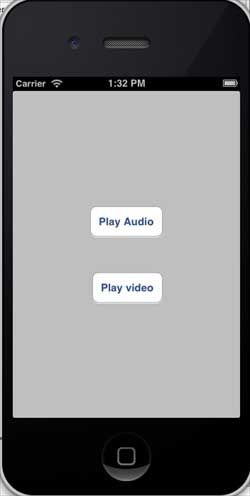
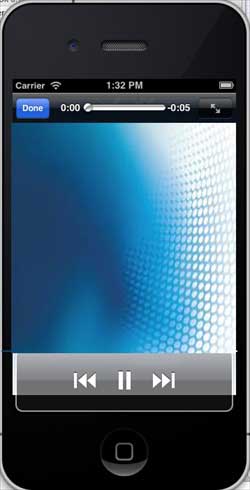
When we click play video, it displays as follows: