IOS Universal Application
Introduction
Universal applications are applications designed for iPhone and iPad in a single binary file. This helps with code reuse and enables faster updates.
Example Steps
1. Create a simple View based application (view application)
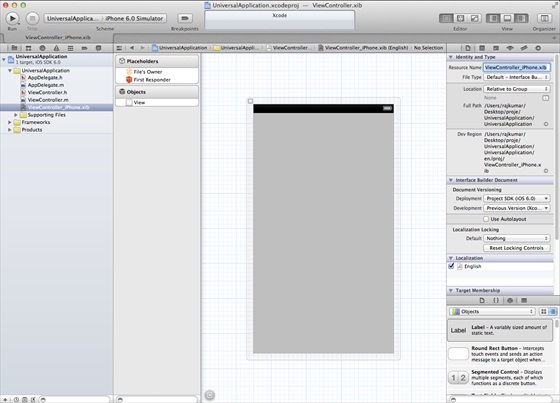
2. On the right side of the file inspector, change the file name of ViewController.xib to ViewController_iPhone.xib, as shown below
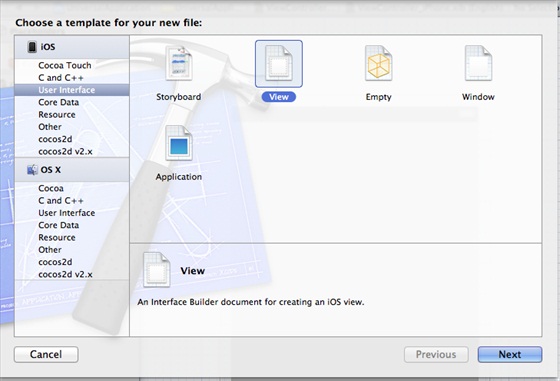
3. Choose "File -> New -> File... ", then select User Interface, then select View, and click Next
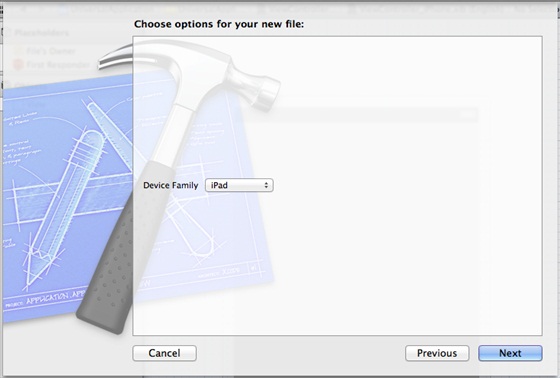
4. Select iPad as the device, and click Next:
5. Save the file as ViewController_iPad.xib, then select Create
6. Add labels at the center of the screens of ViewController_iPhone.xib and ViewController_iPad.xibd
7. In ViewController_iPhone.xib, select the identity inspector and set the custom class to ViewController
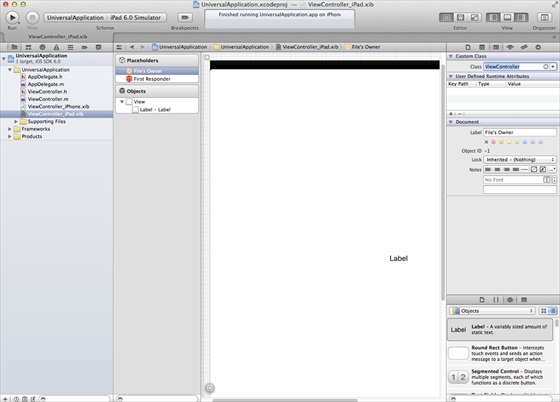
8. Update the application:DidFinishLaunching:withOptions method in AppDelegate.m
- (BOOL)application:(UIApplication *)application
  didFinishLaunchingWithOptions:(NSDictionary *)launchOptions
{
   self.window = [[UIWindow alloc] initWithFrame:[[UIScreen
   mainScreen] bounds]];
   // Override point for customization after application launch.
   if (UI_USER_INTERFACE_IDIOM() == UIUserInterfaceIdiomPhone) {
        self.viewController = [[ViewController alloc]
        initWithNibName:@"ViewController_iPhone" bundle:nil];
   }
   else{
        self.viewController = [[ViewController alloc] initWithNibName:
        @"ViewController_iPad" bundle:nil];
   }
   self.window.rootViewController = self.viewController;
   [self.window makeKeyAndVisible];
   return YES;
}
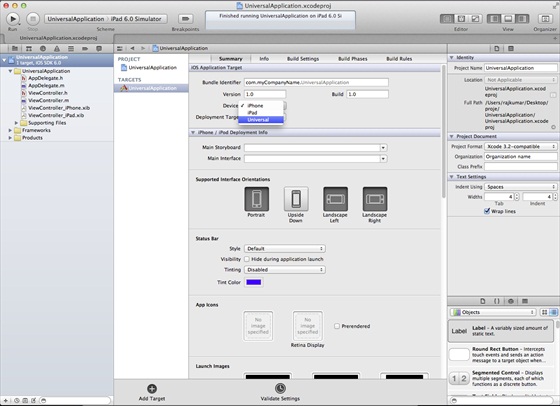
9. In the project summary, update Devices to Universal, as shown below:
Output
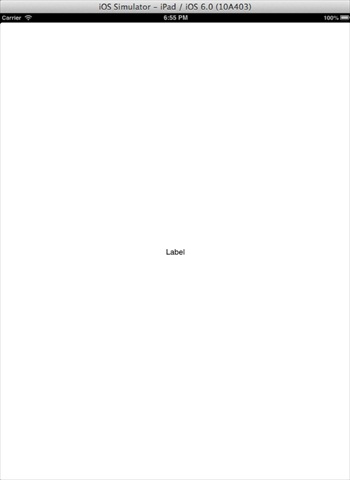
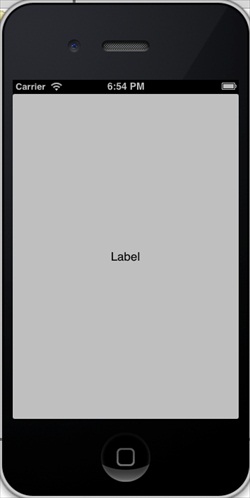
Run the application, we will see the following output
Run the application in the iPad simulator, we will get the following output: