IOS GameKit
Introduction
GameKit is a commonly used framework in the iOS SDK. It has three core features:
- Interactive gaming platform Game Center,
- P2P device communication functionality
- In-Game Voice。
Example Steps
1. When connecting to iTunes, make sure you have a unique App ID. The App ID is needed when updating the bundle ID of our application, and for code signing in Xcode along with the corresponding provisioning profile.
2. Create a new application and update the application information. You can learn more from the documentation for adding a new application.
3. Open the application you registered, click the Manage Game Center option. After entering, click Enable Game Center to activate your Game Center. Next, set up your Leaderboards and Achievements.
4. The next step involves handling code and creating the user interface for our application.
5. Create a single view application and enter the bundle identifier.
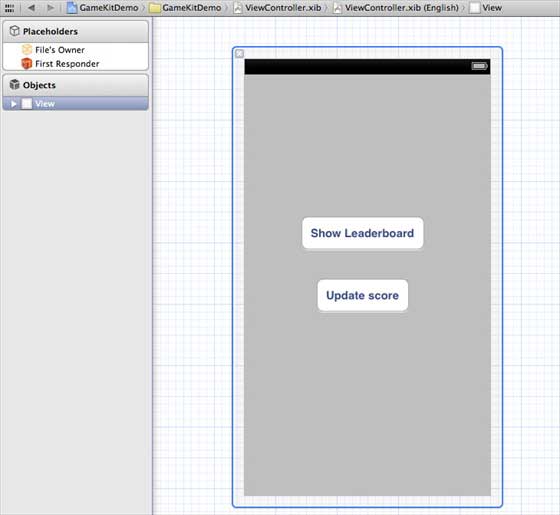
6. Update ViewController.xib as shown below.
7. Select the project file, then select the target, and then add GameKit.framework.
8. Create IBActions for the added buttons.
9. Update the ViewController.h file as shown below.
#import <UIKit/UIKit.h>
#import <GameKit/GameKit.h>

@interface ViewController : UIViewController
<GKLeaderboardViewControllerDelegate>

-(IBAction)updateScore:(id)sender;
-(IBAction)showLeaderBoard:(id)sender;

@end
10. Update ViewController.m as shown below.
#import "ViewController.h"

@interface ViewController ()

@end

@implementation ViewController

- (void)viewDidLoad
{
    [super viewDidLoad];
    if([GKLocalPlayer localPlayer].authenticated == NO)
    {
      [[GKLocalPlayer localPlayer]
      authenticateWithCompletionHandler:^(NSError *error)
      {
         NSLog(@"Error%@",error);
      }];
    }
}

- (void)didReceiveMemoryWarning
{
    [super didReceiveMemoryWarning];
    // Dispose of any resources that can be recreated.
}
- (void) updateScore: (int64_t) score
forLeaderboardID: (NSString*) category
{
    GKScore *scoreObj = [[GKScore alloc]
    initWithCategory:category];
    scoreObj.value = score;
    scoreObj.context = 0;
    [scoreObj reportScoreWithCompletionHandler:^(NSError *error) {
        // Completion code can be added here
        UIAlertView *alert = [[UIAlertView alloc]
        initWithTitle:nil message:@"Score Updated Succesfully"
        delegate:self cancelButtonTitle:@"Ok" otherButtonTitles: nil];
        [alert show];

    }];
}
-(IBAction)updateScore:(id)sender{
    [self updateScore:200 forLeaderboardID:@"example"];
}
-(IBAction)showLeaderBoard:(id)sender{
    GKLeaderboardViewController *leaderboardViewController =
    [[GKLeaderboardViewController alloc] init];
    leaderboardViewController.leaderboardDelegate = self;
    [self presentModalViewController:
    leaderboardViewController animated:YES];

}
#pragma mark - Gamekit delegates
- (void)leaderboardViewControllerDidFinish:
(GKLeaderboardViewController *)viewController{
    [self dismissModalViewControllerAnimated:YES];
}

@end
Output
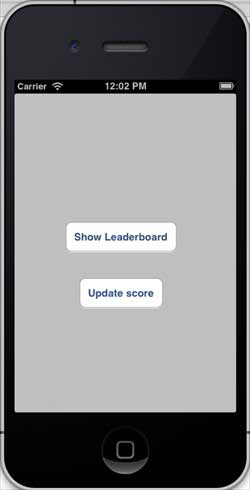
Run the application, the output is as follows:
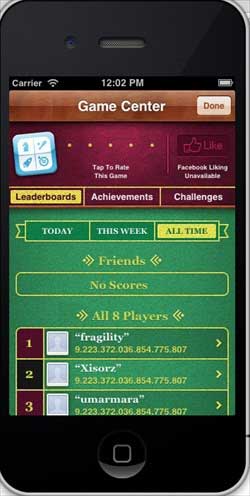
When we click "Show Leaderboard", the screen displays as follows:
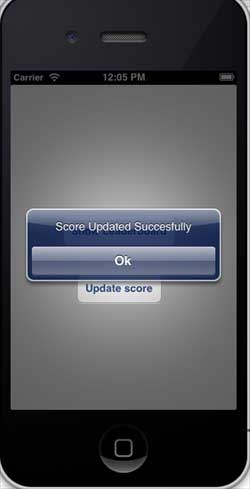
When we click "Update Score", the score will be updated on our leaderboard, and we will get a message as shown below.