iOS Send Email
Introduction
We can use the email application in iOS devices to send emails.
Example Steps
1. Create a simple View-based application
2. Select the project file, then select the target, and then add MessageUI.framework
3. Add a button in ViewController.xib, and create an action for sending email.
4. Update ViewController.h, as shown below
#import <UIKit/UIKit.h>
#import <MessageUI/MessageUI.h>

@interface ViewController : UIViewController<MFMailComposeViewControllerDelegate>
{
    MFMailComposeViewController *mailComposer;
}

-(IBAction)sendMail:(id)sender;

@end
5. Update ViewController.m, as shown below
#import "ViewController.h"

@interface ViewController ()

@end

@implementation ViewController

- (void)viewDidLoad
{
    [super viewDidLoad];
}

- (void)didReceiveMemoryWarning
{
    [super didReceiveMemoryWarning];
    // Dispose of any resources that can be recreated.
}

-(void)sendMail:(id)sender{
    mailComposer = [[MFMailComposeViewController alloc]init];
    mailComposer.mailComposeDelegate = self;
    [mailComposer setSubject:@"Test mail"];
    [mailComposer setMessageBody:@"Testing message
    for the test mail" isHTML:NO];
    [self presentModalViewController:mailComposer animated:YES];
}

#pragma mark - mail compose delegate
-(void)mailComposeController:(MFMailComposeViewController *)controller
 didFinishWithResult:(MFMailComposeResult)result error:(NSError *)error{
   if (result) {
        NSLog(@"Result : %d",result);
    }
    if (error) {
        NSLog(@"Error : %@",error);
    }
    [self dismissModalViewControllerAnimated:YES];

}

@end
Output
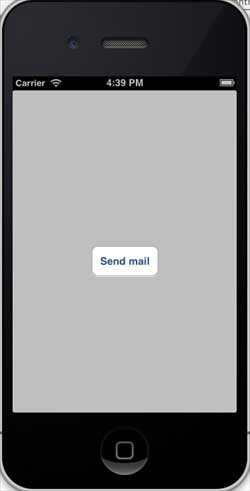
When running the application, you will see the following output
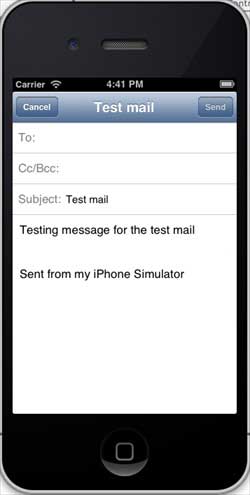
After clicking the "send email" button, you can see the following result: