iOS Xcode Installation
1. Fromhttps://developer.apple.com/downloads/Download the latest version of Xcode.
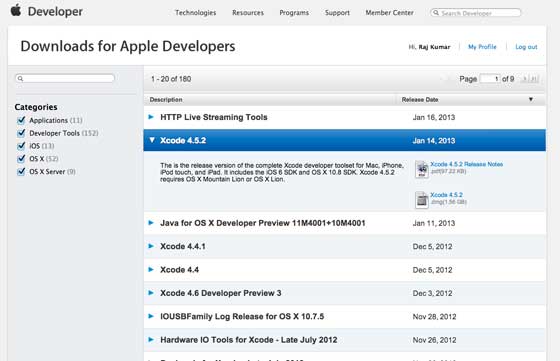
2. Double-click the Xcode dmg file
3. Install and open the found device
4. Here, there will be two items in the displayed window, namely the Xcode application and the shortcut to the Applications folder
5. Drag and copy Xcode to the Applications folder
6. Select and run the program in Applications, and Xcode will also become part of the running programs
You can also download Xcode from the Mac App Store and follow the installation steps on the screen
Interface Builder
With the Interface Builder tool, you can easily create UI interfaces.
You can drag a series of UI elements into the visual UI interface.
In the following pages, we will learn about adding UI elements, creating outlets, and UI element actions.
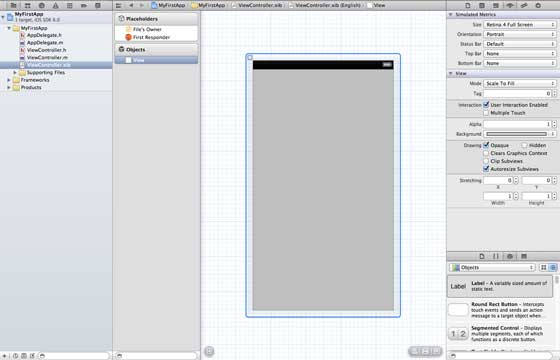
The Object Library below contains all the necessary UI elements. User interfaces are often called xibs, which is their file extension.
Each xib is linked to the corresponding view controller.
iOS Simulator
The iOS Simulator actually contains two types of devices, namely iPhone and iPad, and their different versions.
The iPhone versions include iPhone (Regular), iPhone Retina, iPhone 5, and iPhone 5s.
The iPad has iPad and iPad Retina. The iPhone simulator is shown as follows:
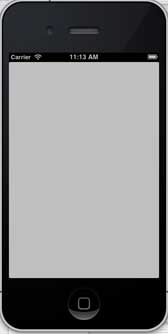
You can run the iOS Simulator with longitude and latitude affecting the app's location, and you can also simulate memory warnings and call status in the simulator.
The simulator can be used for many purposes, but it cannot test device features such as the accelerometer. Therefore, you may need an iOS device to test all aspects of an application.
Other Extensions