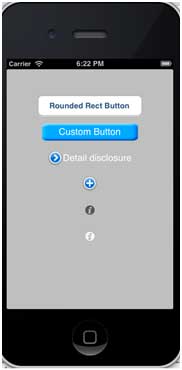
Button Usage
Buttons are used to handle user actions. They intercept touch events and send messages to target objects.
Rounded Rectangle Button
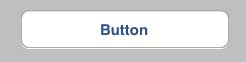
Button Properties in xib
You can change the xib button properties in the Attributes inspector in the Utility area (the right side of the window).
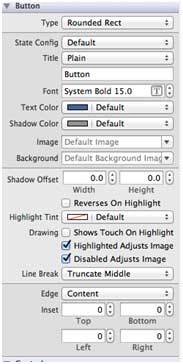
Button Type
- UIButtonTypeCustom
- UIButtonTypeRoundedRect
- UIButtonTypeDetailDisclosure
- UIButtonTypeInfoLight
- UIButtonTypeInfoDark
- UIButtonTypeContactAdd
Important Properties
- imageView
- titleLabel
Important Methods
+ (id)buttonWithType:(UIButtonType)buttonType
- (UIImage *)backgroundImageForState:(UIControlState)state
- (UIImage *)imageForState:(UIControlState)state
- (void)setTitle:(NSString *)title forState:(UIControlState)state
- (void)addTarget:(id)target action:(SEL)action forControlEvents: (UIControlEvents) controlEventsAdd custom method addDifferentTypesOfButton
-(void)addDifferentTypesOfButton
{
    // A rounded Rect button created by using class method
    UIButton *roundRectButton = [UIButton buttonWithType:
    UIButtonTypeRoundedRect];
    [roundRectButton setFrame:CGRectMake(60, 50, 200, 40)];
    // sets title for the button
    [roundRectButton setTitle:@"Rounded Rect Button" forState:
    UIControlStateNormal];
    [self.view addSubview:roundRectButton];

    UIButton *customButton = [UIButton buttonWithType: UIButtonTypeCustom];
    [customButton setBackgroundColor: [UIColor lightGrayColor]];
    [customButton setTitleColor:[UIColor blackColor] forState:
    UIControlStateHighlighted];
    //sets background image for normal state
    [customButton setBackgroundImage:[UIImage imageNamed:
    @"Button_Default.png"]
    forState:UIControlStateNormal];
    //sets background image for highlighted state
    [customButton setBackgroundImage:[UIImage imageNamed:
    @"Button_Highlighted.png"]
    forState:UIControlStateHighlighted];
    [customButton setFrame:CGRectMake(60, 100, 200, 40)];
    [customButton setTitle:@"Custom Button" forState:UIControlStateNormal];
    [self.view addSubview:customButton];

    UIButton *detailDisclosureButton = [UIButton buttonWithType:
    UIButtonTypeDetailDisclosure];
    [detailDisclosureButton setFrame:CGRectMake(60, 150, 200, 40)];
    [detailDisclosureButton setTitle:@"Detail disclosure" forState:
    UIControlStateNormal];
    [self.view addSubview:detailDisclosureButton];

    UIButton *contactButton = [UIButton buttonWithType:
    UIButtonTypeContactAdd];
    [contactButton setFrame:CGRectMake(60, 200, 200, 40)];
    [self.view addSubview:contactButton];

    UIButton *infoDarkButton = [UIButton buttonWithType:
    UIButtonTypeInfoDark];
    [infoDarkButton setFrame:CGRectMake(60, 250, 200, 40)];
    [self.view addSubview:infoDarkButton];

    UIButton *infoLightButton = [UIButton buttonWithType:
    UIButtonTypeInfoLight];
    [infoLightButton setFrame:CGRectMake(60, 300, 200, 40)];
    [self.view addSubview:infoLightButton];
}
Note:
We will add the images named "Button_Default.png" and "Button_Highlighted.png" to our project, which can be done by dragging the images to the navigation area that lists our project files.
Update viewDidLoad in ViewController.m as follows:
(void)viewDidLoad
{
    [super viewDidLoad];
    //The custom method to create our different types of button is called
    [self addDifferentTypesOfButton];
    //Do any additional setup after loading the view, typically from a nib
}
Output
Now when we run the application, we will get the following output: