Usage of Toolbar
We can use the toolbar to modify view elements.
For example, the inbox bar in the Mail app contains Delete, Share, Reply, etc. As shown below:

Important properties
- barStyle
- items
Add custom method addToolbar
-(void)addToolbar
{
    UIBarButtonItem *spaceItem = [[UIBarButtonItem alloc]
    initWithBarButtonSystemItem:UIBarButtonSystemItemFlexibleSpace
    target:nil action:nil];
    UIBarButtonItem *customItem1 = [[UIBarButtonItem alloc]
    initWithTitle:@"Tool1" style:UIBarButtonItemStyleBordered
    target:self action:@selector(toolBarItem1:)];
    UIBarButtonItem *customItem2 = [[UIBarButtonItem alloc]
    initWithTitle:@"Tool2" style:UIBarButtonItemStyleDone
    target:self action:@selector(toolBarItem2:)];
    NSArray *toolbarItems = [NSArray arrayWithObjects:
    customItem1,spaceItem, customItem2, nil];
    UIToolbar *toolbar = [[UIToolbar alloc]initWithFrame:
    CGRectMake(0, 366+54, 320, 50)];
    [toolbar setBarStyle:UIBarStyleBlackOpaque];
    [self.view addSubview:toolbar];
    [toolbar setItems:toolbarItems];
}
To understand the operations performed, we add a UILabel IBOutlet in our ViewController.xib and create an IBOutlet for UILabel named label.
We also need to add two methods to perform the operations of the toolbar items as shown below:
-(IBAction)toolBarItem1:(id)sender{
    [label setText:@"Tool 1 Selected"];
}

-(IBAction)toolBarItem2:(id)sender{
    [label setText:@"Tool 2 Selected"];
}
Update viewDidLoad in ViewController.m as follows:
- (void)viewDidLoad
{
    [super viewDidLoad];
    // The method hideStatusbar called after 2 seconds
    [self addToolbar];
    // Do any additional setup after loading the view, typically from a nib.
}
Output
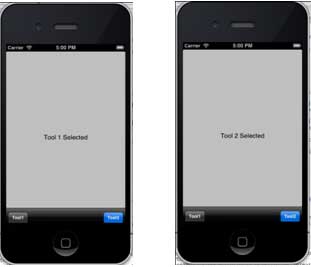
Now when we run the application, we will see the output below.
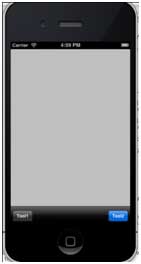
Click the tool1 and tool2 bar buttons that we get.