VS Code Install Claude Code
If you don't like using Claude Code's command-line model, you can install Claude Code in the VS Code editor.
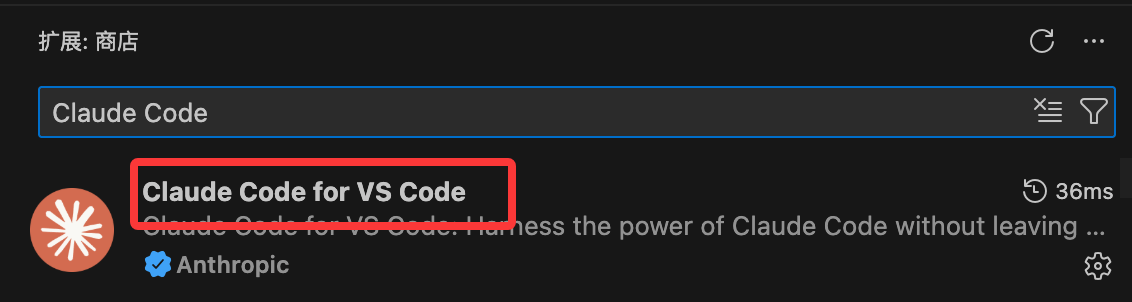
Open VS Code, go to the extension marketplace, and searchClaude CodeInstall:
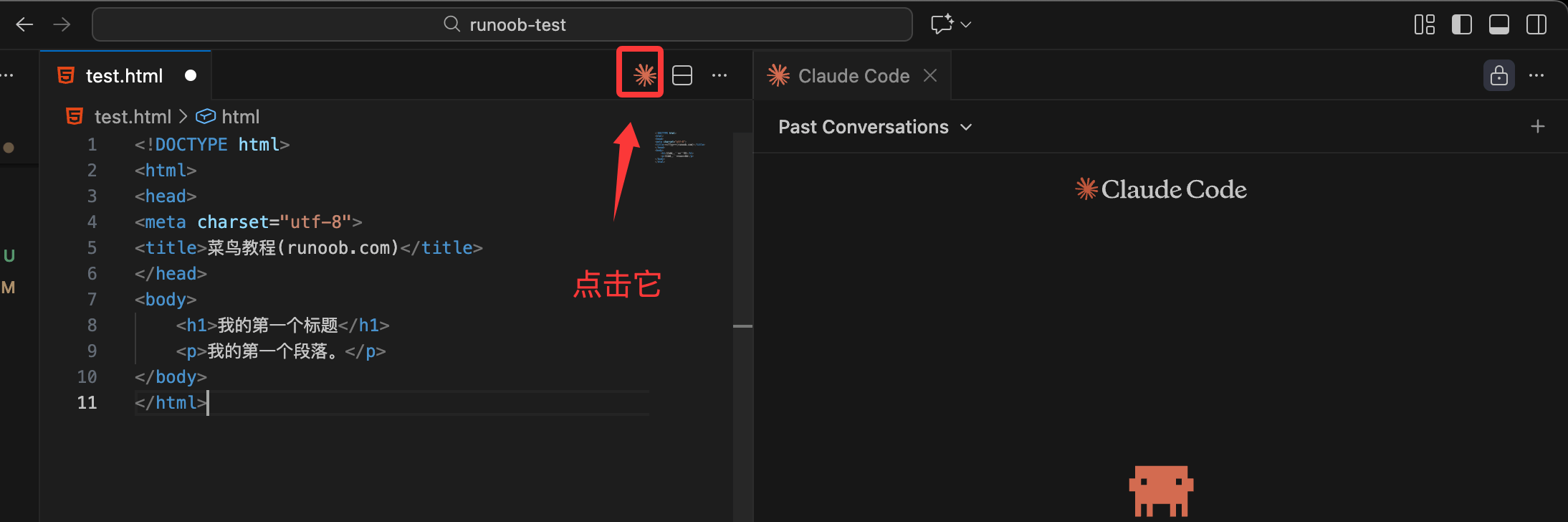
After installation is complete, click the Claude Code icon in the top right corner to enter the Claude Code page:
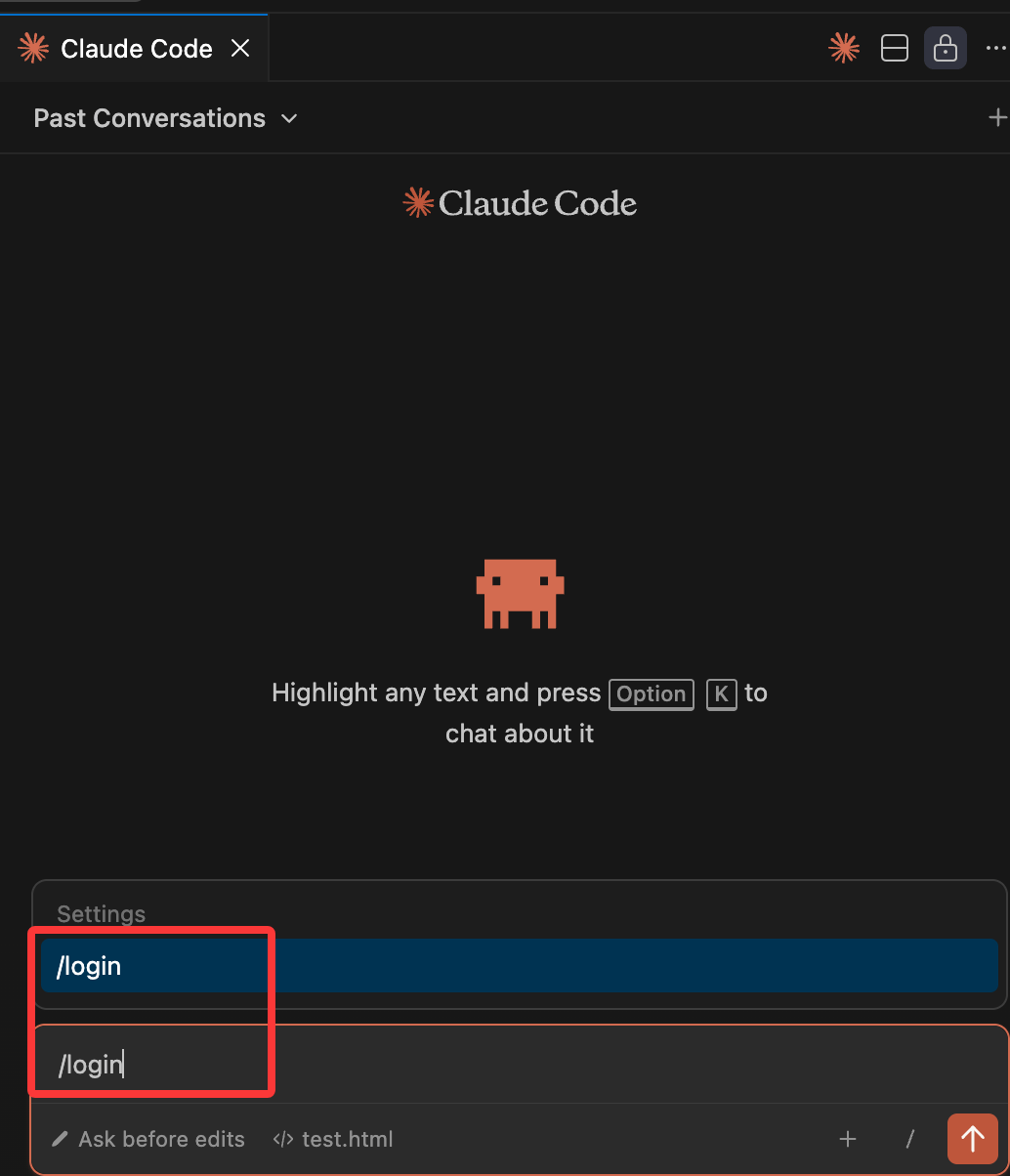
This way, those with an account can use /login to log in:
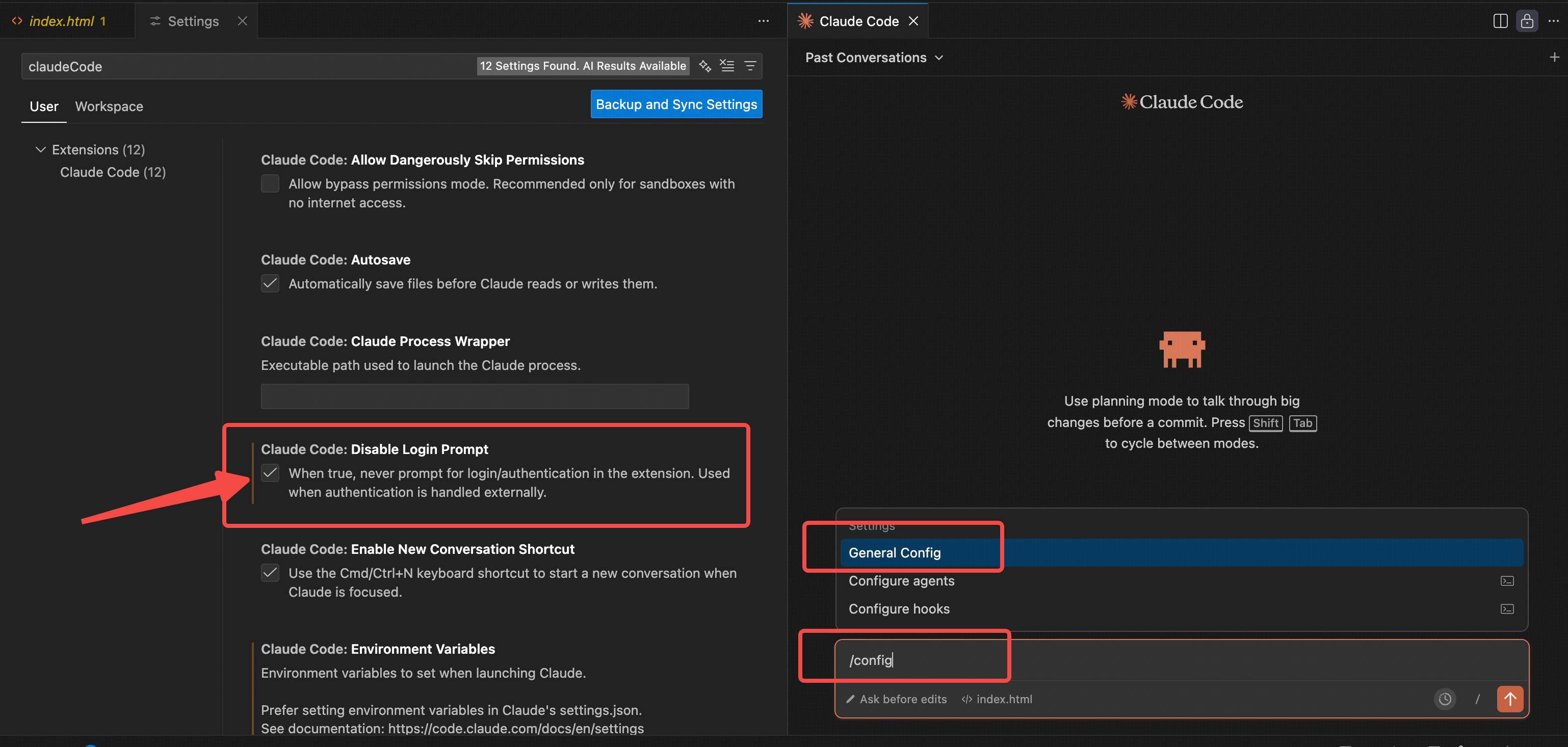
You can also enter /config in the dialog box to access settings, and check the Disable Login Prompt configuration to turn off the login page:
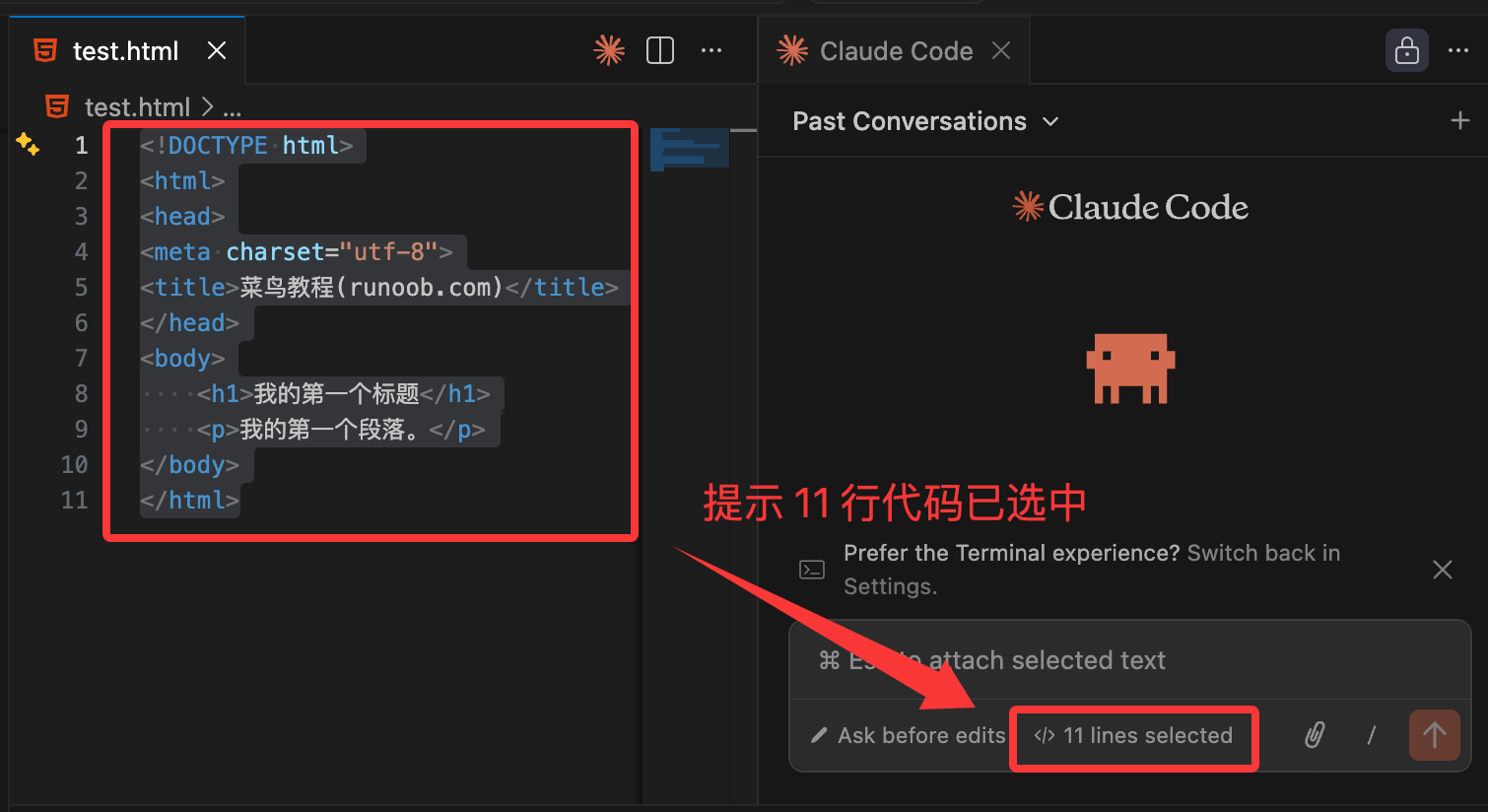
We can select code in a file to let Claude Code help us explain or modify it. After selection, it will show the number of selected lines of code:
When Claude needs to modify a file, it automatically opens a side-by-side comparison view, showing the original file content on the left and the suggested changes on the right, then asks whether you agree to the changes.

Using the Prompt Box (Chat Input Box)
The prompt box is where you chat with Claude. It is very powerful. Here are the common features, and you'll know how to use them at a glance:
1. Permission Modes:
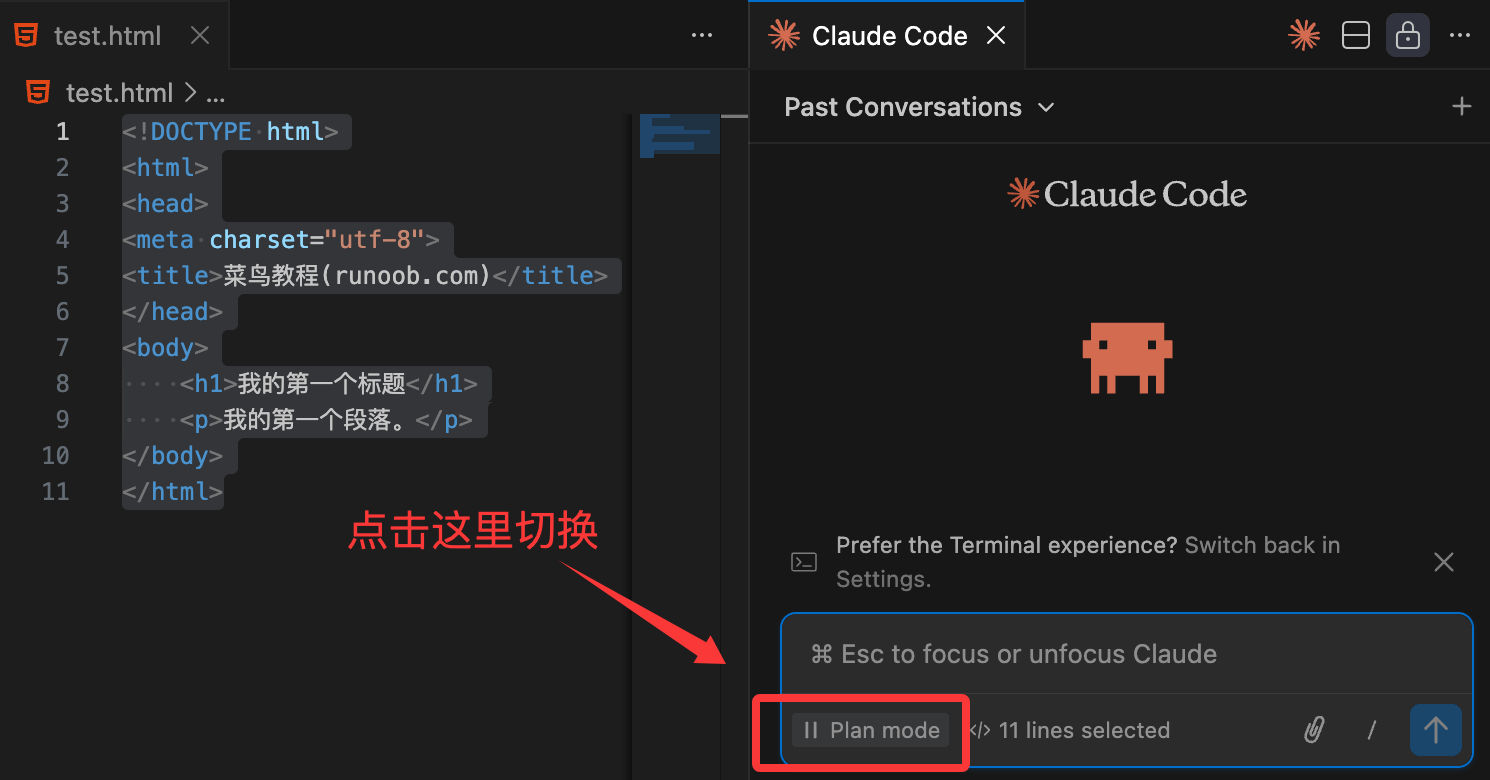
Click the prompt box'sbottommode indicator to switch permission modes.
- Normal Mode(Default): Claude will first ask for your consent before every operation.
- Plan Mode: Claude first tells you what it plans to do, and only makes changes after getting your approval.
- Auto-accept Mode: Claude edits directly without asking each time.
You can also search in VS Code settings forclaudeCode.initialPermissionModeto set the default mode.
2. Command Menu:
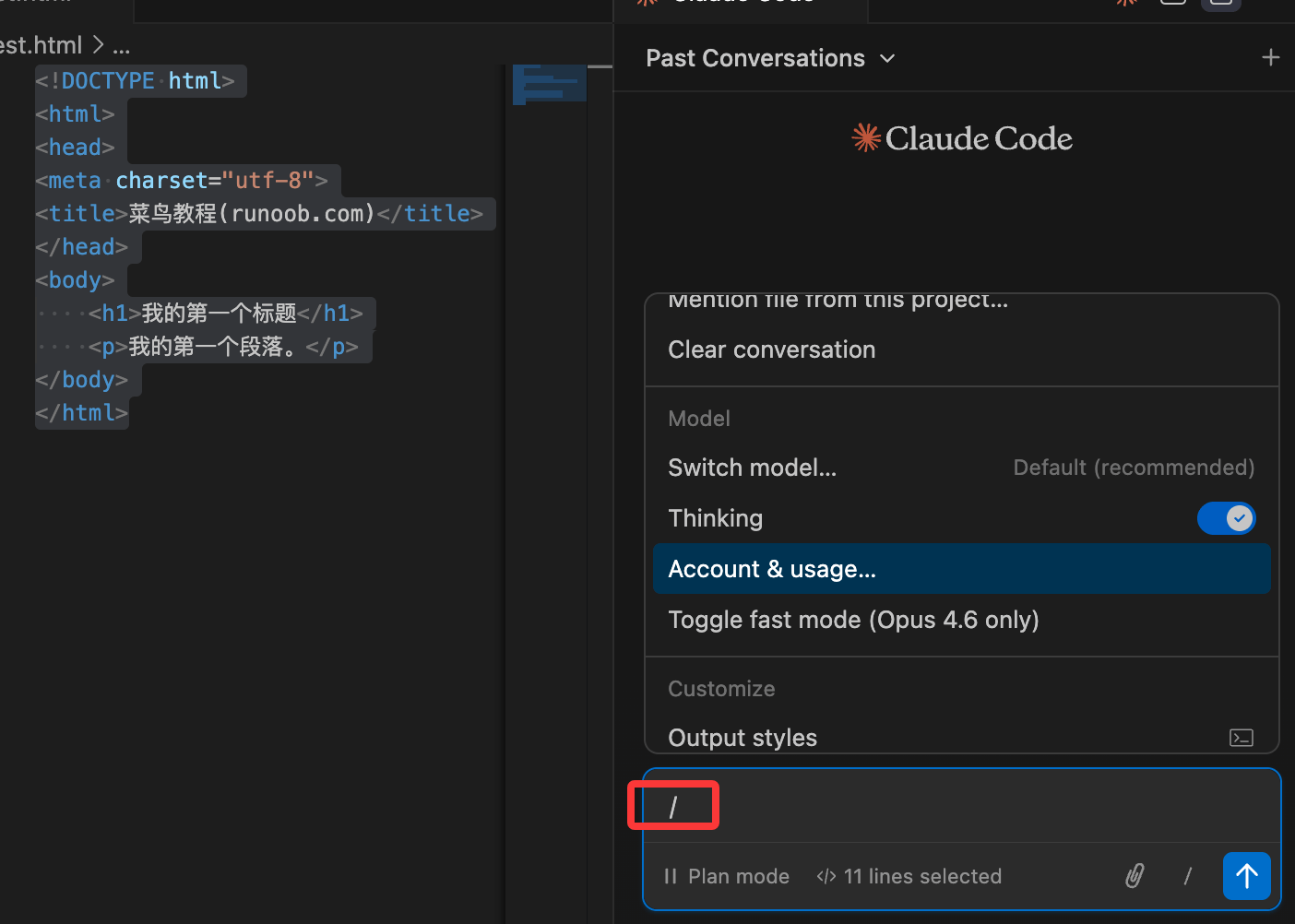
Enter in the prompt box/(or click the input box) to open the command menu.
Common options include: attach files, switch models, enable extended thinking, view usage (enter/usage)。
The "Custom" section below can also manage MCP servers, hooks, memory, permissions, and plugins.
Commands with theterminal iconwill open directly in the VS Code integrated terminal.
3. Context Usage Indicator: Below the prompt box, it shows in real time how much of Claude's context window you have used.
Claude will automatically compress content for you; if you want to compress manually, enter/compactand that's it.
4. Extended Thinking: For complex problems, you can let Claude take more time to think deeply.
Via the command menu (enter/) to toggle on/off.
5. Multi-line Input:
pressShift + EnterYou can make line breaks without sending the message immediately.
This also applies to the "Other" free-text box that pops up.
Referencing Files and Folders (@ Mention Feature)
Want Claude to understand your code? Just use@to mention a file or folder!
Enter@followed by a file name or folder name, and Claude will automatically read the content, answer questions, or make modifications directly.

Supportsfuzzy matching, so you don't need to type the full name:
解释一下 @auth 的逻辑(会自动匹配 auth.js、AuthService.ts 等)
@src/components/ 里有什么?(文件夹要加斜杠 / )
Super Practical Tips:
- When selecting code: Directly select a piece of code in the editor, and Claude will automatically see the selected part. Below the prompt box, it will show "XX lines selected".
- Quick Insert: PressOption + K(Mac) orAlt + K(Windows/Linux) to insert an @ mention with the file path and line number, for example
@app.ts#5-10。 - Hide selected content: Click the "Select indicator" (eye icon) at the bottom of the prompt box. A slashed eye means Claude cannot see the text you have selected.
- Drag attachments: Hold down when dragging a file to the prompt boxShift, it can be added as an attachment.
Want to delete an attachment? Just click the × in the top-right corner of the attachment.
Exclusive to large PDF files: You can specify that Claude only reads certain pages, e.g., "pages 1-10" or "starting from page 3".
Resume Past Conversations
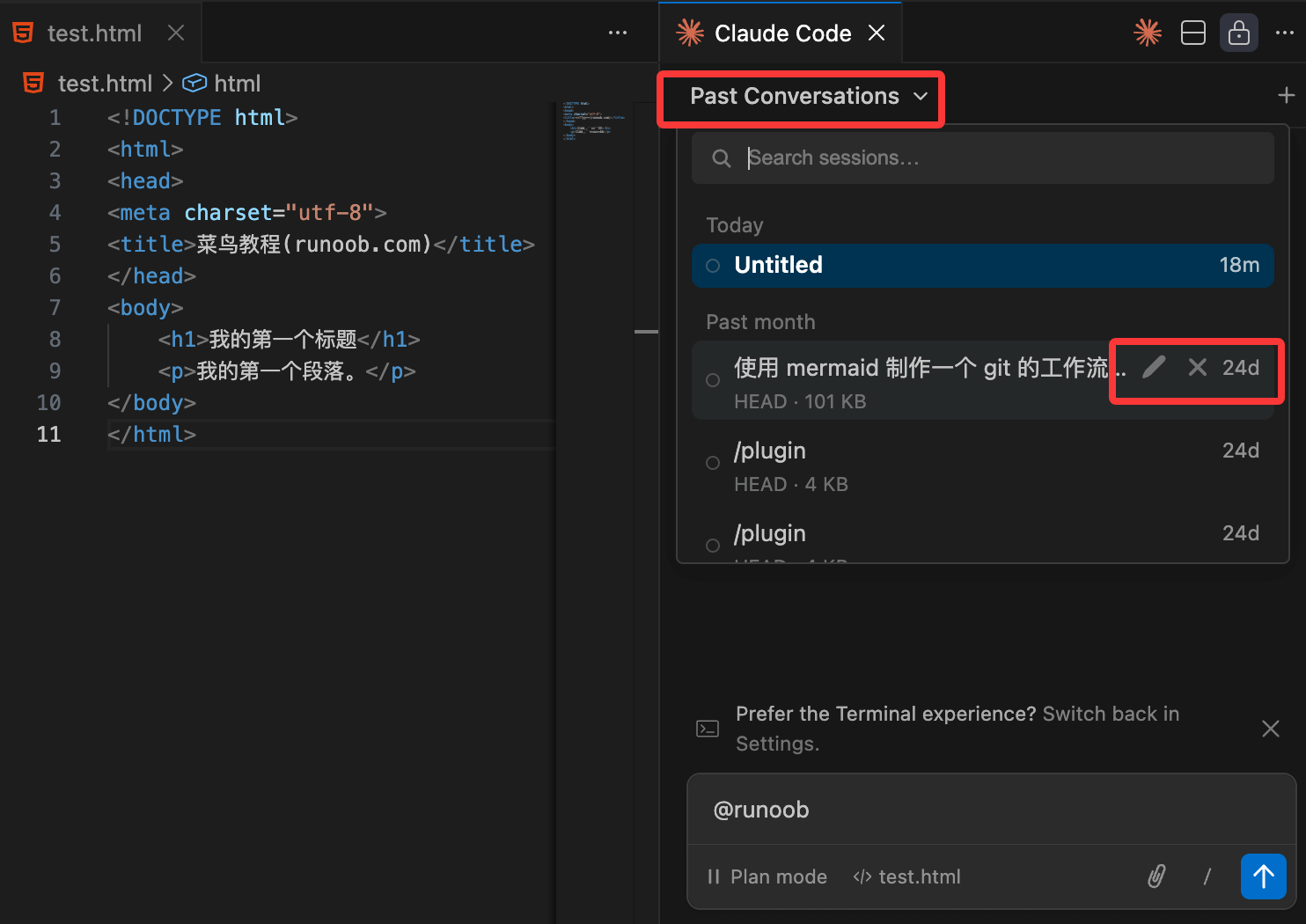
Click the Claude Code paneltopdropdown menu, and you can see all your chat history.
Supportskeyword search, and also filter by time (today, yesterday, past 7 days, etc.).
Click any record to fully restore the previous conversation content.
Hovering over a record will showRenameandDeletebuttons:
- Rename: give the conversation a memorable title
- Delete: remove this record from the list