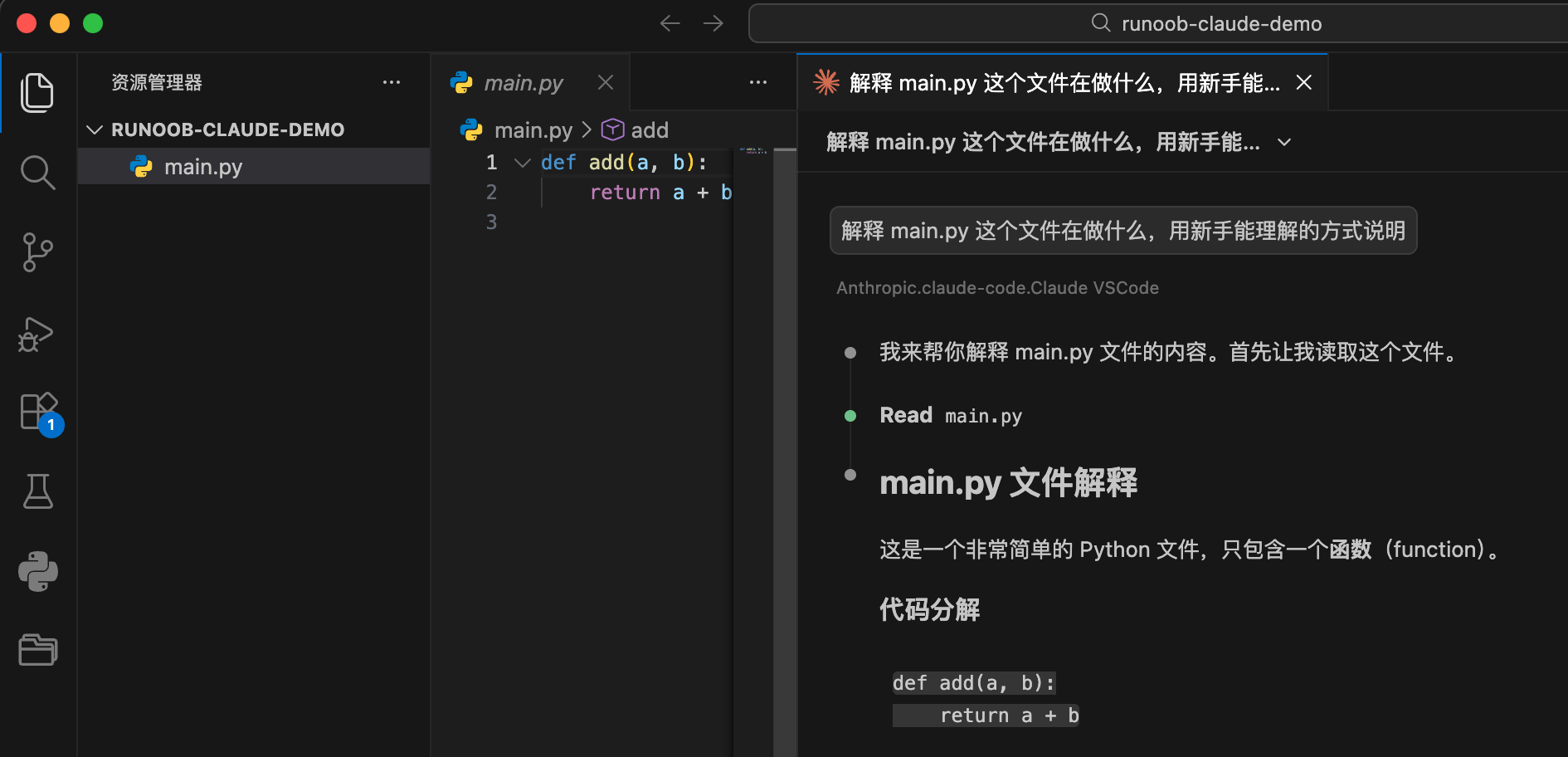
Claude Code First Use
After installing Claude Code and configuring the API, we can start using it.
Next, let's use a simple example project to complete the first use.
Create an example project:
mkdir example-claude-demo
cd example-claude-demo
Create a simple file:
touch main.py
Write the following content:
def add(a, b):
    return a + b
Let Claude Code Explain Code
Run in the project directory:
claude
Then enter:
解释 main.py 这个文件在做什么,用新手能理解的方式说明
Claude will read the code in the current directory and provide an explanation.
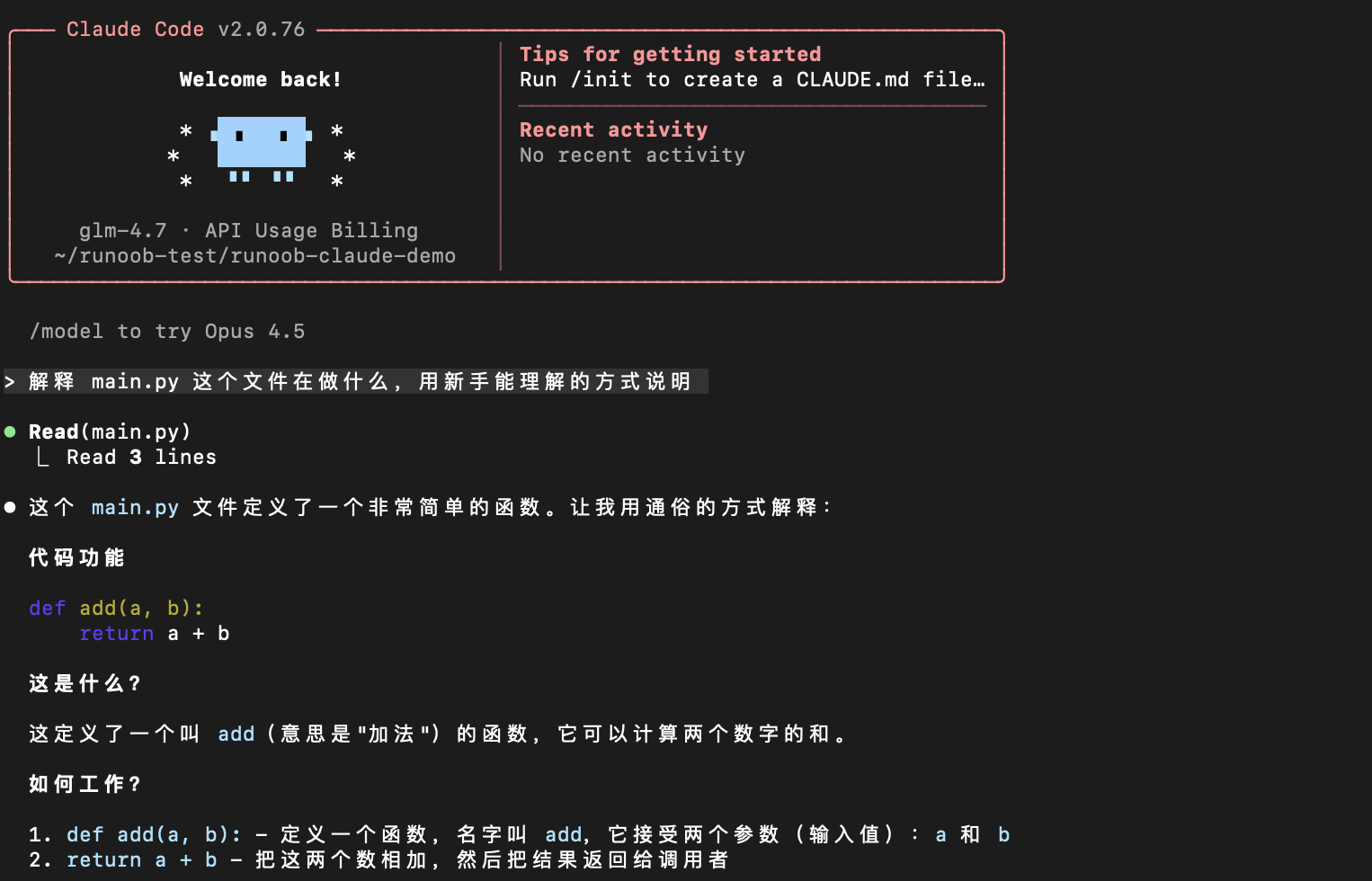
Let Claude Code Help You Modify Code
Continue entering in the Claude session:
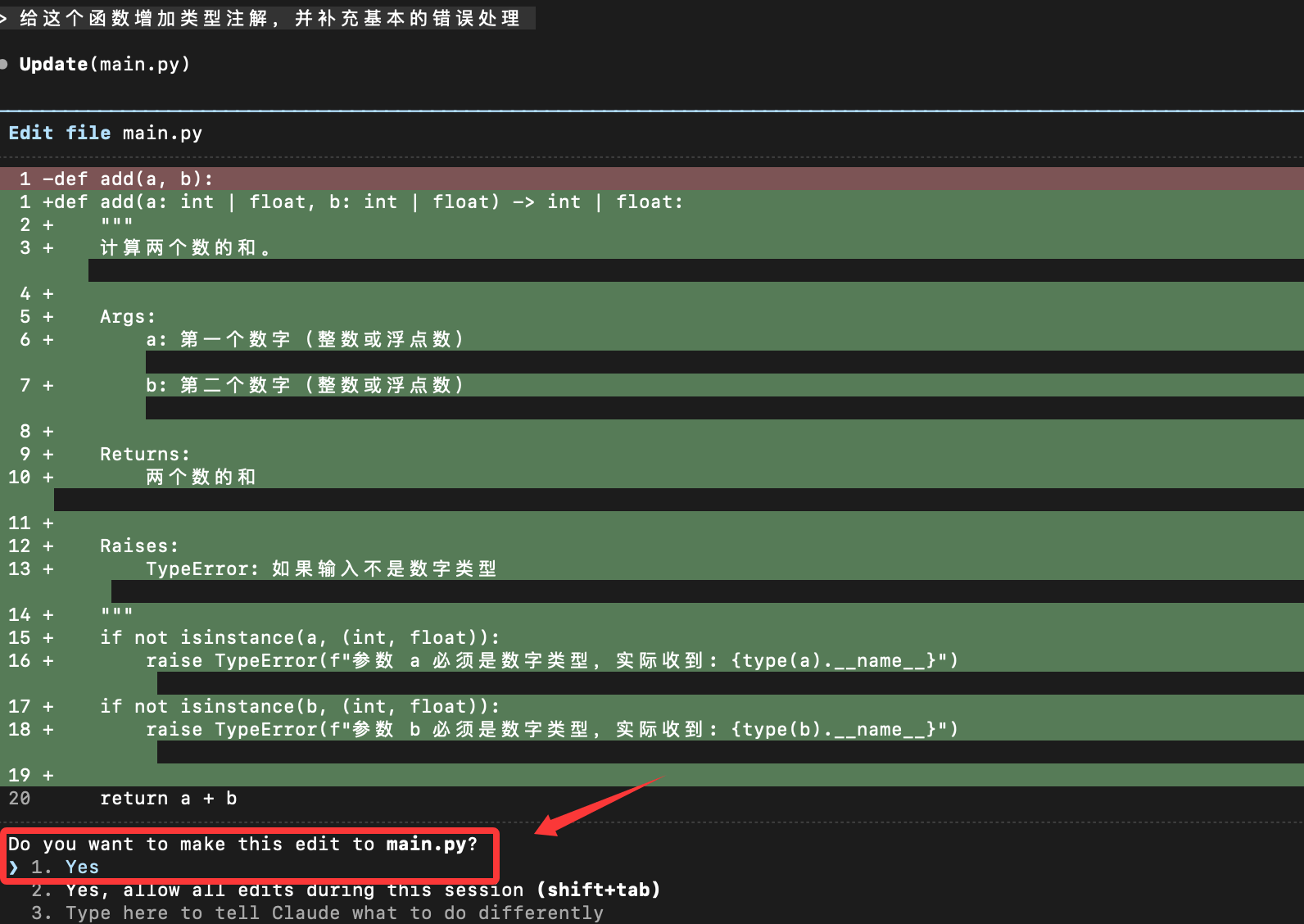
Add type annotations to this function and supplement basic error handling.
Claude will provide modification suggestions, usually including:
- Modified code
- Explanation of the modification reasons
You can choose:
- Apply directly
- Manual adjustment
- Reject the modification
Claude Code Basic Interaction Methods
Common Command Types
You can divide the commands to Claude Code into three categories:
1. Explanatory
Explain this code.

Why is this function written this way?
2. Modification
Help me refactor this function.

Split it into multiple smaller functions.
3. Generation
Add a test case.

Add log output.
A simple but useful command template:
在不改变现有行为的前提下,
帮我优化 XXX 文件的可读性,
并说明你做了哪些修改。
Common Issue: Fixing Directory Permissions
If you are on Mac or Linux, pay attention to whether you have permission to execute. If you see an error similar to the following, it means insufficient permissions:
Error: EACCES: permission denied, open
Open the terminal and run the following command:
# 1. 修复 .claude 目录的所有权
sudo chown -R $(whoami) ~/.claude

# 2. 修复目录权限(给予读写执行权限)
chmod -R 755 ~/.claude

# 3. 确保 projects 目录可写
chmod -R 755 ~/.claude/projects
Verify the fix:
# 检查权限
ls -la ~/.claude/
Using Claude Code in VS Code
If you don't like using the Claude Code command line model, we can install Claude Code in the VS Code editor.
Open VS Code, go to the extension marketplace, searchClaude CodeInstall:
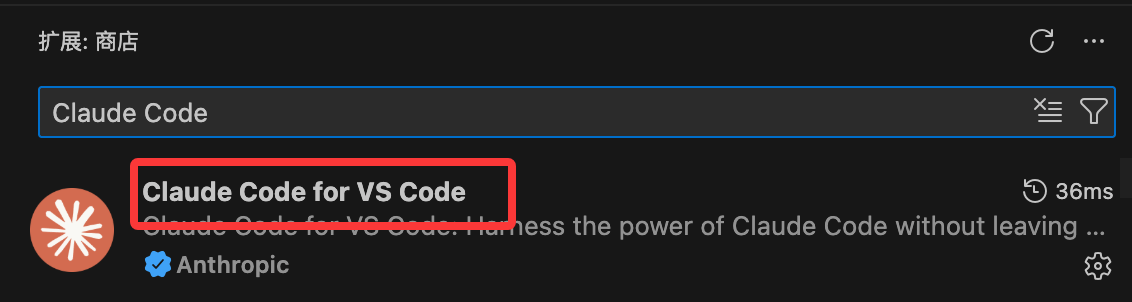
After installation, click the Claude Code icon in the top right corner to enter the Claude Code page:
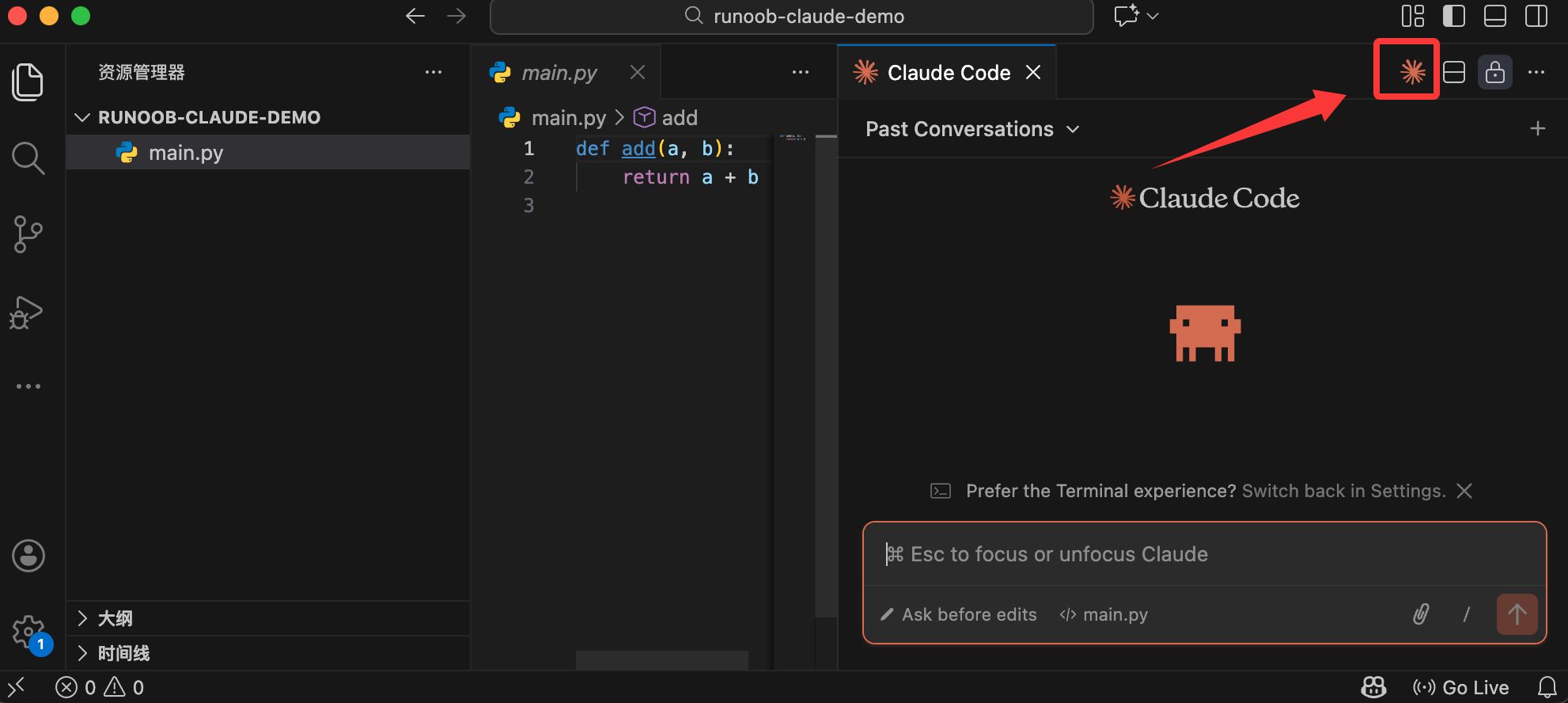
Then you can use it in the dialog: