Using Claude Code in JetBrains IDEs
Claude Code deeply integrates with JetBrains IDEs through a dedicated plugin, providing powerful features such as interactive diff viewing and code selection context sharing, seamlessly integrating AI-assisted programming into your development workflow.
Supported IDEs
The Claude Code plugin supports the vast majority of JetBrains IDEs, including:
- IntelliJ IDEA
- PyCharm
- Android Studio
- WebStorm
- PhpStorm
- GoLand
Core Features
| Feature | Description |
|---|---|
| Quick Start | Mac useCmd+Esc, Windows/Linux useCtrl+Esc, directly open Claude Code from the editor |
| Diff Viewing | Code changes are displayed directly in the IDE's Diff viewer, rather than in the terminal |
| Selection Context Sharing | The currently selected code or tab content in the IDE is automatically shared with Claude Code |
| File Reference Shortcut | Mac useCmd+Option+K, Linux/Windows useAlt+Ctrl+K, quickly insert such as@src/auth.ts#L1-99file references in the form of |
| Diagnostic Information Sharing | Diagnostic information such as lint errors and syntax errors in the IDE is automatically shared with Claude while you work |
Installation and Configuration
Step 1: Install Prerequisites
Before installing the JetBrains plugin, you need to install the Claude Code CLI first.
# macOS、Linux、WSL 安装
curl -fsSL https://claude.ai/install.sh | bash
# Windows PowerShell 安装
irm https://claude.ai/install.ps1 | iex

# 验证安装
claude --version
For detailed installation steps, please refer toClaude Code Installation Guide。
Step 2: Install the JetBrains Plugin
- Open your JetBrains IDE
- Go toSettings → Plugins
- Switch toMarketplacetab
- SearchClaude Code
- ClickInstall
- After the installation is completeRestart the IDE

Step 3: Start and Connect Claude Code
Start from the IDE integrated terminal (Recommended)
Run the following command in the IDE's built-in terminal, and all integrated features will be activated automatically:
claude

This is a welcome screen. After pressing Enter, you can start working:

Connect from an external terminal
If you are using an external terminal, you can use the/idecommand to connect Claude Code to your JetBrains IDE:
# 先启动 Claude Code
claude

# 然后执行 /ide 命令连接 IDE
/ide
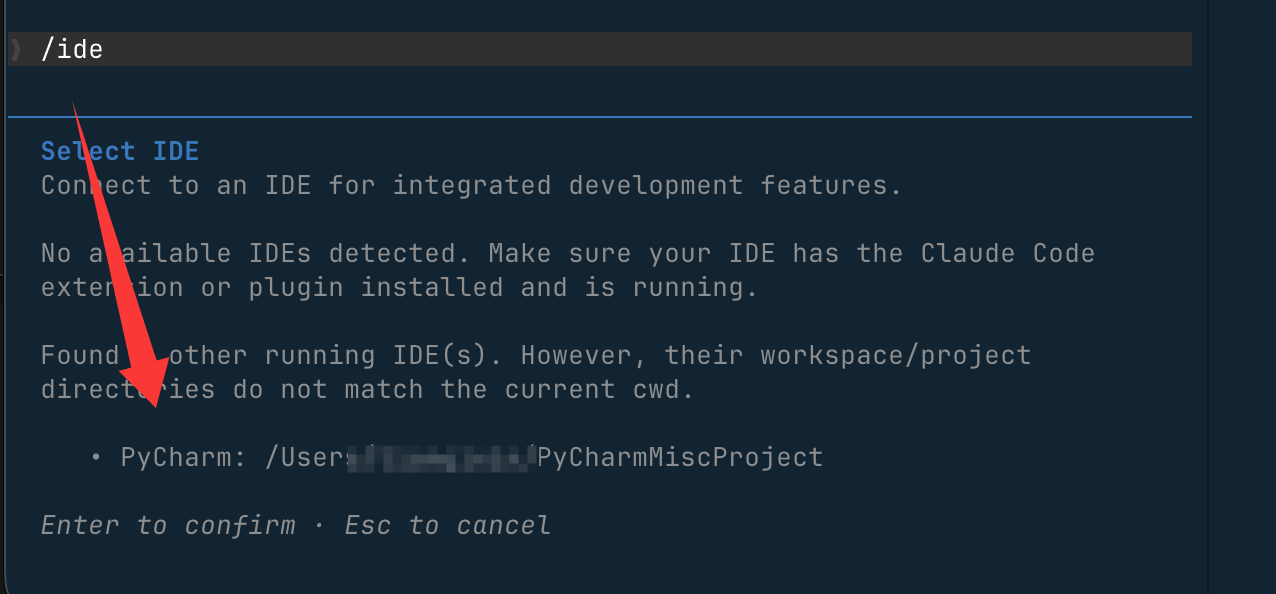
💡 Tip: To ensure Claude can access the same files as the IDE, start Claude Code from the IDE project root directory.
Step 4: Configure Claude Code
Configure the Diff Tool
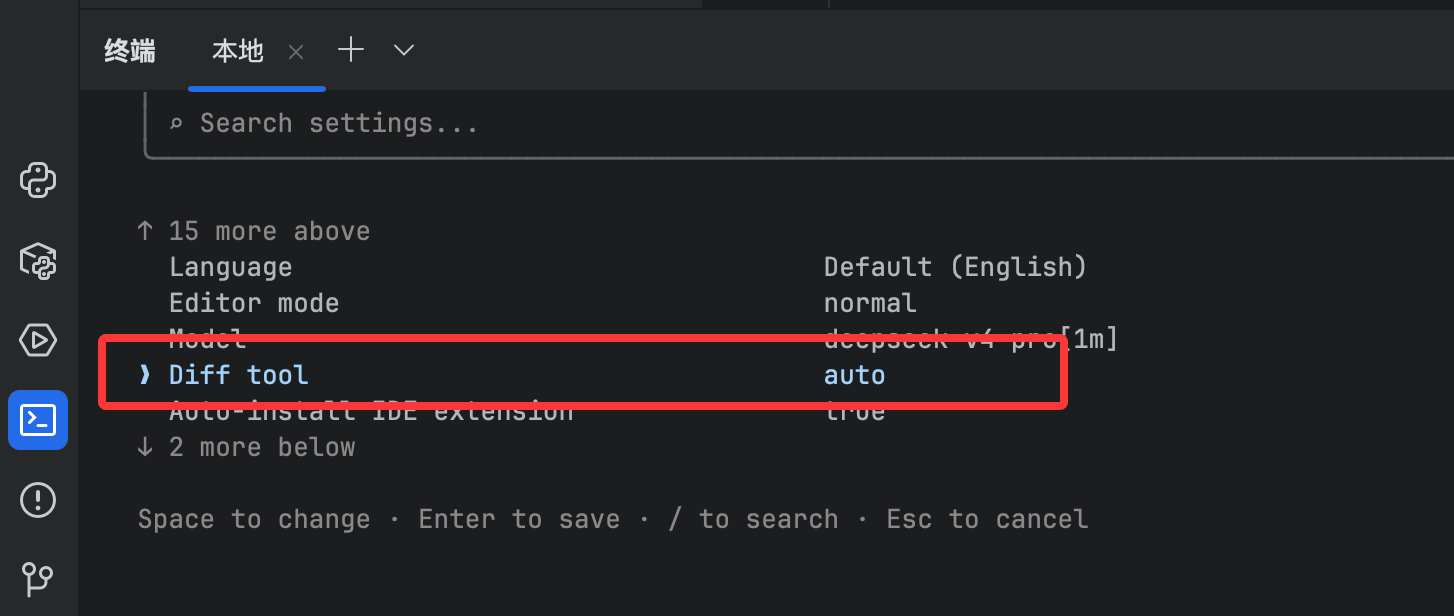
After running Claude Code, set the Diff display mode using the following steps:
# 启动 Claude Code
claude

# 进入配置
/config
Set the diff tool toauto, code changes will be displayed directly in the IDE Diff viewer; set toterminalthen keep it displayed in the terminal.
Configure plugin settings
Go toSettings → Tools → Claude Code [Beta], you can configure the following options:
- Claude command (Claude command path): customize the command for running Claude, for example
claude、/usr/local/bin/claudeornpx @anthropic-ai/claude-code - Suppress notification for Claude command not found: turn off the notification prompt when the Claude command is not found
- Enable using Option+Enter for multi-line prompts(macOS only): When enabled,
Option+Enteryou can insert line breaks in the prompt box - Enable automatic updates: automatically check and install plugin updates, effective after restart

💡 WSL users: set the Claude command to
wsl -d Ubuntu -- bash -lic "claude"(replaceUbuntuwith your WSL distribution name).
Configure the ESC key (optional)
If theESCkey cannot interrupt Claude Code operations, follow these steps to fix:
- Go toSettings → Tools → Terminal
- Uncheck"Move focus to the editor with Escape", or click"Configure terminal keybindings"and delete"Switch focus to Editor"shortcut
- Apply changes

Special Scenario Configuration
Remote Development
When using JetBrains Remote Development, the plugin must be installed on theremote host, not on the local client machine.
Operation path:Settings → Plugin (Host)
WSL2 Configuration
If you use Claude Code in a WSL2 environment and encounter"No available IDEs detected"an error, it is usually because WSL2's NAT network or Windows Firewall is blocking the connection.
Option 1: Add a Windows Firewall rule (recommended)
# 第一步:在 WSL 中查看 IP 地址
hostname -I
# 例如输出 172.21.123.45,子网为 172.21.0.0/16
# 第二步:以管理员身份打开 PowerShell,创建防火墙规则(根据你的子网调整 IP 范围)
New-NetFirewallRule -DisplayName "Allow WSL2 Internal Traffic" -Direction Inbound -Protocol TCP -Action Allow -RemoteAddress 172.21.0.0/16 -LocalAddress 172.21.0.0/16
Then restart the IDE and Claude Code for it to take effect.
Option 2: Switch WSL2 to mirrored network mode(requires Windows 11 22H2 or later)
In the Windows user directory,.wslconfigadd to the file:
[wsl2]
networkingMode=mirrored
Then run in PowerShellwsl --shutdownRestart WSL.
Common Issue Troubleshooting
Plugin Features Not Appearing After Installation
- Confirm that Claude Code is fromthe project root directorystarted
- Check that the JetBrains plugin is enabled in the IDE settings
- Tryfully restarting the IDE(may require multiple restarts)
- In remote development scenarios, confirm the plugin is installed on the remote host
Prompt: "No available IDEs detected"
- Confirm the plugin is installed and enabled
- Fully restart the IDE
- Ensure Claude Code is run from the IDE's integrated terminal
- WSL users, please refer to theWSL2 configurationsection
Clicking the Claude icon prompts "command not found"
- Run in the terminal
claude --version, verify that Claude Code is installed correctly - Manually configure the Claude command path in the plugin settings
- WSL users should use the aforementioned WSL command format