How Claude Code Works
In simple terms: Claude Code is like a super smart programming partner. It can automatically write code, fix bugs, run commands, search files, and more on your computer... Almost anything you can do in the terminal, it can do!
This section gives you a thorough understanding of its underlying principles (agent loop, models, tools, etc.). After reading, you'll know why it's so powerful and how to use it more smoothly.
Claude's Workflow
When you give Claude a task, it will, like a human,think in a loopthrough three steps:
- Gather context(look at your code, files, error messages)
- Take action(edit files, run commands, search, etc.)
- Verify results(check whether it succeeded, and where adjustments are needed)
These three steps keep looping until the task is complete. Of course, we can also interrupt it at any time, give new instructions, or say "try a different approach."
Although Claude can work autonomously,it always takes your direction.!
Prompt → 获取上下文 → 执行动作 → 验证结果 →(循环)→ 完成

The entire loop is driven by two things:
- Model(responsible for thinking and reasoning)
- Tools(responsible for actually doing things)
Model (Claude's Brain)
Claude Code uses Anthropic's Claude model to understand code and plan tasks. It can understand almost all programming languages, know your project structure, and break complex tasks into small steps to execute one by one.
Recommended common models:
- Sonnet: best for everyday coding tasks (fast and cost-effective)
- Opus: suitable for particularly complex architecture design and deep reasoning
However, using the official model in China is not very user-friendly, so we can switch to other domestic models.
Switching models:
- Enter in the prompt box
/model - or use at startup
claude --model sonnet

Tools (The Reason Claude Can Actually Take Action)
Without tools, Claude can only chat; with tools, it can actually modify your code!
Claude has five major categories of built-in tools:
- File operations: read files, modify code, create new files, rename
- Search: quickly find code by file name or regular expression
- Run commands: run npm, git, tests, start servers, etc.
- Web search: look up documentation, error messages
- Code intelligence: check type errors, go to definition, find references (requires installing the corresponding language plugin)
Real-world example(when fixing a failing test):
- Run tests to see what's failing
- Read error logs
- Search relevant source files
- Read files to understand the logic
- Modify code
- Run tests again to verify
This is what the agent loop actually looks like!
Advanced extensions: You can also use skills, MCP (external services), hooks (automation), and subagents to make it more powerful.
What Claude Can Access
Claude Code can see your entire project (unlike ordinary AI that can only see currently open files):
- Your project folder and all sub-files
- Any command the terminal can execute (npm, git, build tools, etc.)
- Current Git status (branch, uncommitted changes, commit history)
- CLAUDE.mdFiles (you can write project-specific rules here for Claude to remember every time)
- Auto memory(It remembers your project habits, saved in the first 200 lines of MEMORY.md)
- Extensions you've configured (MCP, skills, etc.)
Because of this, it can coordinate changes across multiple files, automatically run tests, and even help you commit code.
Execution Environment and Interface
Claude Code can run inthree environments:
- Local(default): completely on your computer, highest permissions
- Cloud(Anthropic VM): suitable for large projects or environments you don't have locally
- Remote control: operate from the browser, but the code still stays on your local machine
Interface support: terminal, VS Code extension, JetBrains, claude.ai/code, Slack, CI/CD, etc. The underlying working principle is exactly the same!
Cross-Branch Work (Seamless Use Even When Switching Git Branches)
Each conversation in Claude Codeis bound to the current folder(rather than to the Git branch). This brings a very practical feature:
- When youswitch Git branches(
git checkoutorgit switch), Claude willautomatically see the new branch's files, but yourchat history remains unchanged。 - Claude still remembers all previously discussed content and decisions, and context is not lost even across branches.
- When you resume an old conversation, only the session records in thecurrent folderare displayed (different branches in the same folder share history).
A powerful tool for parallel multi-branch development:
Recommended approachgit worktreesCreate aseparate directoryfor each branch, so you can open multiple Claude Code sessions simultaneously, with each branch having its own completely independent, clean conversation history without interference.
Resume or Fork a Session (Continue Chatting / Start a New Thread)
Claude Code supports three flexible session operations, letting you pick up where you left off or try different approaches at any time:
1. Directly resume a session (most common)
Command:
claude --continue
# 或者
claude --resume
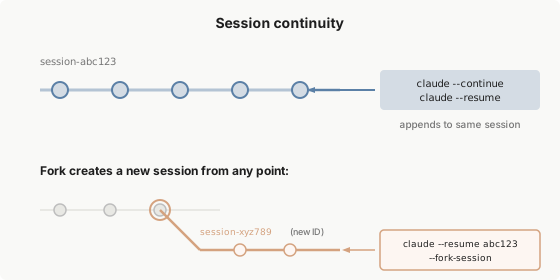
Effect:
- Use thesame session IDto continue from where you left off
- Full chat history is restored
- Note: Session-scoped permissions are not automatically restored; you need to re-approve once
2. Fork a session (recommended! Trying new approaches doesn't affect the original conversation)
Command:
claude --continue --fork-session
Effect:
- Creates abrand new session ID
- Retains all chat history up to this point
- The original session is completely unaffected
- Permissions also need to be re-approved
Use case: When you want to try "another implementation approach" without messing up the original conversation, use this!
3. Multiple terminals using the same session simultaneously (use with caution)
- If you use
claude --continueto resume the same session in multiple terminal windows:- All messages will beinterleaved and mixed together(like two people writing in the same notebook at the same time)
- The conversation becomes chaotic
- Each terminal can only see its own input messages at the time, but when resumed later, you'll see all the interleaved content
Correct approach: When you want to work in parallel,be sure to use--fork-sessionto give each terminal a clean, independent new session.
Context Window (Claude's Memory Capacity)
Claude has a context capacity limit. When it's almost full:
- It willautomatically compressold content
- You can enter
/compactto manually compress - Enter
/contextto view current usage
Space-saving tips:
- Write important rules intoCLAUDE.md
- Use skills and subagents to reduce unnecessary context usage
Safety Mechanisms (Checkpoints + Permission Control)
1. Checkpoints (undo anytime)Claude automatically backs up files before modifying them. Just press twiceEsc, or say "undo the last change" to return to the previous state.
2. Permission modes(press Shift + Tab to quickly switch):
- Default: asks you every time it modifies a file or runs a command
- Auto-accept edits: only modifies files without asking, but still asks about commands
- Plan mode: only analyzes, doesn't take action, gives you a complete plan first
You can also.claude/settings.jsonwhitelist trusted commands in it (for examplenpm testnever have to ask again).
6 Practical Tips for Using Claude Code Effectively
-
Just ask it how to use itself
Type: "How do I set up hooks?" or "/init" and it will guide you step by step. -
This is a conversation, not a one-time command
First describe the general requirement → it tries → then you correct it: "That's not right, the problem is session handling"
No need to rewrite the prompt every time! -
Interrupt it anytime
Has it gone off track? Just type new instructions and press Enter, and it will immediately stop and adjust. -
The more specific the prompt, the better
Bad example: "Fix login error"
Good example: "The checkout flow for users with expired cards is broken, check src/payments/, especially token refresh. Write a failing test first, then fix it." -
Have it verify itself
Add test cases or expected results, and it will run the tests to confirm. -
Explore first, then implement
First usePlan mode(Shift+Tab twice) to have it analyze the codebase and provide a plan → after you review it, then have it take action.