Developing Node.js with VS Code
Visual Studio Code (VS Code) is a free open-source code editor developed by Microsoft, and is one of the most popular editors for Node.js development.
Key Advantages
- Built-in Node.js support: provides features such as intelligent code completion and debugging
- Rich extensions: various Node.js development tools can be installed via the extension marketplace
- Integrated terminal: run Node.js programs directly in the editor
- Lightweight and fast: fast startup speed and low resource usage
Installing VS Code
- Visitthe VS Code official website
- Download the version corresponding to your operating system
- Follow the installation wizard to complete the installation
- Complete VS Code tutorial:https://www.example.com/vscode/vscode-tutorial.html
In addition, Alibaba and ByteDance in China also have AI IDEs developed based on VS Code:
Alibaba Qoder
AI programming IDE launched by Alibaba, deeply customized based on VS Code
ByteDance Trae
A new generation AI-native development environment launched by ByteDance
Recommended Extensions
- Node.js Extension Pack: a collection pack containing multiple Node.js-related plugins
- JavaScript (ES6) code snippets: provides ES6+ code snippets
- Auto Rename Tag: automatically renames HTML/XML tags
- ESLint: code quality checking tool
- Prettier: code formatting tool
- npm Intellisense: automatic completion for npm packages
- Path Intellisense: automatic completion for file paths
Creating Your First Node.js Project
Initializing the Project
- Open the terminal (press Ctrl+` in VS Code)
- Create a project folder and enter it:
mkdir my-node-app
cd my-node-app
Initialize an npm project:
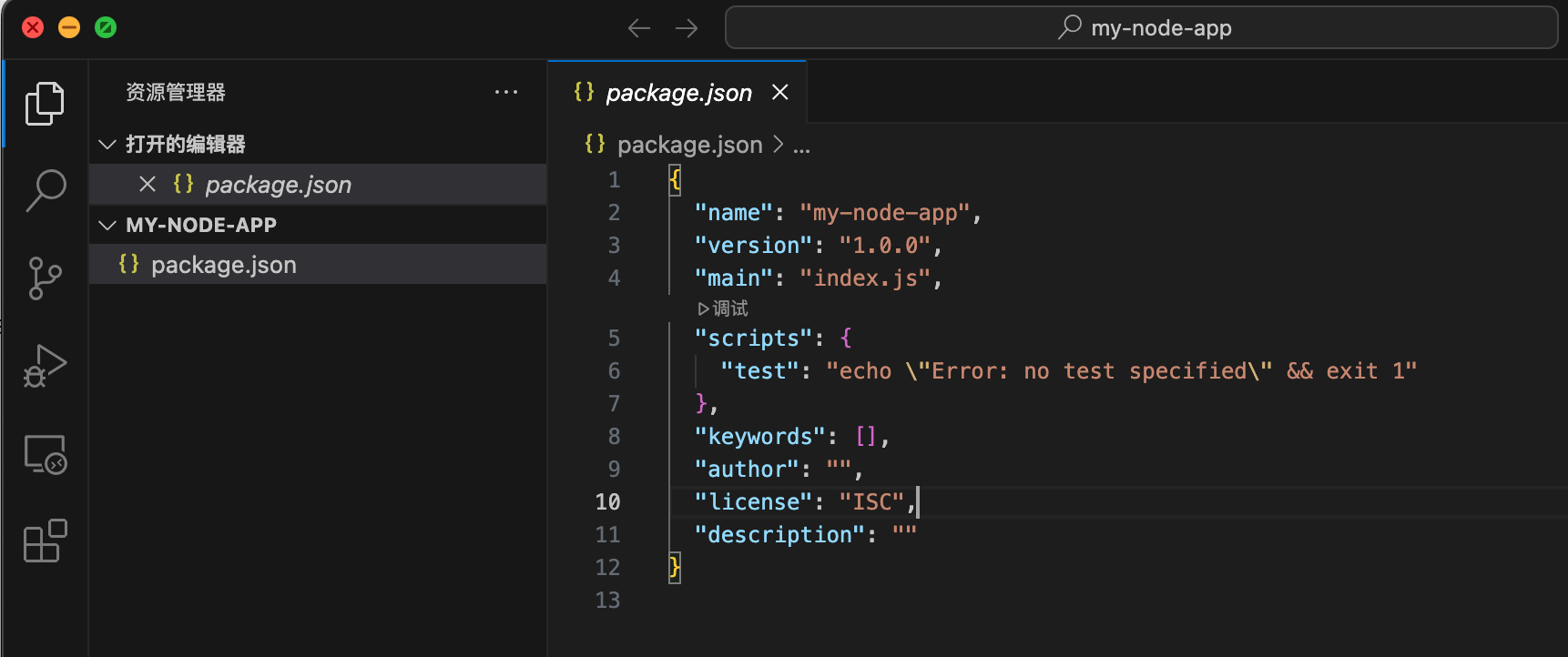
npm init -y
This will generate a package.json file:
Creating the Main File
- In VS Code, create
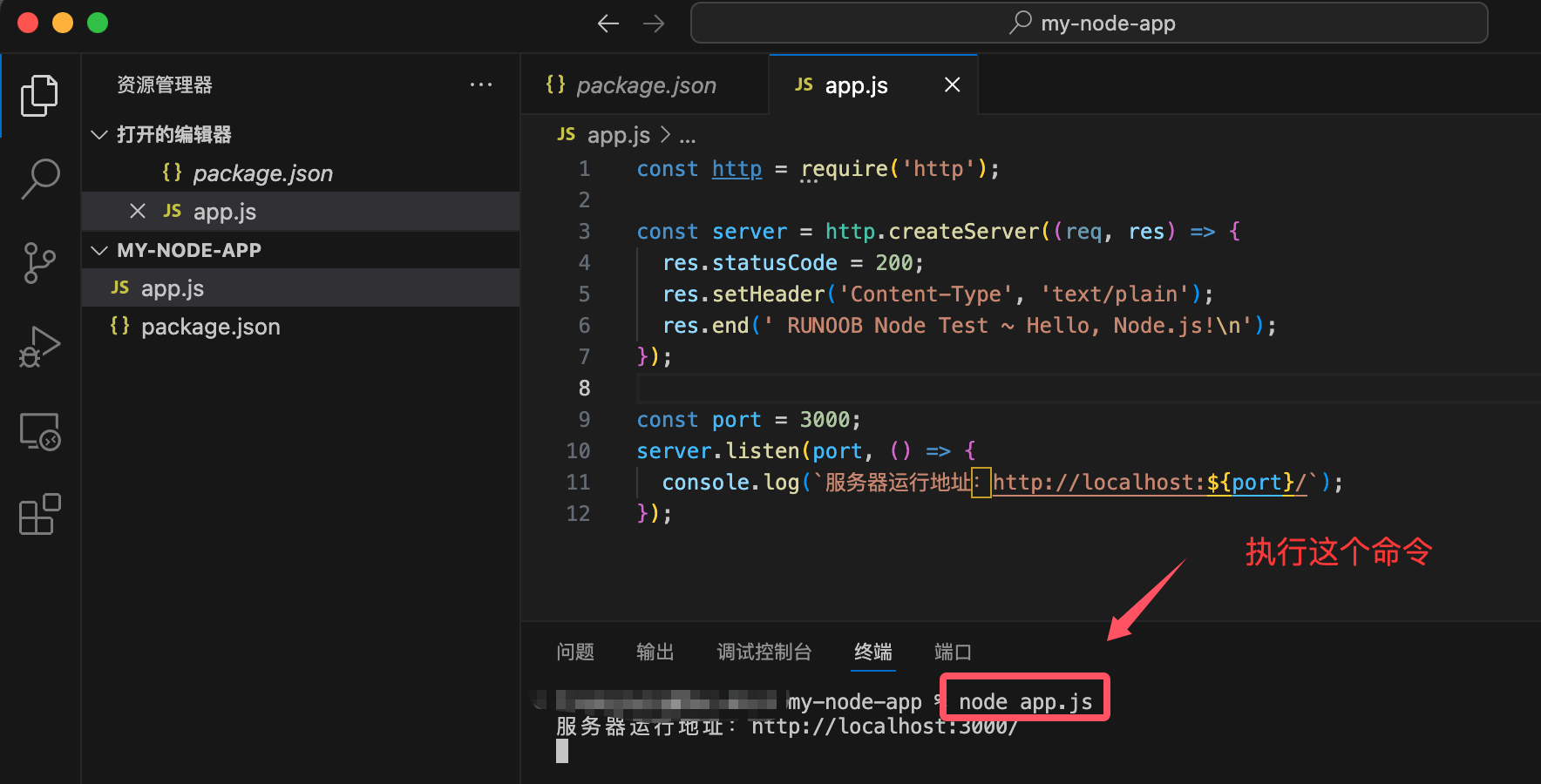
app.jsthe file - Enter the following code:
Example
const http = require('http');
const server = http.createServer((req, res) => {
res.statusCode = 200;
res.setHeader('Content-Type', 'text/plain');
res.end(' EXAMPLE Node Test ~ Hello, Node.js!\n');
});
const port = 3000;
server.listen(port, () => {
console.log(`Server running address: http://localhost:${port}/`);
});
Running the Project
- Execute in the terminal:
node app.js
- Open a browser and visit
http://localhost:3000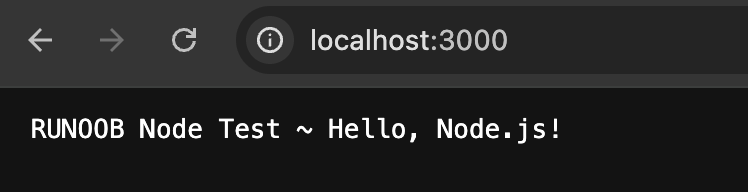
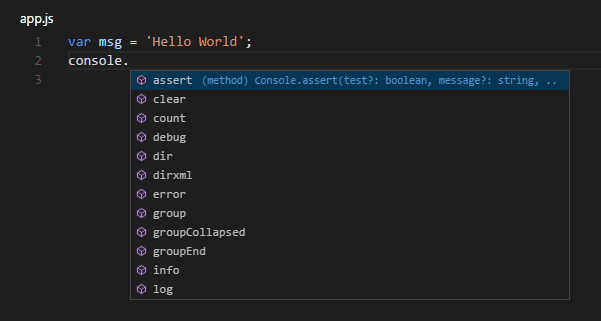
Note that when we typeconsole., VS Code's IntelliSense can provide code suggestions:
Debugging Node.js Applications
VS Code provides powerful debugging features:
Configuring Debugging
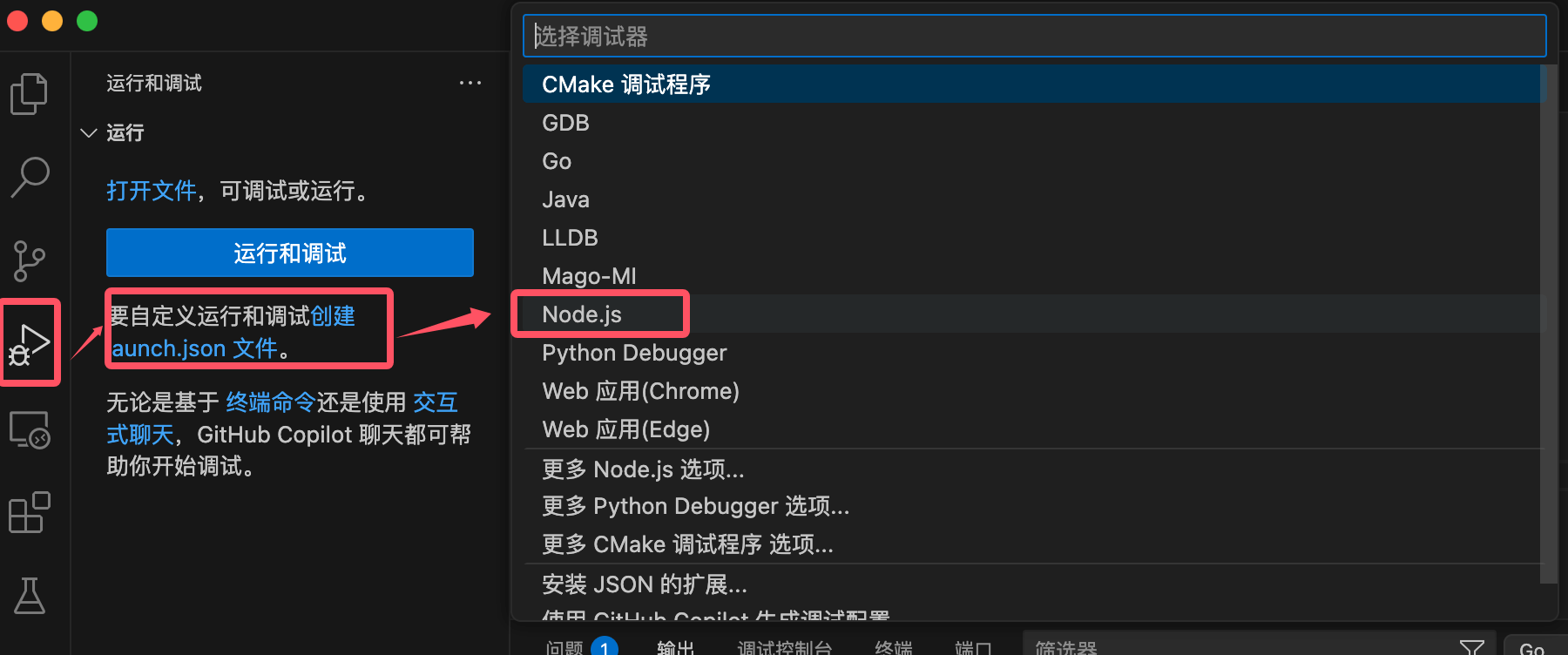
- Click the "Run and Debug" icon in the left activity bar
- Click "create a launch.json file"
- Select the "Node.js" environment
Setting Breakpoints
- Click to the left of the code line number to set a breakpoint
- Press F5 to start debugging
- Use the debug toolbar to control the execution flow
Debug Controls
- Continue (F5): continue execution to the next breakpoint
- Step Over (F10): execute the current line without stepping into functions
- Step Into (F11): step into the function body
- Restart (Ctrl+Shift+F5): restart debugging
- Stop (Shift+F5): end debugging