Codex CLI Configuration
Codex CLI can be customized through configuration files. This section describes the structure of configuration files, the various configuration options, and how to adjust them according to your needs.
Configuration File Location
Codex's configuration file is located in the user's home directory under~/.codex/config.toml:
~/.codex/config.toml
If the file does not exist, you need to create it manually. Codex will create a default configuration file on first startup.
After modifying the configuration, you need to restart Codex for it to take effect.
Configuration File Structure
A complete configuration file may include the following sections:
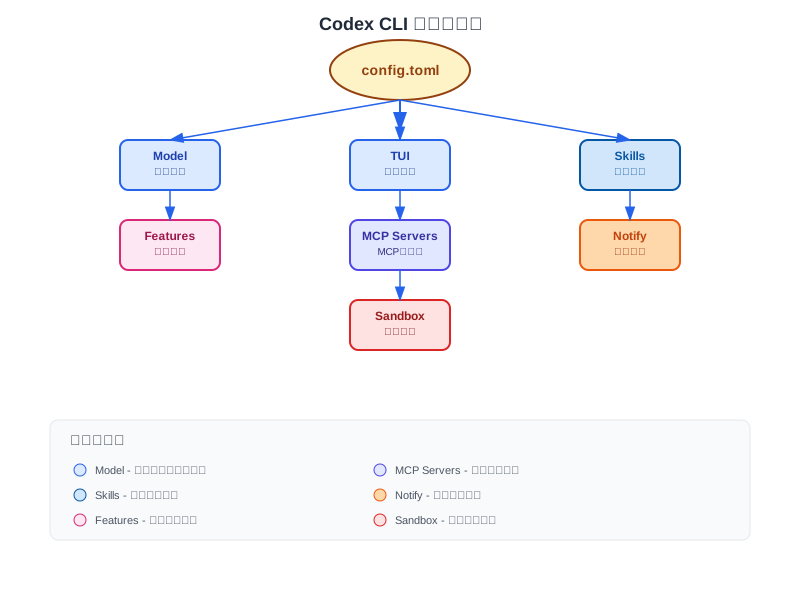
Full Configuration Example
# Basic settings
[model]
default = "o4-mini" # Default model to use
# TUI settings
[tui]
alternate_screen = "auto" # Alternate screen mode: auto/always/never
# Skills configuration
[skills]
enabled = true
# Feature toggles
[features]
js_repl = false # Whether to enable JavaScript REPL
# MCP server configuration
[mcp_servers]
# Notification settings
[notify]
enabled = false
Model Configuration
Codex supports multiple models; you can choose based on task requirements:
| Configuration Item | Type | Description |
|---|---|---|
model.default | string | Default model used |
model.reasoning_effort | string | Reasoning effort: low/medium/high |
Available Models
The models available in Codex CLI include:
o4-mini- Fast and efficient, suitable for simple taskso4-mini-high- High-reasoning version of o4-minio3- Strong reasoning capabilitieso3-pro- Professional version of o3
Different models have different speeds and prices; choosing the right model can optimize user experience and cost.
TUI Configuration
Relevant settings for the terminal user interface:
| Configuration Item | Type | Description | Default Value |
|---|---|---|---|
tui.alternate_screen | string | Alternate screen mode: auto/always/never | auto |
tui.width | number | Terminal Width | 0 (automatic) |
tui.height | number | Terminal Height | 0 (automatic) |
Alternate Screen Mode Explanation
auto- Auto-detect, automatically disabled in terminal multiplexers such as Zellijalways- Always use alternate screen (default experience)never- Never use alternate screen (preserve scroll history)
Runtime Override
You can override these settings at runtime via command-line arguments:
Command Line Override Configuration
codex --no-alt-screen
Skills Configuration
Skills are Codex's extension mechanism that allows you to customize workflows:
| Configuration Item | Type | Description |
|---|---|---|
skills.enabled | boolean | Whether to enable the skills system |
skills.directory | string | Skills file directory |
Custom Skills Directory
Configure Skills Directory
enabled = true
directory = "~/my-codex-skills"
MCP Server Configuration
MCP (Model Context Protocol) servers allow Codex to integrate with external tools and services:
Configure MCP Server
command = "npx"
args = ["-y", "@modelcontextprotocol/server-filesystem", "./docs"]
# Tool permission configuration
[mcp_servers.docs.tools.search]
approval_mode = "approve"
MCP Tool Permissions
You can set permissions individually for each MCP server's tools:
approve- Auto-approve, no promptingdeny- Auto-rejectask- Ask before each execution (default)
Be careful when configuring MCP servers; only enable tools you trust.
Feature Toggles
Enable or disable specific Codex features:
| Configuration Item | Type | Description |
|---|---|---|
features.js_repl | boolean | Enable JavaScript REPL |
features.js_repl_tools_only | boolean | Restrict to only the js_repl tool |
JavaScript REPL Configuration
Enable JavaScript REPL
js_repl = true
You can also specify the Node.js path:
Specify Node.js Path
Notification Configuration
Codex can send notifications when tasks complete:
| Configuration Item | Type | Description |
|---|---|---|
notify.enabled | boolean | Enable notifications |
Configure Notification Hooks
You can configure custom notification scripts through environment variables:
CODEX_NOTIFY_HOOK=/path/to/your/notify-script.sh
SQLite State Database
Codex uses SQLite to store internal state:
| Environment Variable | Description | Default Value |
|---|---|---|
CODEX_SQLITE_HOME | SQLite database directory | Same as CODEX_HOME |
Configure SQLite Directory
codex
Logging Configuration
Codex uses Rust's env_logger; you can configure the log level:
Configure Log Output
tail -f ~/.codex/log/codex-tui.log
# Set log level
RUST_LOG=codex_core=info,codex_tui=info,codex_rmcp_client=info codex
| Log Level | Description |
|---|---|
error | Show errors only |
warn | Show warnings and errors |
info | Show general info, warnings, and errors |
debug | Show debug information |
trace | Show detailed trace information |
By default, the log level in TUI mode is info, and the default level in non-interactive (exec) mode is error.
Plan Mode Configuration
Configure Codex's behavior in Plan Mode:
Configure Plan Mode
# Optional values: low/medium/high/none
plan_mode_reasoning_effort = "medium"
Common Configuration Examples
Basic Configuration
Minimal Configuration
# Codex already provides reasonable defaults
High Performance Configuration
Performance Optimization Configuration
default = "o4-mini"
[tui]
alternate_screen = "always"
[features]
js_repl = true
Developer Configuration
Developer Configuration
default = "o4-mini"
reasoning_effort = "high"
[tui]
alternate_screen = "never"
[skills]
enabled = true
directory = "~/codex-skills"