Codex Installation and Usage
Codex can be used in multiple ways. Based on developer preferences, it can be roughly divided into five methods:
| Installation Method | Usage Scenario | Recommendation Level |
|---|---|---|
| Codex App | Directly download the Codex app | ⭐⭐⭐⭐ |
| Codex CLI | Use in the terminal | ⭐⭐⭐⭐⭐ |
| IDE Plugin | Use in VS Code / Cursor | ⭐⭐⭐⭐ |
| Homebrew Installation | Mac users | ⭐⭐⭐⭐ |
| GitHub Release Binary | Manual Installation | ⭐⭐⭐ |
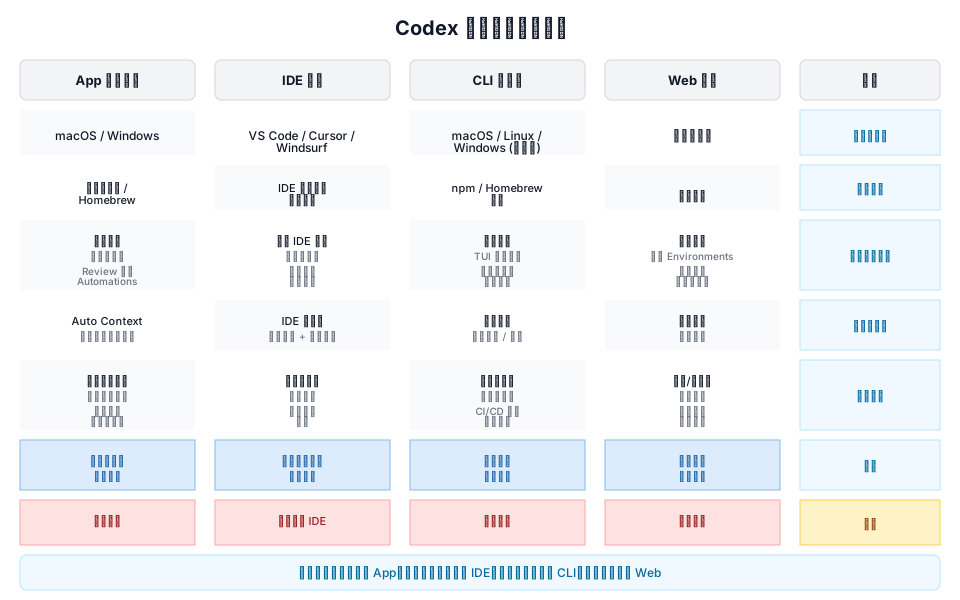
The following sections introduce each method separately.
1. Codex App
The simplest way isto directly use the Codex app, which requires a good network connection.
Visit:https://chatgpt.com/zh-Hans-CN/download/
Download the app:

Log in with your ChatGPT account to use it.
ChatGPT interface description:
Codex mode:

Then you can enter your requirements in the input box:
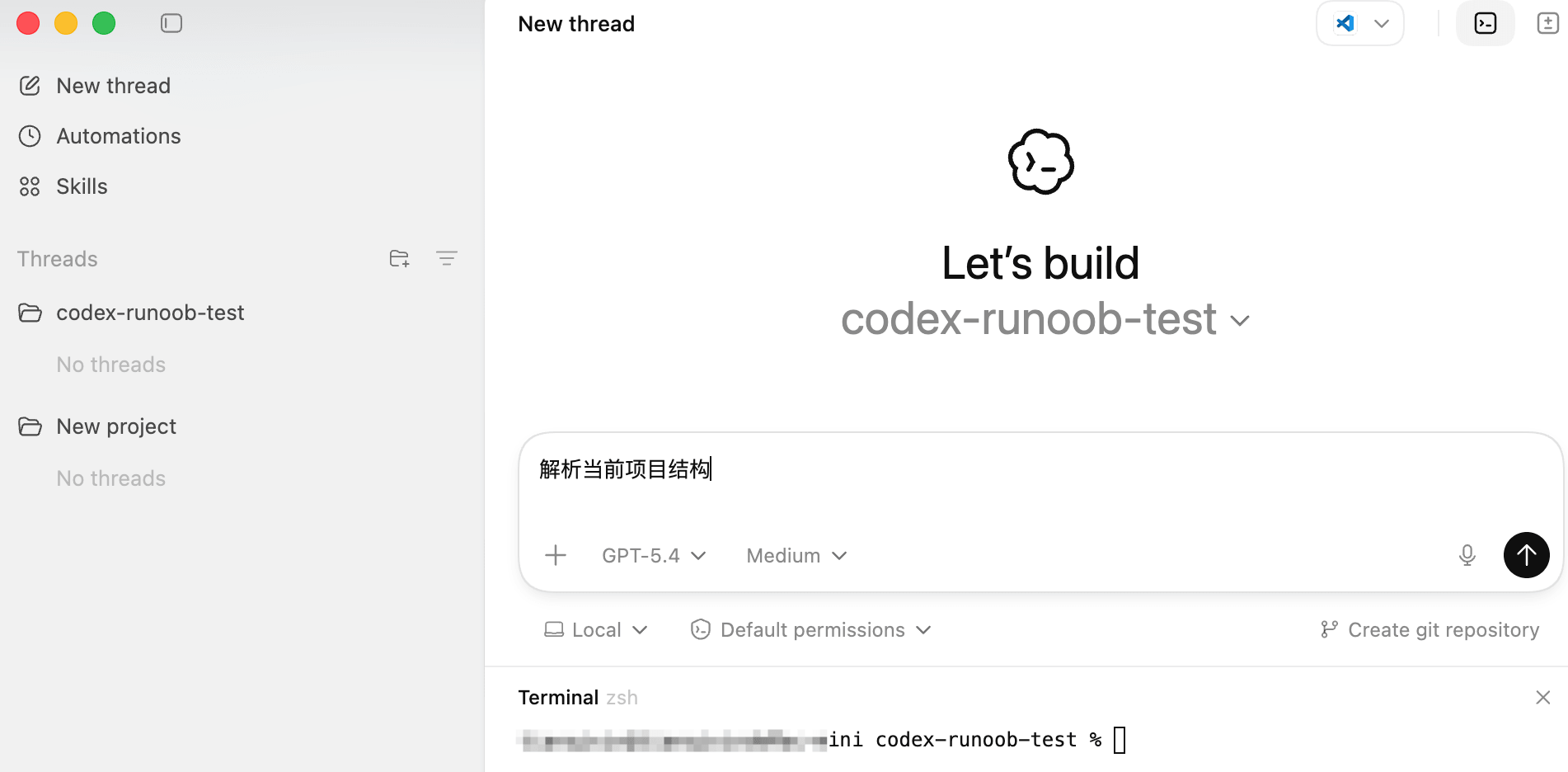
If you encounter difficulties accessing or using Codex, domestic alternatives such as Alibaba's Qoder Quest and ByteDance's Trae Solo are similar products.
2、Codex CLI
The most commonly used method by developers isCodex CLI。
CLI is an AI coding agent that runs in the terminal. It can:
- Read code
- Modify code
- Execute shell commands
- Automatically fix bugs
Codex CLI runs locally, so your code is not uploaded to the cloud; only the prompt and necessary context are sent to the model.
Install Codex CLI
One-click installation and update for macOS/Linux:
curl -fsSL https://chatgpt.com/codex/install.sh | sh
One-click installation and update for Windows:
powershell -ExecutionPolicy ByPass -c "irm https://chatgpt.com/codex/install.ps1 | iex"Install and update using npm:
npm install -g @openai/codex

# 使用国内镜像安装更快
npm install -g @openai/codex --registry=https://registry.npmmirror.com
After installation, run:
codex
to start Codex.
Log in to Codex
You need to log in on first run.
There are two ways:
Method 1: ChatGPT login (recommended)
codex
Choose:
Sign in with ChatGPT
Then the browser will open the login page. Once logged in, you can use it.
Method 2: API Key login
If you are in developer mode, you can use an API Key:
# macOS / Linux - 临时设置(仅当前终端会话有效)
export OPENAI_API_KEY="sk-你的API密钥"

# 永久配置(添加到 ~/.bashrc 或 ~/.zshrc)
echo 'export OPENAI_API_KEY="sk-你的API密钥"' >> ~/.zshrc
source ~/.zshrc

# Windows PowerShell
$env:OPENAI_API_KEY="sk-你的API密钥"

# 配置后启动(指定模型)
codex --model gpt-5-codex
Then run:
codex
Method 3: auth.json file configuration
Manually edit the authentication file. Create the directory:
mkdir -p ~/.codex
Write the API key:
cat > ~/.codex/auth.json << 'EOF'
{
  "OPENAI_API_KEY": "sk-你的API密钥"
}
EOF
First Run of Codex
Enter the project directory:
cd my-project
Start Codex:
codex
Then enter:
Analyze the current project structure.
Codex will automatically:
- Scan the codebase
- Analyze the project structure
- Output a description of the system architecture
For example, create a directory:
mkdir codex-example-test
Enter the directory:
cd codex-example-test
Create a new test.py file with the following code:
print("Hello Example!")
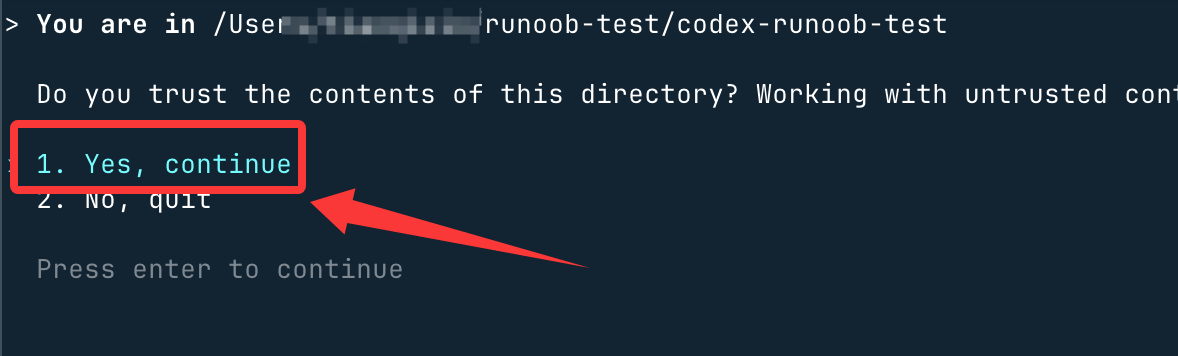
Start Codex:
codex
Select the first optionYes, continuePress Enter, and now you can start using Codex CLI to write code:
Three Running Modes of Codex
Codex CLI provides three safe modes.
| Mode | Feature |
|---|---|
| Suggest | Only recommended to modify |
| Auto Edit | Automatically modify files |
| Full Auto | Automatically execute all operations |
Default mode:
Suggest
Switch mode:
codex --auto-edit
Or:
codex --full-auto
Full Auto mode can automatically execute code fixes and tasks.
Update and Uninstall
# 更新到最新版本
npm update -g @openai/codex

# 或强制重装最新版
npm install -g @openai/codex@latest

# 卸载
npm uninstall -g @openai/codex

# Homebrew 卸载
brew uninstall --cask codex
3. Homebrew Installation (Recommended for Mac)
Mac users can install using Homebrew.
brew install --cask codex
After installation, run:
codex
You can start it.
This method is suitable for:
- Mac developers
- Users who do not want to install Node.js.
GitHub Release Installation (Binary)
If you don't want to use npm, you can also download the binary version directly.
Download URL:https://github.com/openai/codex/releases
Common versions:
Mac Apple Silicon:
codex-aarch64-apple-darwin.tar.gz
Mac Intel:
codex-x86_64-apple-darwin.tar.gz
Linux:
codex-x86_64-unknown-linux-musl.tar.gz
After downloading, extract:
tar -xzf codex-xxx.tar.gz
Rename:
mv codex-x86_64-unknown-linux-musl codex
Add to PATH:
sudo mv codex /usr/local/bin
Then run:
codex
You can use it.
5. IDE Plugin Installation
Codex can also be used in IDEs, for example:
- VS Code
- Cursor
- Windsurf
- VS Code forks
Installation method:
- 1. Open the IDE plugin marketplace
- 2. SearchCodex
- 3. Install plugins
- 4. Log in to your ChatGPT account
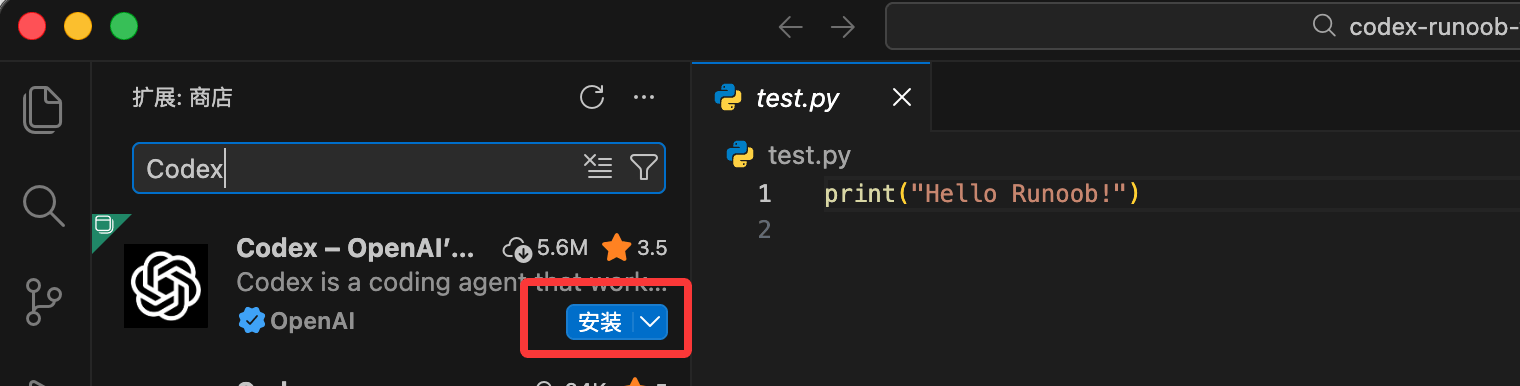
This way, Codex can be used directly within the IDE.
For example:
- Automatically fix code
- Automatically generate functions
- Automatically refactor code
6. Update Codex
Codex CLI updates are very simple:
codex --upgrade
Or:
npm update -g @openai/codex
codex --version
Codex CLI currently supports:
| System | Support status |
|---|---|
| macOS | Full Support |
| Linux | Full Support |
| Windows | Experimental support (WSL recommended) |