Codex App Interface Explanation
Codex App is an AI Agent workbench launched by OpenAI. The biggest difference between it and ordinary chatbots is:It doesn't just answer; it actually starts executing.。
For example:
- Read local projects
- Modify code
- Browse web pages
- Run terminal commands
- Operate the browser
- Invoke Git
- Use plugins
- Automate task execution
In essence, it is no longer a traditional chat AI, but rather: an AI-centric desktop work operating system.
OpenAI's official definition of it is:A command center for agents (Agent Command Center)。
It supports:
- Multiple Agents working in parallel
- Worktree to isolate projects
- Long-duration task execution
- Automated workflows
- Skills system
- Browser and computer control
- Cloud and local collaboration
This is also why many people, when first opening Codex, have a feeling: this is not like a chat tool, but more likeIDE + AI + automation platform + browser + assistant systemthe feeling of a fusion of
Codex Interface Analysis
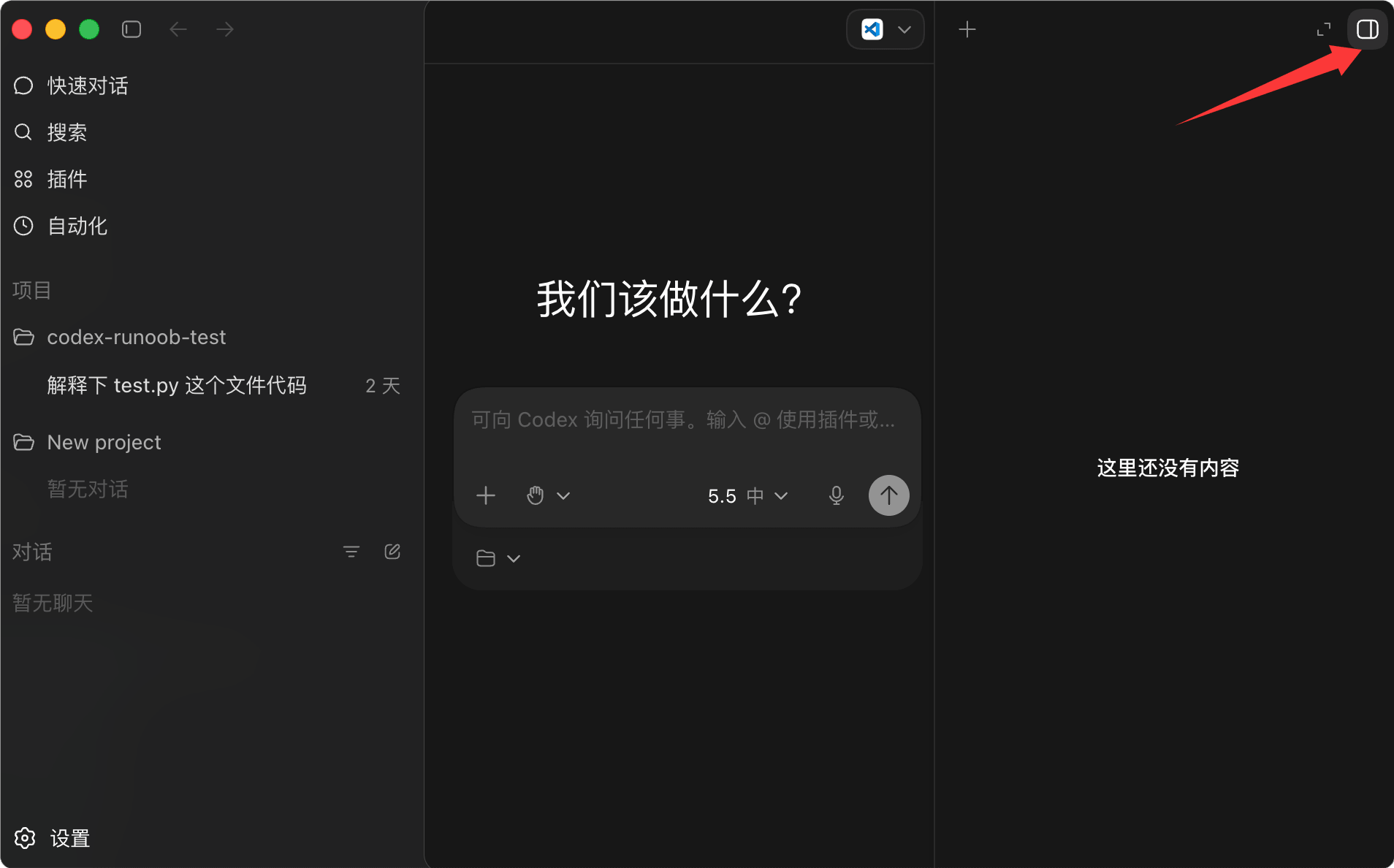
When you open Codex for the first time, the interface is as follows:

The left side is the workflow navigation area, and the center is the Agent conversation and task execution area.
Left menu description:
| Left menu | Description |
|---|---|
| New conversation | Create a brand new AI work thread and restart the task. |
| Search | Quickly find historical conversations, project records, and contextual content. |
| Plugins | Add external capabilities such as browser, GitHub, Gmail, etc. to Codex. |
| Automation | Let Codex automatically execute tasks by time or rules. |
| Projects | Bind local folders or code repositories so Codex can understand and operate on projects. |
| Ordinary conversation | A pure chat mode not bound to a project, suitable for daily Q&A and content generation. |
| Historical project threads | View previously executed tasks and chat records under a specific project. |
| Settings | Configure system functions such as permissions, models, appearance, Git, MCP, browser, and computer control. |
Click the icon in the upper-right corner of the image below to display the right-side multi-function area:
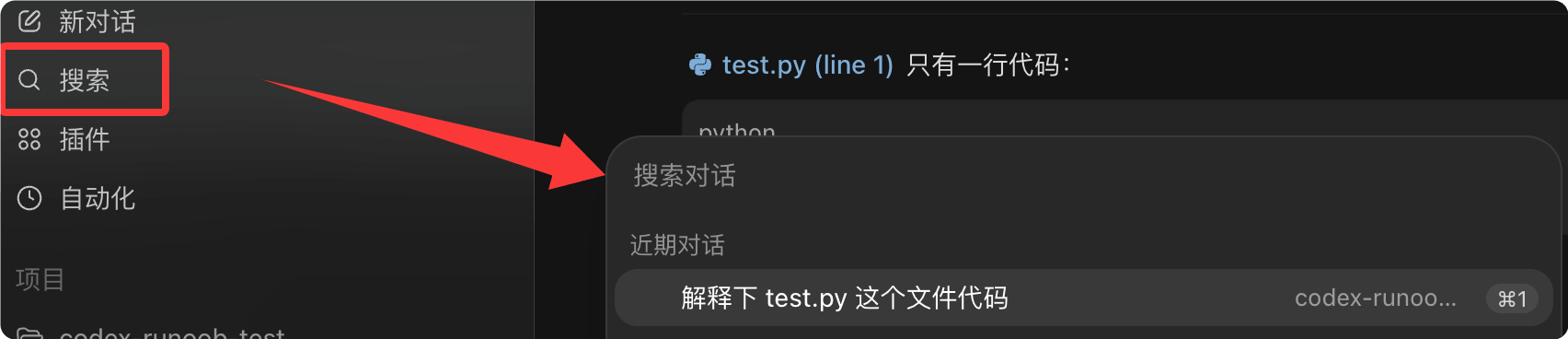
Search
Find historical conversations, project records, and contextual content:
Plugins
Plugins can be understood as: installing capability packages for Codex.
Click on the left sidePlugins, and you will enter Codex's capability expansion center.

After installing different plugins, Codex can complete different types of work.
Common plugins:
| Plugin | Function |
|---|---|
| Browser Use | Operate browser, open web pages, search content |
| Computer Use | Operate software and interfaces on Mac |
| Spreadsheets | Process Excel and spreadsheet data |
| Presentations | Create PPT and presentations |
| GitHub | Read and collaborate on GitHub projects |
| Gmail | Read and organize emails |
| Google Drive | Access cloud files |
| Slack | Team collaboration and message processing |
Automation
Automation can be understood as: letting Codex automatically execute tasks for you on a schedule.
Click on the left sideAutomation, you will enter the Codex page.

You can set:
- Execute at a specific time
- Execute daily
- Execute weekly
- Scheduled loop execution
What can automation do?
| Scenarios | Examples |
|---|---|
| Project tracking | Automatically organize project status daily |
| Repository check | Check GitHub repository issues weekly |
| Scheduled task continuation | Continue the current thread after half an hour |
| Content monitoring | Regularly check webpages, email, and task lists |
| Automatic reports | Automatically generate daily reports, weekly reports, and retrospectives |
Right-side Multi-function Area
The right-side area of Codex can be understood as: the AI's work results display area.
This is mainly used to view:
- What Codex did
- What was modified
- What was generated
- What the task execution results are
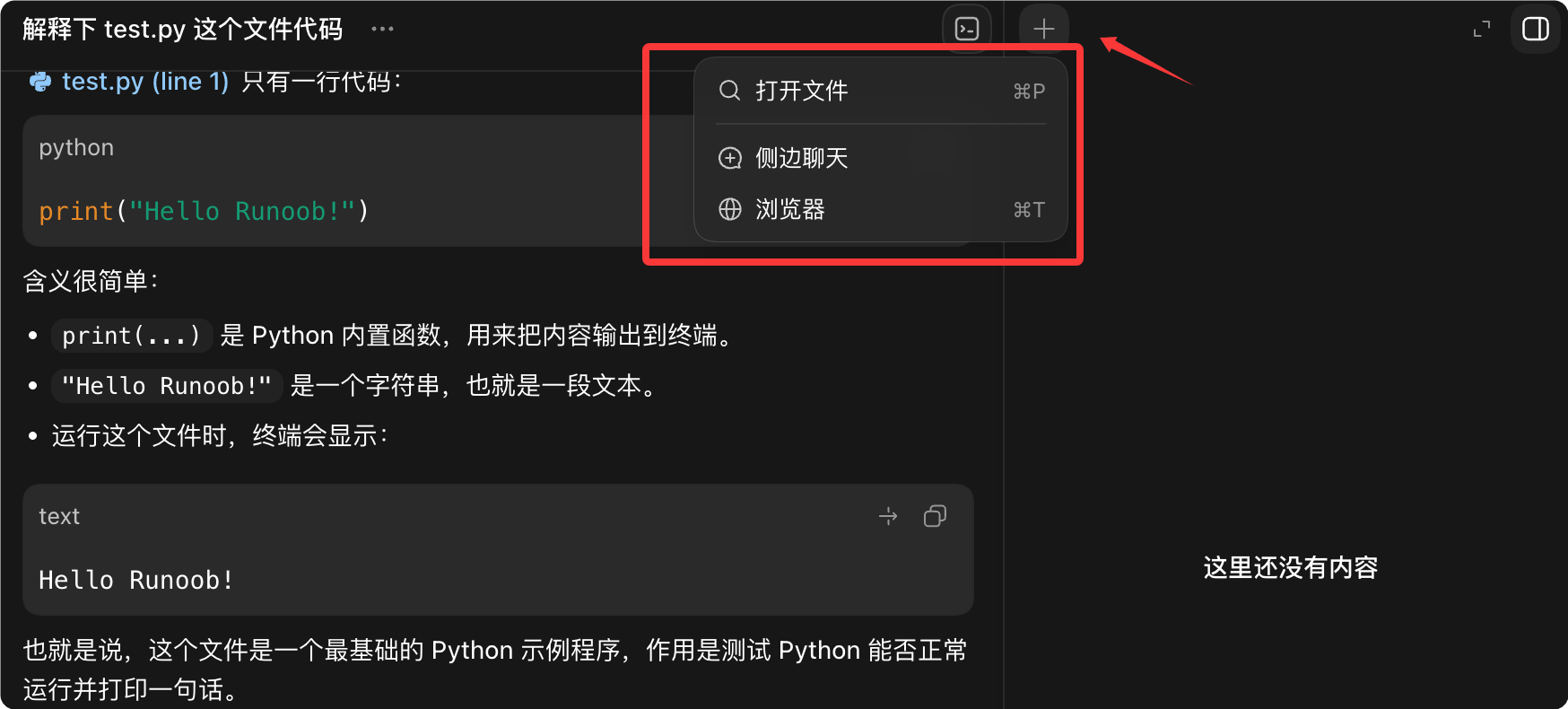
Common functions in the right-side area:
| Function | Purpose |
|---|---|
| File preview | View generated code, Markdown, documents, and other files |
| Webpage preview | Directly preview webpage or frontend page effects |
| Image preview | View generated images and screenshots |
| PDF / document preview | View PDF, PPT, Word, and other content |
| Browser panel | Let Codex operate webpages in the built-in browser |
| Git Diff | View code differences before and after modifications |
| Sources | View the webpages or reference sources used by the AI |
| Review | Check and confirm the AI's changes |
Git Diff is one of the most commonly used features in development; it shows:
- Which code was added
- Which code was deleted
- Which files were modified
Codex can directly open the browser on the right side:
- Visit webpages
- Test frontend pages
- Take screenshots
- Inspect UI
- Operate websites
It can even:
- Click page elements
- Mark interface issues
- Modify webpage UI based on screenshots