Codex Computer Use (Computer Control)
Computer Use is a feature provided by Codex that allows Codex to view and operate the graphical user interface (GUI) on macOS or Windows.
When command-line tools or structured integrations cannot meet your needs, you can use this feature to complete tasks such as desktop application operations, browser interactions, and application settings adjustments.
Computer Use gives Codex the ability to "see" and "operate" desktop applications. Unlike command-line tools, Computer Use can directly interact with the graphical interface, including clicking buttons, entering text, browsing menus, and other operations.
The Computer Use feature is suitable for scenarios that require visual verification or graphical interface interaction, such as testing desktop applications, reproducing bugs that only appear in the GUI, or operating data sources that do not provide plugins.
Computer Use can affect applications and system states outside the project workspace. It is recommended to use it only for tasks with a clear scope and to pay attention to permission prompts during execution.
Environment Setup
Before using Computer Use, you need to complete the necessary plugin installation and permission configuration.
Install Computer Use Plugin
Open Codex settings and findComputer Useoption, clickInstallInstall the Computer Use plugin.
After installation, you can let Codex start operating desktop applications.

macOS Permission Configuration
On macOS, you need to grant the following two system permissions:
| Permission | Purpose |
|---|---|
| Screen Recording | Allows Codex to view the interface content of the target application |
| Accessibility | Allows Codex to perform interactive operations such as clicking, typing, and navigation |
The system will pop up a permission request on first use; just authorize it as prompted.
Windows Usage Instructions
On Windows, Computer Use needs to run on the active desktop.
During task execution, the target application must remain visible on the current active desktop. Codex will take over the mouse pointer and keyboard input.
On Windows, Computer Use cannot run in the background. If you need to continue using the desktop at the same time, it is recommended to use a virtual machine or a second device.
Next, we just need to ask it in the chat window to open a website, and it will use Computer Use:

Use Cases
When a task depends on the graphical user interface and is difficult to verify only through files or command-line output, Computer Use should be chosen.
Scenarios Suitable for Using Computer Use
| Scenario | Description |
|---|---|
| Desktop application testing | Test macOS apps, Windows apps, iOS simulator workflows, or other desktop applications that Codex is building |
| Browser operations | Execute tasks that need to be completed through a Web browser |
| Bug reproduction | Reproduce bugs that only appear in the graphical interface. |
| Application settings adjustments. | Modify application settings that require UI clicks to complete. |
| Non-plugin data sources. | View or operate on information in applications or data sources that do not provide plugins. |
| macOS background tasks. | Run limited-scope background tasks on macOS while continuing to work elsewhere. |
| Cross-application workflows. | Execute automated workflows involving multiple applications. |
For locally built web applications, prefer Codex's built-in browser (in-app browser) over Computer Use.
Windows Foreground Use
On Windows, Computer Use runs on the currently active desktop.
It cannot run in the background, so during task execution, Codex moves the mouse pointer, types text, and takes over foreground operations.
If you need Windows tasks to continue running while you are away, there are two options:
- Keep the Windows device unlocked and connected to the internet, and use your phone's remote control feature to view progress or send follow-up instructions.
- Run Codex in a Windows virtual machine, so Computer Use takes over the virtual machine rather than your main desktop.
Starting a Computer Use Task
Mention it in the prompt.@Computeror@AppName, or directly let Codex use Computer Use.
You need to clearly describe the specific application, window, or process that Codex should operate on.
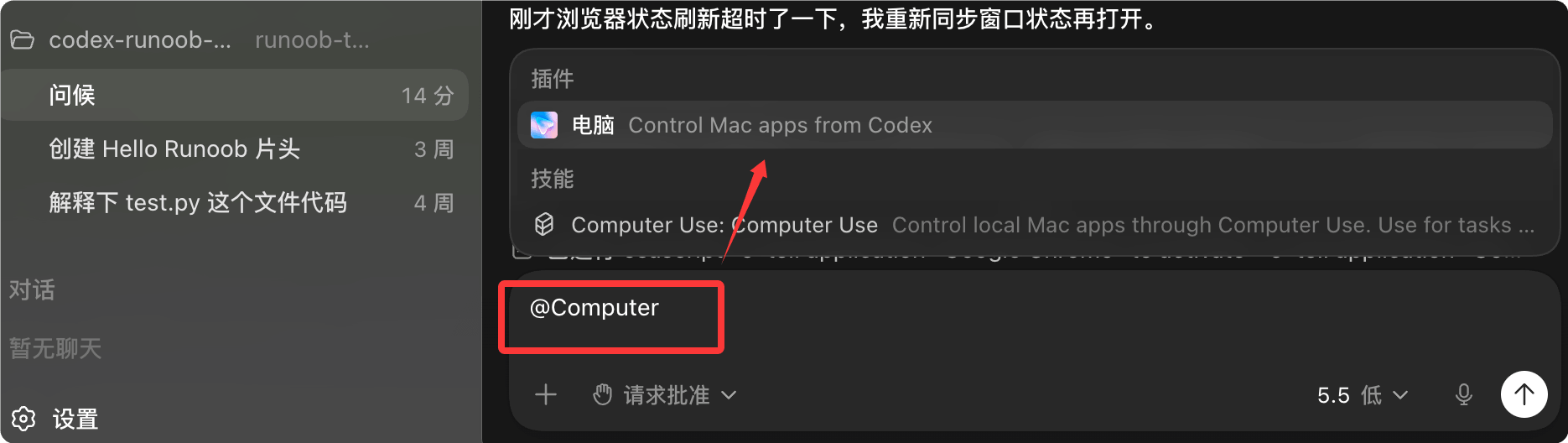
You can enter the following in the input box to invoke it:
使用 Computer Use 打开应用,复现登录流程中的 bug,并修复导致该 bug 的最简代码路径。
每次修改后,重新运行相同的 UI 流程进行验证。
You can use in the input box@Chromeinvoke browser browser:
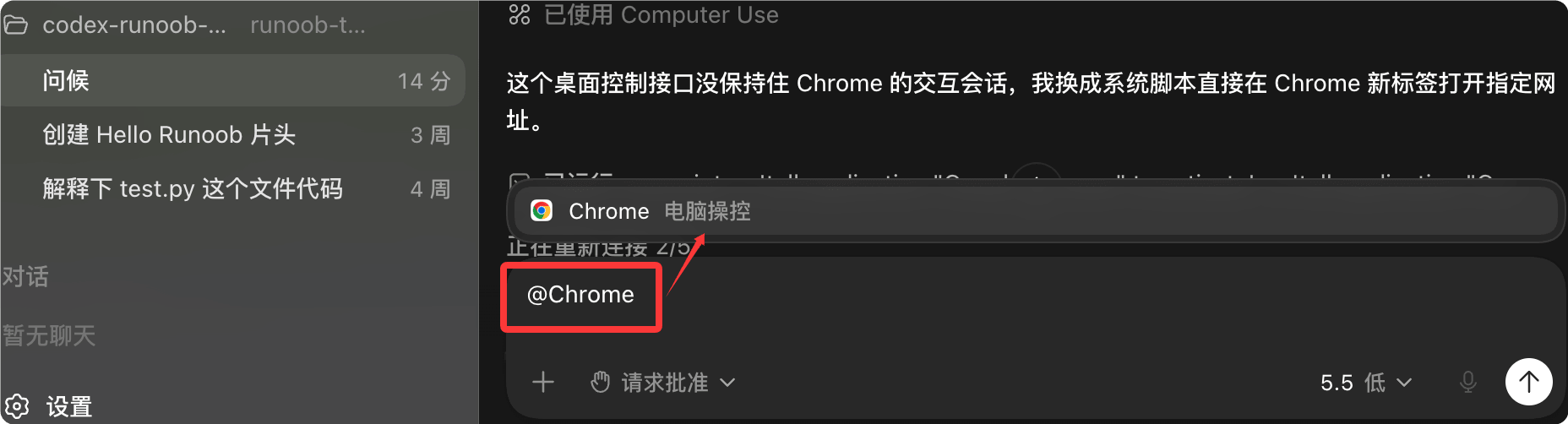
For example:
打开 @Chrome 并验证最新改动后结账页面是否仍然正常工作。
If the target application provides a dedicated plugin or MCP server, prioritize these structured integrations for data access and repeatable operations. Only choose Computer Use when visual inspection or manipulation of the application is needed.
Permissions and Approval
Computer Use's system permissions are separate from Codex's in-app approvals.
On macOS, screen recording and accessibility permissions allow Codex to view and operate on applications.
App approvals, on the other hand, determine which applications you allow Codex to use.
File reads, file edits, and shell commands still follow the thread's sandbox and approval settings.
Application Permission Management
When using Computer Use, Codex can only view and operate on applications you have allowed.
During task execution, Codex will ask for your permission before using an application.
You can chooseAlways allow, so that Codex will not need to ask again when using that application in the future.
In the Codex settingsComputer Usesection, remove apps from the "Always allow" list.
Sensitive Operation Approval
For sensitive or destructive operations, Codex may also request additional permission.
Troubleshooting
If Codex cannot view or control an application, check the following steps:
- On macOS, openSystem Settings > Privacy & Security, check whether the "Screen Recording" and "Accessibility" permissions for the Codex app are enabled.
- On Windows, ensure the target application is visible in the current active desktop session.
Locked Use (macOS)
Locked Use is a macOS-exclusive feature.
It allows Codex to continue using Computer Use after your Mac is locked, but you must manually enable it beforehand.
Applicable scenarios: Start a Codex task from a connected device, the task needs to use a desktop application, but the Mac is already locked.
How It Works
After enabling Locked Use, Codex installs an Apple authorization plug-in that participates in the macOS unlock process.
Locked Use has a very limited design scope: it is not a general remote unlock path, nor does it allow other applications or local processes to unlock the computer.
Enable Steps
- OpenCodex Settings > Computer Use。
- Enable "Locked computer use".
- Start a task using Computer Use from a connected device (after the Mac screen is locked).
Security Mechanism
When a Codex task accesses apps via Computer Use after the Mac screen locks, Codex temporarily unlocks the Mac while blocking local use and retaining lock screen protection.
Before unlocking, Codex verifies that the unlock request belongs to an active and trusted Computer Use session.
Outside that brief authorization window, Codex will refuse to unlock and prompt you to unlock manually.
Security Protection for Locked Use
| Safeguards | Description |
|---|---|
| Short-lived authorization window | The authorization window is only valid for the current unlock attempt and lasts a very short time. |
| Limited to Codex automatic unlock only. | Auto-unlock is only available to Codex in an active Computer Use session. |
| Covers all monitors | During the temporary desktop unlock, Codex takes over all displays. |
| Local input detection | If local keyboard or pointer input is detected, Codex immediately re-locks the Mac and pauses auto-unlock until you unlock manually. |
Security Guide
When using Computer Use, Codex can view screen contents, take screenshots, and interact with windows, menus, keyboard input, and clipboard state in the target app.
App content, browser pages, screenshots, and open files visible in the target app may all be processed by Codex as context during task execution.
Safe Operation Recommendations
| Suggestions | Description |
|---|---|
| One target at a time | Give Codex only one clear target app or process at a time. |
| Interruptible Anytime | You can stop the task or take control of the computer at any time. |
| Close unnecessary sensitive applications. | Keep sensitive apps closed unless the task requires them. |
| Be aware of foreground usage on Windows. | On Windows, Codex takes over foreground input; it's recommended to use a second device, a virtual machine, or stop the task before using the desktop yourself. |
| Avoid tasks involving keys. | Avoid running tasks that require keys unless you are present and can approve each step. |
| Review app permission prompts. | Carefully review permission prompts before allowing Codex to use an app. |
| Use "Always Allow" with caution. | Only choose "Always Allow" for apps you trust Codex to use automatically in future tasks. |
| Critical settings require presence | When settings involve account, security, privacy, network, payment, or credential-related items, be present to supervise. |
| Be aware of window switching | If Codex starts interacting with the wrong window, cancel the task immediately. |
Browser Usage Precautions
If Codex uses your browser, it can interact with pages where you are already logged in.
Review website behavior as if you were performing the actions yourself: web pages may contain malicious or misleading content, and websites may treat approved clicks, form submissions, and logged-in operations as originating from your account.
If you need to keep using your browser while Codex works, you can have Codex use a different browser.
Feature Limitations
Computer Use cannot automate terminal apps or Codex itself, because automating these could bypass Codex's security policy.
It also cannot authenticate as an administrator or approve security and privacy permission prompts on the computer.
Data Description
File edits and shell commands still follow Codex's approval and sandbox settings.
Changes made through desktop apps may not appear in the review panel until they are saved to disk and tracked by the project.
Your ChatGPT data control settings apply to content processed through Codex, including screenshots captured by Computer Use.
other extensions