Codex Configuration and Customization
Codex provides a rich set of configuration options, allowing you to customize Agent behavior to adapt to different work requirements.
By default, the Codex App uses the language of your system settings. If not, you can use Settings:
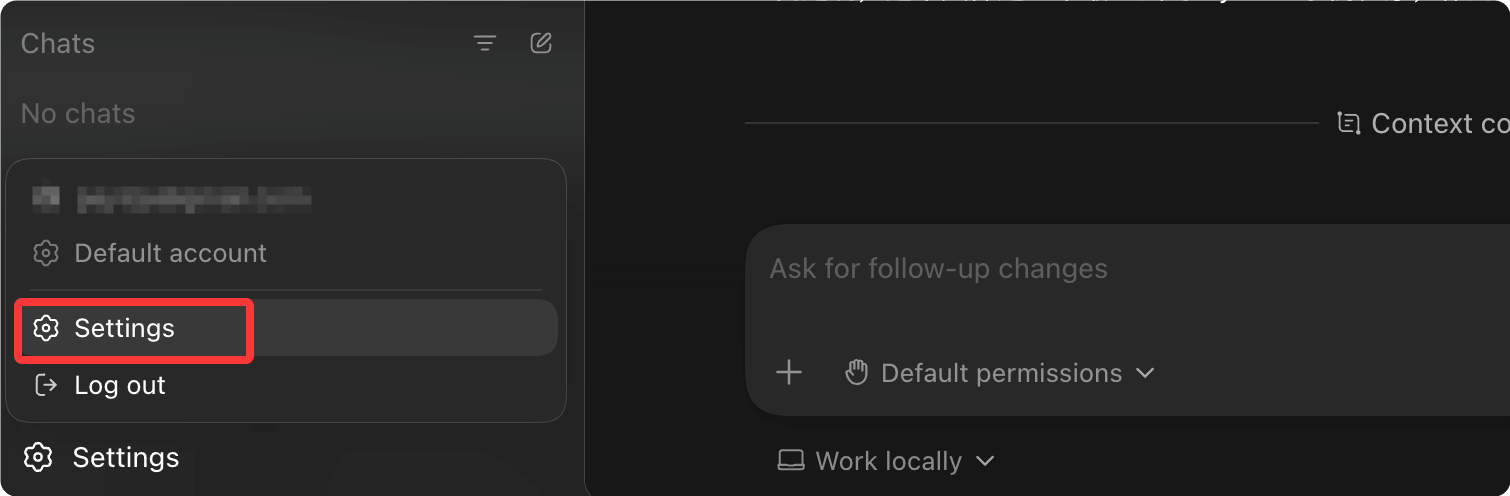
Select General to modify the language you need under the General options:

Similarly, to change from Chinese to English, just check English:

Codex App Settings
How to open: Click Settings in the application menu, or pressCmd + ,:

The settings interface is shown below:

General:The way to open configuration files, and the display amount of command output in the conversation thread. You can also set multi-line prompts to require Cmd+Enter confirmation, and prevent the system from sleeping during task execution.
Notifications:Set the trigger timing for task completion notifications, and whether the app proactively requests system notification permission.

Agent Configuration (Agent Configuration):The Codex Agent in the App shares the same configuration as IDE and CLI extensions. Common options can be adjusted directly in the App, while advanced options require editing the config.toml file (described later).

Appearance:Supports selecting a base theme, adjusting accent color, background color, and foreground color, and changing UI font and code font. You can share custom themes with others.

Codex Pets (Codex Pets):Optional dynamic companion characters, path:Settings > Appearance > PetsYou can select built-in pets or load custom pets from the local Codex home directory.
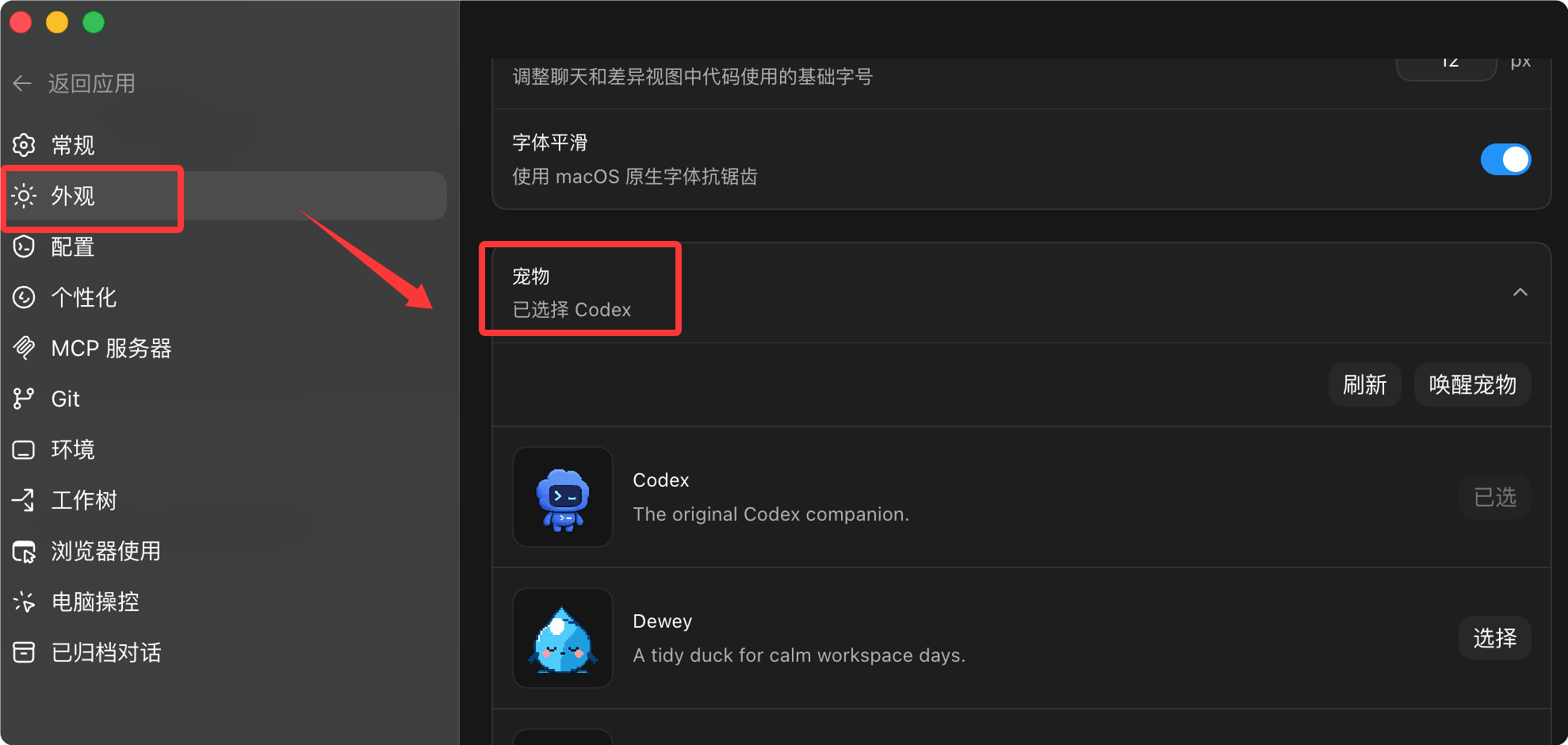
Operation method:
- Enter in the input box
/pet - useSettings > AppearanceinWake PetorTuck Away Pet
- press
Cmd+K/Ctrl+Kthen run the command with the same name
The pet floating window can continuously display the current Codex working status (Running / Waiting for input / Pending review) while using other applications, and includes a brief progress tip.
Custom Pets (Creation Process):
$skill-installer hatch-pet
After installation, select in the command menuForce Reload Skills, then execute:
$hatch-pet create a new pet inspired by my recent projects
Git: Unify branch naming conventions, configure whether to enable force push, and set the prompt text used when Codex automatically generates commit messages and PR descriptions.

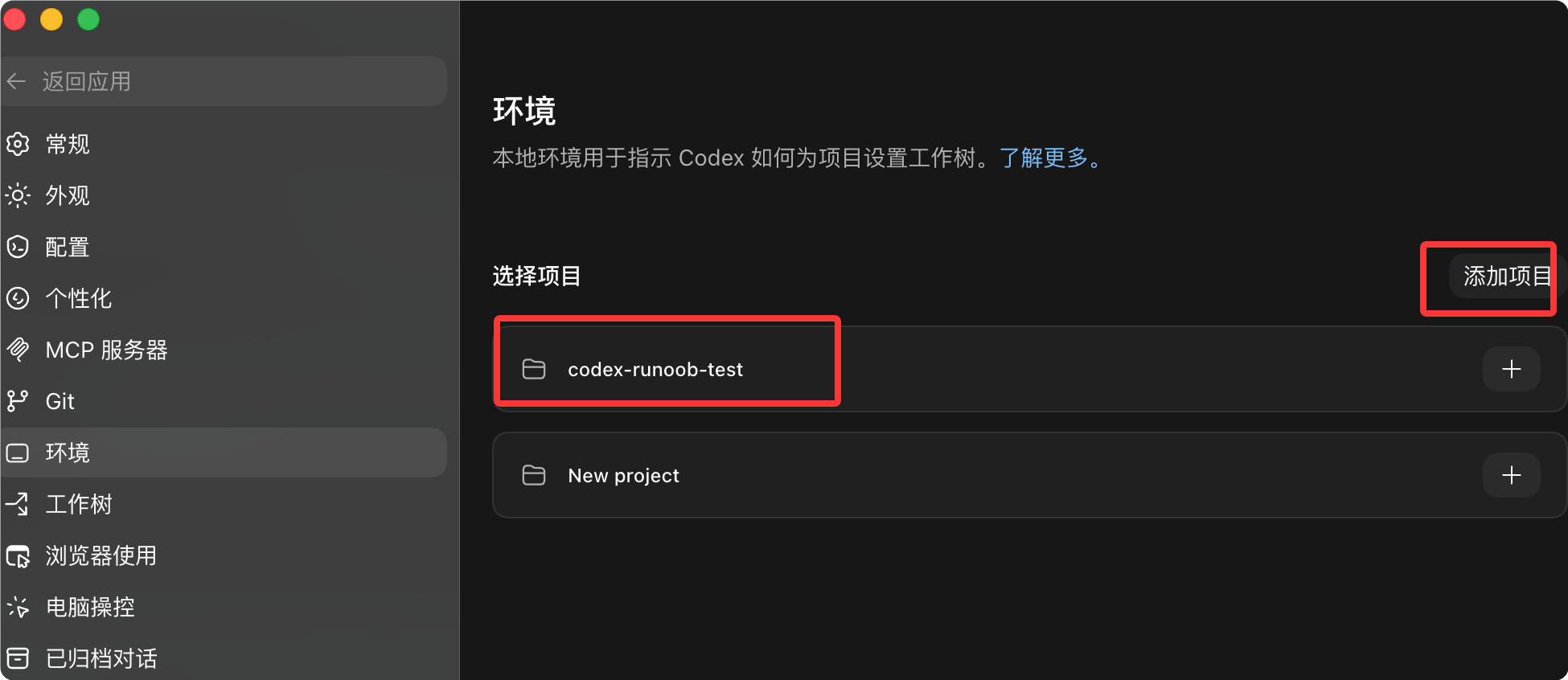
Environment:You can view project directories and add projects.
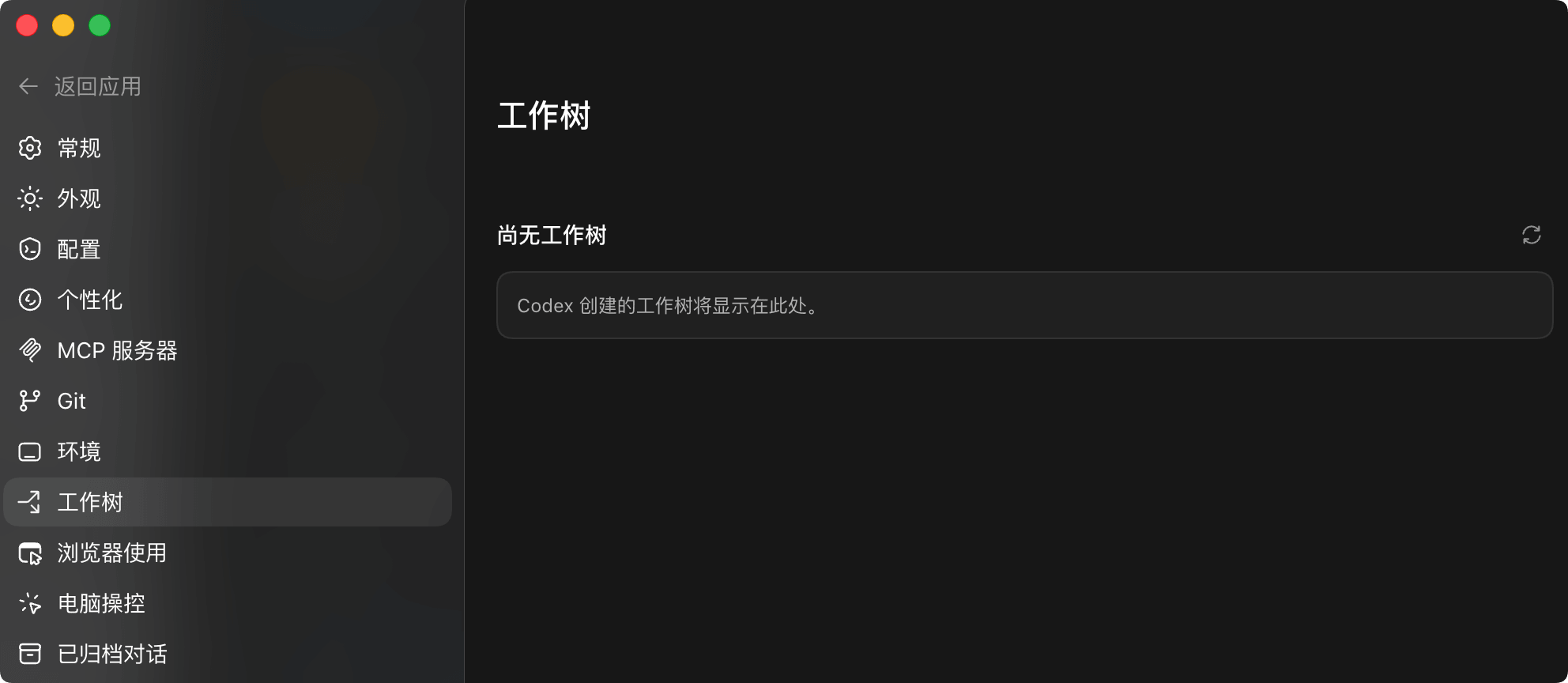
Work Tree:Use Git worktree to let Codex handle multiple tasks in parallel within the same project.
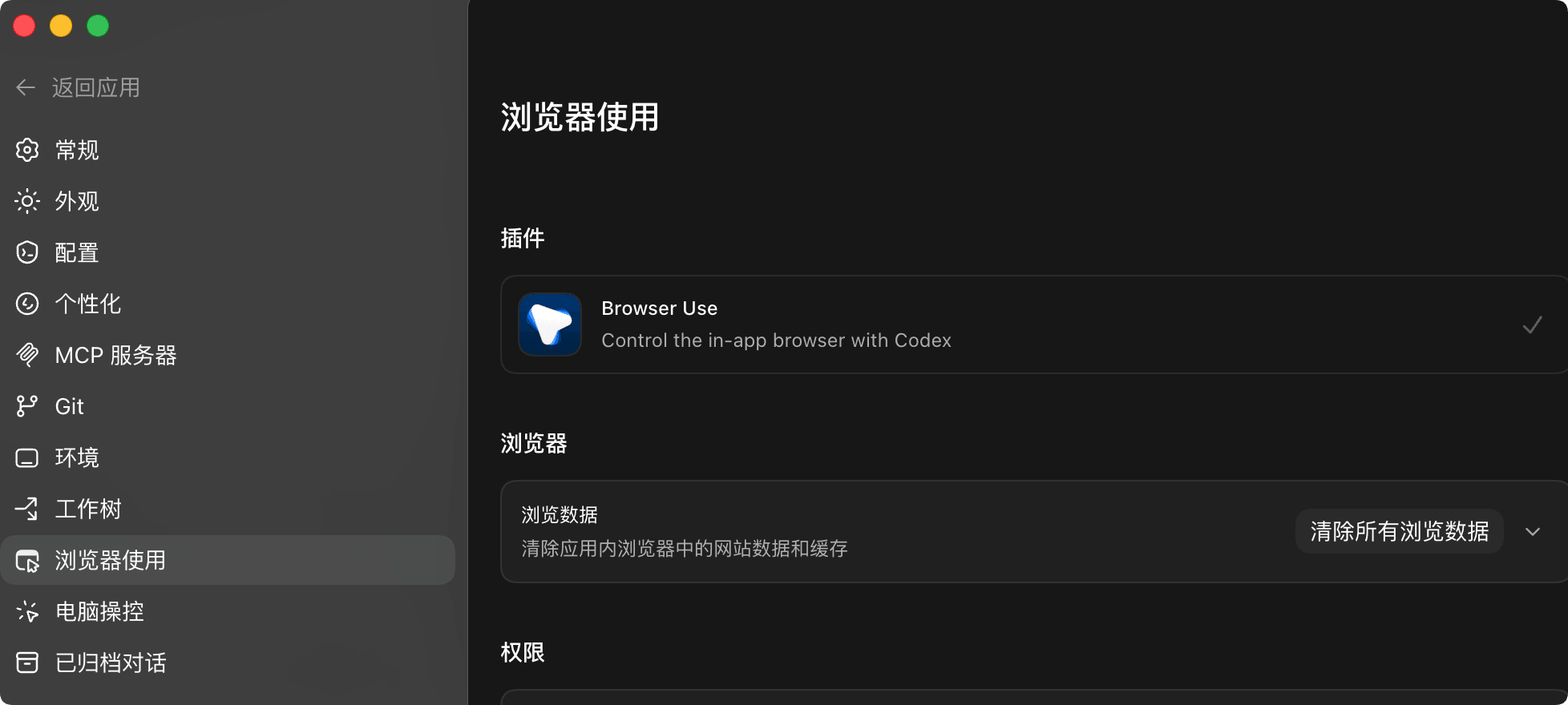
Browser Use:Install or enable the built-in Browser plugin to manage website whitelists and blacklists. By default, Codex asks the user before using any website; after removing a website from the blacklist, Codex will resume the asking behavior. See the in-app browser documentation for details.
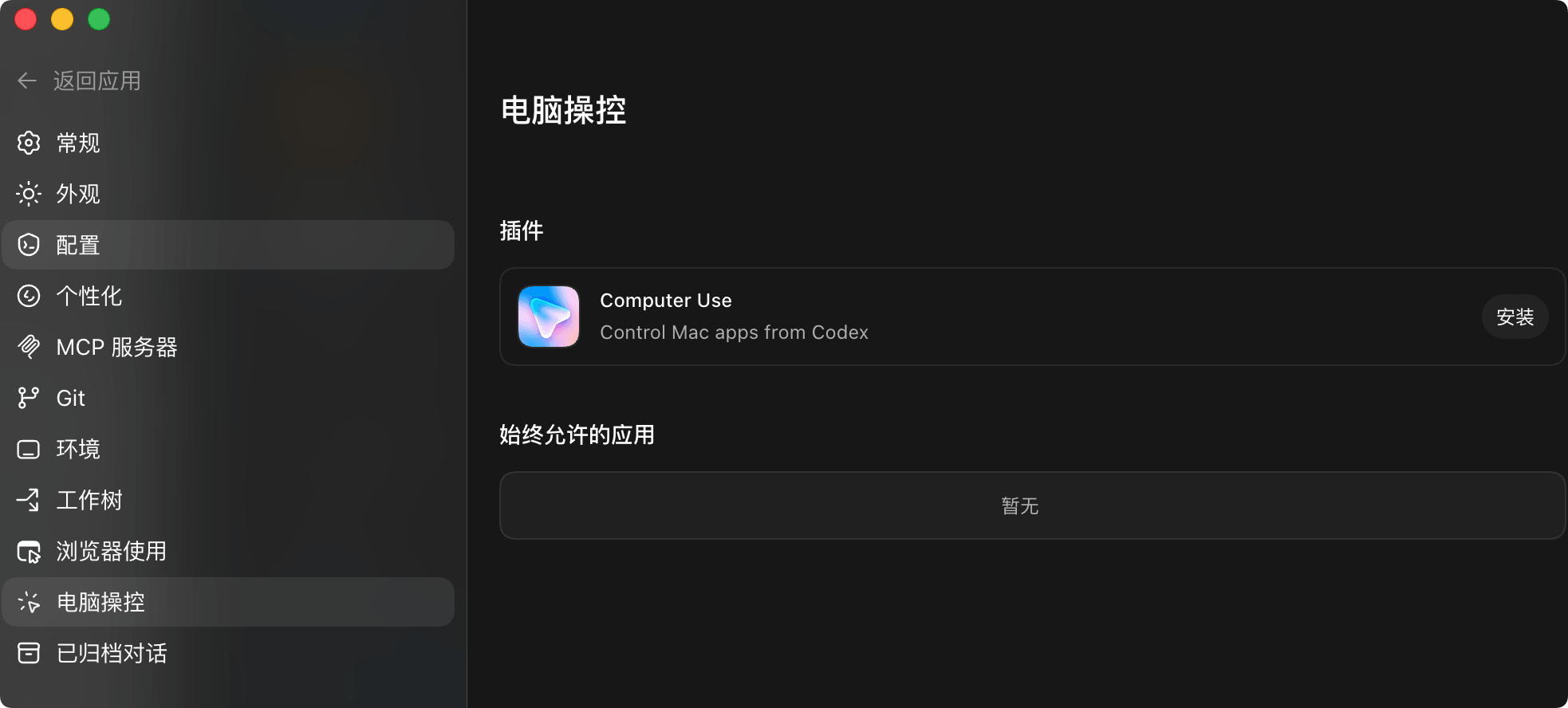
Computer Use:macOS only. You can view desktop app access permissions and related preferences. To revoke system-level permissions, go to macOS Privacy & Security and modify Screen Recording or Accessibility permissions.
Archived Threads:
Lists all archived conversations, showing the date and project context. Click Unarchive to restore a specific thread.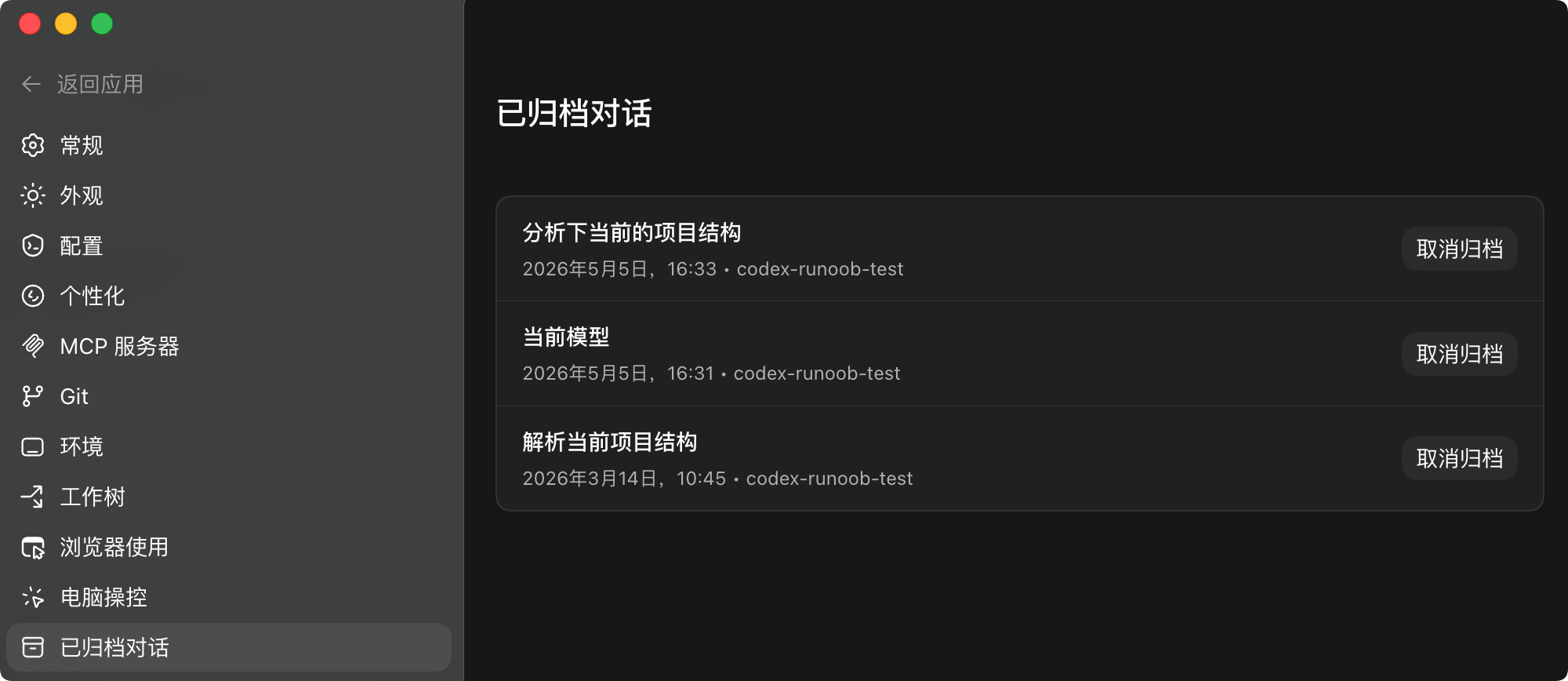
Configuration File Location
Codex configuration files are managed in layers:
| Level | Path | Scope |
|---|---|---|
| User-level | ~/.codex/config.toml | Global default configuration |
| Project-level | .codex/config.toml | Project-specific configuration |
| Managed-level | Enterprise distribution | Enterprise unified configuration |
Configuration Merge Rules
Configuration is merged by priority:
- Managed configuration has the highest priority
- Project configuration overrides user configuration
- User configuration serves as the default
Basic Configuration Items
Basic Configuration
# Default model
model = "gpt-5.4"
# Reasoning effort
model_reasoning_effort = "medium" # minimal | low | medium | high | xhigh
# Reasoning summary detail level
model_reasoning_summary = "auto" # auto | concise | detailed | none
# Service tier
service_tier = "flex" # flex | fast
# Approval policy
approval_policy = "suggest" # suggest | auto-edit | full-auto
AGENTS.md
AGENTS.md is a project-level Agent instruction file that defines Codex's behavior specifications in that project.
File Discovery Order
- Read global
~/.codex/AGENTS.md - Search each directory downward from the project root
- Rules in closer directories override those farther away
AGENTS.md Example
Project AGENTS.md
## Tech Stack
- Frontend: React + TypeScript
- Backend: Python FastAPI
- Database: PostgreSQL
## Code Standards
- Use 4-space indentation
- Maximum 100 characters per line
- All functions must have type annotations
## Testing Requirements
- New features must include tests
- Run tests with pytest
## Git Commits
- Use Conventional Commits format
- Commit messages describe the "why"
## Review guidelines
- Don't log PII
- Verify authentication middleware
- Check for SQL injection
Subdirectory Override
You can place AGENTS.override.md in a subdirectory:
Subdirectory Rules
## Security Requirements
- All passwords must be bcrypt-hashed
- Add audit logs
- Check for SQL injection
AGENTS.md is limited to 32 KiB; anything larger will be truncated.
Skills
Skills are reusable custom capabilities that encapsulate common task logic.
Skills Directory Location
| Location | Path | Purpose |
|---|---|---|
| REPO | .agents/skills/ | Project-level skills |
| USER | ~/.agents/skills/ | User-level skills |
| ADMIN | /etc/codex/skills/ | System-level skills |
| SYSTEM | Built-in | Official preset skills |
Skills Structure
skill-name/
├── SKILL.md       # 技能定义(必需)
├── scripts/       # 可选脚本
├── references/    # 可选参考文档
└── assets/        # 可选资源
Creating Skills
Skill Definition
name: code-review-standard
description: Perform team-standard code review
---
# Code Review Standards
## Review Items
1. Code readability
2. Potential bugs
3. Security vulnerabilities
4. Performance issues
5. Test coverage
## Output Format
Problem list (by severity)
Improvement suggestions
Rating (1-10)
Skill Triggering
| Trigger methods | Examples |
|---|---|
| Explicit invocation | $skill-nameor/skill-name |
| Implicit matching | Task description matches skill description |
Subagents
Subagents allow complex tasks to be split and processed in parallel by multiple Agents.
Built-in Agent Types
| Agent | Function |
|---|---|
| default | General-purpose agent |
| worker | Execution-oriented, suitable for implementation and fixes |
| explorer | Exploration-oriented, suitable for codebase analysis |
Configuring Subagents
Subagent Configuration
[agents]
# Maximum parallel threads
max_threads = 6
# Maximum nesting depth
max_depth = 1
# Single task timeout
job_max_runtime_seconds = 1800
Custom Agents
Custom Agents
name = "reviewer"
description = "Focused on code review and quality issues"
nickname_candidates = ["Reviewer", "QualityBot"]
developer_instructions = """
Focus on code quality review:
- Check code style consistency
- Discover potential bugs
- Evaluate test coverage
"""
Rules
Rules define command execution policies, controlling which commands can be executed automatically.
Rules File
Rules use the Starlark language (similar to Python):
Rule Definition
# Allow Git commands
prefix_rule(
pattern = ["git"],
decision = "allow",
justification = "Git commands are safe"
)
# Forbid rm -rf /
prefix_rule(
pattern = ["rm", "-rf", "/"],
decision = "forbidden",
justification = "Prevent system damage"
)
# Ask about npm commands
prefix_rule(
pattern = ["npm"],
decision = "prompt",
justification = "npm may modify dependencies"
)
Decision Types
| Decision | Behavior |
|---|---|
allow | Auto-approve |
prompt | Ask for confirmation |
forbidden | Forbid execution |
Hooks
Hooks execute custom scripts on specific events.
Enabling Hooks
Enabling Hooks
codex_hooks = true
Hook Events
| Event | Trigger timing |
|---|---|
SessionStart | Session start |
PreToolUse | Before tool invocation |
PostToolUse | After tool invocation |
Configuring Hook
Hook Configuration
"hooks": [
{
"event": "PostToolUse",
"matcher": {
"toolName": "Bash"
},
"hooks": [
{
"type": "command",
"command": "echo 'Command executed'",
"timeout": 10
}
]
}
]
}
FAQ
Q: How do configuration changes take effect?
After modifying the configuration, you need to restart Codex for it to take effect.
Q: Where should AGENTS.md be placed?
In the project root directory, or in subdirectories that need special rules.
Q: What is the difference between Skills and Rules?
Skills define task execution logic, Rules control command permissions.
Q: How do I view the current configuration?
Use/statuscommand to view the current session configuration.