Maven Web Application
In this chapter, we will learn how to use the version control system Maven to manage a web-based project, and how to create, build, deploy, and run a web application.
Create Web Application
We can use the maven-archetype-webapp plugin to create a simple Java web application.
Open the command console, enter the C:\MVN folder, and then execute the following mvn command:
C:\MVN>mvn archetype:generate -DgroupId=com.companyname.automobile -DartifactId=trucks -DarchetypeArtifactId=maven-archetype-webapp -DinteractiveMode=false
After execution, Maven will start processing and create a complete directory structure for the Java web project.
[INFO] Scanning for projects...
[INFO] Searching repository for plugin with prefix: 'archetype'.
[INFO] -------------------------------------------------------------------
[INFO] Building Maven Default Project
[INFO]    task-segment: [archetype:generate] (aggregator-style)
[INFO] -------------------------------------------------------------------
[INFO] Preparing archetype:generate
[INFO] No goals needed for project - skipping
[INFO] [archetype:generate {execution: default-cli}]
[INFO] Generating project in Batch mode
[INFO] --------------------------------------------------------------------
[INFO] Using following parameters for creating project
from Old (1.x) Archetype: maven-archetype-webapp:1.0
[INFO] --------------------------------------------------------------------
[INFO] Parameter: groupId, Value: com.companyname.automobile
[INFO] Parameter: packageName, Value: com.companyname.automobile
[INFO] Parameter: package, Value: com.companyname.automobile
[INFO] Parameter: artifactId, Value: trucks
[INFO] Parameter: basedir, Value: C:\MVN
[INFO] Parameter: version, Value: 1.0-SNAPSHOT
[INFO] project created from Old (1.x) Archetype in dir: C:\MVN\trucks
[INFO] -------------------------------------------------------------------
[INFO] BUILD SUCCESSFUL
[INFO] -------------------------------------------------------------------
[INFO] Total time: 16 seconds
[INFO] Finished at: Tue Jul 17 11:00:00 IST 2012
[INFO] Final Memory: 20M/89M
[INFO] -------------------------------------------------------------------
After execution, we can see the trucks project under the C:/MVN folder. View the project's directory structure:
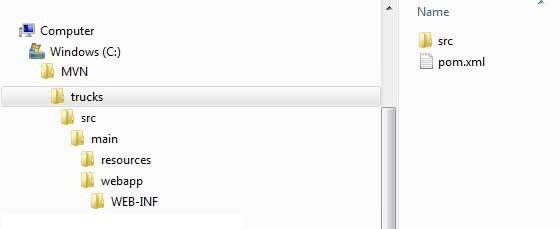
The Maven directory structure is standard, and the purpose of each directory is shown in the following table:
| Folder Structure | Description |
|---|---|
| trucks | Contains the src folder and pom.xml file. |
| src/main/webapp | Contains index.jsp file and WEB-INF folder. |
| src/main/webapp/WEB-INF | Contains web.xml file |
| src/main/resources | Contains images, properties resource files. |
The pom.xml file code is as follows:
Next, open the C:\ > MVN > trucks > src > main > webapp > folder, and you can see an already created index.jsp file, with the following code:
Build Web Application
Open the command console, enter the C:\MVN\trucks directory, and then execute the following mvn command:
C:\MVN\trucks>mvn clean package
Maven will start building the project:
[INFO] Scanning for projects...
[INFO] -------------------------------------------------------------------
[INFO] Building trucks Maven Webapp
[INFO]    task-segment: [clean, package]
[INFO] -------------------------------------------------------------------
[INFO] [clean:clean {execution: default-clean}]
[INFO] [resources:resources {execution: default-resources}]
[WARNING] Using platform encoding (Cp1252 actually) to
copy filtered resources,i.e. build is platform dependent!
[INFO] Copying 0 resource
[INFO] [compiler:compile {execution: default-compile}]
[INFO] No sources to compile
[INFO] [resources:testResources {execution: default-testResources}]
[WARNING] Using platform encoding (Cp1252 actually) to
copy filtered resources,i.e. build is platform dependent!
[INFO] skip non existing resourceDirectory
C:\MVN\trucks\src\test\resources
[INFO] [compiler:testCompile {execution: default-testCompile}]
[INFO] No sources to compile
[INFO] [surefire:test {execution: default-test}]
[INFO] No tests to run.
[INFO] [war:war {execution: default-war}]
[INFO] Packaging webapp
[INFO] Assembling webapp[trucks] in [C:\MVN\trucks\target\trucks]
[INFO] Processing war project
[INFO] Copying webapp resources[C:\MVN\trucks\src\main\webapp]
[INFO] Webapp assembled in[77 msecs]
[INFO] Building war: C:\MVN\trucks\target\trucks.war
[INFO] -------------------------------------------------------------------
[INFO] BUILD SUCCESSFUL
[INFO] -------------------------------------------------------------------
[INFO] Total time: 3 seconds
[INFO] Finished at: Tue Jul 17 11:22:45 IST 2012
[INFO] Final Memory: 11M/85M
[INFO] -------------------------------------------------------------------
Deploy Web Application
Open the C:\ < MVN < trucks < target < folder, find the trucks.war file, copy it to your web server's web application directory, and then restart the web server.
Test Web Application
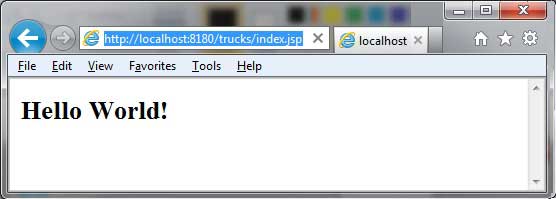
Access the following URL to run the web application:
http://:/trucks/index.jsp
Verify the result: