Maven IntelliJ
IntelliJ IDEA has built-in support for Maven. In this example, we are using IntelliJ IDEA Community Edition 11.1.
Some features of IntelliJ IDEA are listed below:
- You can run Maven goals through IntelliJ IDEA.
- You can view the output of Maven commands in IntelliJ IDEA's own terminal.
- You can update Maven dependencies in the IDE.
- You can start a Maven build in IntelliJ IDEA.
- IntelliJ IDEA manages dependencies automatically based on Maven's pom.xml.
- IntelliJ IDEA can resolve Maven dependencies through its own workspace without needing to install them into the local Maven repository, although it is required that the dependent projects are in the same workspace.
- IntelliJ IDEA can automatically download required dependencies and source code from remote Maven repositories.
- IntelliJ IDEA provides wizards for creating Maven projects and pom.xml files.
Create a new project in IntelliJ IDEA
Use the New Project wizard to import a Maven project.
- Open IntelliJ IDEA.
- SelectFile Menu > New Projectoption.
Selectimport project from existing modeloption.
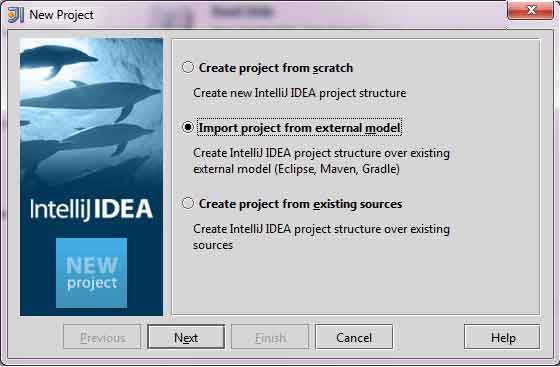
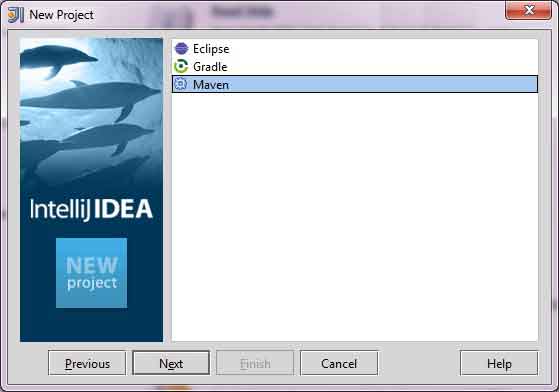
SelectMavenoption.
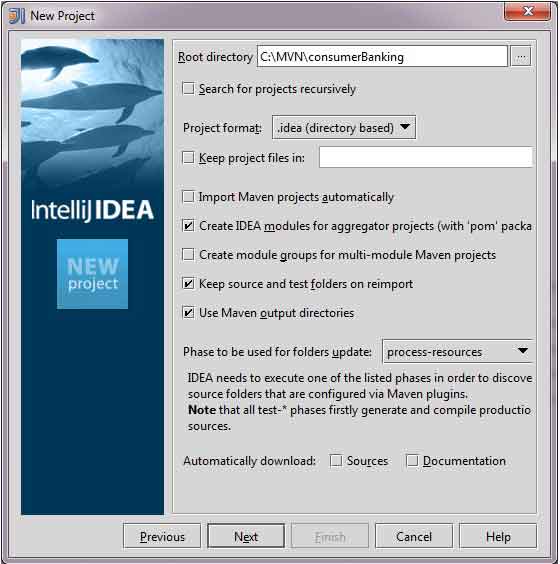
Select the project path, that is, the storage path used when creating a project with Maven. Suppose we created a projectconsumerBanking. ByBuilding Java Projects with MavenSee how to use Maven to create a project.
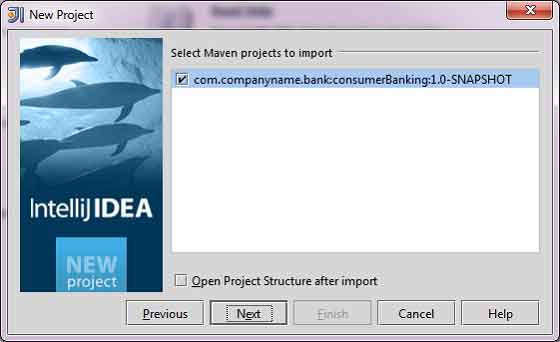
Select the Maven project to import.
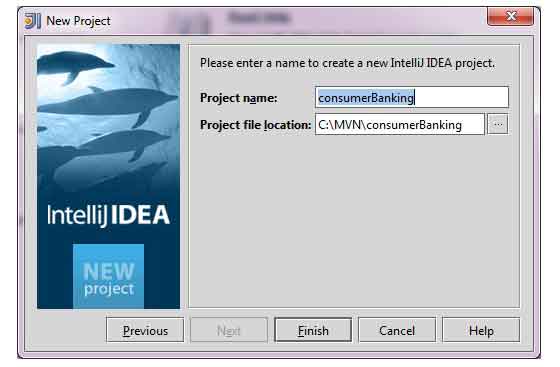
Enter the project name and click 'Finish'.
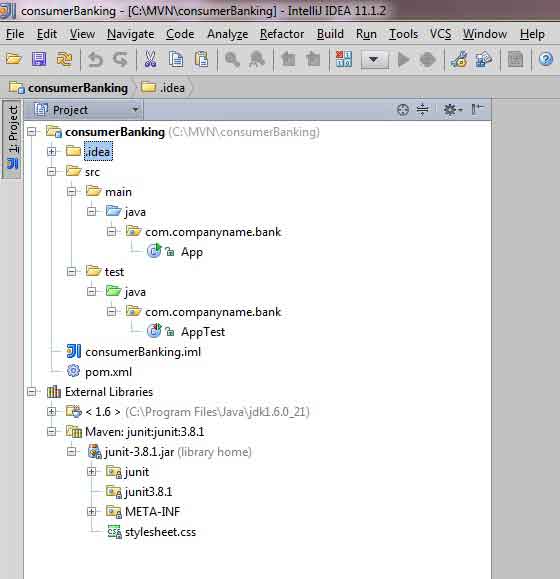
Now we can see the Maven project in IntelliJ IDEA. Take a look at the Libraries and Test Libraries of the consumerBanking project. You can see that IntelliJ IDEA has added all Maven dependencies to its build path.
Build a Maven project in IntelliJ IDEA
Alright, next we will use IntelliJ IDEA's compilation feature to build this Maven project.
- Select the consumerBanking project.
- SelectBuid menu > Rebuild Projectoption.
You can see the log output of the build process in IntelliJ IDEA's terminal:
4:01:56 PM Compilation completed successfully
Run an application in IntelliJ IDEA
- Select the consumerBanking project.
- Right-click on App.java to bring up the context menu.
- SelectRun App.main() 。
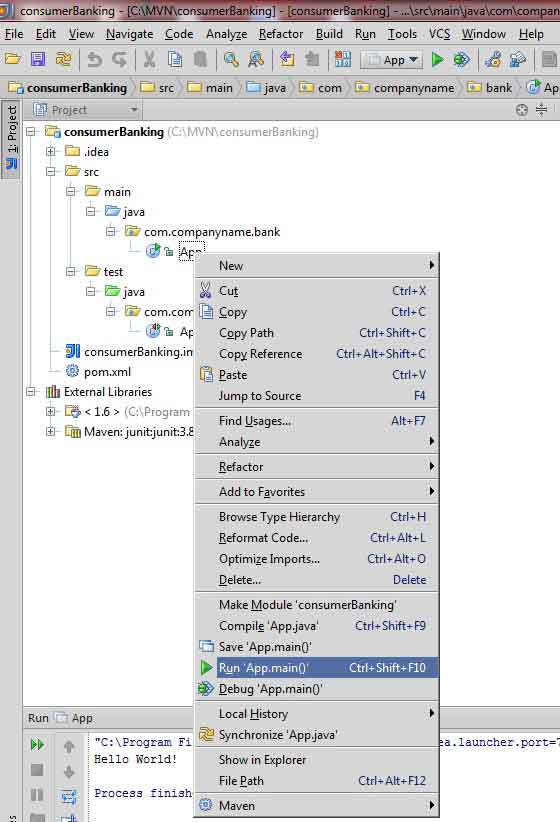
You will see the following running result in IntelliJ IDEA's terminal:
"C:\Program Files\Java\jdk1.6.0_21\bin\java"
-Didea.launcher.port=7533
"-Didea.launcher.bin.path=
C:\Program Files\JetBrains\IntelliJ IDEA Community Edition 11.1.2\bin"
-Dfile.encoding=UTF-8
-classpath "C:\Program Files\Java\jdk1.6.0_21\jre\lib\charsets.jar;
C:\Program Files\Java\jdk1.6.0_21\jre\lib\deploy.jar;
C:\Program Files\Java\jdk1.6.0_21\jre\lib\javaws.jar;
C:\Program Files\Java\jdk1.6.0_21\jre\lib\jce.jar;
C:\Program Files\Java\jdk1.6.0_21\jre\lib\jsse.jar;
C:\Program Files\Java\jdk1.6.0_21\jre\lib\management-agent.jar;
C:\Program Files\Java\jdk1.6.0_21\jre\lib\plugin.jar;
C:\Program Files\Java\jdk1.6.0_21\jre\lib\resources.jar;
C:\Program Files\Java\jdk1.6.0_21\jre\lib\rt.jar;
C:\Program Files\Java\jdk1.6.0_21\jre\lib\ext\dnsns.jar;
C:\Program Files\Java\jdk1.6.0_21\jre\lib\ext\localedata.jar;
C:\Program Files\Java\jdk1.6.0_21\jre\lib\ext\sunjce_provider.jar;
C:\Program Files\Java\jdk1.6.0_21\jre\lib\ext\sunmscapi.jar;
C:\Program Files\Java\jdk1.6.0_21\jre\lib\ext\sunpkcs11.jar
C:\MVN\consumerBanking\target\classes;
C:\Program Files\JetBrains\
IntelliJ IDEA Community Edition 11.1.2\lib\idea_rt.jar"
com.intellij.rt.execution.application.AppMain com.companyname.bank.App
Hello World!
Process finished with exit code 0
Other Extensions