Markdown Editor
To do good work, one must first sharpen one's tools. Choosing the right editor is crucial for learning Markdown:
1. Professional Code Editor
Visual Studio Code: A free editor developed by Microsoft. By installing Markdown-related extensions, you can get powerful editing and preview features.
VScode Installation Tutorial:https://www.example.com/vscode/vscode-tutorial.html
VScode extensions that support Markdown include:
- Markdown All in One: Provides keyboard shortcuts, table of contents generation, and math formula support
- Markdown Preview Enhanced: Enhanced preview features, supports diagrams and presentation mode
- markdownlint: Syntax checking and format standardization
In addition, domestic companies Alibaba and ByteDance also have IDEs developed based on VS Code:
- ByteDance Trae:https://www.trae.cn/
- Alibaba Qoder:https://qoder.com/
Obsidian : A local Markdown note-taking system that uses folders and plain text to drive the knowledge structure. For usage tutorials, refer to:https://www.example.com/markdown/obsidian-tutorial.html。
2. Dedicated Markdown Editor
Mark Text: An open-source real-time preview Markdown editor with a clean interface and complete features. Download address:https://github.com/marktext/marktext/
-
Zettlr: An academic writing-oriented Markdown editor that supports citation management and thesis writing features. Download address:https://github.com/Zettlr/Zettlr
-
Joplin: A free and open-source note-taking app that supports Markdown --https://joplinapp.org/
3. Online Editor
Markdown Online Editor:https://www.jyshare.com/front-end/712/。
Dillinger:https://dillinger.io/, a full-featured online Markdown editor that supports cloud sync and multiple export formats.
StackEdit:https://stackedit.io/, a browser-based editor that integrates with cloud services such as Google Drive and Dropbox.
Jianshu and Yuque Editors: Online Markdown editing environments provided by domestic platforms.
VS Code Markdown
This tutorial will use the VSCode editor to explain Markdown syntax. VSCode supports MacOS, Windows, and Linux platforms, and includes multiple themes.
VSCode comes with a Markdown document editing plugin by default, and natively supports highlighting Markdown syntax.
VSCode (full name: Visual Studio Code) is a free, cross-platform source code editor developed by Microsoft.
- VScode Installation Tutorial:https://www.example.com/vscode/vscode-install.html
- VScode Official Website Address:https://code.visualstudio.com/
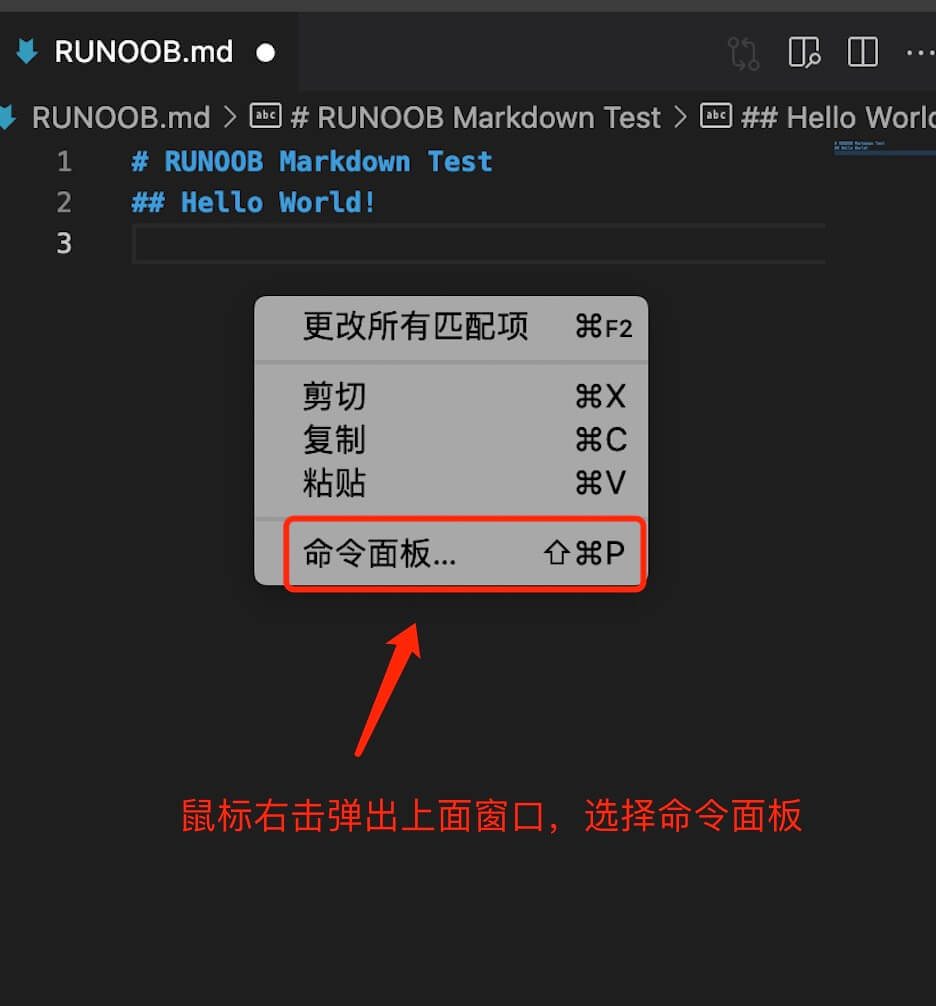
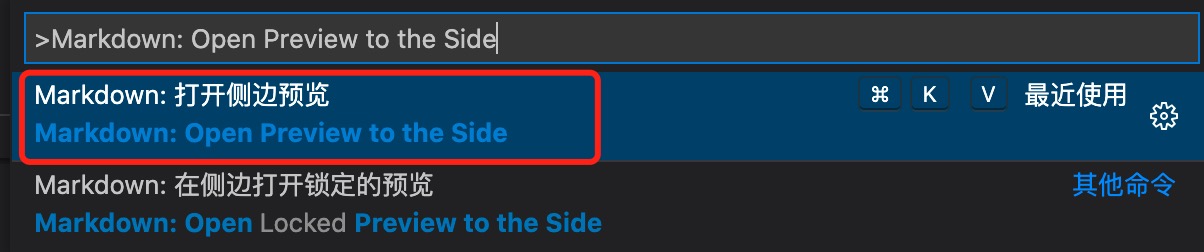
VSCode real-time preview also requires executingMarkdown: Open Preview to the Sidea command to achieve.
Enter in the command windowMarkdown: Open Preview to the Sidecommand:
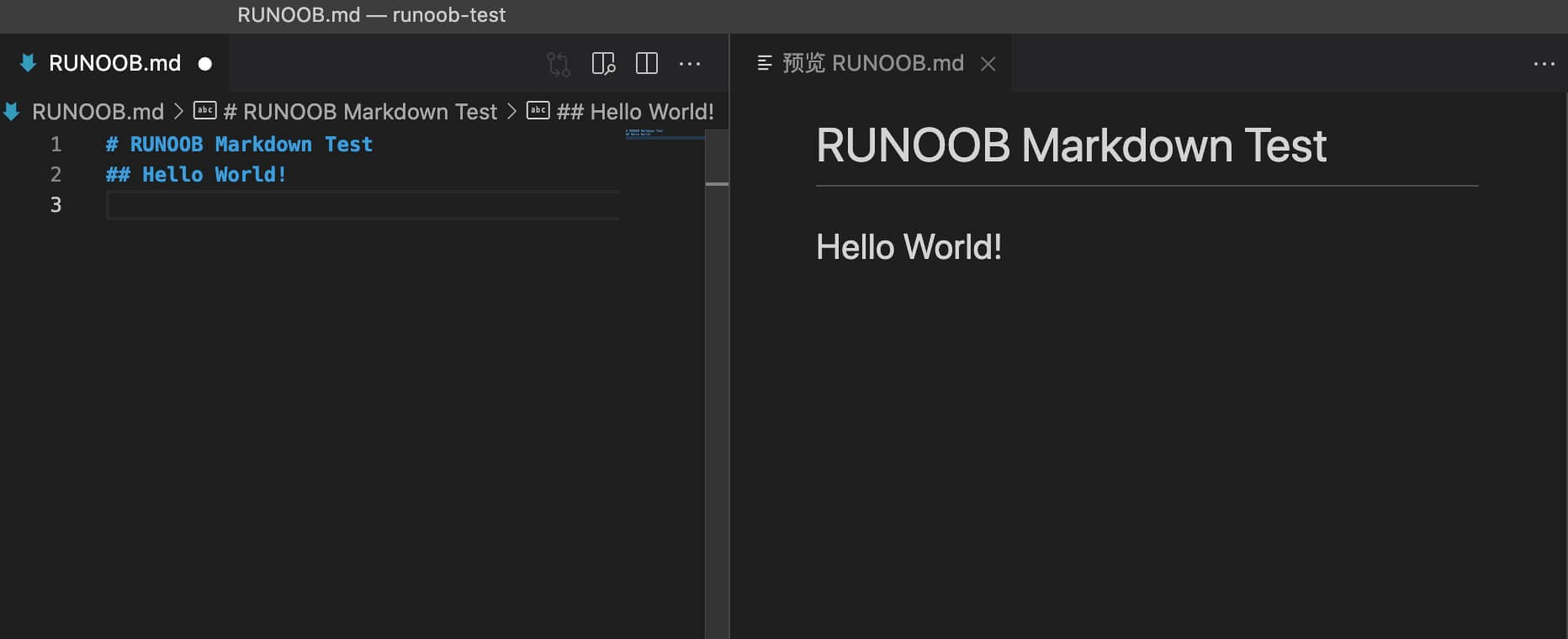
Final result:
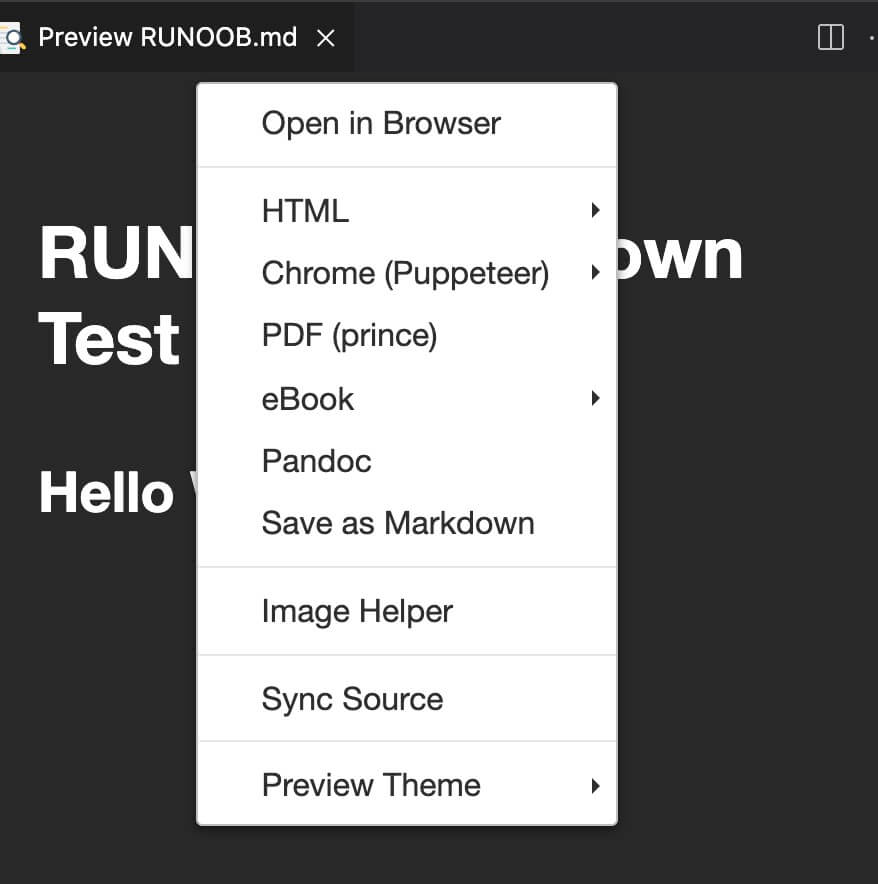
If you need to convert Markdown to PDF, images, HTML, or other formats, you can also install corresponding plugins to achieve this.
You can also use our online editor to test:https://www.jyshare.com/front-end/712。
MarkDown Mind Map Tool:https://www.jyshare.com/front-end/9692/。
Test Example
In the following tests, we will first install in VSCodeMarkdown Preview Enhancedplugins to achieve more powerful features.
Click the Extensions button in the right sidebar and search forMarkdown Preview Enhancedplugin, click Install:
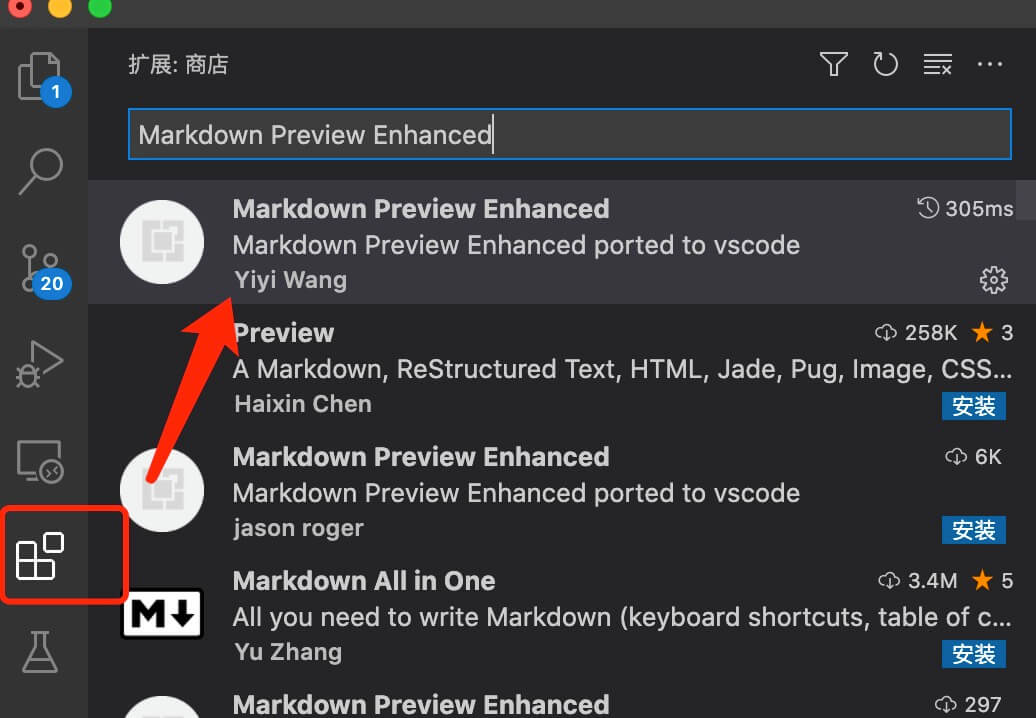
After installation is complete, restart VSCode.
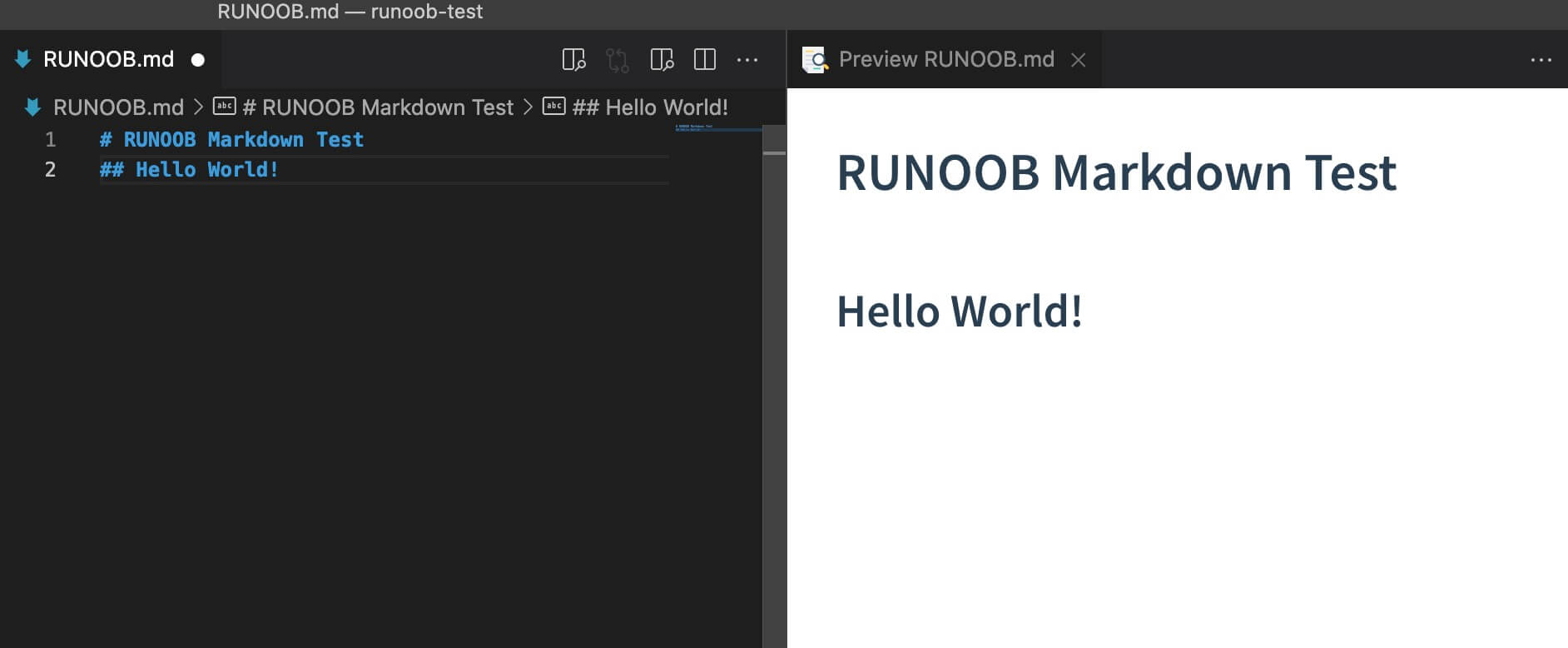
Enter the following code in EXAMPLE.md:
# EXAMPLE Markdown Test
## Hello World!
Paste this code into the file EXAMPLE.md, and the result is as follows:
Right-clicking in the preview box also provides various export functions:
MarkText
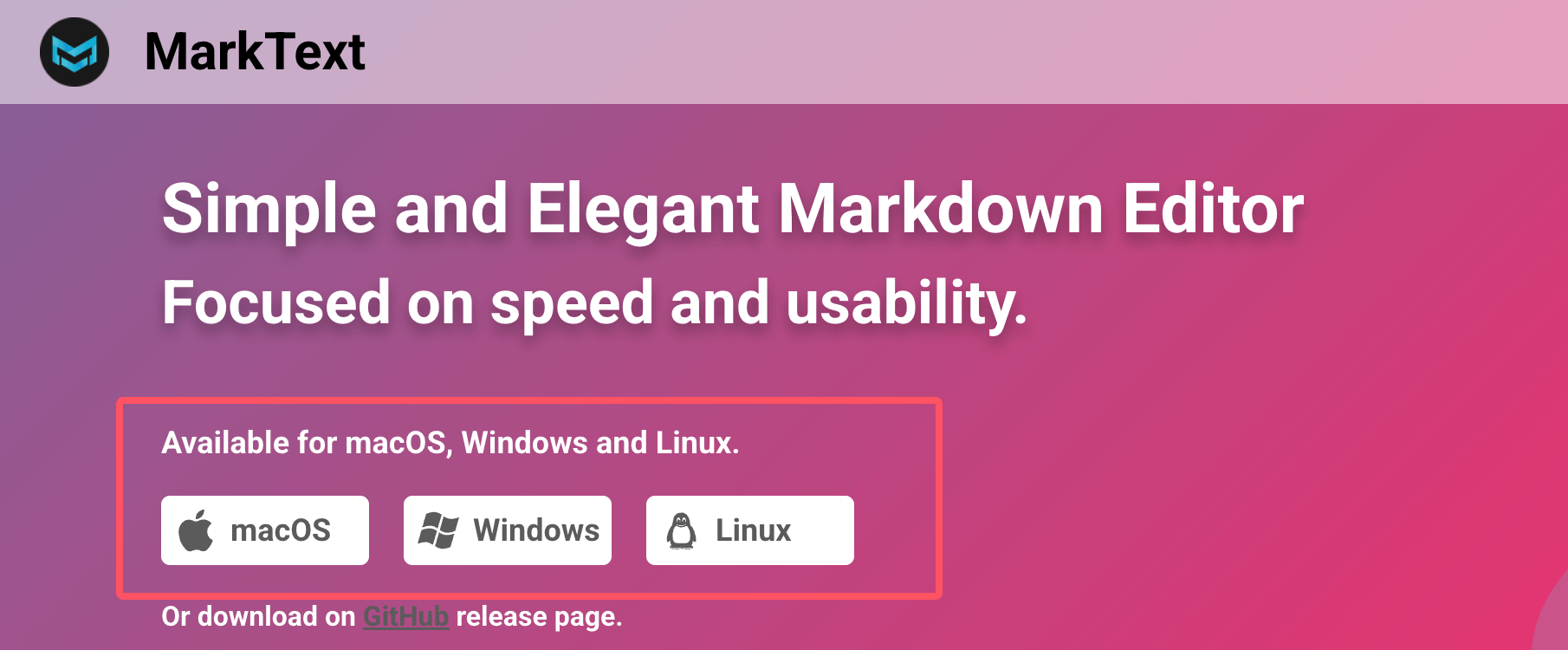
We can also useMarkText -- A simple and elegant open-source Markdown editor。
MarkText Download Addresshttps://github.com/marktext/marktext/releases, you can choose different installation packages according to different systems:
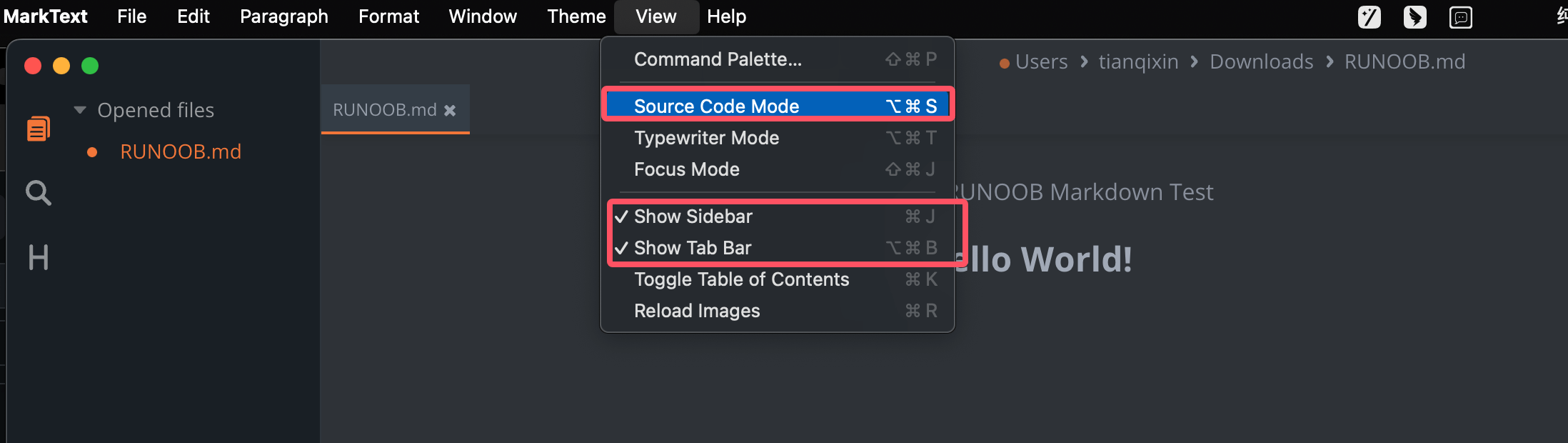
After downloading and installing, we can use the menu'sViewoption to switch to source code mode, and can also show the menu bar:
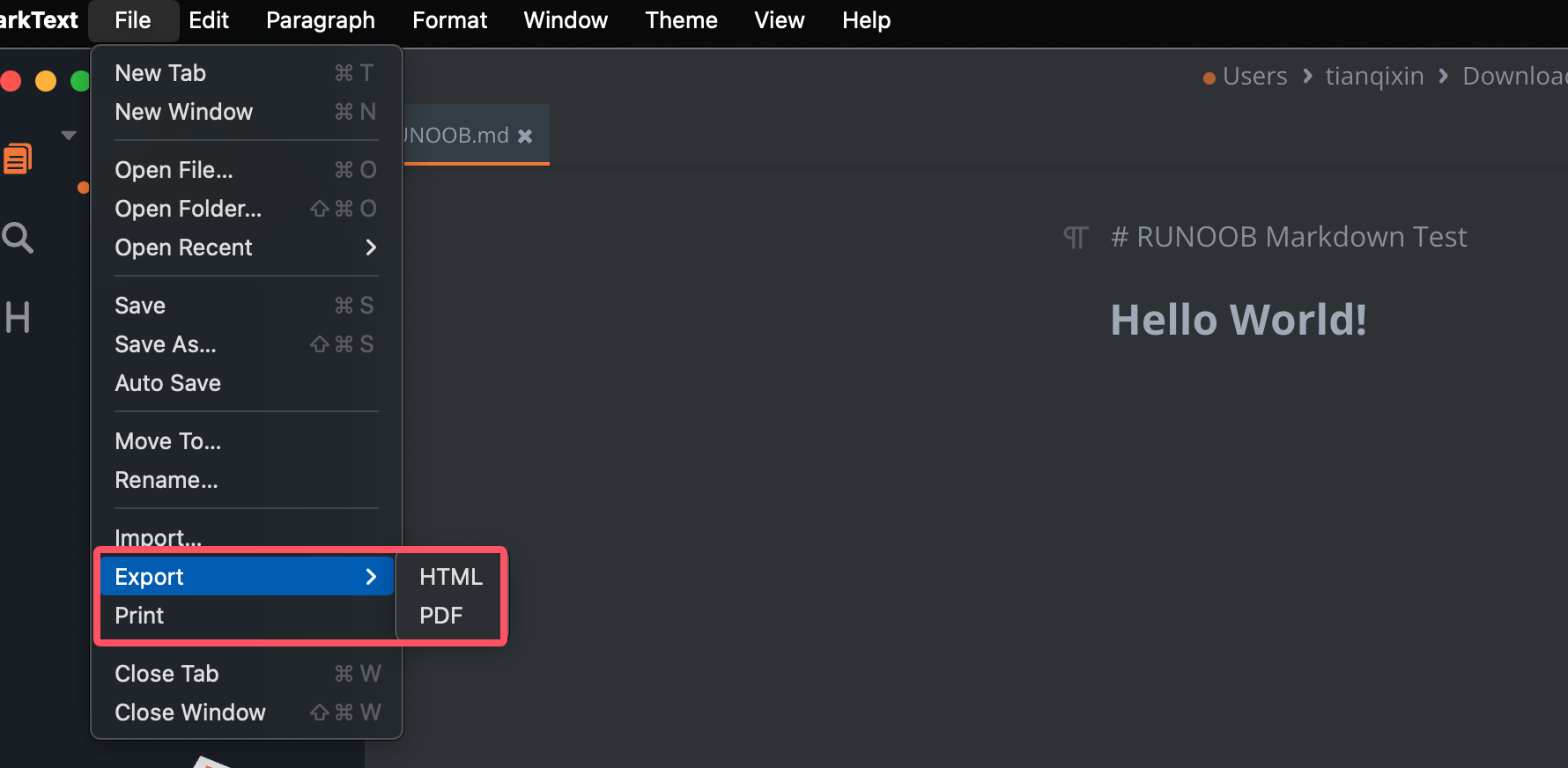
Through the File option in the menu, you can export files in different formats: