Servlet Environment Setup
The development environment is where you can develop, test, and run Servlets.
Just like any other Java program, you need to use the Java compilerjavacto compile Servlets. After compiling the Servlet application, deploy it in the configured environment for testing and running.
If you are using the Eclipse environment, you can directly refer to:Eclipse JSP/Servlet Environment Setup。
This development environment setup includes the following steps:
Setting up the Java Development Kit
This step involves downloading the Java Software Development Kit (SDK) and appropriately setting the PATH environment variable.
You can download the SDK from Oracle's Java website:Java SE Downloads。
Once you have downloaded the SDK, follow the given instructions to install and configure the setup. Finally, set the PATH and JAVA_HOME environment variables to point to the directories containing java and javac, usually java_install_dir/bin and java_install_dir respectively.
If you are running Windows and installed the SDK in C:\jdk1.5.0_20, you need to put the following lines in your C:\autoexec.bat file:
set PATH=C:\jdk1.5.0_20\bin;%PATH%
set JAVA_HOME=C:\jdk1.5.0_20
Alternatively, in Windows NT/2000/XP, you can also right-click "My Computer", select "Properties", then select "Advanced", "Environment Variables". Then update the value of PATH and press the "OK" button.
On Unix (Solaris, Linux, etc.), if the SDK is installed in /usr/local/jdk1.5.0_20 and you are using C shell, you need to put the following lines in your .cshrc file:
setenv PATH /usr/local/jdk1.5.0_20/bin:$PATH
setenv JAVA_HOME /usr/local/jdk1.5.0_20
Additionally, if you use an Integrated Development Environment (IDE), such as Borland JBuilder, Eclipse, IntelliJ IDEA, or Sun ONE Studio, compile and run a simple program to confirm that the IDE knows the installed Java path.
For more details, see:Java Development Environment Configuration
Setting up the Web Application Server: Tomcat
There are many web application servers on the market that support Servlets. Some web application servers are free to download, and Tomcat is one of them.
Apache Tomcat is an open-source software implementation of Java Servlet and JavaServer Pages technologies. It can serve as a standalone server for testing Servlets and can be integrated into the Apache Web application server. Below are the steps to install Tomcat on your computer:
- fromhttp://tomcat.apache.org/Download the latest version of Tomcat from:
- Once you have downloaded Tomcat, extract it to a convenient location. For example, if you are using Windows, extract it to C:\apache-tomcat-5.5.29; if you are using Linux/Unix, extract it to /usr/local/apache-tomcat-5.5.29, and create the CATALINA_HOME environment variable pointing to these locations.
On Windows, you can start Tomcat by executing the following command:
 %CATALINA_HOME%\bin\startup.bat

 或者

 C:\apache-tomcat-5.5.29\bin\startup.bat
On Unix (Solaris, Linux, etc.), you can start Tomcat by executing the following command:
$CATALINA_HOME/bin/startup.sh

 或者

/usr/local/apache-tomcat-5.5.29/bin/startup.sh
After Tomcat has started, you can enter the following in the browser address bar:http://localhost:8080/to access the default application in Tomcat. If everything goes smoothly, the following result will be displayed:
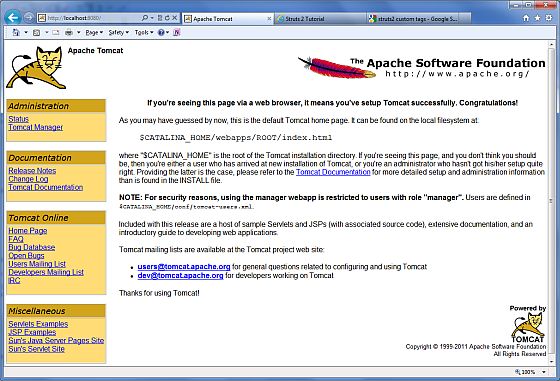
For further information on configuring and running Tomcat, you can consult the documentation included in the application installation, or you can visit the Tomcat website:http://tomcat.apache.org。
On Windows, you can stop Tomcat by executing the following command:
C:\apache-tomcat-5.5.29\bin\shutdown
On Unix (Solaris, Linux, etc.), you can stop Tomcat by executing the following command:
/usr/local/apache-tomcat-5.5.29/bin/shutdown.sh
Setting up CLASSPATH
Since Servlets are not part of the Java Platform Standard Edition, you must specify the path to the Servlet classes for the compiler.
If you are running Windows, you need to put the following lines in your C:\autoexec.bat file:
set CATALINA=C:\apache-tomcat-5.5.29
set CLASSPATH=%CATALINA%\common\lib\servlet-api.jar;%CLASSPATH%
Alternatively, in Windows NT/2000/XP, you can also right-click "My Computer", select "Properties", then select "Advanced", "Environment Variables". Then update the value of CLASSPATH and press the "OK" button.
On Unix (Solaris, Linux, etc.), if you are using C shell, you need to put the following lines in your .cshrc file:
setenv CATALINA=/usr/local/apache-tomcat-5.5.29
setenv CLASSPATH $CATALINA/common/lib/servlet-api.jar:$CLASSPATH
Note:Assuming your development directory is C:\ServletDevel (on Windows) or /user/ServletDevel (on UNIX), you also need to add these directories to CLASSPATH, in a manner similar to the above additions.
Other Extensions