VSCode Windows Installation
VSCode is a free cross-platform source code editor developed by Microsoft, supporting Windows, macOS, and Linux.
Before installing VS Code, make sure your device meets the following minimum requirements:
| Operating System | Minimum Requirements |
|---|---|
| Windows | Windows 7 64-bit or higher |
| macOS | macOS 10.11 El Capitan or higher |
| Linux | Ubuntu 16.04+, Debian 9+, Fedora 30+, CentOS 7+ |
VS Code official website download page:https://code.visualstudio.com/Download。
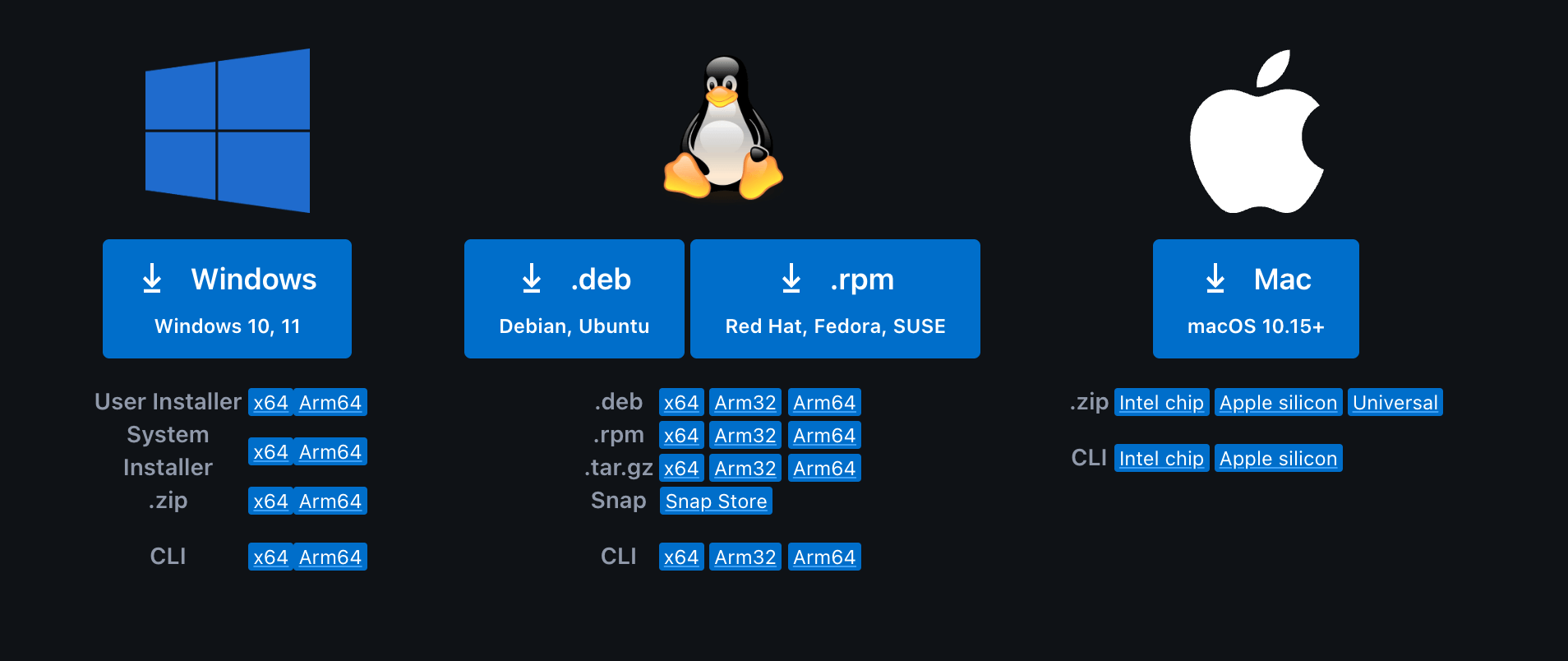
For Windows, be sure to download the correct version. If the system account is Administrator, you need to download the System Installer version; if the system account is another custom account, you need to download the User Installer version.
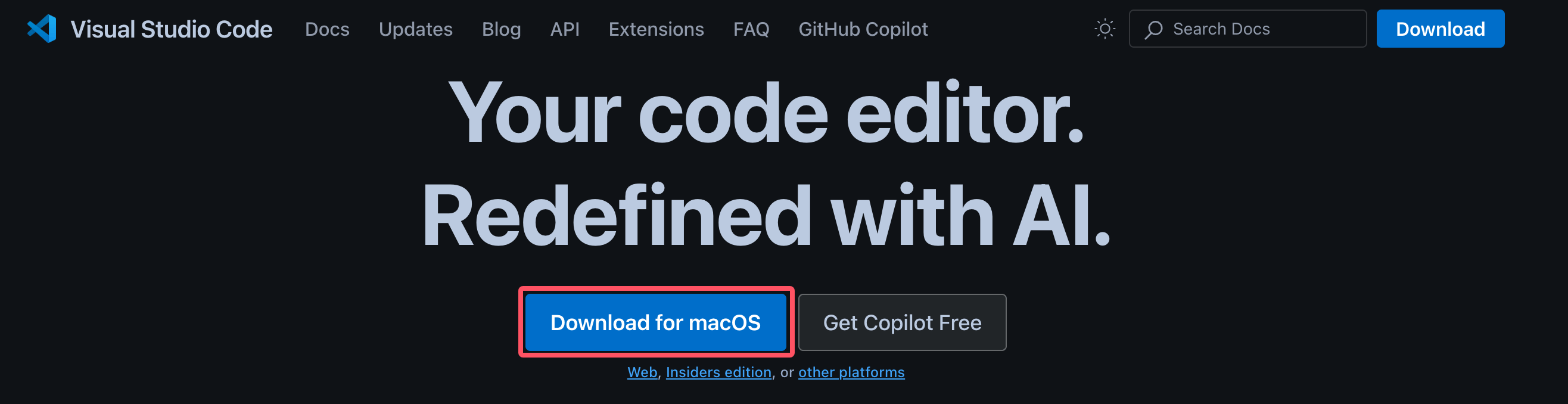
By default, when visiting the VS Code official websitehttps://code.visualstudio.com/, the page will automatically match the installation package based on your system. For example, if I use macOS, there will be aDownload for macOSbutton:
Install on Windows
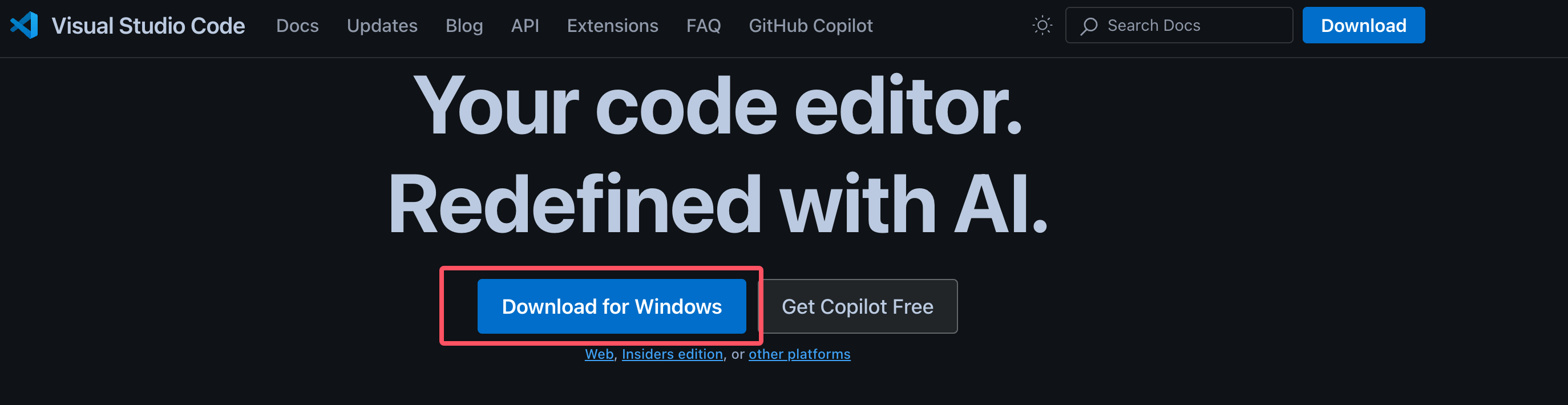
Visit the VS Code official websitehttps://code.visualstudio.com/, click "Download for Windows" to download the appropriate installation package. By default, the stable version (Stable) will be downloaded.
The download is something like anVSCodeUserSetup-{version}.exeinstaller. Double-click the downloaded.exefile.
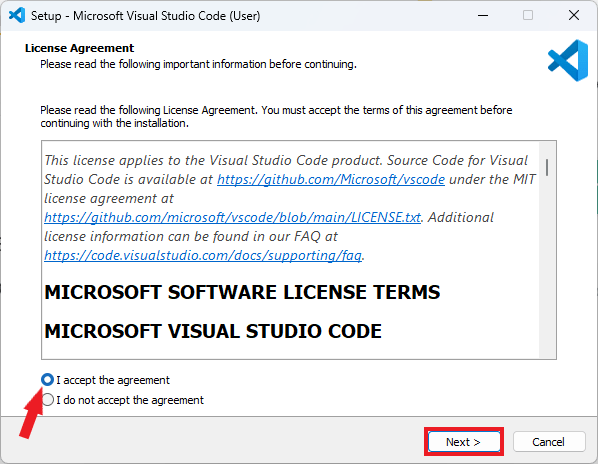
Once the installer opens, you will be asked to accept the terms and conditions of Visual Studio Code. Click "I accept the agreement" and then click "Next".
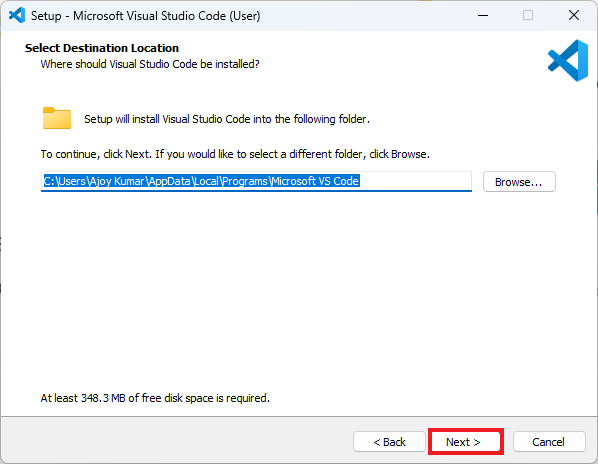
Choose the installation location. By default, VS Code will be installed in the following directoryC:\Users\{Username}\AppData\Local\Programs\Microsoft VS Code, where "Username" is your username. If there are no special requirements, keep the default and click "Next".
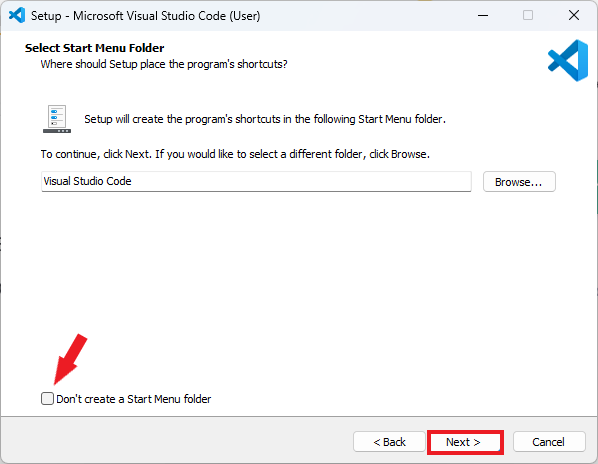
Next is to set up some Start Menu directories. Just keep the defaults and click "Next".
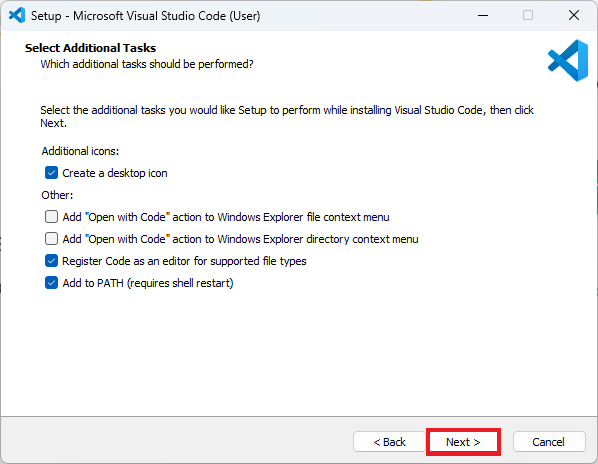
Next, you can check the following options (recommended):
- Create a desktop shortcut.
- Add VS Code to the right-click menu (convenient for opening files directly with VS Code).
- Add VS Code to the PATH environment variable (convenient for running the code command in the terminal).
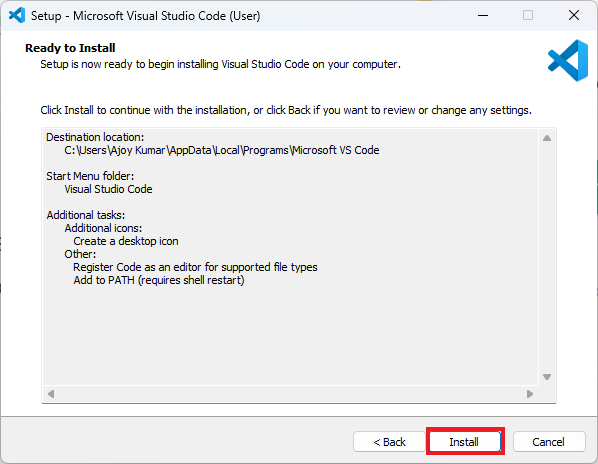
Click the "Install" button, wait for it to complete, then launch VS Code.
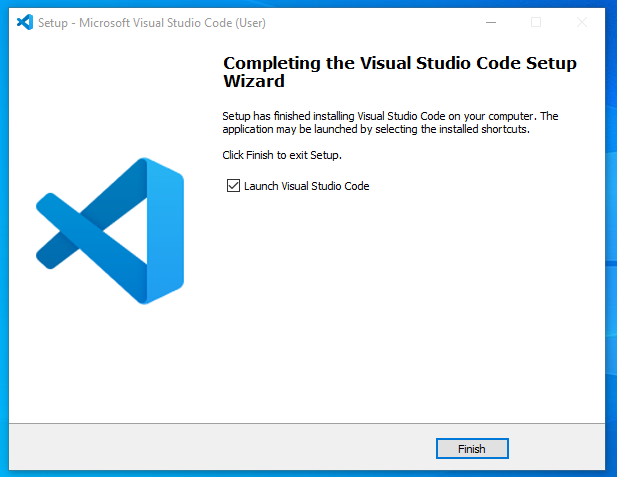
Click the "Finish" button to complete the installation:
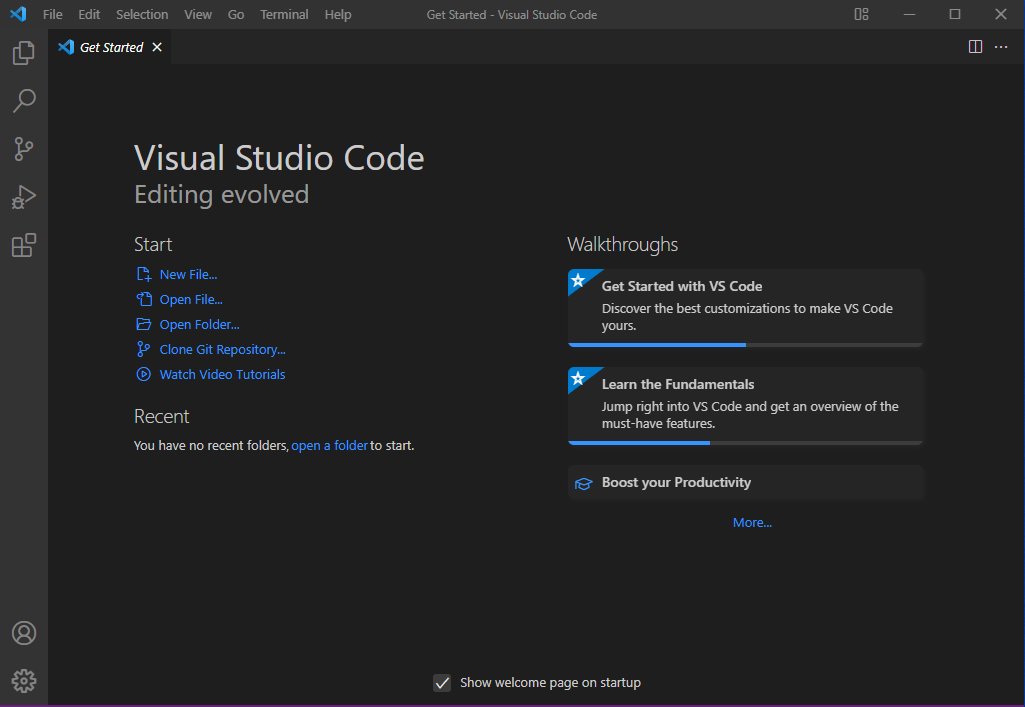
Launch VS Code. The interface is as shown below:
Install Chinese Language Pack
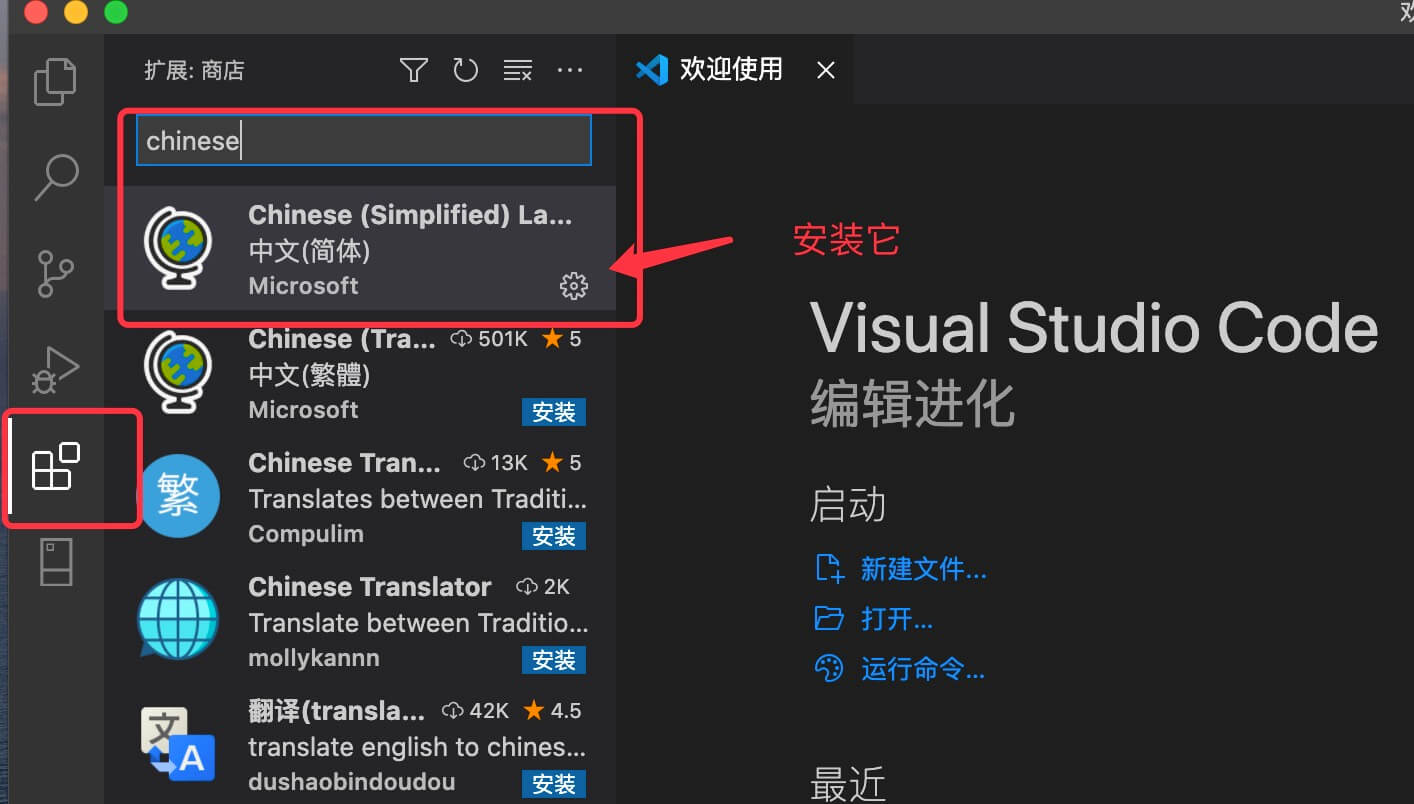
Installing the Chinese Language Pack in VScode is very simple. Open VScode, click the Extensions icon on the left, and enter in the search boxChinese:
Then click the Install button on the first search result, "Chinese (Simplified) (Simplified Chinese)", and that's it:
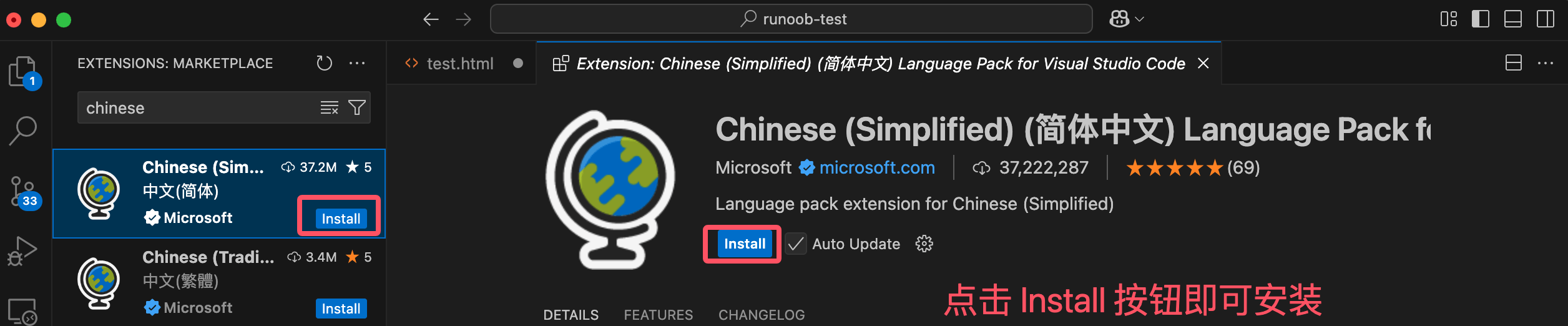
After installation is complete, restart VSCode, and the interface will be displayed in Chinese.
VSCode's code command
Enabling VSCode's code command is very simple. First open the Command Palette:
- macOS system shortcut:⇧⌘P
- Windows/Linux shortcut:Ctrl + Shift + P
Search for "Install" >shell command:
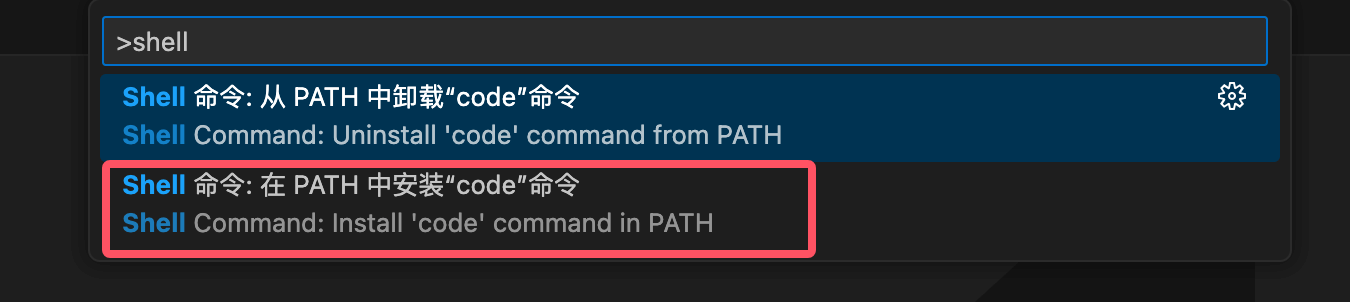
Then selectShell Command: Install 'code' command in PATHThis will add thecodecommand reference to the system PATH.
Vscode Code command detailed reference:VSCode code command
Other extensions