VS Code Activity Bar
The Activity Bar is a vertical toolbar on the left side of VS Code, providing quick access to different features and views.
Through the Activity Bar, users can easily switch between File Explorer, Search, Source Control, Debug, Extensions, and other features.
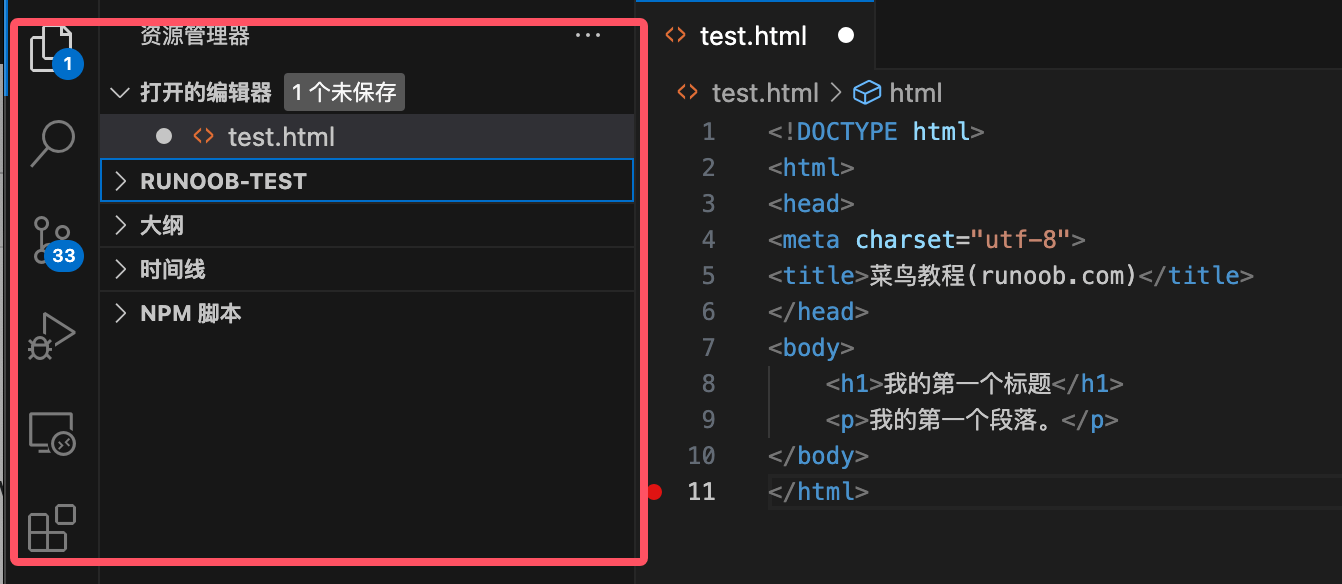
Main Functions of the Activity Bar
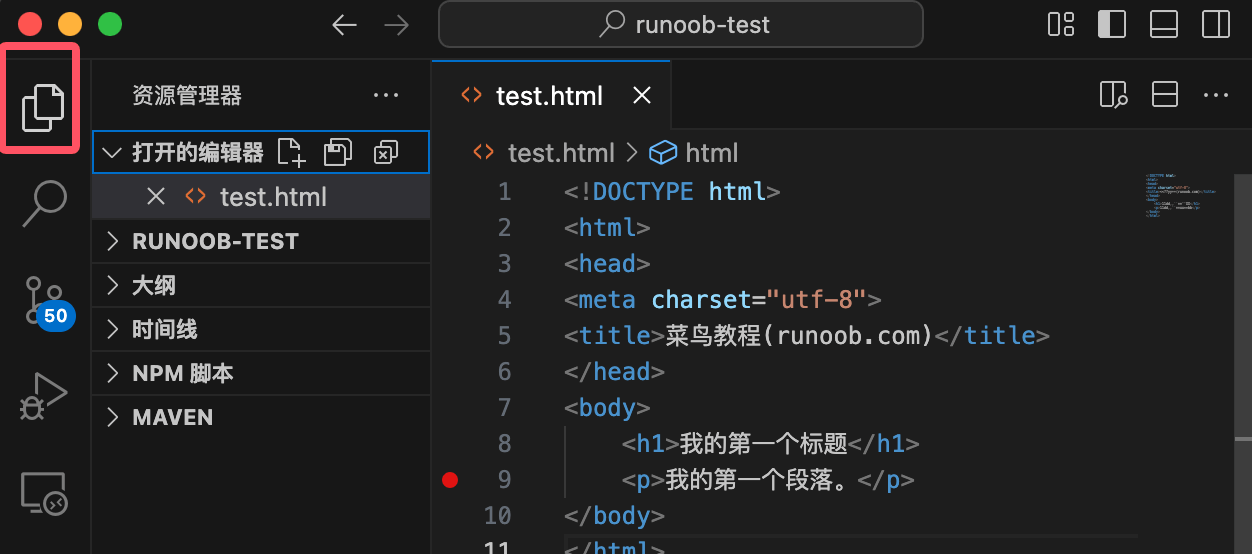
1. File Explorer (Explorer)
The File Explorer is the first icon in the Activity Bar, usually a folder icon. When clicked, it displays all files and folders in the current workspace. You can browse, open, create, delete, or rename files here.
2. Search
The Search feature allows you to find specific text or code snippets across the entire project. After clicking the search icon (magnifying glass), you can enter keywords, and VS Code will match and display all relevant results in the project.
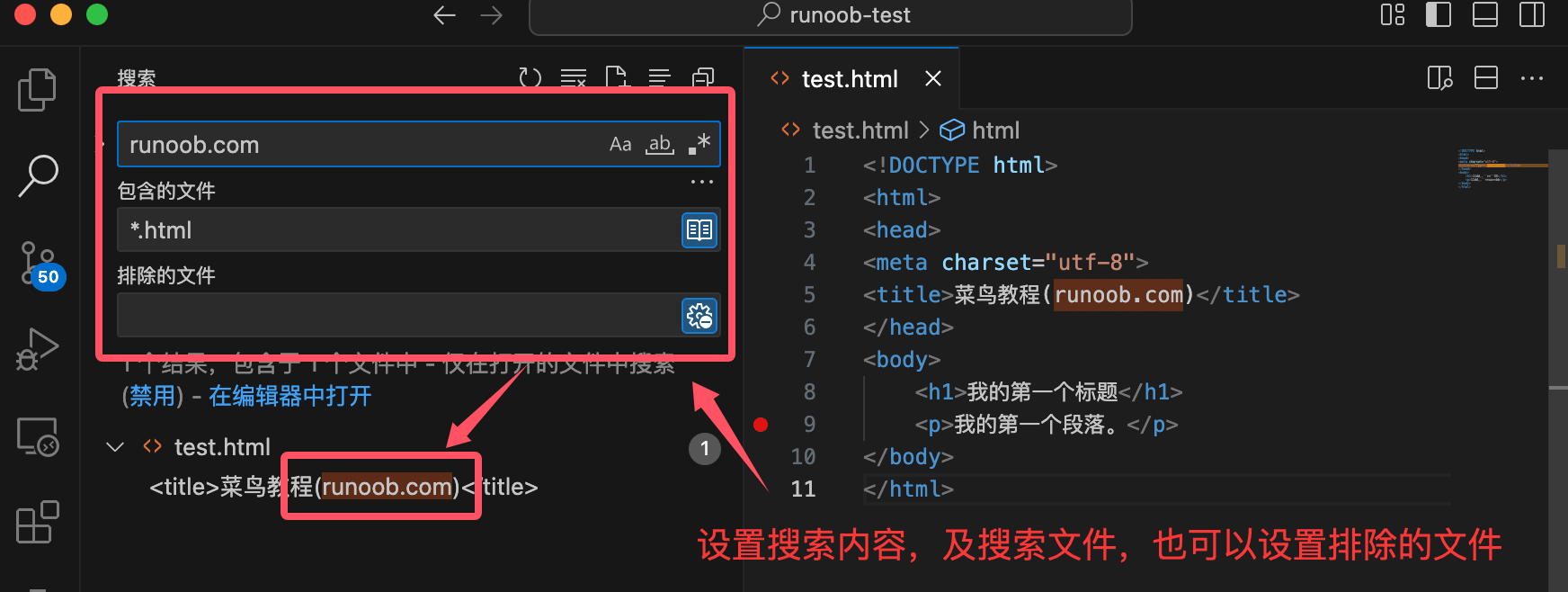
You can set the file type and the files to exclude in the input box.
3. Source Control
The Source Control feature integrates Git, allowing you to perform version control operations directly in VS Code. You can view file change statuses, commit code, create branches, and more.
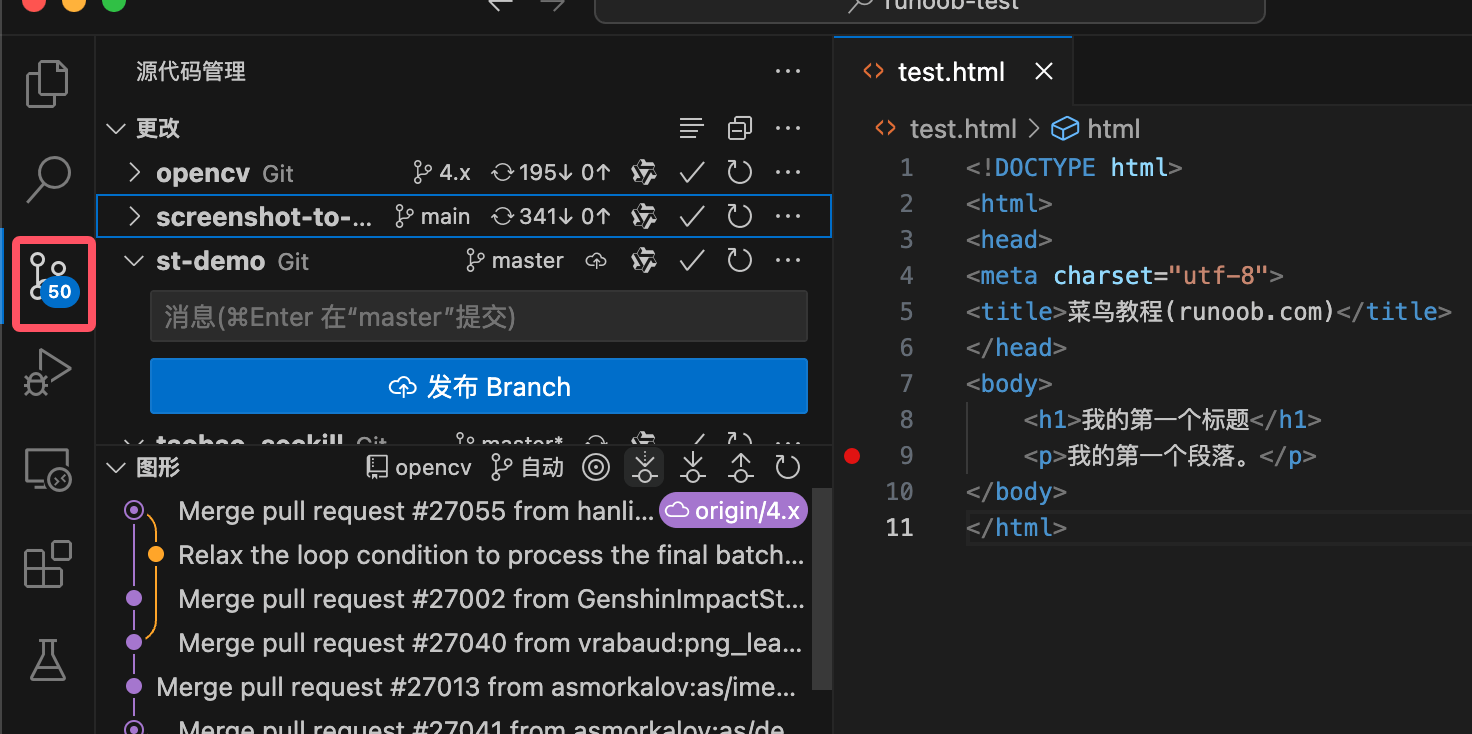
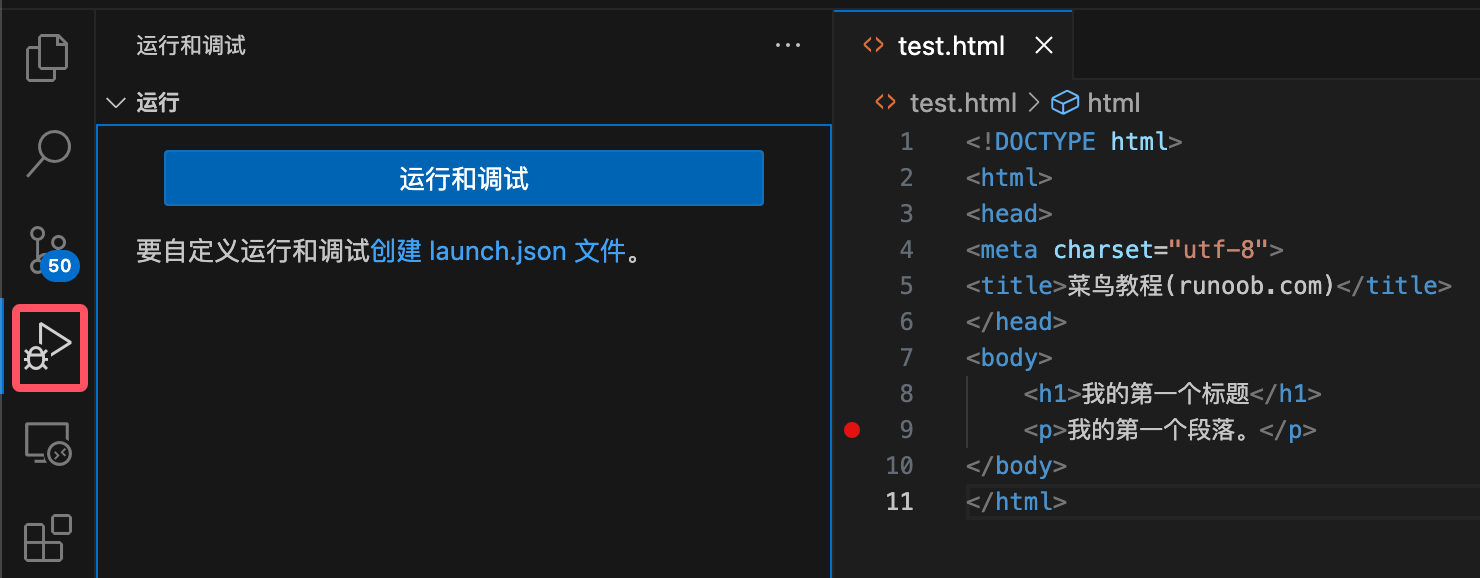
4. Debug
The Debug feature is one of the most powerful tools in VS Code. You can set breakpoints, step through code, view variable values, and more, helping you quickly locate and fix issues in your code.
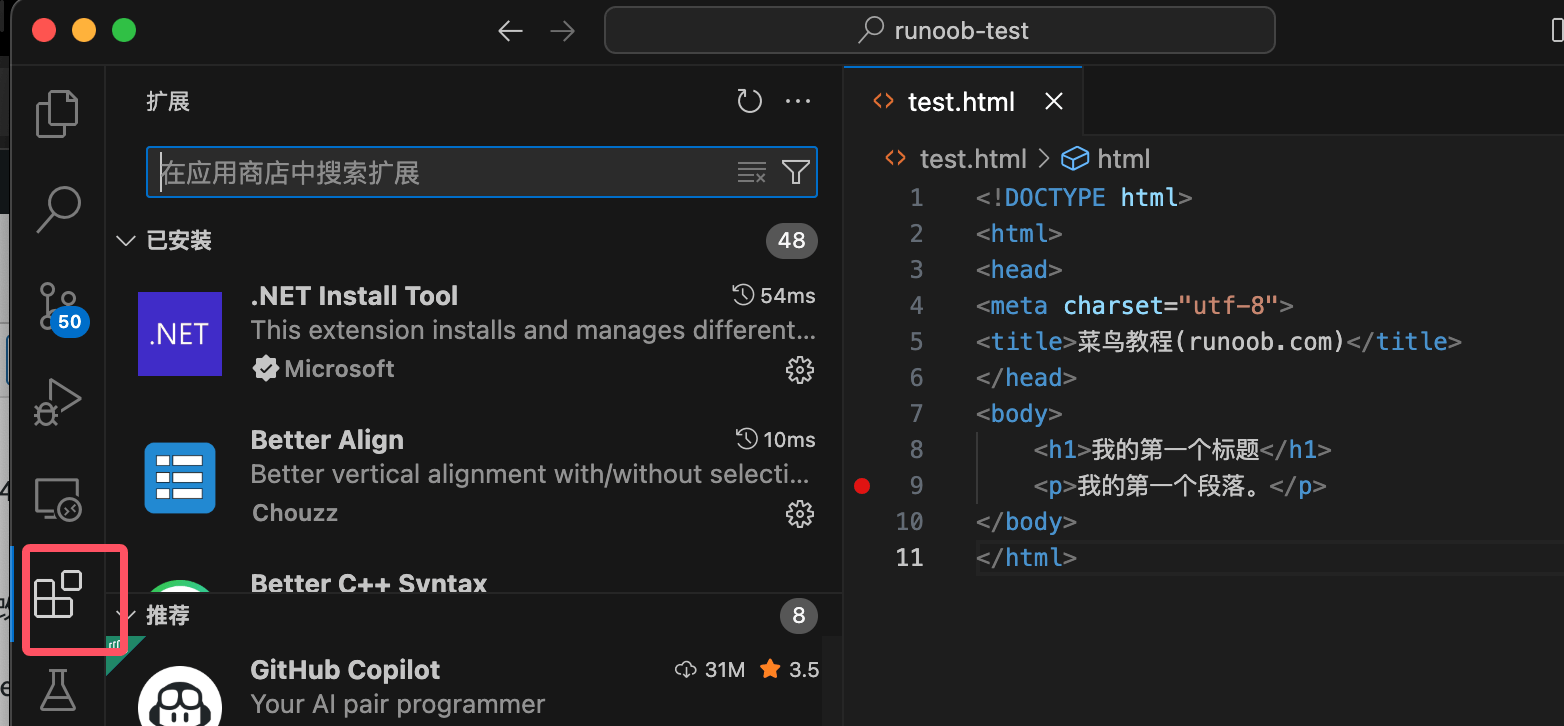
5. Extensions
The Extensions feature allows you to install and manage VS Code plugins.
Through extensions, you can add new language support, themes, tools, and other features to VS Code, greatly expanding the editor's functionality.
Customize the Activity Bar
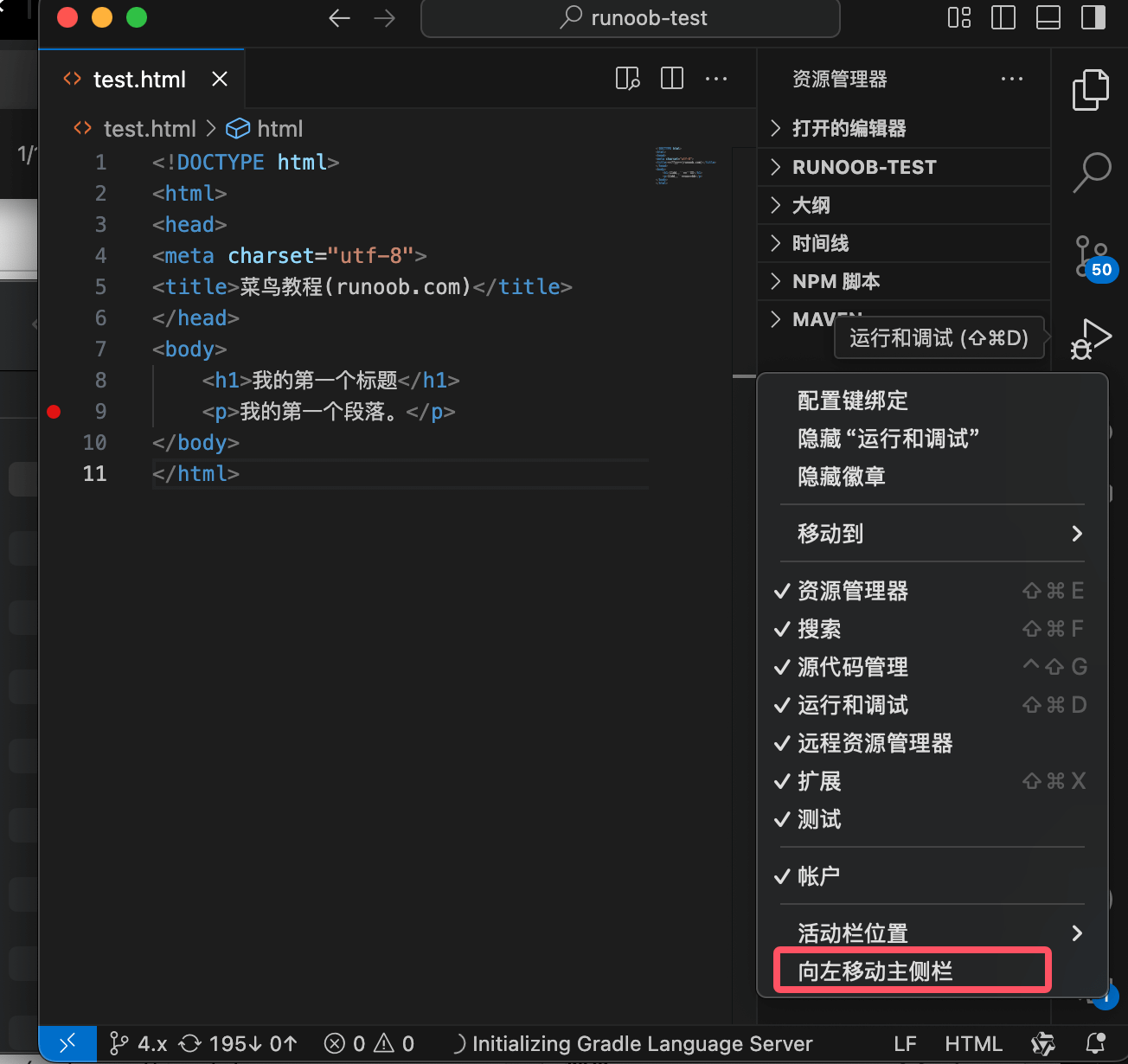
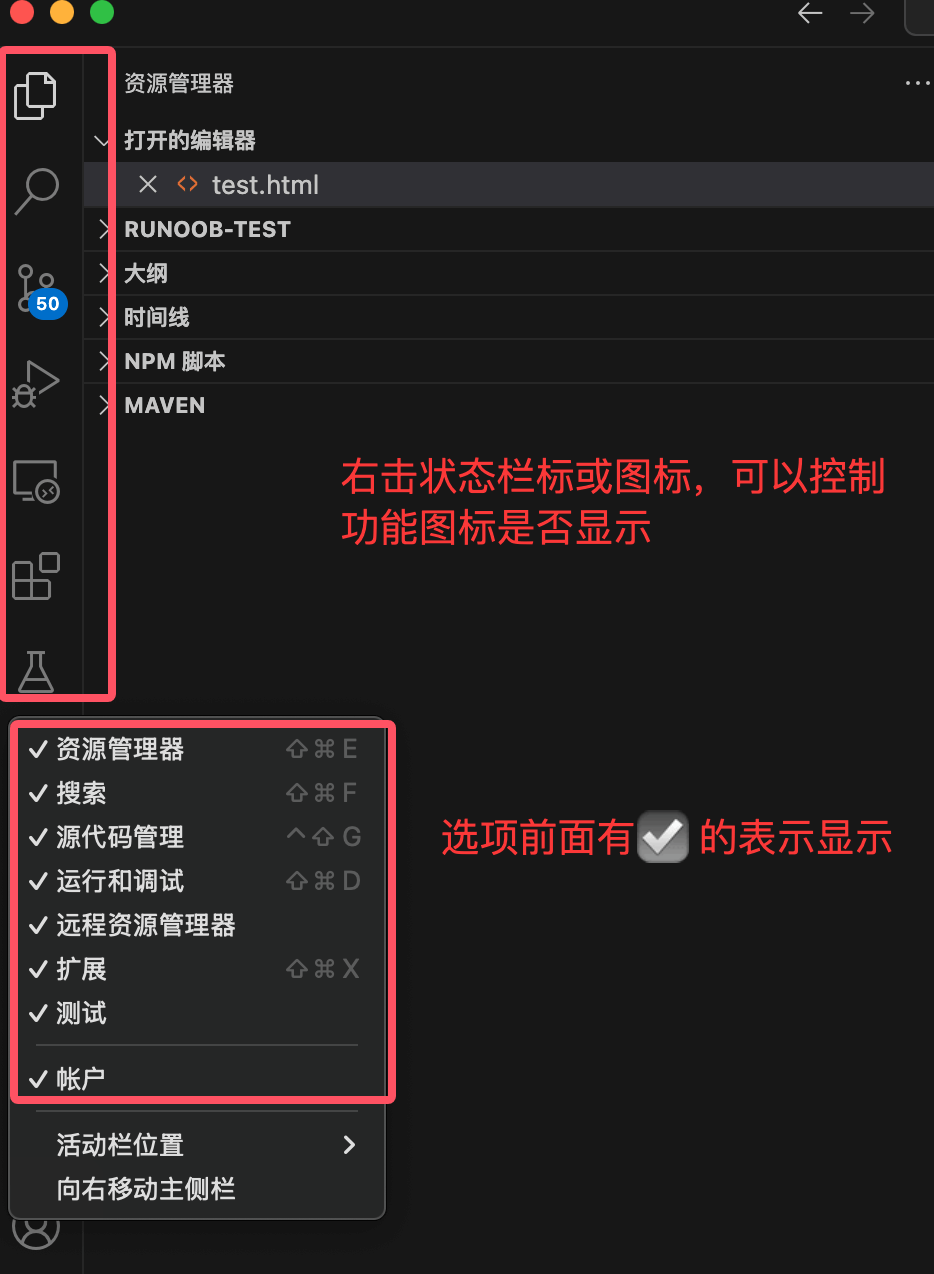
VS Code allows users to customize the content displayed in the Activity Bar. You can right-click the Activity Bar to control whether function icons are shown. A checkmark ☑️ means shown; otherwise, hidden:
You can also set the Activity Bar to display on the right side:
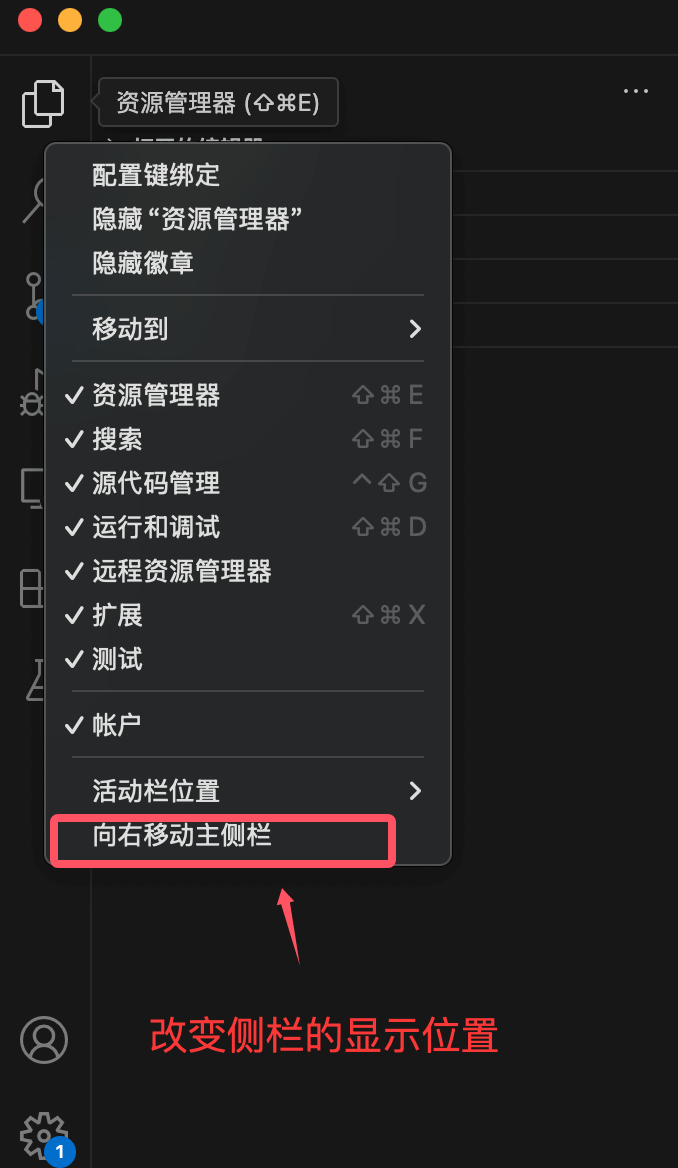
If you're not used to the Activity Bar on the right, right-click it and switch it back: