VSCode macOS Installation
VSCode is a free cross-platform source code editor developed by Microsoft, supporting Windows, macOS, and Linux.
Before installing VS Code, please ensure your device meets the following minimum requirements:
| Operating System | Minimum Requirements |
|---|---|
| Windows | Windows 7 64-bit or higher |
| macOS | macOS 10.11 El Capitan or higher |
| Linux | Ubuntu 16.04+, Debian 9+, Fedora 30+, CentOS 7+ |
VS Code official website download page:https://code.visualstudio.com/Download。
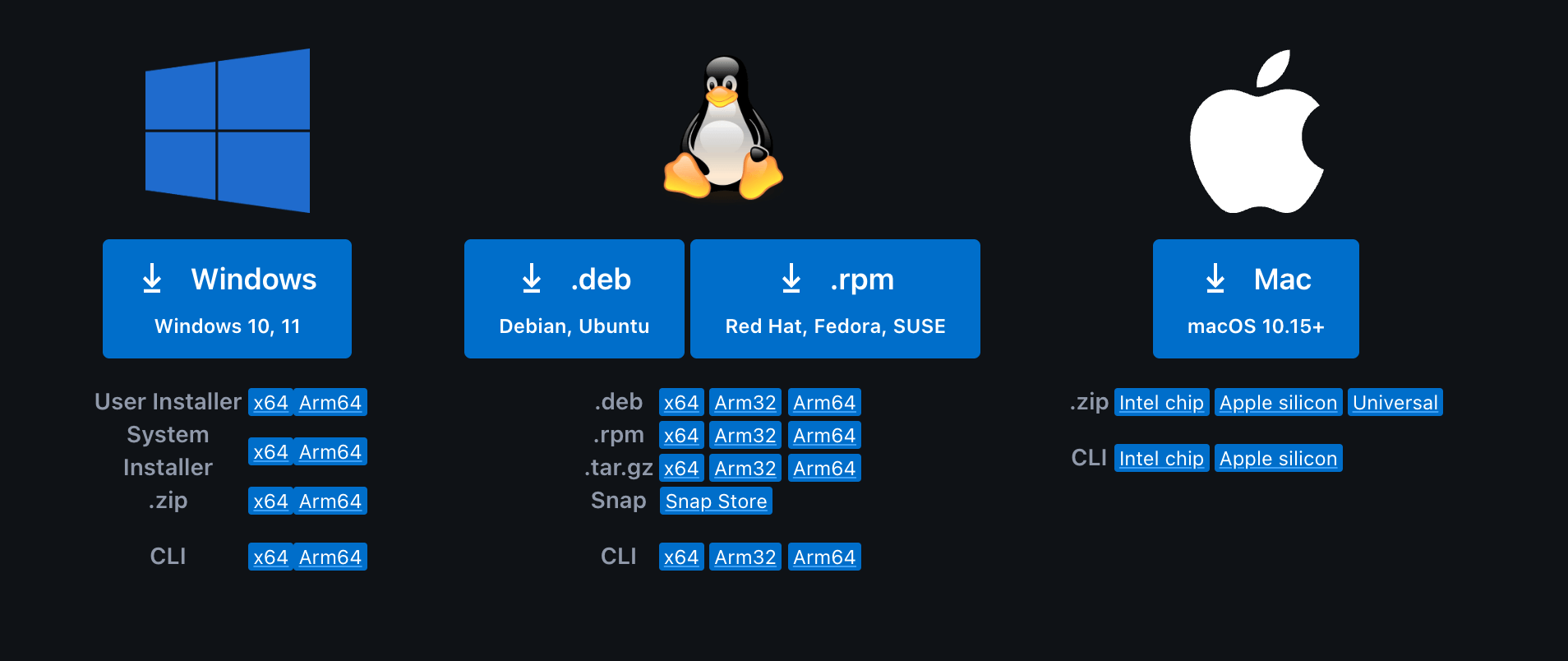
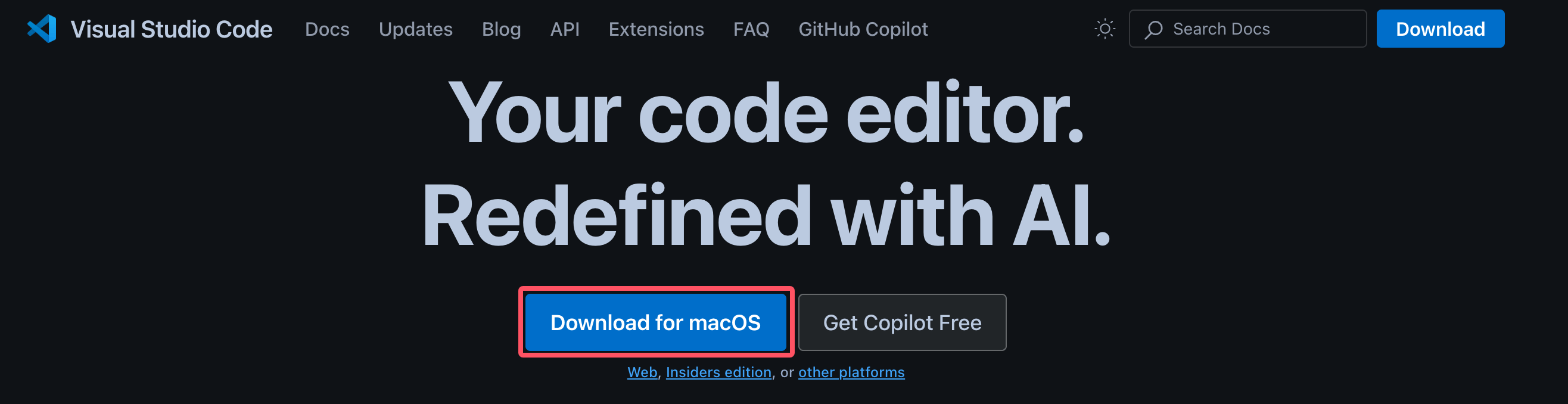
By default, when accessing the VS Code official websitehttps://code.visualstudio.com/, the page will automatically match the installation package based on your system. For example, if I am on macOS, there will appearDownload for macOSbutton:
Installing on macOS
Visit the VS Code official websitehttps://code.visualstudio.com/, click "Download for macOS", and it will download a compressed package named VSCode-darwin-universal.zip. After extraction, it becomes a Visual Studio Code application.
Drag Visual Studio Code.app into the "Applications" folder to make it available in macOS Launchpad.
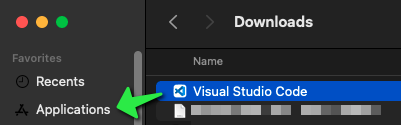
PressCommand ⌘the key, then press the spacebar, search for 'Visual' in the search box, and click the Visual Studio Code button to open it:

You can also find the Visual Studio Code icon in Launchpad; once you find it, click it:
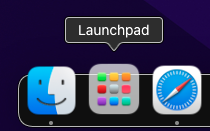
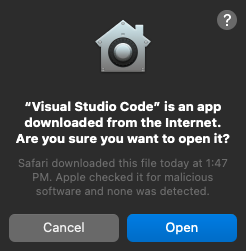
macOS will prompt you to confirm opening the program downloaded from the internet, just click the Open button:
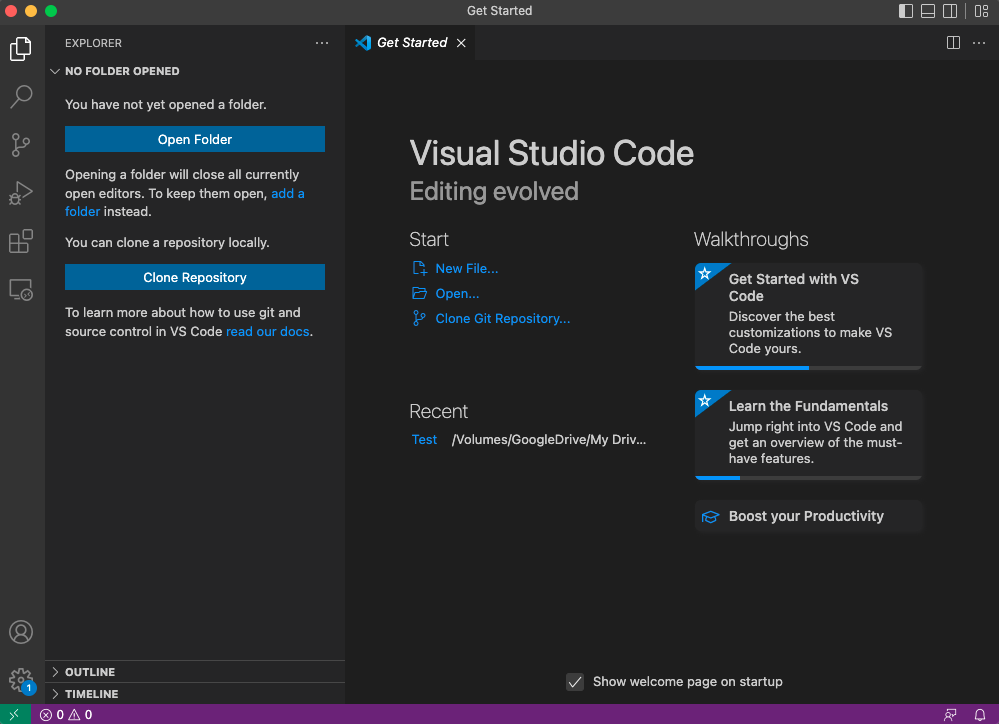
Launch Visual Studio Code, the interface is as follows:
VSCode's code command
Enabling VSCode's code command is very simple. First open the Command Palette:
- macOS system shortcut key:⇧⌘P
- Windows/Linux shortcut key:Ctrl + Shift + P
Search for 'Install' >shell command:
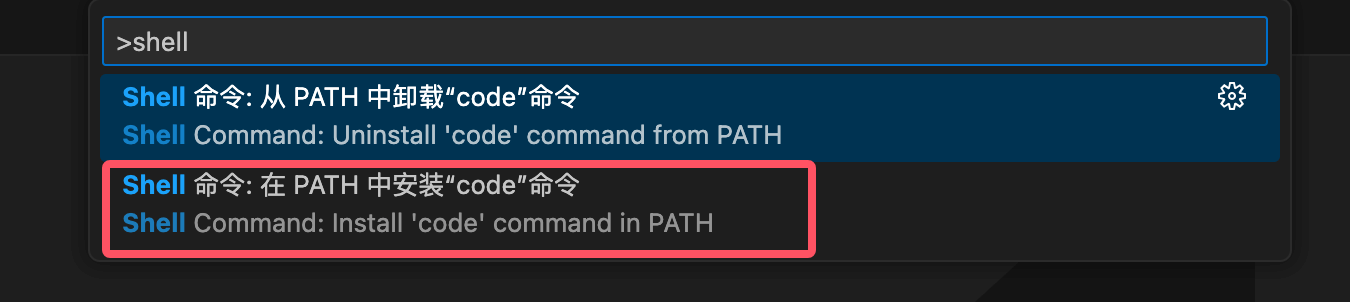
Then selectShell Command: Install 'code' command in PATHwhich will add to the system PATHcodethe command reference.
Other extensions