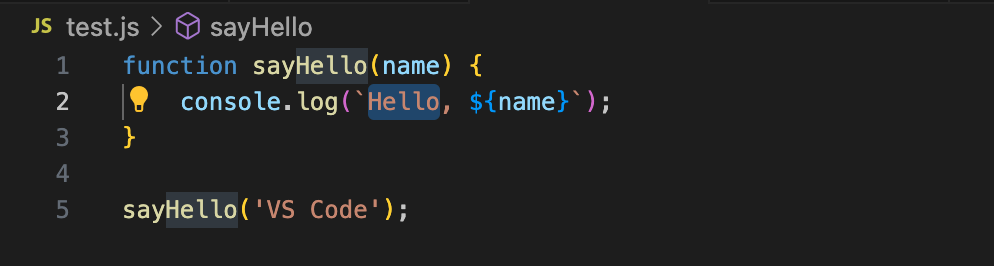
Writing code in VSCode
VS Code has built-in support for multiple languages such as JavaScript, TypeScript, HTML, and CSS.
In this section, we will create a JavaScript code file and use some of the code editing features provided by VS Code.
VS Code supports multiple programming languages, and in the following sections, we will also installPython language extensions, add support for other languages.
1. Create a JavaScript file and write code
In the Explorer view, create a new file named app.js and enter the following JavaScript code:
Example
console.log('Hello, ' + name);
}
sayHello('VS Code');
Code auto-completion (IntelliSense):When you start typing code, code completion suggestions will pop up. Use the arrow keys↑or↓(Up/Down keys) navigate suggestion items, pressTabkey to select and insert the selected suggestion.
Syntax highlighting:Notice the formatted display of the code (syntax highlighting), which helps distinguish different parts of the code and improves readability.
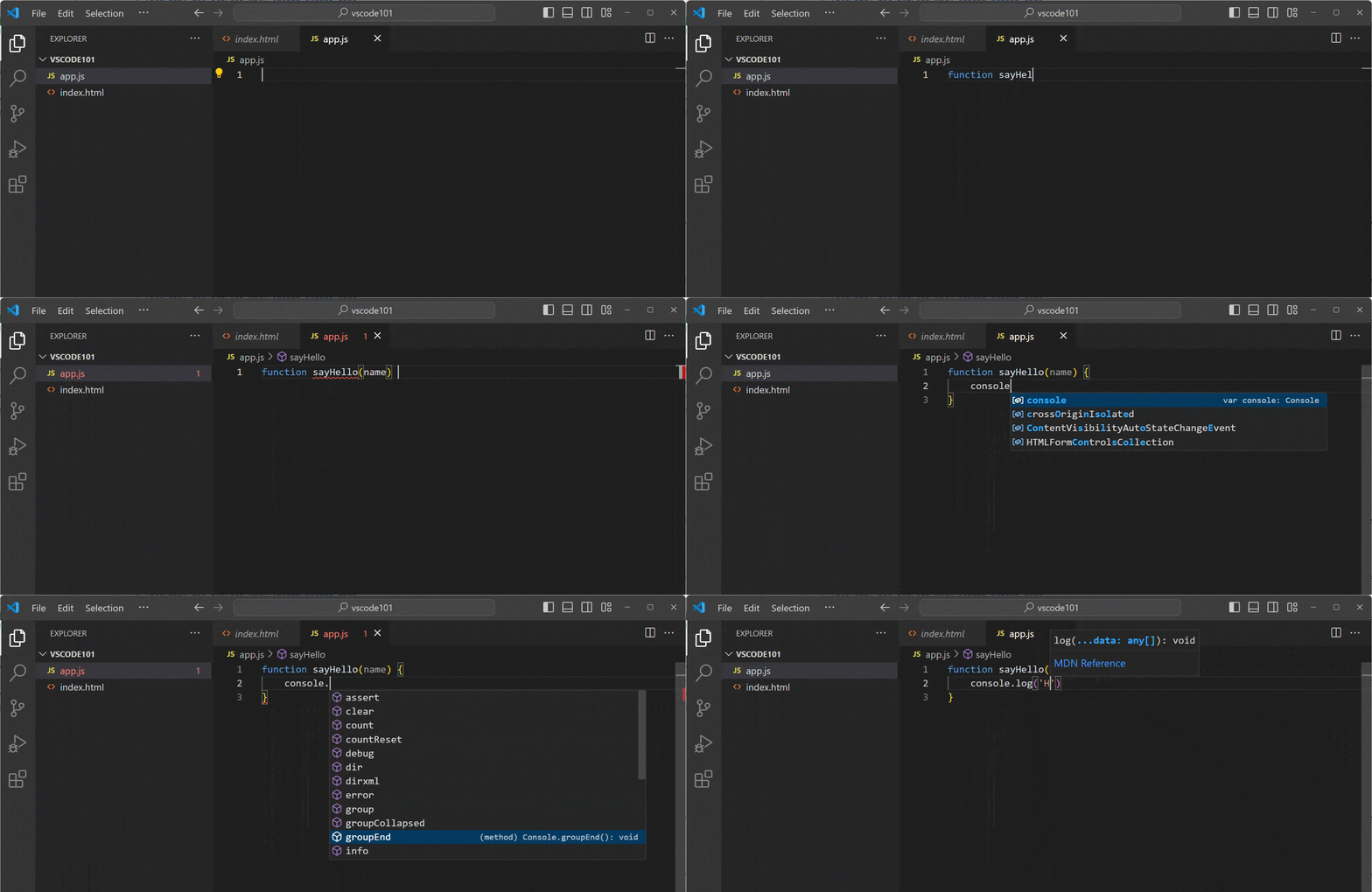
Using Code Actions
When you place the cursor on the string 'Hello,', you will see a small light bulb icon, indicating that a Code Action can be applied.
You can also use the shortcut key⌃SpaceOpen the light bulb menu.
Click the light bulb icon, then select Convert to template string.
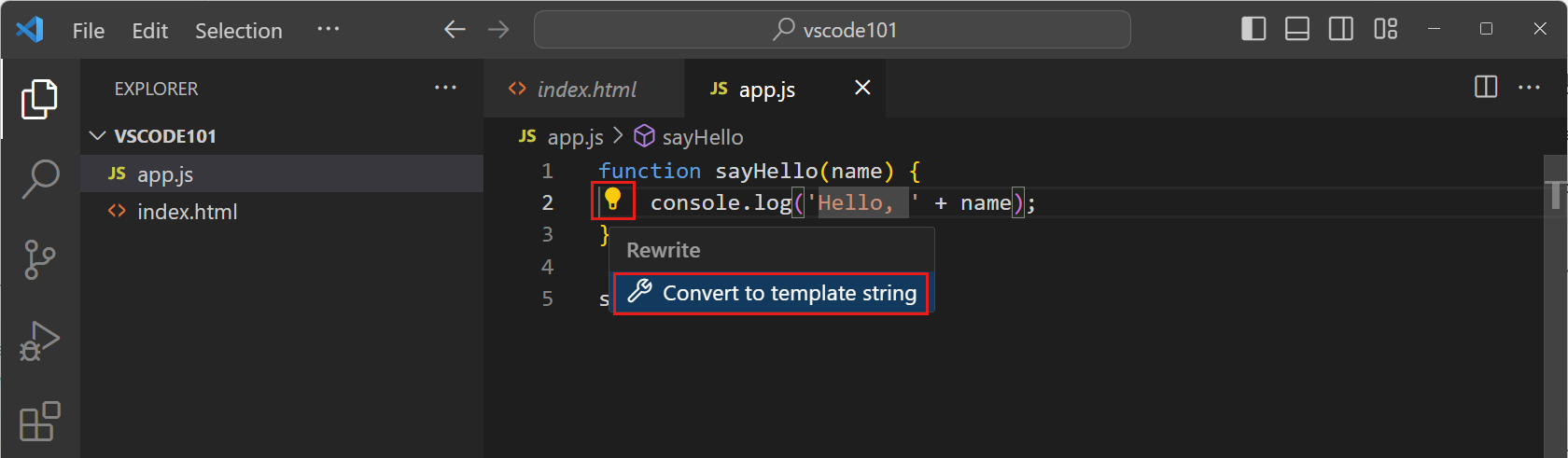
Code actions provide quick fix suggestions for your code.
In this example, the Code Action converts string concatenation:
"Hello, " + name
Convert to template string:
`Hello, ${name}`Template strings are a special syntax in JavaScript that allows embedding expressions within strings.
The converted code is as follows: