PyCharm Code Navigation
Code Navigation Shortcuts
Mastering shortcuts allows you to move through code quickly and break free from the mouse.
Below are the most commonly used navigation shortcuts in daily development.
Core Navigation Shortcuts
| Function | Windows/Linux | macOS | Description |
|---|---|---|---|
| Jump to Definition | Ctrl+B | Cmd+B | Jump to the definition of a variable, function, or class |
| Find Usages | Alt+F7 | Alt+F7 | Find all places where the current symbol is referenced in the project |
| Global Search | Double-press Shift | Double-press Shift | Search for files, classes, symbols, actions, and everything else |
| Recent Files | Ctrl+E | Cmd+E | Open a list of recently edited files |
| Back to Previous Location | Ctrl+Alt+Left | Cmd+[ | Return to the previous cursor position |
| Forward to Next Location | Ctrl+Alt+Right | Cmd+] | Move to the next cursor position |
| Go to Line | Ctrl+G | Cmd+L | Enter a line number to jump directly |
| Find File | Ctrl+Shift+N | Cmd+Shift+O | Search for and open files by file name |
| File Structure | Ctrl+F12 | Cmd+F12 | Display the list of classes and methods in the current file |
Double-press Shift for Global Search
Double-press Shiftis the most powerful search feature in PyCharm.
It can search files, class names, symbols, IDE actions, and everything else, and can handle almost any navigation need.
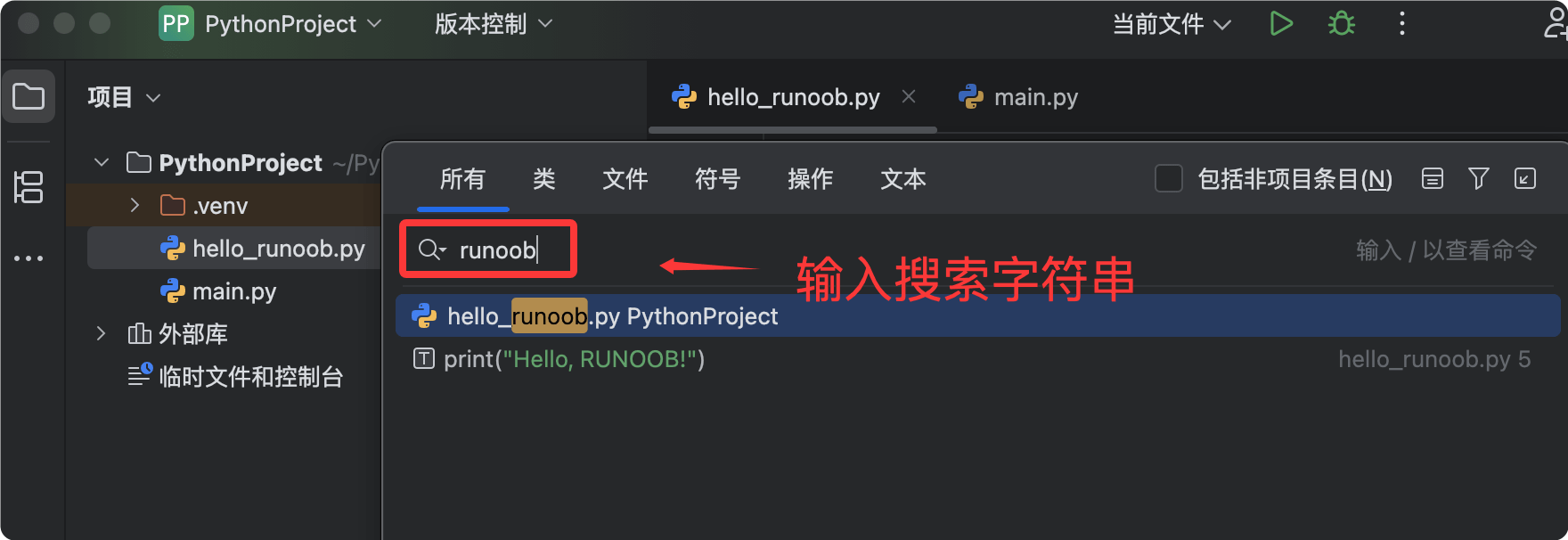
Usage:
- Quickly press the Shift key twice to open the Search Everywhere dialog
- Enter a keyword to see all matching results
- Press Tab to switch between different search categories (All, Classes, Files, Symbols, Actions)
Double-pressing Shift is the shortcut beginners should learn first; once you are familiar with it, you can say goodbye to the tedious process of searching layer by layer in the project file tree.
Ctrl+B Jump to Definition
Place the cursor on a variable, function, or class name, then pressCtrl+Bto jump to its definition.
While holding down the Ctrl key, hovering the mouse over code also shows a clickable link effect.
Example: In the code below, place the cursor onmy_funcand press Ctrl+B to jump to the function definition.
Example
def my_func():
"""
This is an example function from the Example tutorial
"""
print("EXAMPLE - Learning PyCharm Quick Navigation")
# Call the function - Place the cursor on my_func, press Ctrl+B to jump to the definition
my_func()

Alt+F7 Find Usages
Place the cursor on the symbol you want to find, then pressAlt+F7to view all places in the project where the symbol is referenced.
The search results are shown in the Find tool window at the bottom; click an item to jump to the corresponding location.
Code Formatting
Maintaining consistent code style is an important foundation for team collaboration.
PyCharm provides automatic code formatting; with one click you can make your code neat and uniform.
Formatting with Shortcuts
UseCtrl+Alt+L(Windows/Linux) orCmd+Option+L(macOS) to format the current file.
You can select part of the code and press the shortcut to format only the selected part.
Formatting Rule Configuration
Formatting rules can be configured inSettings > Editor > Code Style > Pythonto configure.

Configurable items include:
- Indent size (default 4 spaces)
- Tab or space indentation (spaces recommended)
- Maximum characters per line (default 120)
- Number of blank lines
- Import statement sorting rules
Before and After Formatting Comparison
Before formatting (uneven indentation, messy blank lines):
Example
def messy_function(x,y):
result=x+y
if result>10:
print("Result is greater than 10")
print("This line's indentation is incorrect")
name="example"
print("Test",name)
After formatting (uniform indentation, standard blank lines):
Example
def messy_function(x, y):
result = x + y
if result > 10:
print("Result is greater than 10")
print("This line's indentation is incorrect")
name = "example"
print("Test", name)
Press Ctrl+Alt+L to format the code before committing code; this is a good programming habit.
TODO Comments
TODO comments are a habit of marking special comments to record work that remains to be done.
Adding TODO Comments
In Python code, use# TODOto add todo comments.
Example
class UserManager:
"""User manager"""
def __init__(self, db_name="example_users"):
self.db_name = db_name
# TODO: Implement user login functionality
def login(self, username, password):
pass
# TODO: Add input validation logic
# TODO: Consider using bcrypt to encrypt passwords
def register(self, username, password):
"""Register a new user"""
# Currently a simplified implementation, just prints a message
print(f"Register user: {username}")
# FIXME: This line of code may fail in special cases and needs to be fixed
def delete_user(self, user_id):
"""Delete user"""
print(f"Delete user ID: {user_id}")
# NOTE: The following method depends on an external API and requires network access
def sync_data(self):
"""Sync data"""
pass
TODO Label Types
PyCharm recognizes the following special comment labels by default:
| Label | Purpose |
|---|---|
| TODO | Marks work that needs to be done |
| FIXME | Marks issues that need to be fixed |
| NOTE | Adds important notes |
Viewing the TODO List
In the tool window area, click theTODOlabel to open the TODO tool window.
This window displays all TODO, FIXME, and NOTE comments in the project in one place and supports filtering by scope.

You can set the filter scope:
- Current File: shows only the TODO comments in the current file
- Scope Based: filters by a custom scope
- All Places: shows all TODO comments in the project
Double-click a TODO item to jump to the corresponding line of code.
Making good use of TODO comments can make the development process more organized and ensure no pending items are overlooked.
Bookmark Feature
The bookmark feature allows you to mark important locations in your code for quick navigation.
Adding Bookmarks
Place the cursor on the line of code you want to mark, then pressF11to add an anonymous bookmark.
After successful addition, a checkmark will appear on the left side of that line.
pressCtrl+F11You can add numeric/letter bookmarks; in the popup, choose 0-9 or A-Z as the bookmark number.
Example
# Add a bookmark here for quick access to key configuration
DATABASE_CONFIG = {
"host": "localhost", # Press F11 to add a bookmark
"port": 5432, # Press Ctrl+F11 and select number 1 to add a numbered bookmark
"name": "example_db",
"user": "admin",
}
# Key constant definitions; you can add a bookmark here
MAX_CONNECTIONS = 100 # Press Ctrl+F11 and select number 2 to add a numbered bookmark
TIMEOUT_SECONDS = 30
Viewing and Managing Bookmarks
pressShift+F11Open the bookmark list window to view all added bookmarks.
In the bookmark list window:
- Double-click a bookmark entry to jump to the corresponding location.
- Right-click to delete or rename a bookmark.
- Supports checkbox category filtering (anonymous bookmarks and numbered bookmarks).
Numbered bookmarks can also be accessed viaCtrl+Number keysto jump directly without opening the bookmark list.
In large projects, bookmarks are a great tool for tracking multiple important code locations. It is recommended to develop the habit of using them.
Additional Editing Tips
In addition to the above features, the following editing tips can also improve daily development efficiency.
Multi-cursor Editing
Hold downAltthe key and click multiple positions with the mouse to edit multiple lines of code simultaneously.
You can also useCtrl+Shift+Alt+Clickto place cursors at any position.
Moving Code Blocks
After selecting a code block, pressCtrl+Shift+Up/Downto move the entire code block up or down.
No need to cut and paste; a single line of code or an entire method can be quickly repositioned.
Duplicating an Entire Line
Place the cursor on a line (no need to select it), then pressCtrl+Dto copy the entire line.
This is a very frequently used shortcut. It is recommended to start using it immediately.
Deleting an Entire Line
Place the cursor on a line, then pressCtrl+Yto delete the entire line.
Compared to selecting first and then pressing Delete, this operation is much faster.
Shortcut Quick Reference Summary
The following table summarizes all shortcut keys covered in this chapter. It is recommended to print or save it for quick reference at any time.
| Operation | Windows/Linux | macOS |
|---|---|---|
| Jump to definition | Ctrl+B | Cmd+B |
| Find references | Alt+F7 | Alt+F7 |
| Global search | Double-press Shift | Double-press Shift |
| Recent files | Ctrl+E | Cmd+E |
| Back/Forward | Ctrl+Alt+Left/Right | Cmd+[/] |
| Jump to line | Ctrl+G | Cmd+L |
| Find file | Ctrl+Shift+N | Cmd+Shift+O |
| File structure | Ctrl+F12 | Cmd+F12 |
| Code formatting | Ctrl+Alt+L | Cmd+Option+L |
| Add bookmark | F11 | F11 |
| Numbered bookmark | Ctrl+F11 | Cmd+F11 |
| Bookmark list | Shift+F11 | Shift+F11 |
| Copy entire line | Ctrl+D | Cmd+D |
| Delete entire line | Ctrl+Y | Cmd+Delete |
You don't need to memorize all these shortcuts at once. It is recommended to start with Double-press Shift and practice two or three each day.
After continuous use for a few weeks, you will find that your coding efficiency has seen a qualitative improvement.
Other extensions