PyCharm Database Tools
PyCharm provides powerful database management tools, supporting mainstream relational databases (MySQL, PostgreSQL, Oracle, etc.) as well as NoSQL (MongoDB).
We can directly perform database connection, querying, debugging, and data visualization within PyCharm.
Common keyboard shortcuts:
| Operation | Shortcut (Win/Linux) | Shortcut (Mac) |
|---|---|---|
| New query console | Alt+F4 | ⌥F4 |
| Execute SQL | Ctrl+Enter | ⌘Enter |
| Format SQL | Ctrl+Alt+L | ⌥⌘L |
| Jump to table definition | Ctrl+B | ⌘B |
| Data export | Right-click → Export Data | Same as above |
Why use PyCharm Database Tools?
Improve development efficiency
- Complete code writing and database operations in the same IDE
- Reduce time switching between different software
- Directly view database structure and data content
Powerful features
- Supports multiple database systems (MySQL, PostgreSQL, SQLite, Oracle, etc.)
- Provides intelligent code completion
- Supports SQL syntax highlighting and error checking
- Visualize table structures and data
Seamless integration
- Seamlessly collaborates with the Python code editor
- SQL queries can be executed directly in Python code
- Supports database migration tools
How to configure a database connection?
1. Open the Database Tools window
In PyCharm, click the "Database" icon in the right sidebar (usually displayed as a small cylinder), or open the Database Tools window via the menu bar View → Tool Windows → Database.
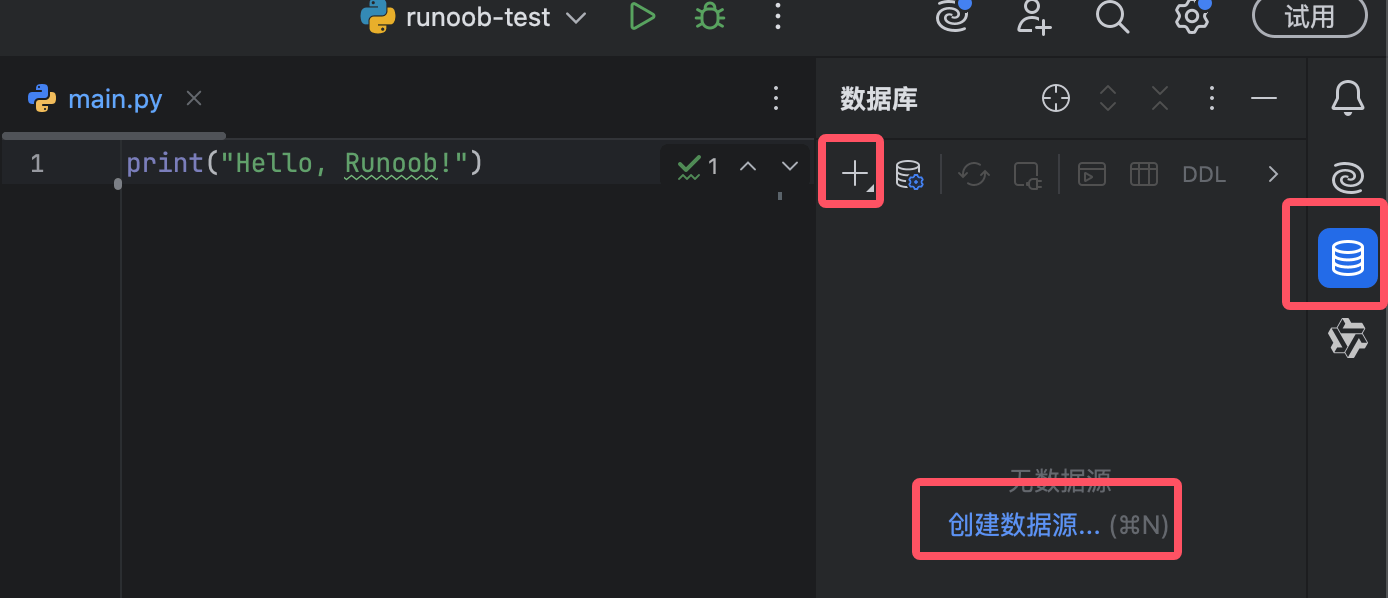
Or open the Database Tools window via the menu bar View → Tool Windows → Database.
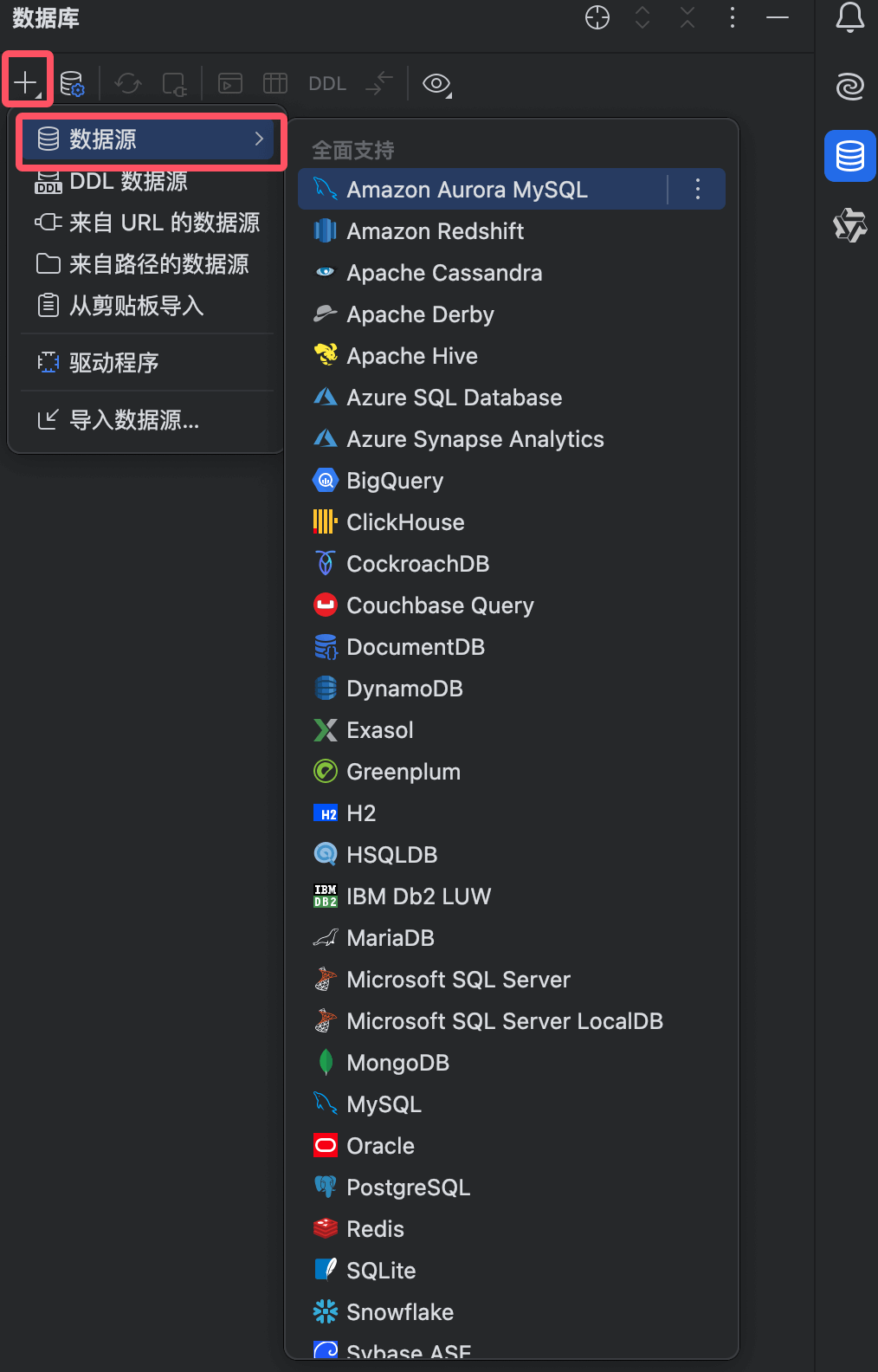
2. Add a new data source
- Click the "+" button
- Select the database type you want to connect to (e.g., MySQL, PostgreSQL, etc.)
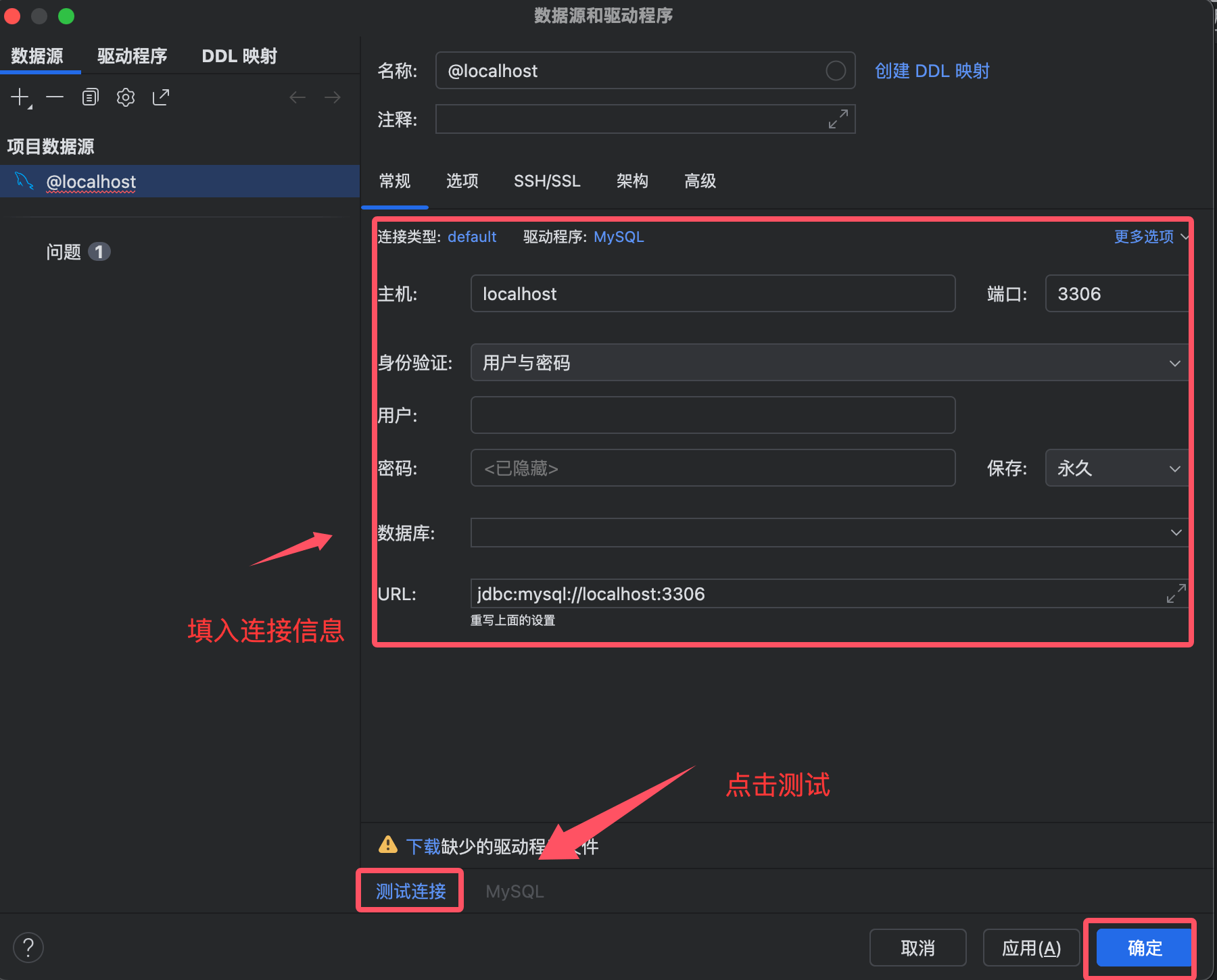
- Fill in the connection information:
- Host: Database server address
- Port: Database port
- User: Username
- Password: Password
- Database: Name of the database to connect to
Click "Test Connection" to test the connection
After successful connection, click "OK" to save the configuration
3. Interface after successful connection
After a successful connection, you can see the following in the Database Tools window:
- Database structure (tables, views, stored procedures, etc.)
- Data content (double-click a table name to view)
- SQL console (for executing queries)
Detailed explanation of main features
1. Execute SQL queries
- Right-click the database connection
- Select "New" → "Query Console"
- Write SQL statements in the opened SQL console
- Click the execute button (green triangle) or use the shortcut (Ctrl+Enter) to run the query
2. View and edit data
- Expand the table list in the Database Tools window
- Double-click a table name to open the data view
- You can edit data directly in the table
- After making changes, click the submit button to save changes
3. Export and import data
- Right-click a table or query result
- Select "Export to File" to export data as CSV, Excel, JSON, and other formats
- Select "Import from File" to import data from a file
4. Table structure management
- Right-click a table
- Select "Modify Table" to modify the table structure
- You can add/delete columns, modify data types, set primary keys and foreign keys, etc.
5. Database console
PyCharm provides complete database console functionality, supporting:
- Multi-tab queries
- Query history
- Result set comparison
- Query plan analysis
Advanced features
1. Database diagrams
PyCharm can generate database relationship diagrams:
- Right-click the database connection
- Select "Diagrams" → "Show Visualization"
- View the relationship diagram between tables
2. Version control integration
Database scripts can be version-controlled along with the project:
- Create database change scripts
- Commit to a version control system
- Keep database structure synchronized during team collaboration
3. Integration with Python code
PyCharm allows you to use database tools directly in Python code:
- Write SQL statements in Python files
- Use PyCharm's database support for syntax checking and auto-completion
- Directly execute SQL statements and view results
4. Database migration tool support
PyCharm integrates popular database migration tools such as:
- Alembic
- Django migrations
- Flask-Migrate
Practical tips
1. Keyboard shortcuts
- Ctrl+Enter: Execute the current SQL statement
- Ctrl+Shift+Enter: Execute all SQL statements
- Ctrl+Alt+L: Format SQL code
- Ctrl+Space: Code completion
2. Code templates
PyCharm provides multiple SQL code templates, allowing you to quickly generate common SQL statement structures by typing abbreviations.
3. Result set handling
Query results can be:
- Exported to multiple formats
- Copied as INSERT statements
- Edited directly and committed back to the database
4. Connection pool management
PyCharm supports connection pool configuration, allowing you to set:
- Maximum number of connections
- Connection timeout
- Idle connection reclamation policy
Frequently asked questions
1. What to do if the connection fails?
- Check whether the network connection is normal
- Confirm the database service is running
- Check whether the username and password are correct
- Confirm the firewall settings allow the connection
2. How to view the execution plan?
- Write a query in the SQL console
- Right-click the query
- Select "Explain Plan" to view the execution plan
3. How to compare database structures?
- Right-click the database connection
- Select "Compare With" → choose another database connection
- View structural differences
4. How to back up the database?
- Right-click the database connection
- Select "Dump with 'mysqldump'" (or the corresponding database export tool)
- Choose export options and file location