Installing OpenCode in VS Code
If you don't like using the OpenCode command-line model, you can install OpenCode in the VS Code editor.
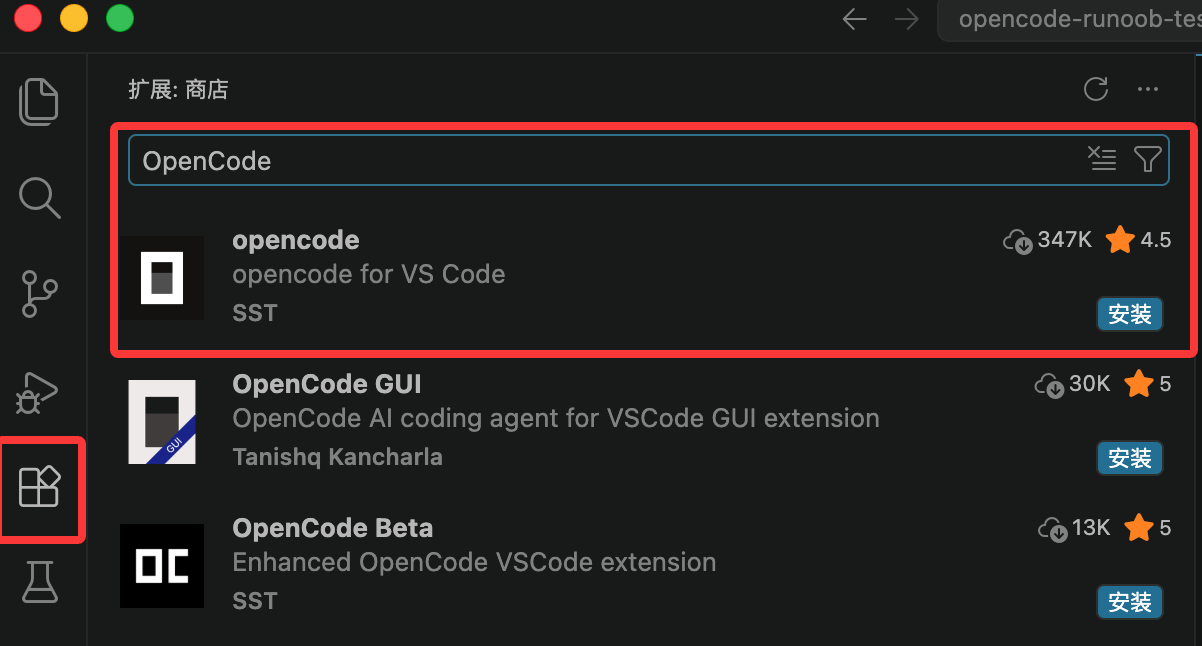
Open VS Code, enter the extension marketplace, and searchOpenCodeInstall:
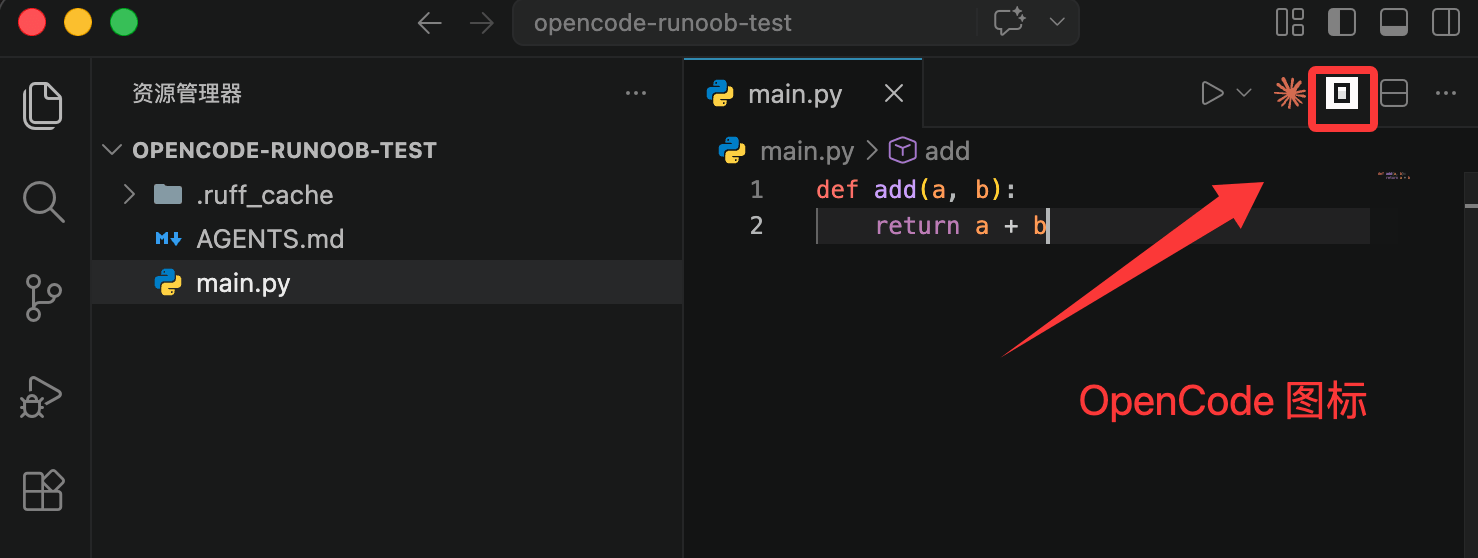
After installation is complete, click the OpenCode icon in the top right corner to enter the OpenCode page:
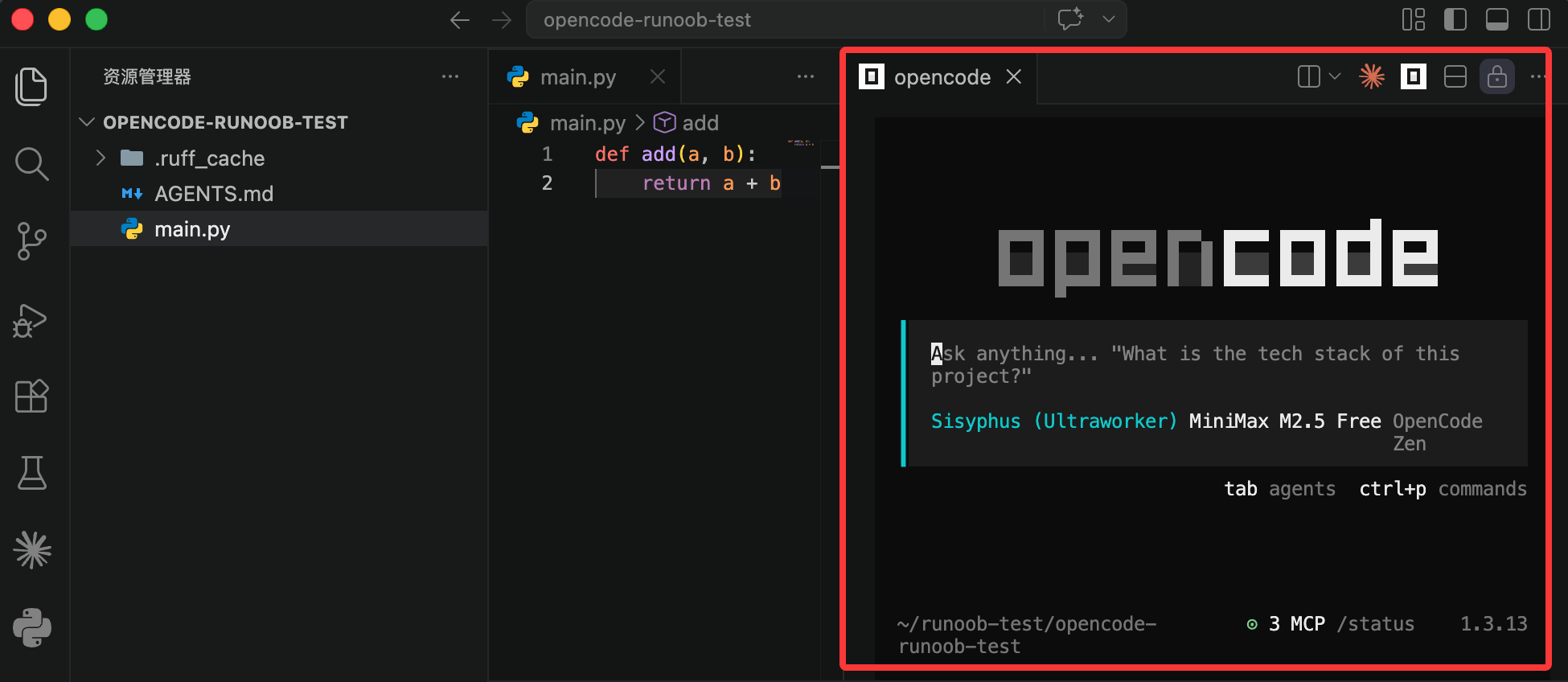
The entire interface is as shown below:
Other Notes
OpenCode can not only run independently in the terminal, but can also be integrated with common development tools, such as VS Code, Cursor, Windsurf, VSCodium, etc.
As long as your IDE supports a terminal, you can use OpenCode.
The simplest way is: run it in the IDE's built-in terminalopencode。
I. Quick Start
1. Start OpenCode
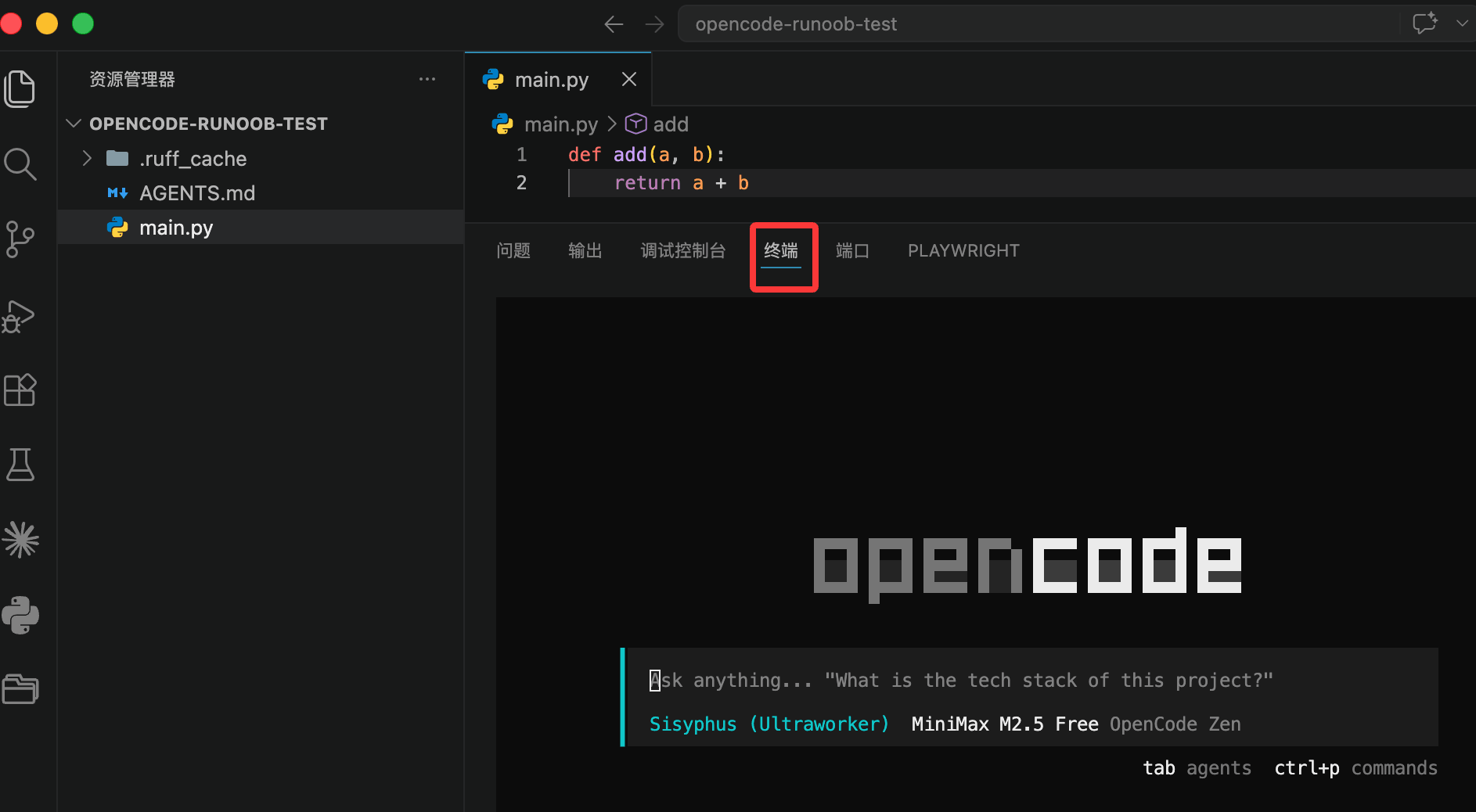
After opening a project in VS Code:
- Open the terminal (shortcut:Ctrl + `)
- Enter the following command:
opencode
You can then enter the OpenCode interface.
2. Quick Launch Method (Recommended)
| Function | Mac | Windows / Linux |
|---|---|---|
| Quickly open OpenCode | Cmd + Esc | Ctrl + Esc |
| Create a new OpenCode session | Cmd + Shift + Esc | Ctrl + Shift + Esc |
Notes:
- If a session already exists, the shortcut will automatically focus it.
- You can also click the OpenCode button in the IDE.
II. Core Features
1. Context Awareness (Very Important)
OpenCode will automatically obtain your current development context, for example:
- Currently open file
- Selected code
- Current tab
This means:
- No need to manually copy code
- The AI can directly understand what you are editing
2. File Reference Shortcut
You can quickly insert file references via keyboard shortcuts:
| System | Shortcut |
|---|---|
| Mac | Cmd + Option + K |
| Windows / Linux | Ctrl + Alt + K |
The insertion effect is similar to:
@File#L37-42
Indicates referencing a specified line range of a certain file.
III. Configure Default Editor
If you want to use VS Code when executing in OpenCode,/editoror/exportyou need to set the environment variable:
export EDITOR="code --wait"
Notes:
--waitIndicates waiting for editing to complete before returning.- Applicable to macOS / Linux