HTML Image
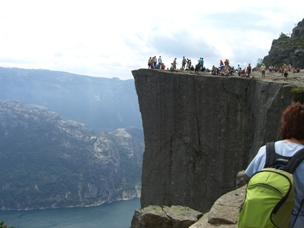

Online Example
Insert Image
This example demonstrates how to display an image on a webpage.
From Different Positions
This example demonstrates how to display images from other folders or servers on a webpage.
(You can find more examples at the bottom of this page.)
HTML Image - Image Tag ( <img> ) and Source Attribute (Src)
In HTML, the image is defined by the <img> tag.
<img> is an empty tag, meaning it only contains attributes and does not have a closing tag.
To display an image on the page, you need to use the source attribute (src). The value of the src attribute is the URL address of the image.
The syntax for defining an image is:
URL refers to the location where the image is stored. If the image named "pulpit.jpg" is located in the www.example.com/images directory, its URL would behttp://www.example.com/images/pulpit.jpg。
The browser will display the image at the location where the image tag appears in the document. If you place the image tag between two paragraphs, the browser will first display the first paragraph, then the image, and finally the second paragraph.
HTML
Alt attribute is used to define a string of pre-arranged replaceable text for the image.
The value of the replace text attribute is user-defined.
When the browser cannot load the image, the replace text attribute tells the reader what information has been lost. At this time, the browser will display this alternative text instead of the image. It is a good habit to add replace text attributes to the images on the page, which helps better display information and is very useful for those who use only text-based browsers.
HTML Image - Set Image Height and Width
Height (height) and Width (width) attributes are used to set the height and width of the image.
The attribute values default units are pixels:
Note:It is a good habit to specify the height and width of the image. If the image specifies its height and width, the page will retain the specified size when loading. If the image does not specify its size, the loading of the page may cause the overall layout of the HTML page to be destroyed.
Basic Tips - Useful Tips:
Note:If an HTML file contains ten images, to correctly display this page, it is necessary to load 11 files. Loading images is time-consuming, so our suggestion is: Use images sparingly.
Note:When inserting images into the page, pay attention to the path of the image. If the image position is not correctly set, the browser cannot load the image, and the image tag will display a broken image.
More Examples
Arrange Images
This example demonstrates how to arrange images in text.
Float Image
This example demonstrates how to make images float to the left or right of the paragraph.
Set Image Link
This example demonstrates how to use an image as a link.
Create Image Map
This example shows how to create an image map with clickable areas. Each area is a hyperlink.
HTML Image Tag
| Tag | Description |
|---|---|
| <img> | Define Image |
| <map> | Define Image Map |
| <area> | Define Clickable Area in Image Map |