HTML5 Web Storage


HTML5 web storage, a better local storage method than cookies.


What is HTML5 Web Storage?

Using HTML5, you can store users' browsing data locally.

In the past, local storage used cookies. But web storage is more secure and faster. This data is not saved on the server, but is only used for data requested by the user's website. It can also store large amounts of data without affecting website performance.

Data is stored in key/value pairs, and a web page's data can only be accessed and used by that web page.


Browser Support

Internet ExplorerFirefoxOperaGoogle ChromeSafari

Internet Explorer 8+, Firefox, Opera, Chrome, and Safari support Web Storage.

Note:Internet Explorer 7 and earlier IE versions do not support web storage.


localStorage and sessionStorage

The two objects for storing data on the client side are:

  • localStorage - used to save data for the entire website for a long time. The saved data has no expiration time until manually removed.
  • sessionStorage - used to temporarily save data for the same window (or tab). This data will be deleted after the window or tab is closed.

Before using web storage, you should check whether the browser supports localStorage and sessionStorage:

if(typeof(Storage)!=="undefined") { //Yes! Supports localStorage and sessionStorage objects! //Some code..... } else { //Sorry! Web storage is not supported. }


localStorage Object

Data stored by the localStorage object has no time limit. It is still available the next day, the next week, or the next year.

Example

//Store localStorage.setItem("sitename", "Example"); //Find document.getElementById("result").innerHTML = "Website name:" + localStorage.getItem("sitename");

Try it Yourself »

Example explanation:

  • Usekey="sitename"andvalue="Example"to create a localStorage key/value pair.
  • Retrieve the value with key "sitename" and insert the data intoid="result"the element.

The above example can also be written as:

//Store localStorage.sitename = "Example"; //Find document.getElementById("result").innerHTML = localStorage.sitename;

Remove "sitename" from localStorage:

localStorage.removeItem("sitename");

Whether it is localStorage or sessionStorage, the available APIs are the same. The commonly used ones are as follows (taking localStorage as an example):

  • Save data: localStorage.setItem(key,value);
  • Read data: localStorage.getItem(key);
  • Delete a single data: localStorage.removeItem(key);
  • Delete all data: localStorage.clear();
  • Get the key at a certain index: localStorage.key(index);

Tip:Key/value pairs are usually stored as strings, and you can convert the format as needed.

The following example shows the number of times a user clicks a button.

Convert the string values in the code to numeric types:

Example

if (localStorage.clickcount) { localStorage.clickcount=Number(localStorage.clickcount)+1; } else { localStorage.clickcount=1; } document.getElementById("result").innerHTML="You have clicked the button" + localStorage.clickcount + "times";

Try it Yourself »


sessionStorage Object

sessionStorage stores data for a session. When the user closes the browser window, the data will be deleted.

How to create and access a sessionStorage:

Example

if (sessionStorage.clickcount) { sessionStorage.clickcount=Number(sessionStorage.clickcount)+1; } else { sessionStorage.clickcount=1; } document.getElementById("result").innerHTML="You have clicked the button in this session" + sessionStorage.clickcount + "times";

Try it Yourself »

Use Web Storage to develop a simple website list program

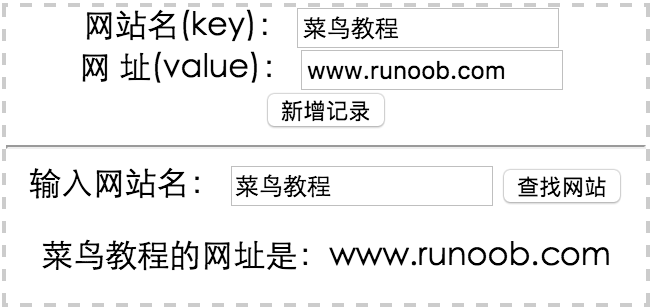
The website list program implements the following functions:

  • You can enter the website name and URL, and store the website name as the key in localStorage;
  • Look up the URL based on the website name;
  • List all currently saved websites;

The following code is used to save and find data:

save() and find() methods

//Save data function save(){ var siteurl = document.getElementById("siteurl").value; var sitename = document.getElementById("sitename").value; localStorage.setItem(sitename, siteurl); alert("Added successfully"); } //Find data function find(){ var search_site = document.getElementById("search_site").value; var sitename = localStorage.getItem(search_site); var find_result = document.getElementById("find_result"); find_result.innerHTML = search_site + "The URL is:" + sitename; }

The complete example demonstration is as follows:

Example

<div style="border: 2px dashed #ccc;width:320px;text-align:center;"> <label for="sitename">Website name (key):</label> <input type="text" id="sitename" name="sitename" class="text"/> <br/> <label for="siteurl">Website URL (value):</label> <input type="text" id="siteurl" name="siteurl"/> <br/> <input type="button" onclick="save()" value="Add record"/> <hr/> <label for="search_site">Enter website name:</label> <input type="text" id="search_site" name="search_site"/> <input type="button" onclick="find()" value="Find website"/> <p id="find_result"><br/></p> </div>

Try it Yourself »

Implementation effect screenshot:
The above example only demonstrates simple localStorage storage and retrieval; in most cases, the data we store is more complex.

Next, we will useJSON.stringifyto store object data,JSON.stringifywhich can convert an object to a string.

var site = new Object; ... var str = JSON.stringify(site); //Convert an object to a string

After that, we useJSON.parsemethod to convert the string to a JSON object:

var site = JSON.parse(str);

JavaScript implementation code:

save() and find() methods

//Save data function save(){ var site = new Object; site.keyname = document.getElementById("keyname").value; site.sitename = document.getElementById("sitename").value; site.siteurl = document.getElementById("siteurl").value; var str = JSON.stringify(site); //Convert object to string localStorage.setItem(site.keyname,str); alert("Saved successfully"); } //Find data function find(){ var search_site = document.getElementById("search_site").value; var str = localStorage.getItem(search_site); var find_result = document.getElementById("find_result"); var site = JSON.parse(str); find_result.innerHTML = search_site + "The website name is:" + site.sitename + ", and the URL is:" + site.siteurl; }

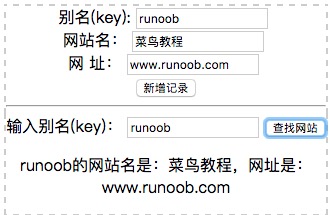
The complete example is as follows:

Example

<div style="border: 2px dashed #ccc;width:320px;text-align:center;"> <label for="keyname">Alias (key):</label> <input type="text" id="keyname" name="keyname" class="text"/> <br/> <label for="sitename">Website name:</label> <input type="text" id="sitename" name="sitename" class="text"/> <br/> <label for="siteurl">Website URL:</label> <input type="text" id="siteurl" name="siteurl"/> <br/> <input type="button" onclick="save()" value="Add record"/> <hr/> <label for="search_site">Enter alias (key):</label> <input type="text" id="search_site" name="search_site"/> <input type="button" onclick="find()" value="Find website"/> <p id="find_result"><br/></p> </div>

Try it Yourself »

In the example, loadAll outputs all stored data. You need to ensure that all data stored in localStorage is in JSON format, otherwise JSON.parse(str) will throw an error.

Output result demonstration:
Other extensions