OpenClaw Quick Start
Use the following command to install with one click.
macOS/Linux:
curl -fsSL https://openclaw.ai/install.sh | bash
Windows(PowerShell):
iwr -useb https://openclaw.ai/install.ps1 | iex
Getting Started Guide
After installation, run Onboarding to complete initial configuration. This is the most critical step:
openclaw onboard --install-daemon
The onboarding wizard configures authentication, Gateway settings, and optional channels.:
- Authentication Configuration: Set a Gateway Token or Password to protect your API endpoint
- Model Provider Configuration: Select and configure your LLM (e.g., Anthropic API Key)
- Channel Configuration (Optional): Connect chat channels such as Telegram Bot and WhatsApp
- Install System Service:
--install-daemonparameter to enable Gateway to start on boot

Gateway Basic Operations
Gateway is the core process of OpenClaw; all features depend on it running:
# 查看 Gateway 状态
openclaw gateway status

# 在前台运行(适合调试)
openclaw gateway --port 18789

# 详细日志模式
openclaw gateway --port 18789 --verbose

# 强制占用端口并启动(解决端口冲突)
openclaw gateway --force

# 重启 Gateway
openclaw gateway restart

# 停止 Gateway
openclaw gateway stop

# 查看实时日志
openclaw logs --follow
Access Control UI
Control UI is OpenClaw's visual management interface:
# 打开 Control UI(自动在浏览器中打开)
openclaw dashboard
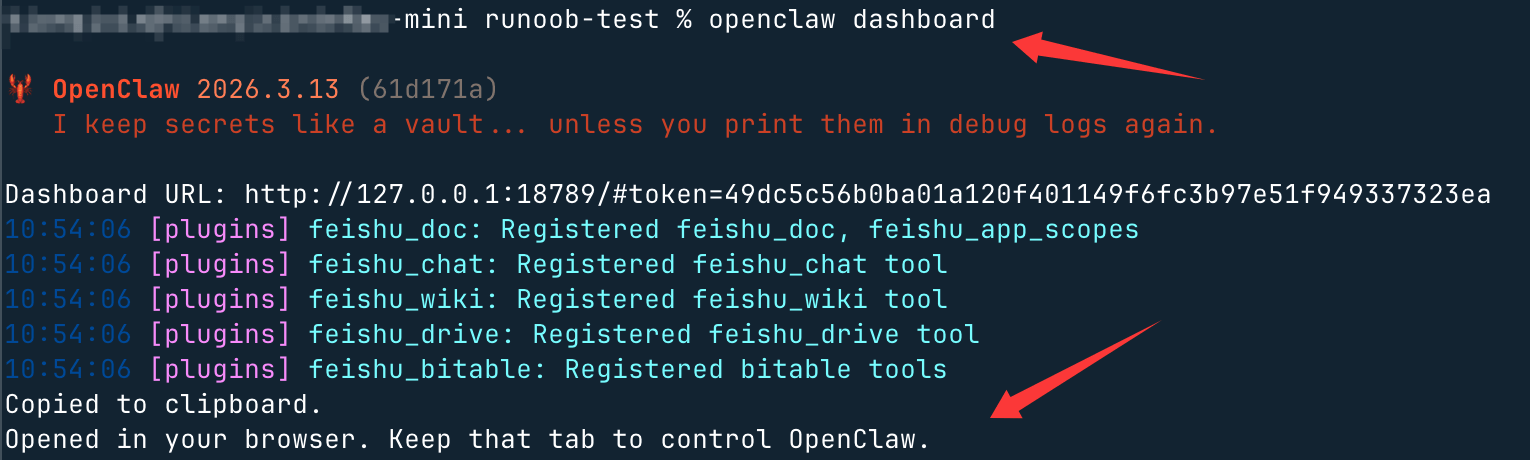
Or access directly: http://127.0.0.1:18789/。
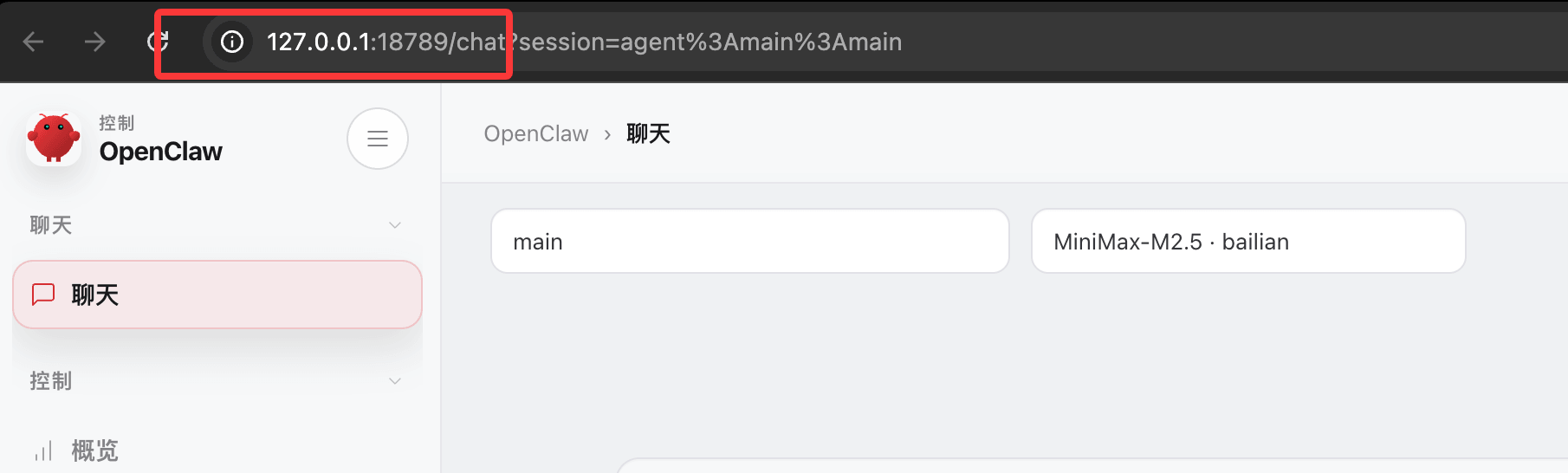
Main features of Control UI:
- Chat Interface: No need to configure any channel; chat with AI directly in the browser
- Status Monitoring: View Gateway health status and channel connection conditions
- Session Management: View and manage conversation history across different channels
Now we can start chatting on the page:

🚀 Fastest Experience Path
Open Control UI and start chatting directly—no need to configure any Channel! This is the fastest way to verify that OpenClaw is working properly.
Key Command Reference
| Command | Description |
|---|---|
openclaw doctor |
Comprehensive health check and attempt to fix configuration issues |
openclaw health |
Quick health check |
openclaw status |
View overall status of Gateway and channels |
openclaw gateway status |
View Gateway process status |
openclaw gateway status --deep |
Deep status check (includes RPC probes) |
openclaw gateway run |
Run Gateway in foreground |
openclaw gateway start |
Start Gateway service in background |
openclaw gateway stop |
Stop Gateway service |
openclaw gateway restart |
Restart Gateway service |
openclaw gateway probe |
Check Gateway connectivity and status |
openclaw gateway discover |
Discover LAN or remote Gateway |
openclaw gateway call health |
Call Gateway health check endpoint |
openclaw channels status --probe |
Check connection status of all channels |
openclaw dashboard |
Open browser control panel |
openclaw logs --follow |
Tail log output in real time |
openclaw onboard |
Re-run the initialization configuration wizard |
openclaw secrets reload |
Hot reload Secrets configuration |
Gateway Hot-Reload Mechanism
OpenClaw supports configuration hot reload, default ishybridModes:
gateway.reload.mode |
Behavior description |
|---|---|
off |
No automatic reload, manual restart required |
hot |
Apply only safe changes (no connection interruption) |
restart |
Restart Gateway on any change |
hybrid(default) |
Hot-apply what can be hot-applied, auto-restart what requires restart |
TUI: Terminal Chat Interface
Besides the browser Control UI, OpenClaw also provides an interactive interface that runs entirely in the terminal—TUI(Terminal UI)no browser needed, you can chat directly even when SSH'd into the server.
Quick Start
# 第一步:确保 Gateway 已运行
openclaw gateway

# 第二步:打开 TUI
openclaw tui
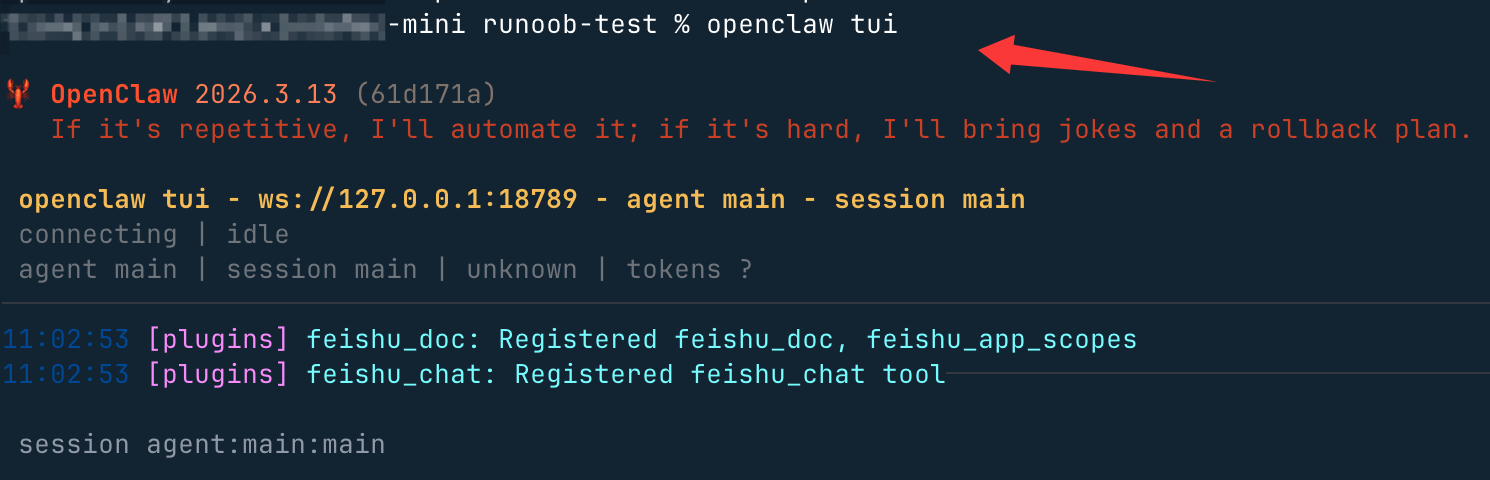
Connect to remote Gateway:
openclaw tui --url ws://<host>:<port> --token <gateway-token>

# 如果 Gateway 使用密码鉴权
openclaw tui --url ws://<host>:<port> --password <password>
Interface Layout
After TUI starts, you will see four areas:
| Area | Content |
|---|---|
| Header (top bar) | Connection URL, current Agent, current Session |
| Chat log (message area) | User messages, AI replies, system notifications, tool call cards |
| Status line (status row) | Connection / running status (connecting / running / streaming / idle / error) |
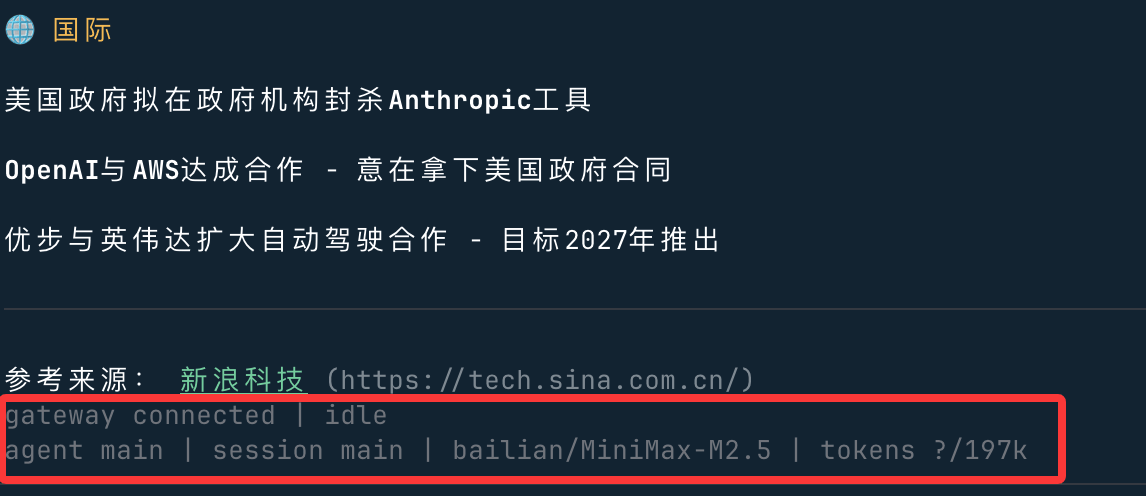
| Footer (bottom bar) | Connection status + Agent + Session + model + Token count |
Header area:
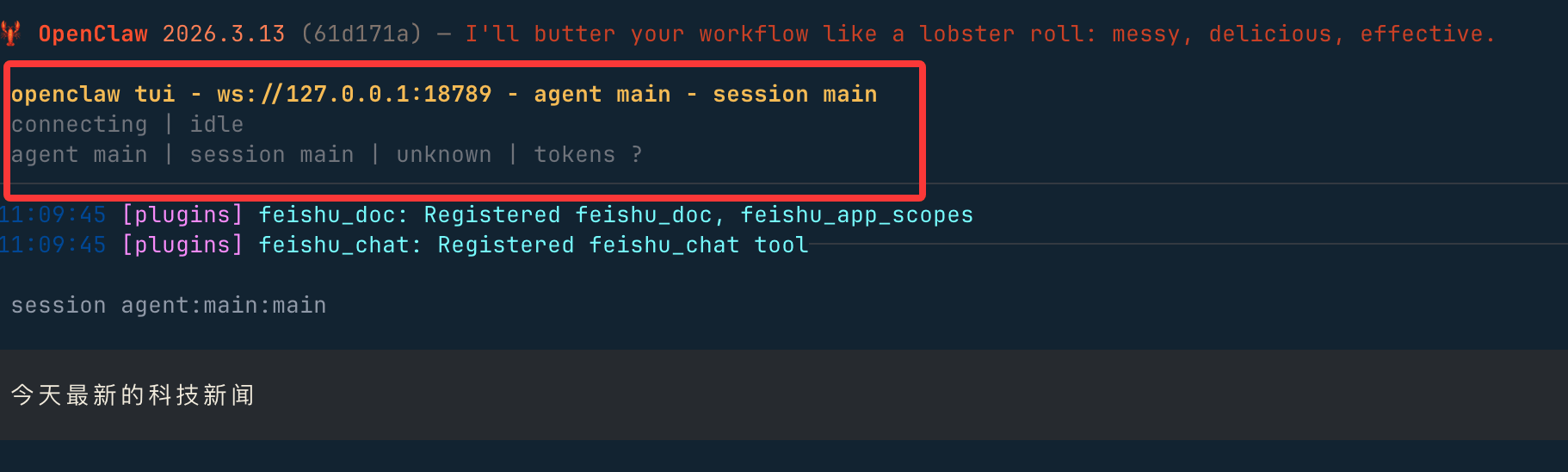
Bottom area:
Keyboard Shortcuts
| Shortcuts | Features |
|---|---|
Enter |
Send message |
Esc |
Abort current run |
Ctrl+C |
Clear input (double-press to exit) |
Ctrl+D |
Exit TUI |
Ctrl+L |
Open model selector |
Ctrl+G |
Open Agent selector |
Ctrl+P |
Open Session selector |
Ctrl+O |
Toggle tool output expand / collapse |
Ctrl+T |
Toggle Thinking display (reloads history) |
Common Slash Commands
Usage/Invoke commands:
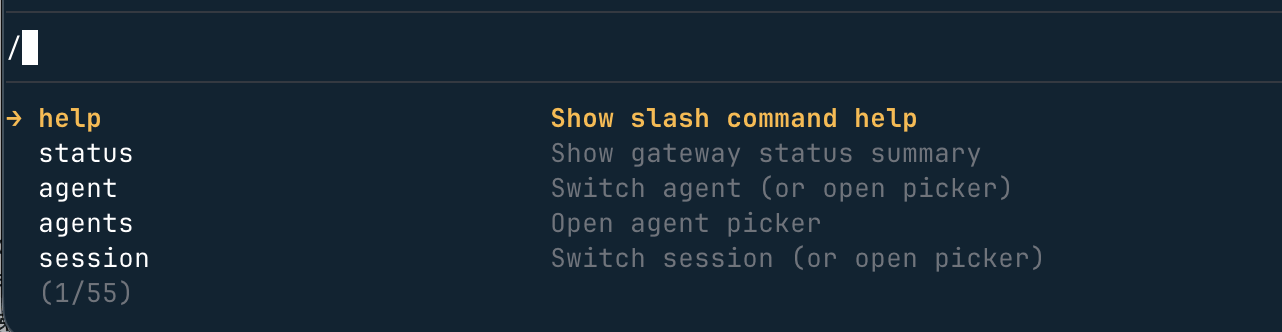
Common commands:
/help                          # 查看帮助
/status                        # 查看连接状态
/agent <id>                    # 切换 Agent
/session <key>                 # 切换 Session
/model <provider/model>        # 切换模型(如 /model anthropic/claude-sonnet-4-6)
/think <off|minimal|low|medium|high>   # 设置思考深度
/deliver <on|off>              # 开启/关闭消息投递到 Provider
/new                           # 重置当前 Session
/abort                         # 中止当前运行
/exit                          # 退出 TUI
Local Shell Commands
In the input box, with!as the prefix, you can directly execute local shell commands:
!ls -la          # 列出当前目录
!cat log.txt     # 查看文件内容
⚠️ TUI will, on first use in each session,
!prompt for authorization confirmation; after refusal, within this session!it will be unavailable.
Startup Options
| Parameter | Description | Default value |
|---|---|---|
--url <url> |
Gateway WebSocket address | Read configuration orws://127.0.0.1:<port> |
--token <token> |
Gateway Token authentication | — |
--password <password> |
Gateway password authentication | — |
--session <key> |
Specify Session | main |
--deliver |
Enable message delivery at startup | Disabled by default |
--thinking <level> |
Override thinking level | — |
--history-limit <n> |
Number of history entries to load | 200 |
--timeout-ms <ms> |
Agent timeout | Reads agents.defaults.timeoutSeconds |
Related Content
Other related content is as follows:
Other extensions