OpenClaw Integration with Feishu
OpenClaw (formerly Clawdbot) is an open-source, local-first AI agent gateway that allows large language models to run 24/7 on your computer/server. It supports direct computer control, web browsing, command execution, and seamless integration with chat platforms such as Feishu, Telegram, and Discord.
In this chapter, we will integrate OpenClaw with Feishu to enable automated scenarios such as message push, image sending, file receiving, approval interaction, and data synchronization.
If you haven't installed OpenClaw yet, you need to install it first:
Install globally using the npm command:
npm install -g openclaw@latest --registry=https://registry.npmmirror.com
Or install using the pnpm command:
pnpm add -g openclaw@latest
For detailed OpenClaw installation instructions, refer to:OpenClaw (Clawdbot) Tutorial。
Install the Official Feishu Plugin
The new version of OpenClaw has built-in support. We can enable it using the following command:
openclaw plugins enable feishu
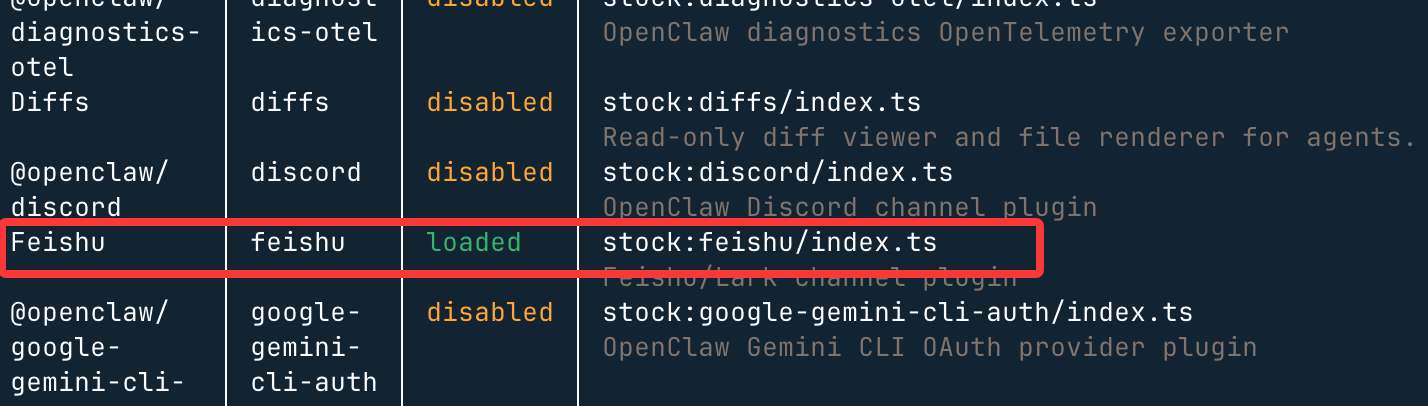
Next, we can useopenclaw plugins listcommand to check whether it is enabled,disabledis to disable,loadedis to enable:
Create a Bot on the Feishu Open Platform
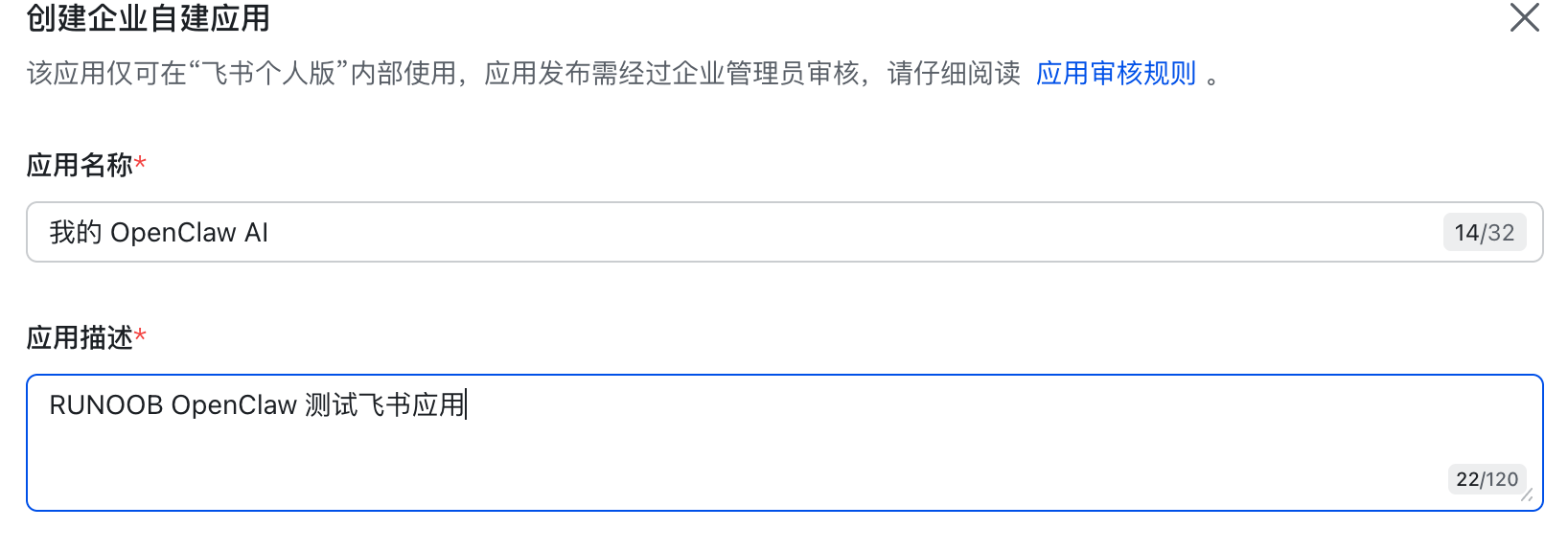
Open the Feishu Open Platformhttps://open.feishu.cn/appClick "Create Enterprise Self-built App":
Fill in the app name (e.g., "My OpenClaw AI"), description + icon as you like:
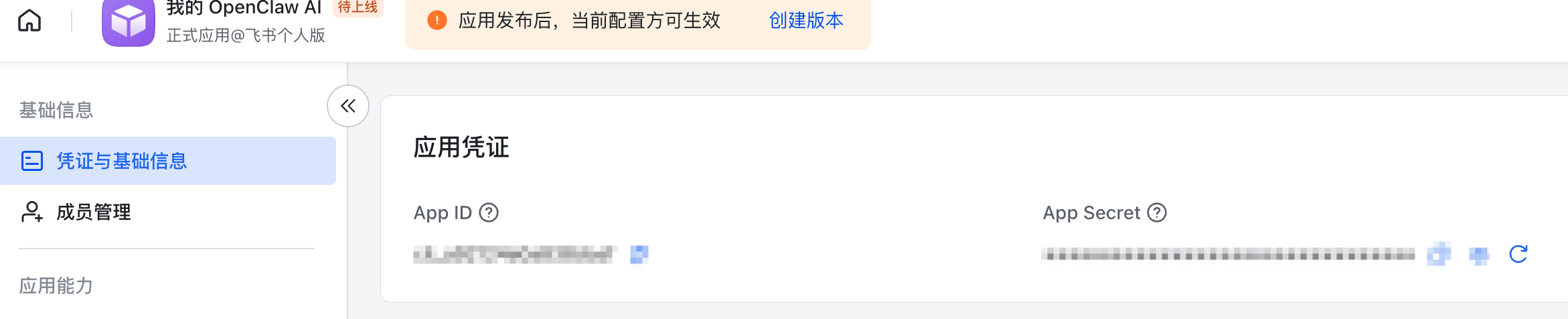
Copy the credentialsApp IDandApp Secret, which will be needed later:
Next, go back to the terminal and enter the following command to configure the channel:
openclaw channels add
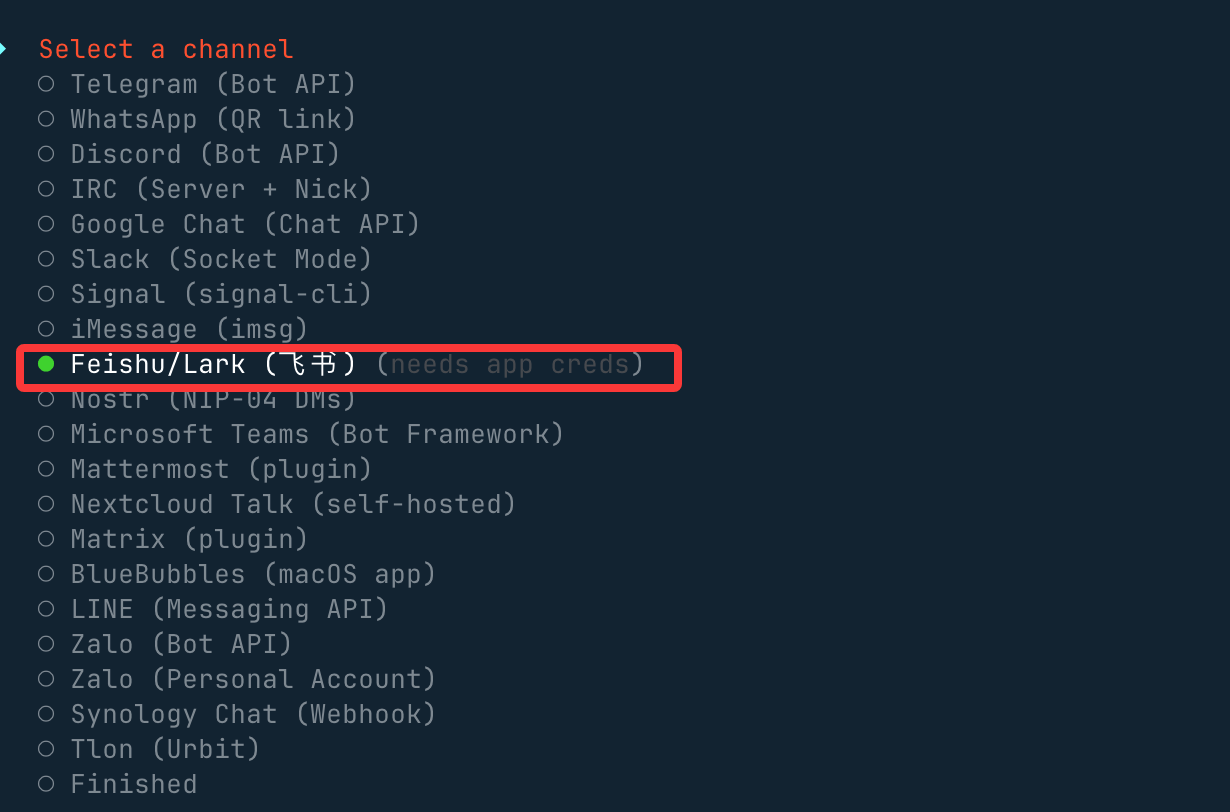
Select "Feishu/Lark (飞书) (needs app creds)":
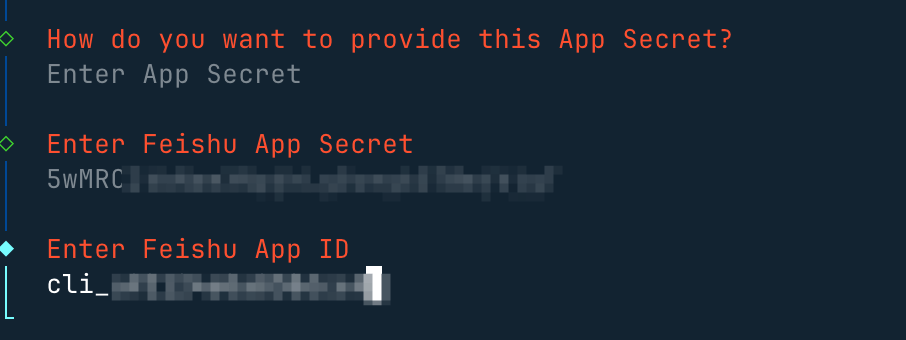
Select "Enter App Secret":

Enter separately the credentials of the app we created on Feishu earlierApp SecretandApp ID:
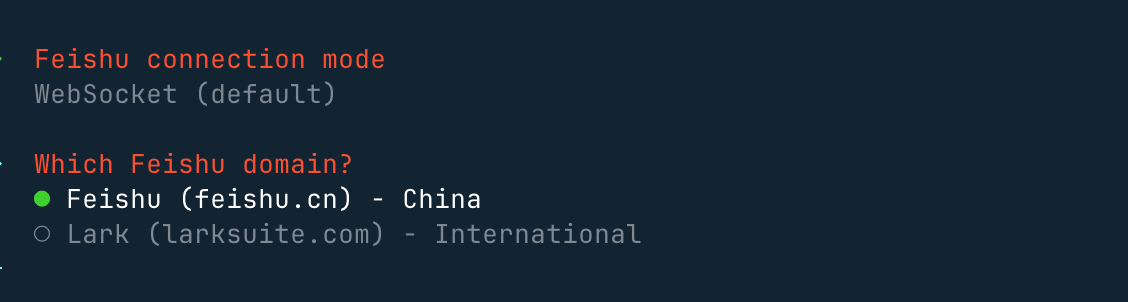
Set the connection mode and use the domestic domain:
For the next group chat policy, select Open, so that all group chats can be responded to.
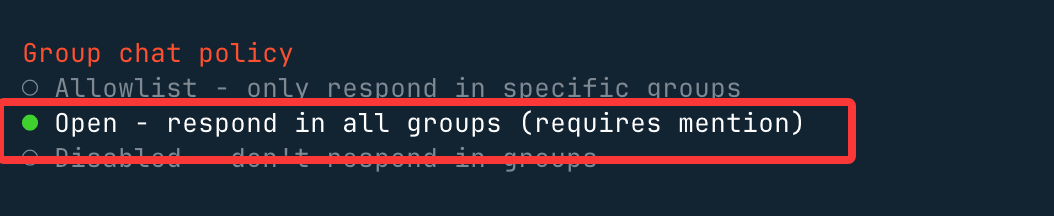
If you select Allowlist, only group chats on the whitelist can be responded to.
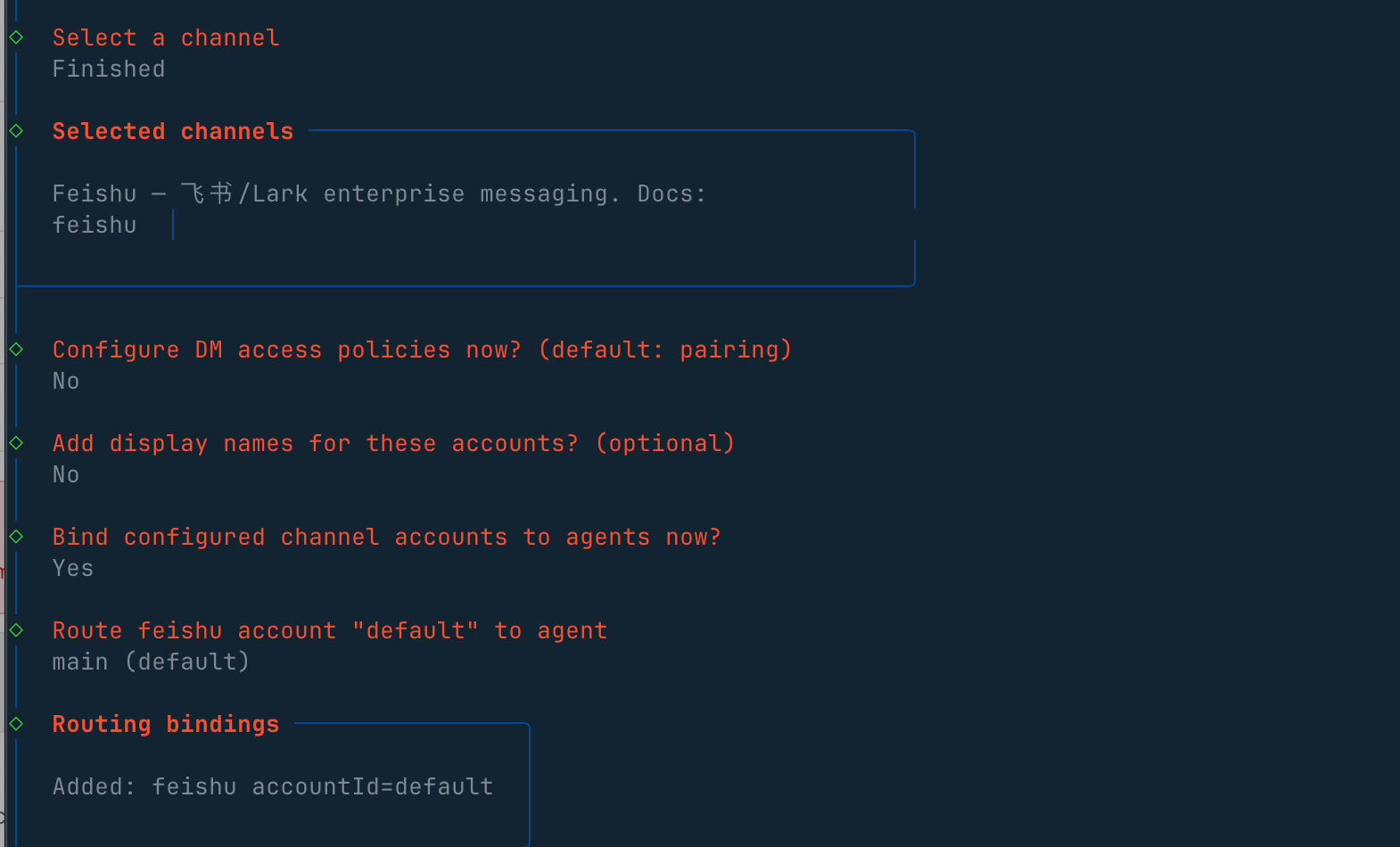
After making selections, go back to the menu and selectFinished, then press Enter for the rest to use defaults, and the Feishu configuration is complete.
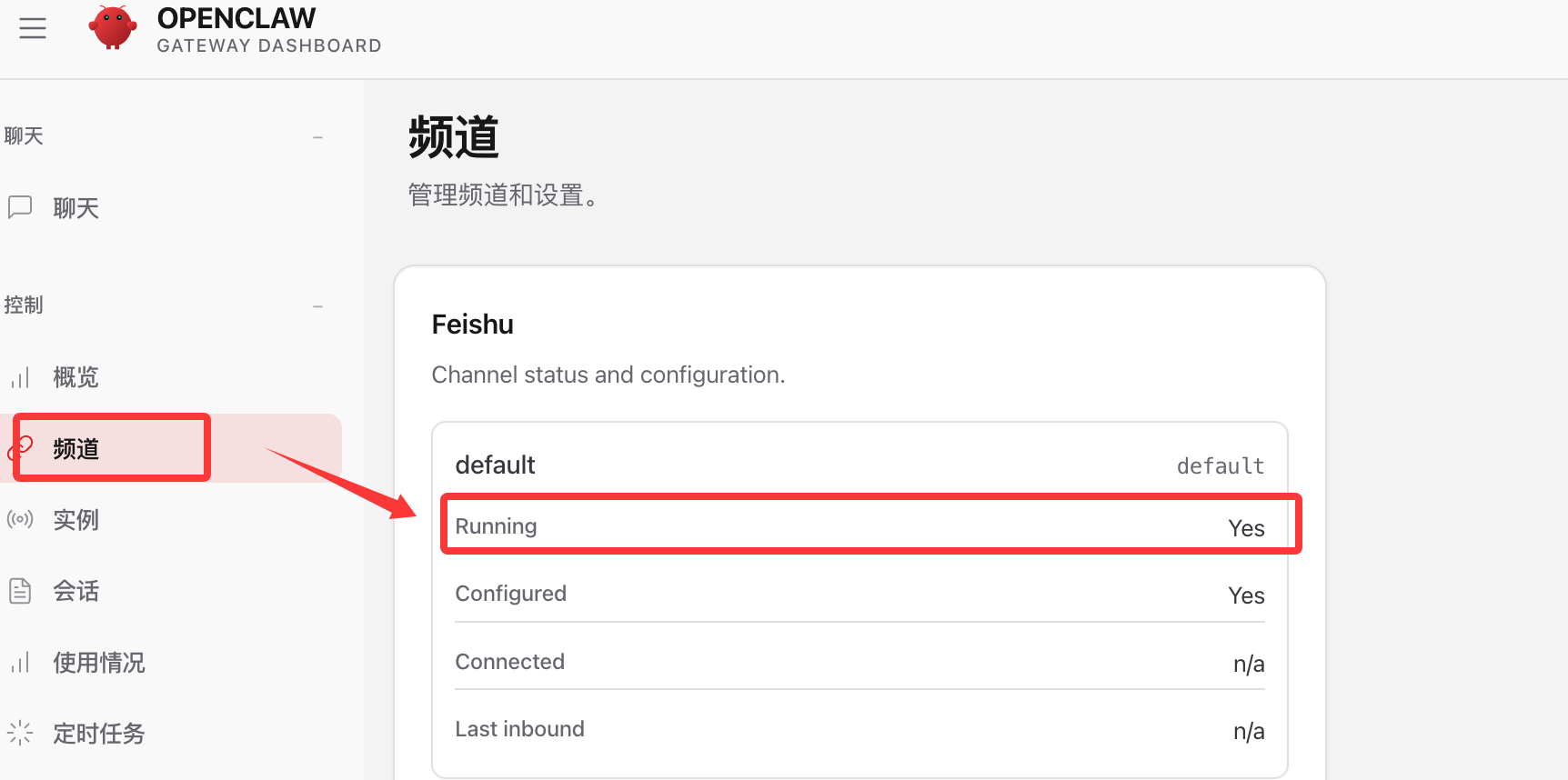
Go back to the web interface, check the channel options, and you can see that Feishu has been enabled:
Enable Bot Capabilities
Next, go back to the app creation interface in Feishu. From the left menu → Add App Capability → Bot, click the "Add" button to enable the bot capability:

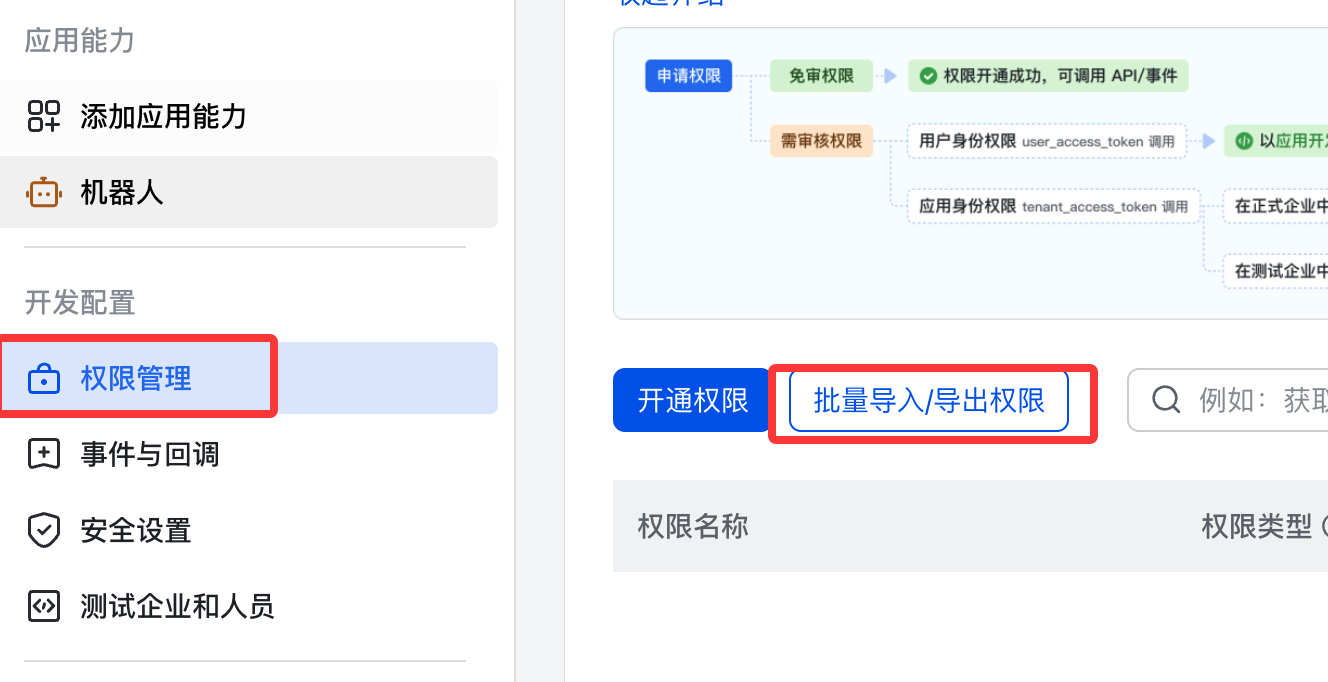
Configure permissions. From the left menu → Permission Management → Batch Import/Export Permissions:
Paste the following JSON:
{
  "scopes": {
    "tenant": [
      "aily:file:read",
      "aily:file:write",
      "application:application.app_message_stats.overview:readonly",
      "application:application:self_manage",
      "application:bot.menu:write",
      "cardkit:card:read",
      "cardkit:card:write",
      "contact:user.employee_id:readonly",
      "corehr:file:download",
      "event:ip_list",
      "im:chat.access_event.bot_p2p_chat:read",
      "im:chat.members:bot_access",
      "im:message",
      "im:message.group_at_msg:readonly",
      "im:message.p2p_msg:readonly",
      "im:message:readonly",
      "im:message:send_as_bot",
      "im:resource"
    ],
    "user": ["aily:file:read", "aily:file:write", "im:chat.access_event.bot_p2p_chat:read"]
  }
}

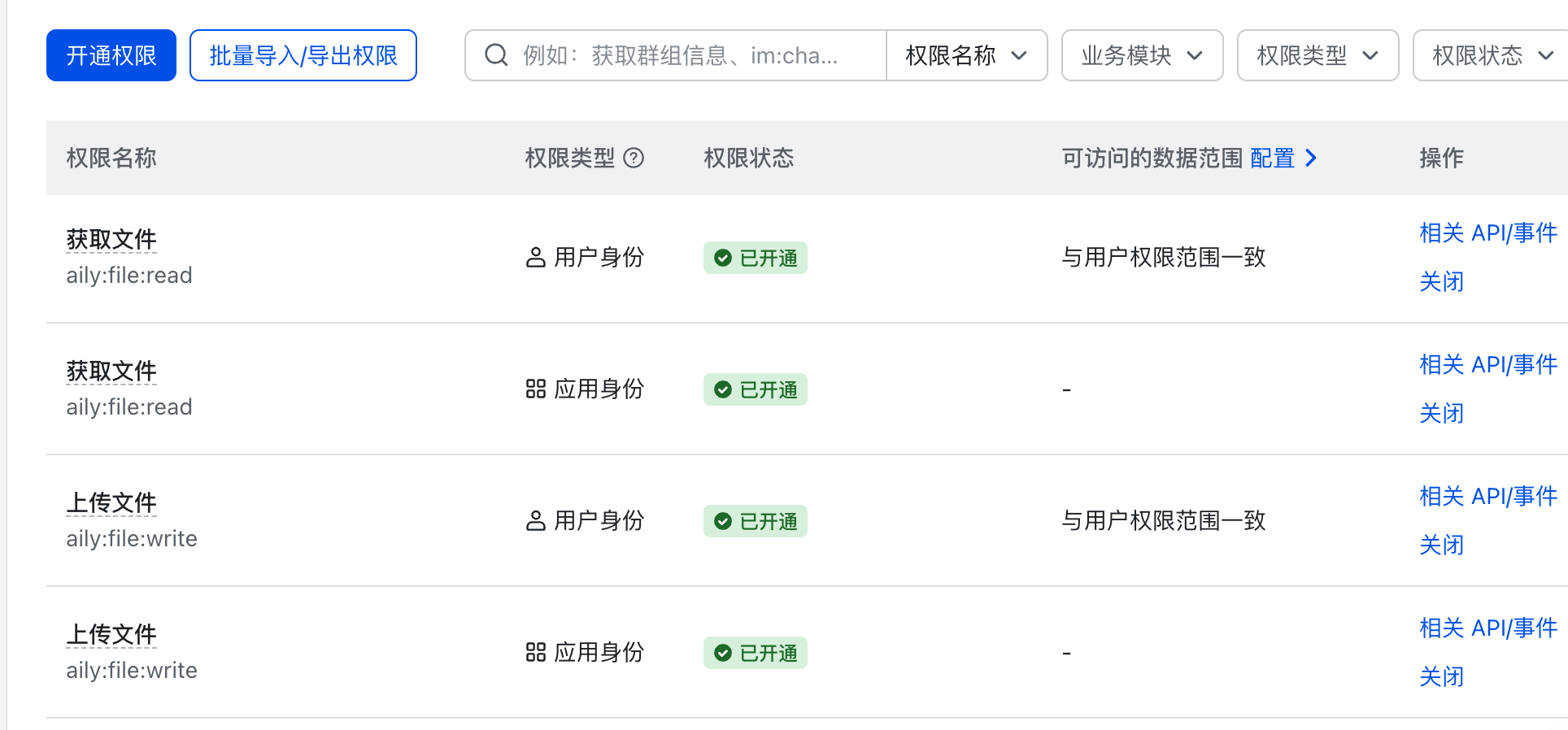
Permission list:
Configure Event Subscription
Next, we need to subscribe to related events for the app. In the left menu, select Events & Callbacks → Event Configuration:

For the subscription method, use a long connection to receive events (WebSocket), then save.
Add the following events:
- im.message.receive_v1 - Receive messages
- im.message.message_read_v1 - Message read receipt
- im.chat.member.bot.added_v1 - Bot added to group
- im.chat.member.bot.deleted_v1 - Bot removed from group
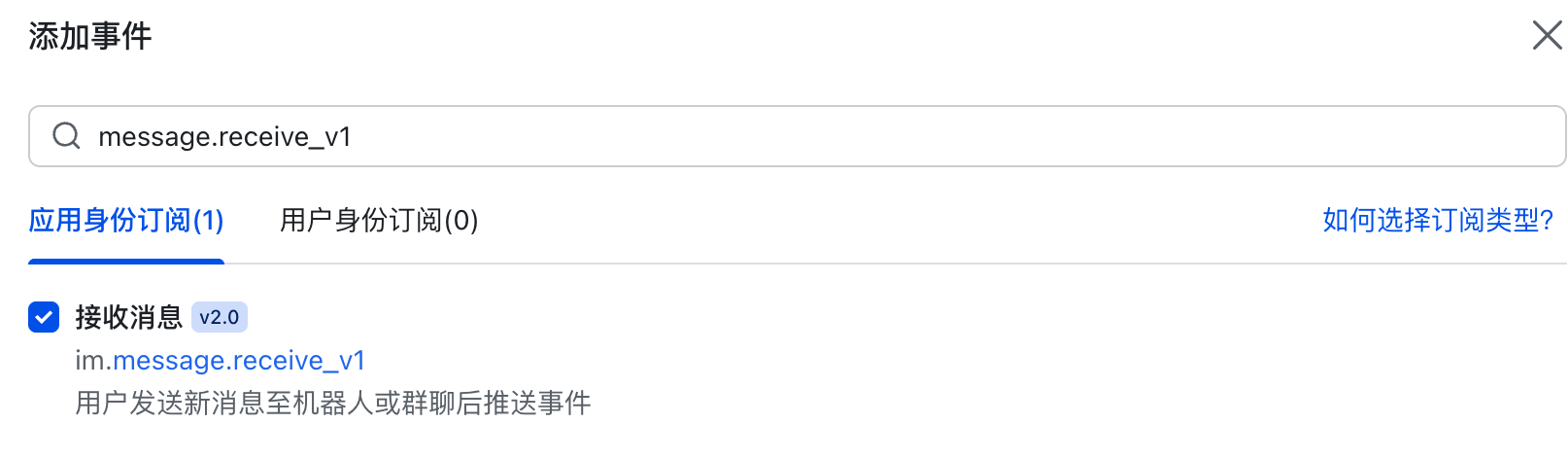
Added events list:

Publish the App
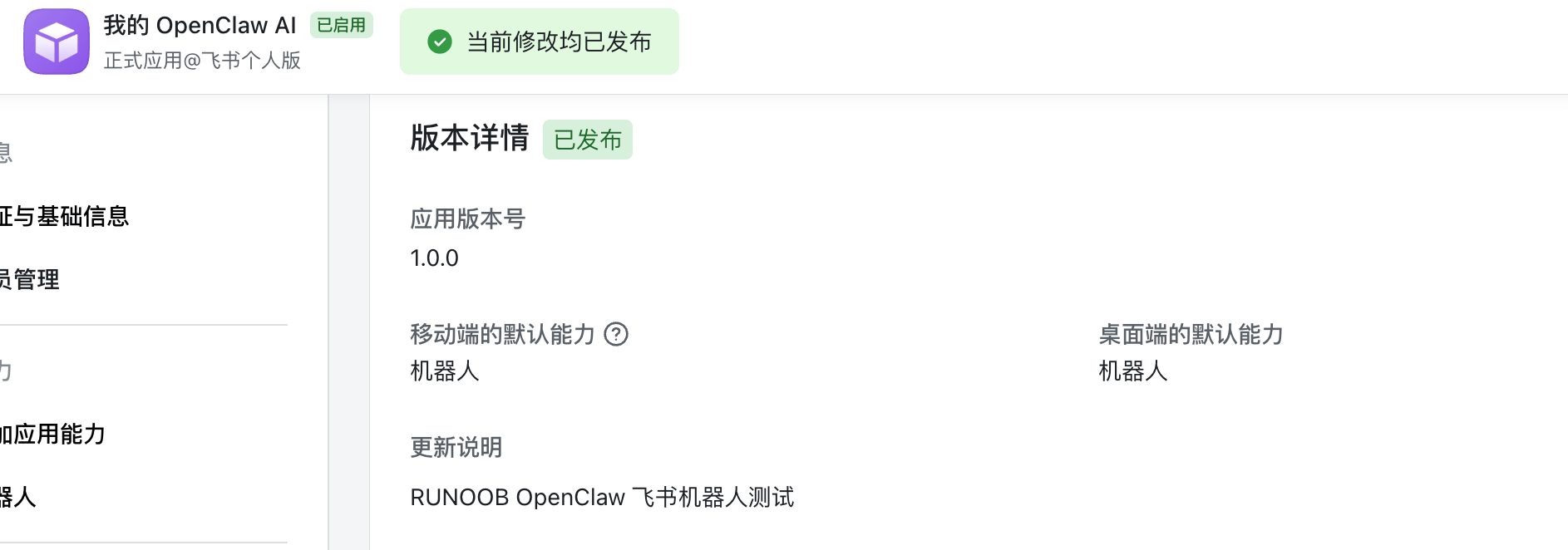
From the left menu → Version Management & Release → Create Version → Submit for Review → Publish:

Release information:
Start and Test
Start openclaw:
openclaw gateway
或
openclaw gateway --port 18789
Use Feishu to create a test group:

In the group settings, add the bot we just created:
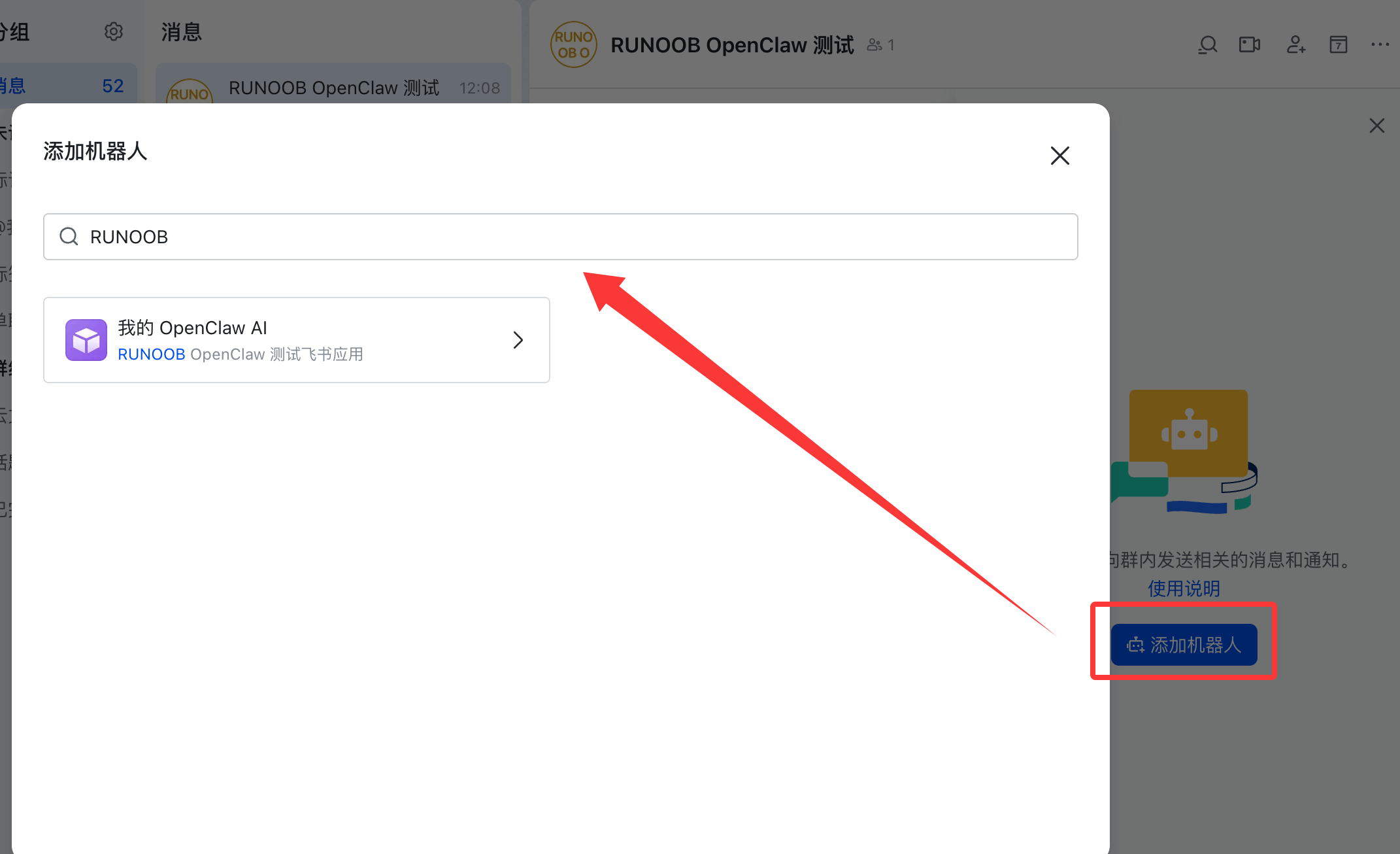
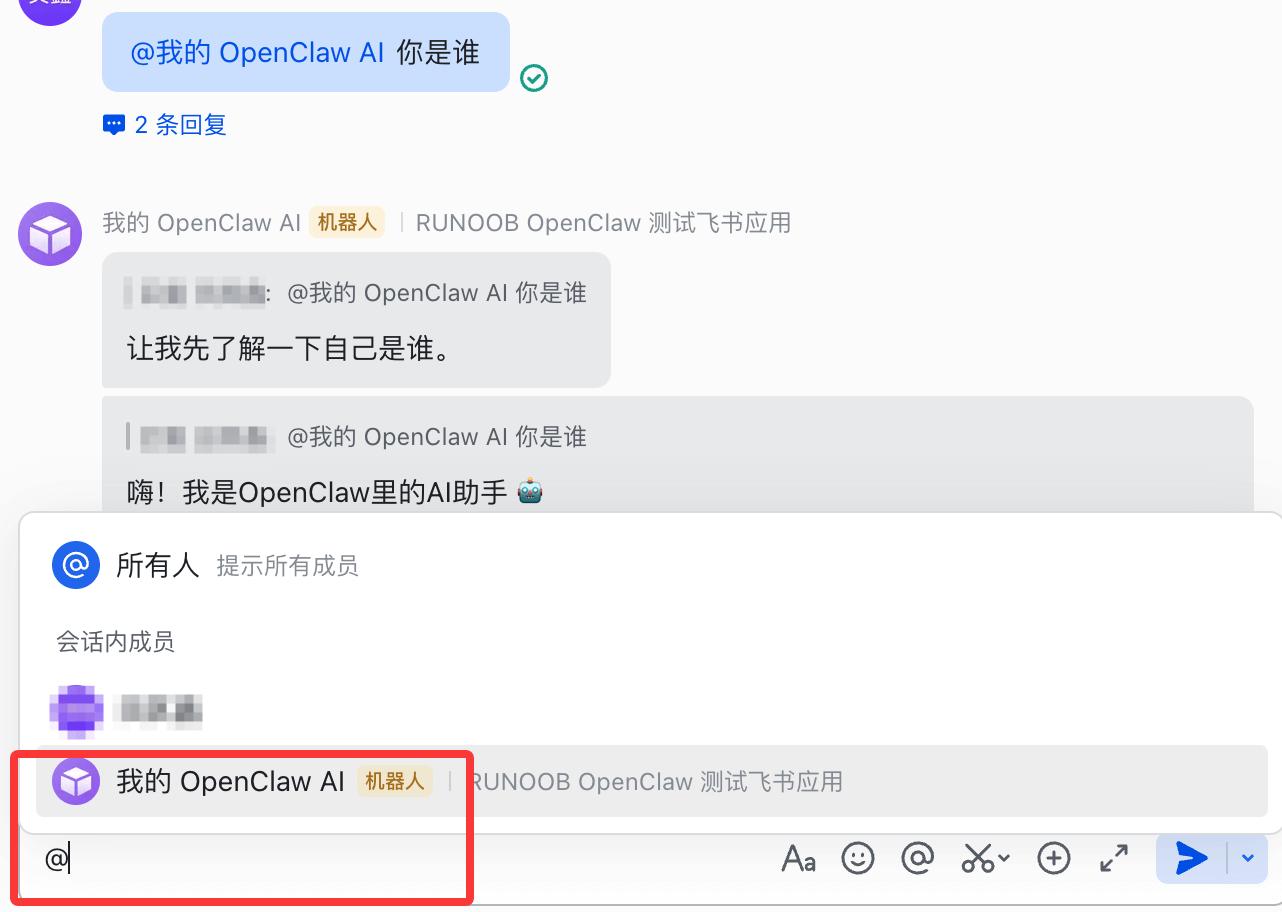
Next, we can start chatting with OpenClaw. You can @ it to introduce itself. A normal reply means the process is working: