Running Ollama Models
To run a model with Ollama, use theollama runcommand.
For example, to run qwen3.5:0.8b and chat with this model, you can use the following command:
The first run automatically downloads it, about 1.0GB:
ollama run qwen3.5:0.8b
After executing the command, you will first see the download progress. Once the download is complete, you will directly enter the conversation:
$ ollama run qwen3.5:0.8b
pulling manifest
pulling 87497c5f0e8f... 100% |████████████████████| 1.0GB
pulling 5e2ad5... 100% |████████████████████|  11KB
verifying sha256 digest
writing manifest
success
>>> 你好,你是什么模型?

>>> /bye
Seeing>>>the prompt means the model has finished loading. Type a question and press Enter to start chatting.
If the network disconnects during download, you don't need to start over. Ollama supports resumable downloads. Running the same command again will continue from the previous progress.

Select a model using the interactive menu
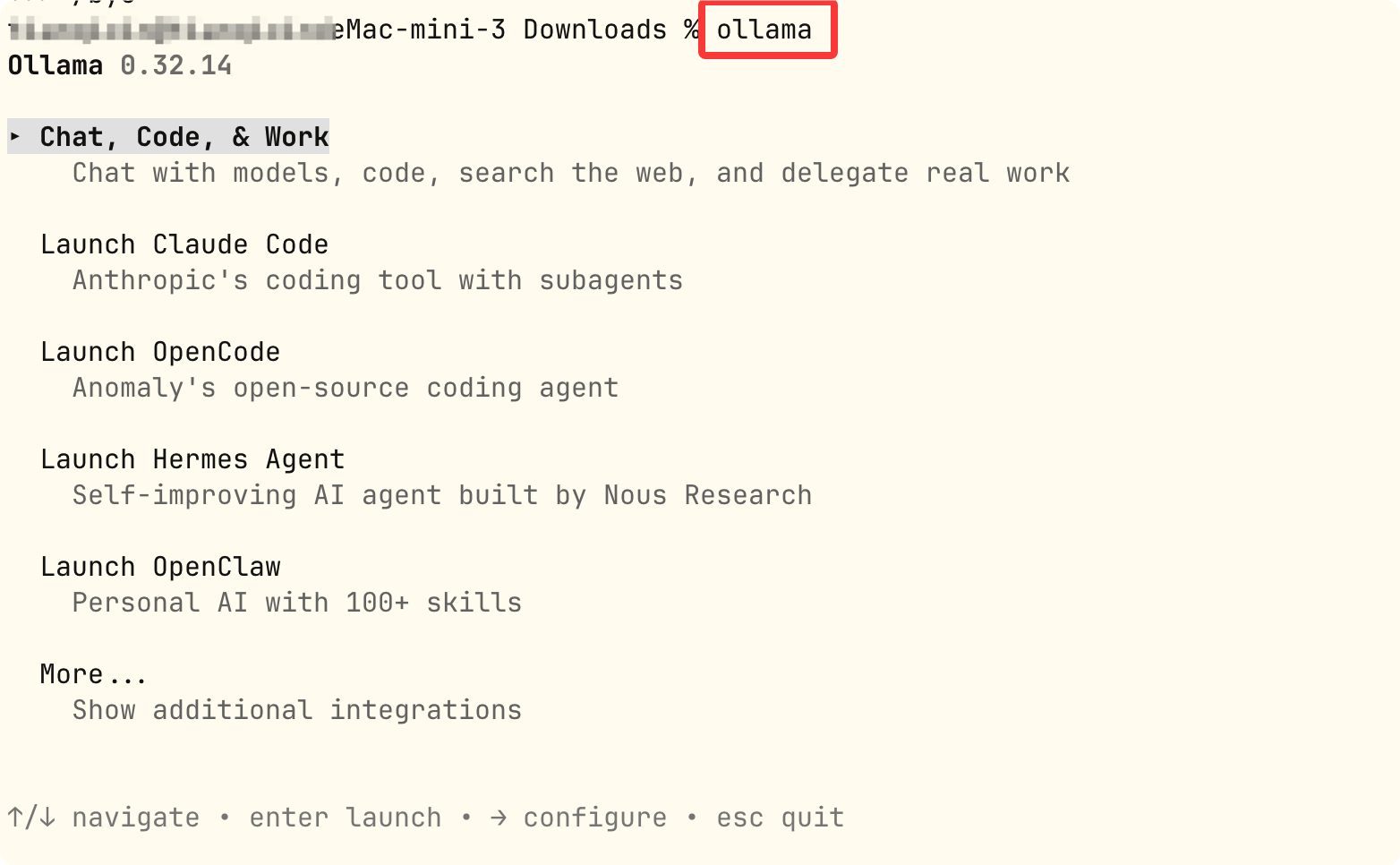
In addition to typing commands directly, simply entering ollama without arguments will open the interactive menu. The new version makes it a unified entry point.
$ ollama
Chat, Code, & Work
    Chat with models, code, search the web, and delegate real work

  Launch Claude Code
    Anthropic's coding tool with subagents

  Launch OpenCode
    Anomaly's open-source coding agent

  Launch Hermes Agent
    Self-improving AI agent built by Nous Research

  Launch OpenClaw
    Personal AI with 100+ skills

  More...
    Show additional integrations
Select Chat, Code, & Work to pick a downloaded model and start chatting. The effect is exactly the same as ollama run.
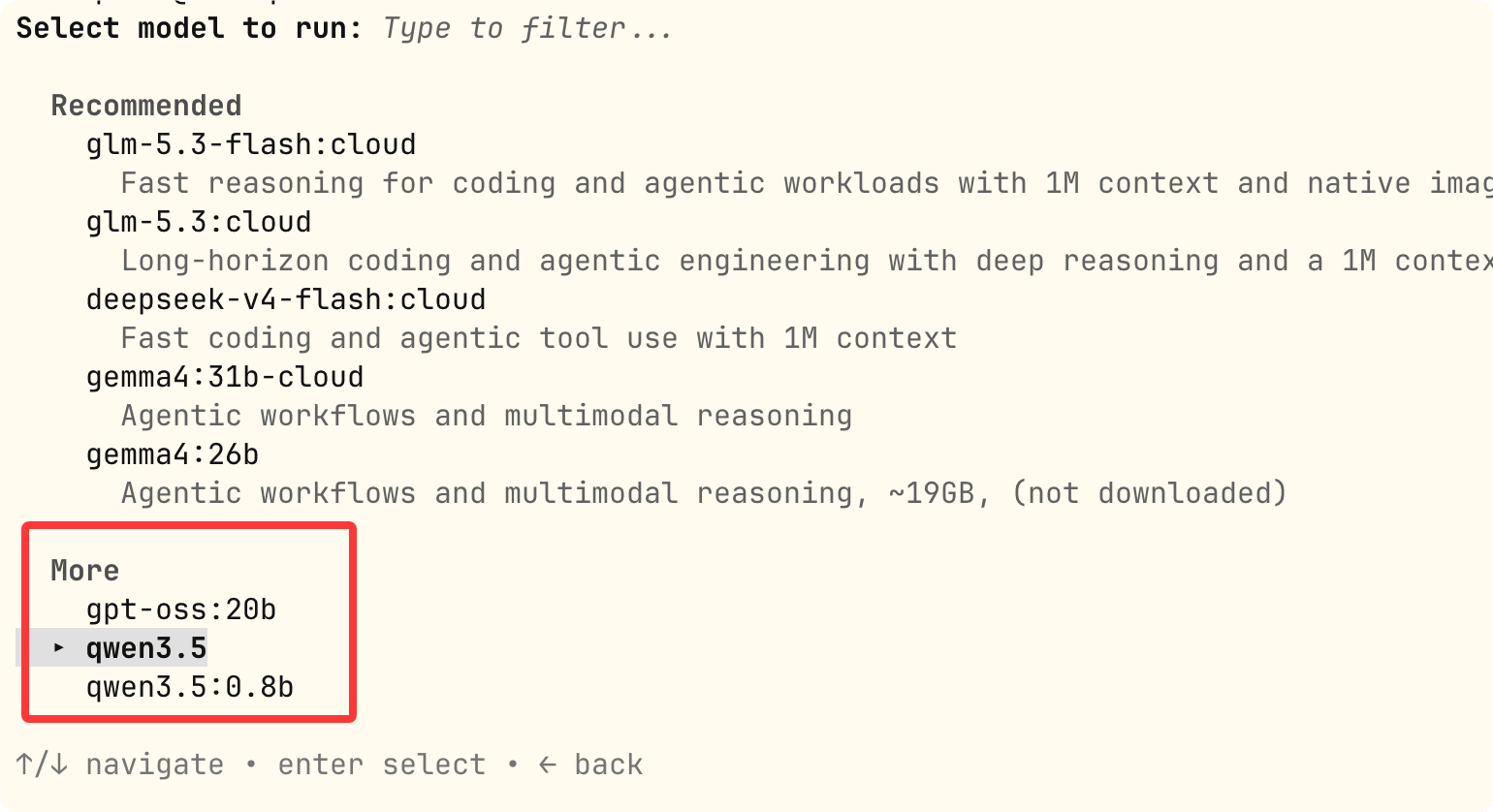
Here you can select the model:
Launch in the menu is used to start integrated tools such as VS Code, Claude Code, etc. This is an advanced feature that will be introduced later in the tutorial.
Pick your first model: choose based on your memory
Bigger models are not necessarily better. A model your machine can't handle will only make your computer's fans spin wildly, and responses will be measured in seconds or even minutes.
The principle for beginners is simple: start with a small model first, then gradually increase once it runs smoothly. Choose based on your machine's memory and VRAM:
| Your machine configuration | Recommended tag | Download size | Expected experience |
|---|---|---|---|
| 8GB RAM, no dedicated GPU | qwen3.5:0.8b / 2b | 1.0 ~ 2.7GB | Lightweight and smooth for conversations |
| 16GB RAM, no dedicated GPU | qwen3.5:4b / 9b | 3.4 ~ 6.6GB | Default spec, balanced quality and speed |
| GPU with 8GB or more VRAM | qwen3.5:9b or qwen3.5:latest | About 6.6GB | GPU acceleration, significantly faster speed |
| GPU with 16GB or more VRAM | qwen3.5:27b | About 17GB | Higher quality long-form text and code |
| Insufficient configuration | qwen3.5:cloud | No download required | Cloud inference, requires logging in to an Ollama account |
Different specs of the same model have real capability differences. 0.8b is suitable for verification environments. For daily use, it's recommended to start with at least 4b.
Understand the model:tag naming convention
The name you write in the command consists of two parts: model name + tag. This determines exactly what you download.
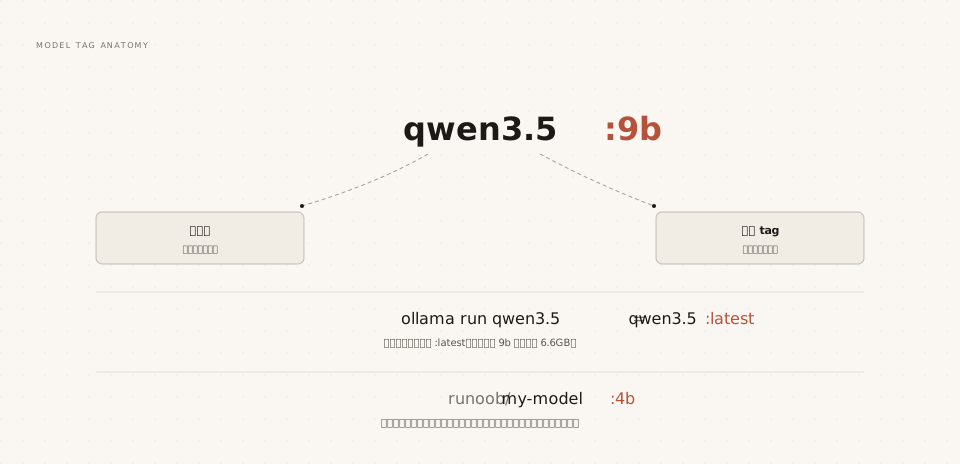
Model name: the family name
The model name corresponds to a family in the official model library, such as qwen3.5, gemma4, deepseek-r1.
There can be multiple specs under the same family, and they share a model name.
Tag: specification and version
The tag determines which specific file is downloaded. Common tags are parameter specifications, such as 0.8b, 9b, 27b.
When no tag is specified, Ollama automatically addslatest, which is the default spec set by the official for that model.
For qwen3.5,ollama run qwen3.5is equivalent toollama run qwen3.5:latest, currently pointing to the 9b spec.
Namespace: who published it
Names with a slash indicate models published by third parties. The part before the slash is the publisher's username.
Models in the official model library have no namespace. Models published by individuals or teams (e.g., in the format example/my-model:4b) will have one. Sharing and distribution of models are demonstrated in the private deployment chapter.
View downloaded models
If you're unsure which models are locally available and how much space each occupies, use the list command to check:
Example
ollama list
$ ollama list
NAME               ID            SIZE      MODIFIED
qwen3.5:0.8b       9e3f4b3a1c2d  1.0GB     5 minutes ago
qwen3.5:latest     a8b2c9d3e4f5  6.6GB     2 hours ago
The next chapter will cover model management commands such as list, show, and rm comprehensively.
Exit, re-enter, and switch models
In a conversation, type/byeto exit and return to the normal terminal.
Example
/bye
Running the same ollama run command again will re-enter the conversation. Since the model has already been downloaded, this time it starts almost instantly.
To switch to another model for chat, simply run another model. You can switch back and forth between the two models:
Example
ollama run qwen3.5:4b
# Switching back is the same
ollama run qwen3.5:0.8b
After switching, the previous model stays in memory for about 5 minutes and is automatically unloaded if there are no new requests. This mechanism is called keep-alive. The next chapter will explain how to adjust it.
When entering multi-line text in a conversation, wrap it in three double quotes:
Example
... EXAMPLE is a tutorial website.
... Thank you.
... """
Using the model via the Python SDK
If you want to integrate Ollama with Python code, you can use Ollama's Python SDK to load and run models.
1. Install the Python SDK
First, you need to install Ollama's Python SDK. Open a terminal and execute the following command:
pip install ollama
2. Write a Python script
Next, you can use Python code to load and interact with the model.
The following is a simple Python script example demonstrating how to use the qwen3.5 model to generate text:
Example
response = ollama.generate(
model="qwen3.5", # Model name
prompt="Who are you." # Prompt text
)
print(response)
3. Run the Python script
Run your Python script in the terminal:
python test.py
You will see the model's reply based on your input.
4. Chat mode
Example
response = chat(
model="qwen3.5",
messages=[
{"role": "user", "content": "Why is the sky blue?"}
]
)
print(response.message.content)
This code will have a conversation with the model and print the model's reply.
5. Streaming responses
Example
stream = chat(
model="qwen3.5",
messages=[{"role": "user", "content": "Why is the sky blue?"}],
stream=True
)
for chunk in stream:
print(chunk["message"]["content"], end="", flush=True)
This code receives the model's response in a streaming manner, suitable for processing large amounts of data.
Other extensions