Linux jobs Command
 Linux Command Reference
jobsis a built-in command in Linux/Unix systems used to view and manage background tasks in the current shell session. It allows users to:
- View the status of all background jobs
- Control switching jobs between foreground and background
- Manage the execution of multiple concurrent tasks
When you run long-running commands in the terminal,jobsthe command can help you efficiently manage these background processes.
Basic Syntax
jobs [选项] [作业标识符]
Common Options
| Option | Description |
|---|---|
-l |
Display the job's PID (Process ID) |
-p |
Display only the job's process group ID |
-n |
Display only jobs whose status has changed since the last notification |
-r |
Display only running jobs |
-s |
Display only stopped jobs |
Detailed Core Features
1. View Background Jobs
The simplest usage is to directly enter thejobscommand:
Examples
[1] - running sleep 100 &
[2] + stopped vim file.txt
Output Explanation:
[1]: Job number (Job ID)-/+:-indicates the previous job,+indicates the current jobrunning/stopped: Job status- The last part is the command that started the job
2. Display Detailed Process Information
Use the-loption to view the job's process ID:
Examples
[1] - 12345 running sleep 100 &
[2] + 12356 stopped vim file.txt
3. Filter Jobs by Specific Status
Examples
$ jobs -r
# View only stopped jobs
$ jobs -s
Practical Application Scenarios
Scenario 1: Running Long Tasks in the Background
Examples
$ long_running_command &
# View background jobs
$ jobs
[1] + running long_running_command &
Scenario 2: Suspending and Resuming Jobs
Examples
$ vim file.txt
# Press Ctrl+Z to suspend vim
^Z
[1] + stopped vim file.txt
# View stopped jobs
$ jobs -s
[1] + stopped vim file.txt
# Restore vim to the foreground
$ fg %1
Scenario 3: Managing Multiple Background Jobs
Examples
$ sleep 100 &
$ sleep 200 &
$ sleep 300 &
# View all jobs
$ jobs -l
[1] 12345 running sleep 100 &
[2] -12356 running sleep 200 &
[3] +12367 running sleep 300 &
# Restore job 2 to the foreground
$ fg %2
# Terminate job 3
$ kill %3
Job Control Command Combinations
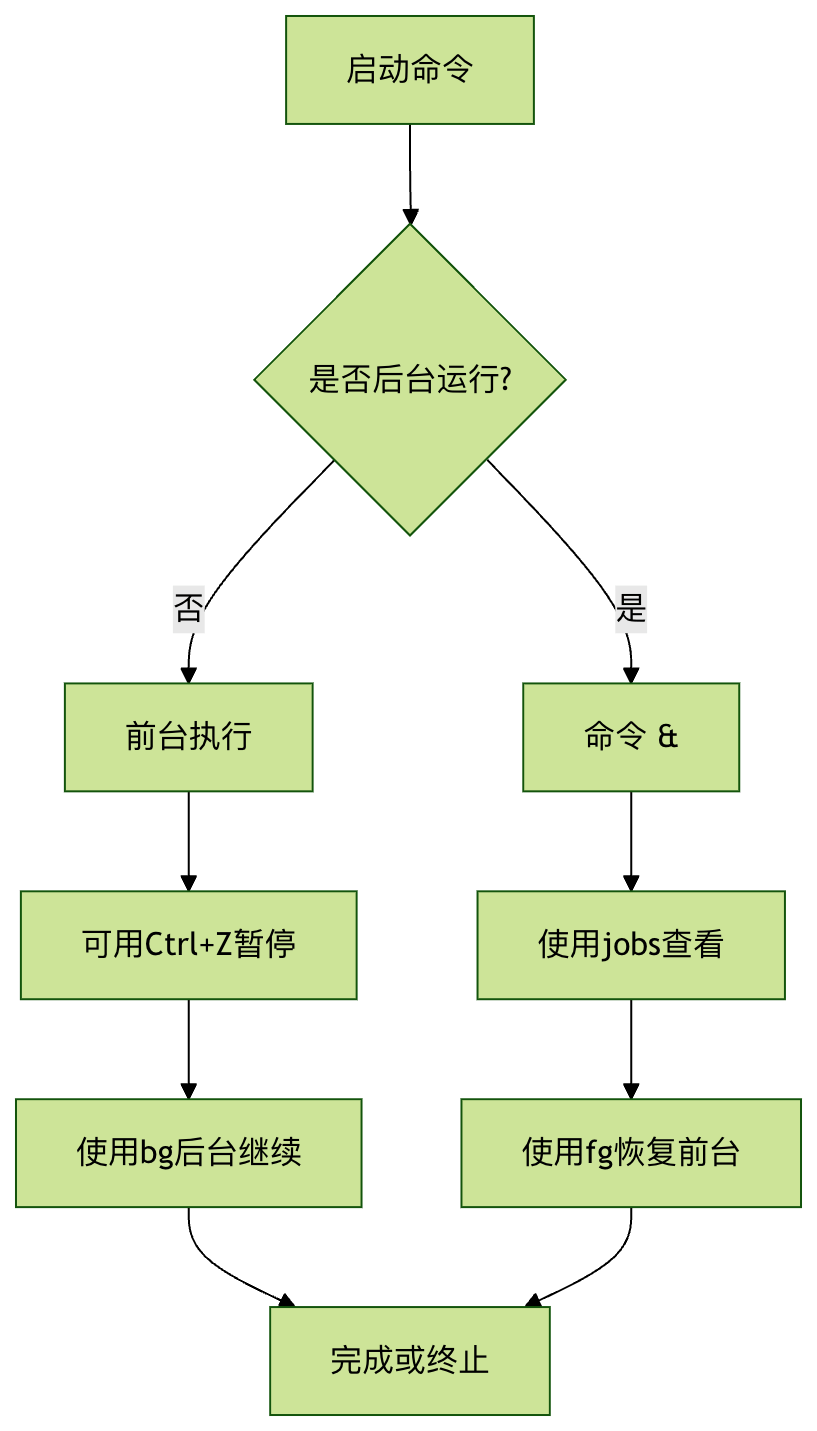
jobsUsually used together with other job control commands:
| Command | Description | Example |
|---|---|---|
& |
Put a command in the background | command & |
Ctrl+Z |
Suspend the current foreground job | Key combination |
fg |
Restore a job to the foreground | fg %1 |
bg |
Continue running a stopped job in the background | bg %2 |
kill |
Terminate a specified job | kill %3 |
Frequently Asked Questions
Q1: Why do background jobs terminate after closing the terminal?
A: By default, background jobs are associated with the terminal session. Usingnohupordisowncan keep jobs running after the terminal is closed:
Examples
Q2: How to reference a specific job?
A: Use%plus the job number:
%1: Job 1%2: Job 2%+or%%: Current job%-: Previous job
Q3: What is the difference between the jobs and ps commands?
A:
jobsOnly displays jobs in the current shell sessionpsDisplays all system processes, including processes from other users and terminals
Best Practice Recommendations
Redirect output for background jobs: Avoid output interfering with the current terminal
$ command > output.log 2>&1 &
Use descriptive names: Makes it easier to identify different jobs
$ (sleep 300; echo "Done") &
Regularly check job status: Prevent accumulation of a large number of unfinished jobs
$ watch -n 60 jobs
Use nohup for important jobs: Ensure they continue running after the terminal disconnects
$ nohup important_command &
Summary Flowchart