Windows WSL Install Linux
WSL(Windows Subsystem for Linux)It is a subsystem provided by Microsoft for Windows users, which allows you to run Linux natively on Windows (not a virtual machine, not a dual system), directly using Linux tools such as Bash, apt, gcc, Python, Node.js, etc.
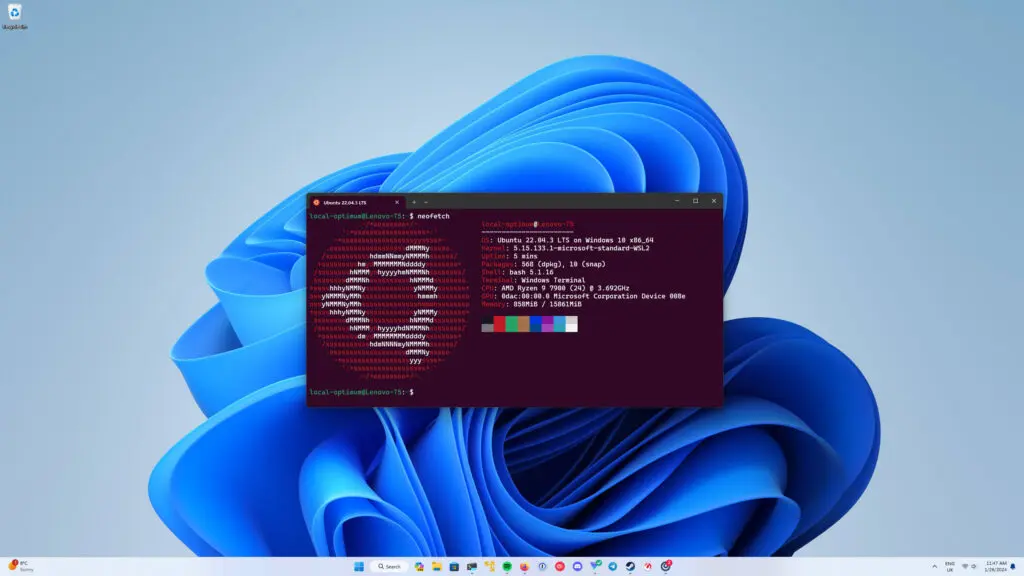
WSL Version Differences
| Feature | WSL1 | WSL2 |
|---|---|---|
| Kernel Architecture | Translates system calls (compatibility layer) | Real Linux kernel (lightweight virtual machine) |
| Performance (File Access) | Faster Windows ↔ Linux access | Faster Linux ↔ Linux internal access |
| Startup Speed | Faster | Slightly slower |
| Docker Support | Not supported | ✅ Fully supported |
| System Resource Usage | Less | Slightly higher |
Recommended to useWSL2, with stronger compatibility and more complete features.
Installation Steps (Using WSL2 as an Example)
Prerequisites
- Windows 10 2004 (or higher) / Windows 11
- Enable virtualization (VT-x or AMD-V enabled in BIOS)
Method 1: One-click Installation (Recommended)
wsl --install
This command will automatically:
- Enable WSL feature
- Install WSL2 kernel
- Install the default Ubuntu
- Set to WSL2
After installation, restart the system once.
Method 2: Manual Installation (Suitable for Custom Needs)
1. Enable WSL feature and Virtual Machine Platform
dism.exe /online /enable-feature /featurename:Microsoft-Windows-Subsystem-Linux /all /norestart
dism.exe /online /enable-feature /featurename:VirtualMachinePlatform /all /norestart
2. Download and install the Linux kernel update package
👉 Download address:https://aka.ms/wsl2kernel
3. Set the default WSL version to WSL2
wsl --set-default-version 2
4. Install a Linux distribution (such as Ubuntu) from the Microsoft Store
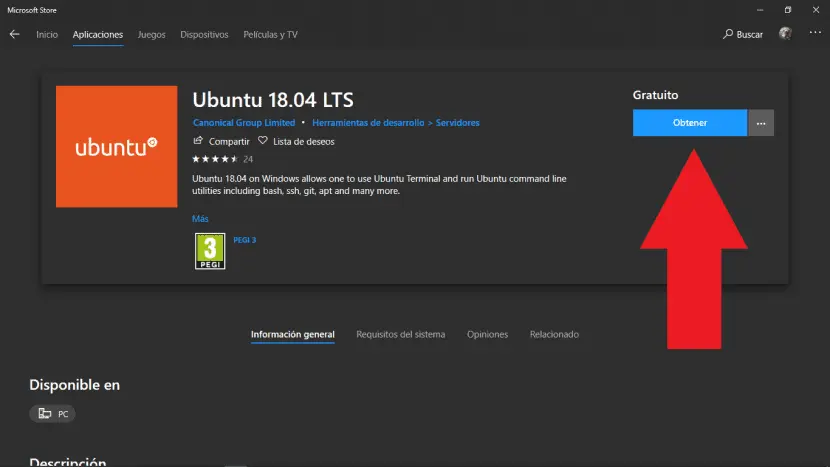
You can also install via command line:
wsl --install -d Ubuntu
Common Commands Quick Reference
| Command | Description |
|---|---|
wsl |
Start the default Linux |
wsl --list --verbose |
View installed distributions and versions |
wsl --set-version Ubuntu 2 |
Set Ubuntu to use WSL2 |
wsl --install -d Debian |
Install a specified distribution |
wsl --shutdown |
Shut down all WSL instances |
wsl -e bash |
Start Linux Shell with Bash |
Daily Usage Guide
How to access Windows files?
In WSL, Windows files are mounted in directories such as /mnt/c, /mnt/d:
cd /mnt/c/Users/你的用户名/Desktop
How to access WSL files?
Access in Windows:
\\wsl$\Ubuntu\home\your_username
Or enter in the Explorer address bar:\\wsl$
Recommended Companion Tools
| Tool | Description |
|---|---|
| Windows Terminal | Multi-tab terminal, supports colors and custom configuration |
| VS Code + Remote WSL | Edit Linux files directly in VS Code |
| oh-my-zsh / fish | Beautify the terminal, improve the operating experience |
| tmux / screen | Multi-terminal management tool |
How to Uninstall or Reset?
# 卸载某个 Linux 发行版
wsl --unregister Ubuntu

# 重置 WSL 所有数据(危险操作)
wsl --unregister <发行版名>
Other Extensions