Linux apt command
apt (Advanced Packaging Tool) is a Shell front-end package manager in Debian and Ubuntu.
The apt command provides commands to find, install, upgrade, delete a single, a group, or even all software packages, and the commands are concise and easy to remember.
Executing the apt command requires super administrator (root) privileges.
apt syntax
apt [options] [command] [package ...]
- options:Optional, options include -h (help), -y (when the installation process prompts, select all as "yes"), -q (do not display the installation process), etc.
- command:The operation to be performed.
- package: the package name to install.
apt common commands
-
Command to list all updatable software packages:sudo apt update
-
Upgrade software packages:sudo apt upgrade
List updatable software packages and version information:apt list --upgradable
Upgrade software packages, and remove packages that need updating before upgrading:sudo apt full-upgrade
-
Command to install a specified software package:sudo apt install <package_name>
Install multiple software packages:sudo apt install <package_1> <package_2> <package_3>
-
Command to update a specified software package:sudo apt update <package_name>
-
Display specific information about a software package, e.g., version number, installed size, dependencies, etc.:sudo apt show <package_name>
-
Command to delete a software package:sudo apt remove <package_name>
-
Clean up unused dependencies and library files:sudo apt autoremove
-
Remove software package and configuration files:sudo apt purge <package_name>
-
Command to search for software packages:sudo apt search <keyword>
-
List all installed packages:apt list --installed
-
List version information of all installed packages:apt list --all-versions
Examples
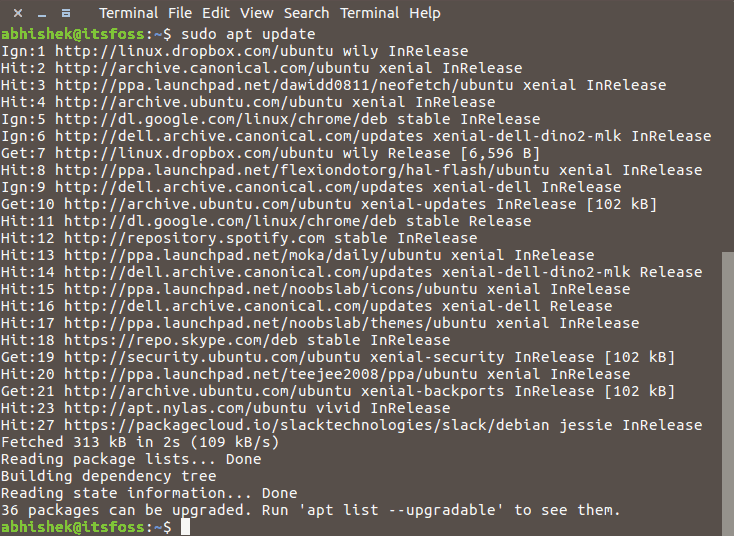
View some updatable packages:
sudo apt update
Upgrade installed packages:
sudo apt upgrade
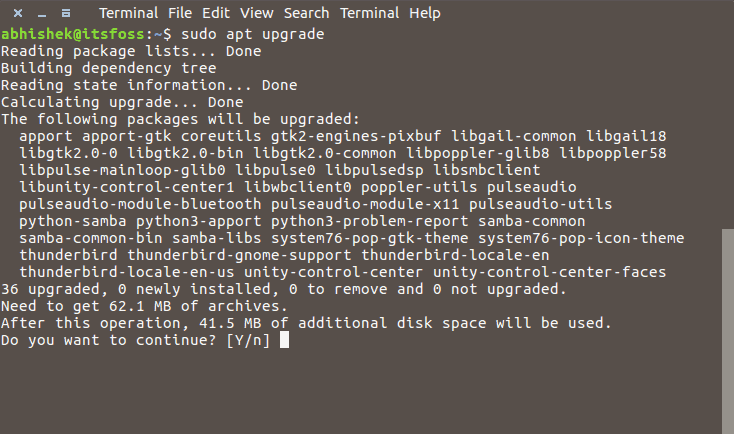
In the above interactive prompt, enter a letterYto start the upgrade.
You can combine the following two commands to upgrade with one click:
sudo apt update && sudo apt upgrade -y
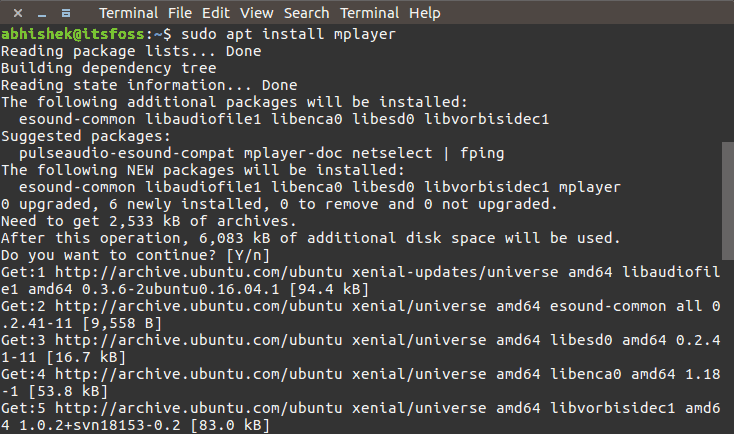
Install the mplayer package:
sudo apt install mplayer
If you don't remember the full package name, you can just enter the first part of the package name, and then pressTabkey, and it will list related package names:

In the above example, we enteredreds, and then pressedTabkey, and it listed four related packages.
If we want to install a software package, but if it already exists, do not upgrade it, we can use the–no-upgradeoption:
sudo apt install <package_name> --no-upgrade
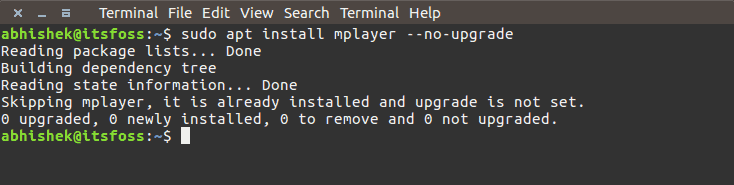
Install mplayer; if it exists, do not upgrade:
sudo apt install mplayer --no-upgrade
If you only want to upgrade, not install, you can use the--only-upgradeparameter:
sudo apt install <package_name> --only-upgrade
Only upgrade mplayer; if it does not exist, do not install it:
sudo apt install mplayer --only-upgrade
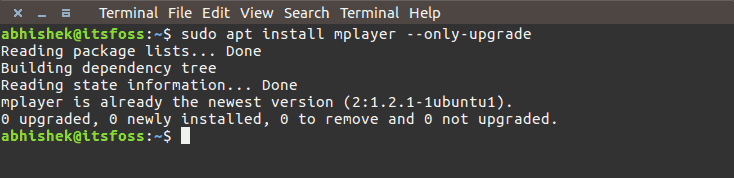
If you need to specify a version, the syntax format is as follows:
sudo apt install <package_name>=<version_number>
package_nameis the package name,version_numberis the version number.
To remove a package, you can use the remove command:
sudo apt remove mplayer
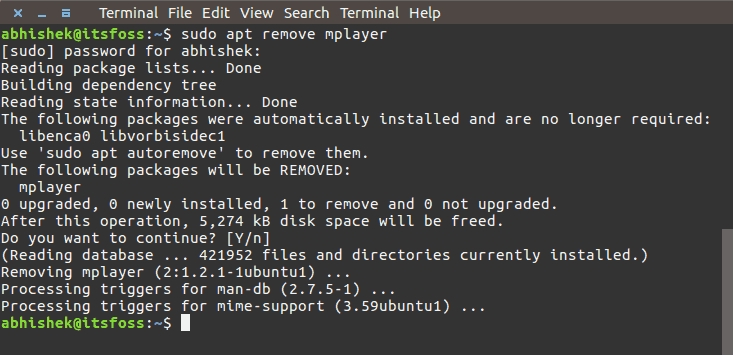
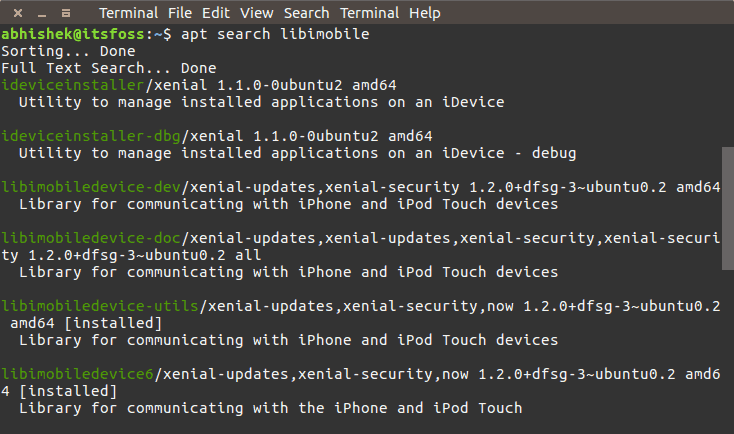
Search for packages named libimobile:
apt search libimobile
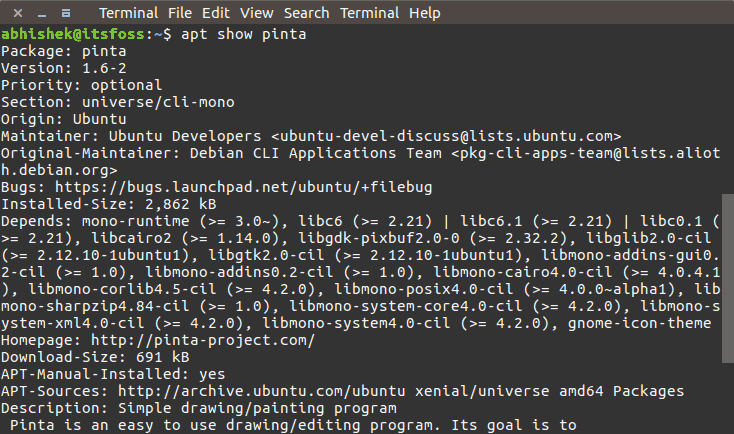
View information about the pinta package:
apt show pinta
List updatable software packages:
apt list --upgradeable
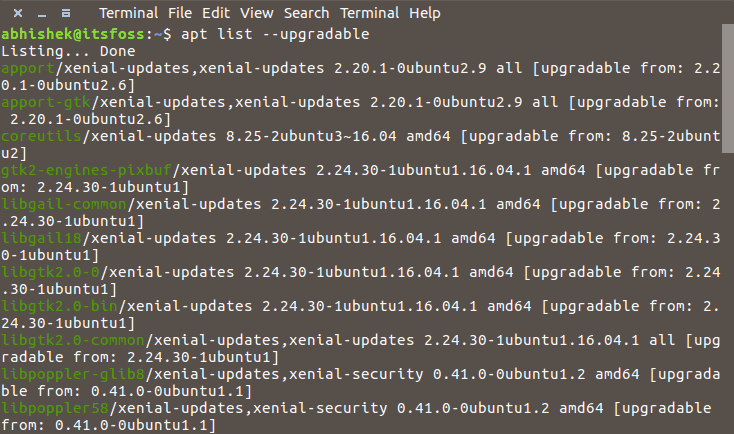
Clean up unused dependencies and library files:
sudo apt autoremove
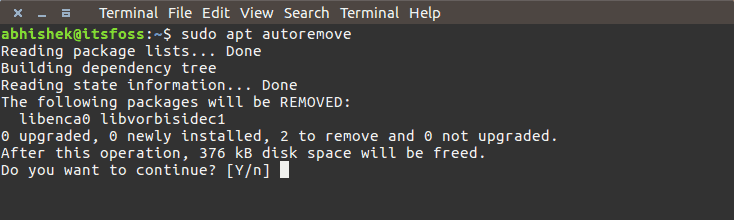
In the above interactive prompt, enter a letterYto start cleaning up.
Other extensions